
Does Mobile Legends keep disconnecting or prevent you from joining a match? Learn how to fix Mobile Legends network error, overcome matchmaking failures and reconnecting loops.
Are you trying to grind your rank, but Mobile Legends: Bang Bang (MLBB) keeps getting stuck on the loading screen, dropping your matches, or spamming “Current Network Is Unavailable”? Dealing with a Mobile Legends Network Error can ruin your win streak, especially if you see messages like Network Connection Failed, Unable to Connect to Server, or Mobile Legends Network Is Not Present.
The most frustrating part of a Mobile Legends network problem is getting a Mobile Legends network error despite good internet—your Wi-Fi might be working perfectly for YouTube and TikTok, but Mobile Legends still refuses to connect. This type of Mobile Legends connection error can be baffling.
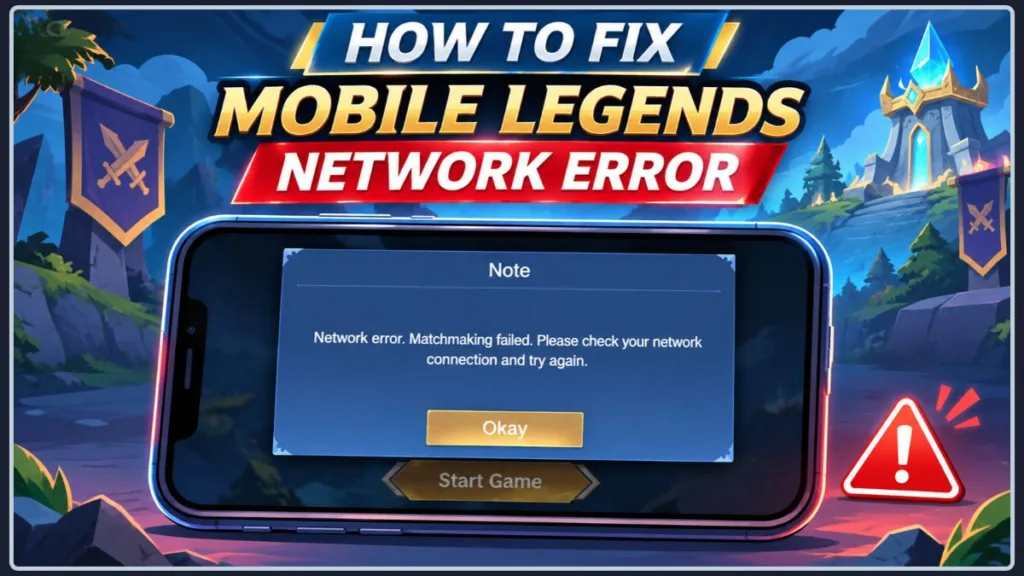
Before you risk an AFK penalty or completely reinstall the game, try the quick fix to identify the culprit and execute the ultimate Mobile Legends network error fix to get back into the Land of Dawn.
Quick Fix Summary:
- Toggle Airplane Mode: Turn it on for 10 seconds, then off to refresh your network routing.
- Network Swap: Immediately switch from Wi-Fi to Cellular (or vice versa) to isolate the issue.
- Kill the VPN: Turn off any active VPNs, ad-blockers, or custom Private DNS settings.
- Check Server Status: Verify on X (Twitter) or Downdetector if Moonton’s servers are currently down.
Is Mobile Legends Down Today? Checking Server Status & Outages
Before changing your device settings, verify that the Network Error isn’t actually a server outage. Is Mobile Legends down today?
Crucial Rule: If Moonton is running scheduled Mobile Legends server maintenance or experiencing a regional Mobile Legends server outage, no amount of troubleshooting on your phone will fix it. Stop trying to change your settings!
How to check what happened to Mobile Legends today:
- Check the official Mobile Legends social media channels for maintenance announcements to understand why is Mobile Legends not working today.
- Look at third-party outage trackers (like Downdetector) to check the Mobile Legends server status and see if there is a sudden spike in player reports indicating a Mobile Legends server down situation.
- Check if the issue is isolated to matchmaking, or if you can’t even get past the login screen due to a Mobile Legends server connection problem.
If servers are operational, the issue is local. Proceed to the fixes below.
Step-by-Step Mobile Legends Network Error Fix: Resolving “Connection Failed”
If the servers are up, but your game ping keeps jumping to red or you encounter the Mobile Legends network connection failed message, run through these device and network fixes. Here is exactly how to fix Mobile Legends network unavailable errors.
1. Fix Mobile Legends Not Working on WiFi or Mobile Data
Your home Wi-Fi might allow normal web browsing but experience severe Mobile Legends packet loss when routing to MLBB game servers. Mobile Legends lag and disconnection often starts here.
- Turn off Wi-Fi and force the game to load on Mobile Data if you find Mobile Legends not working on WiFi.
- Alternatively, if you find Mobile Legends not connecting with mobile data, switch back to Wi-Fi.
- If the game loads perfectly on the alternate connection, your router needs a restart (unplug for 30 seconds), or your ISP is routing traffic poorly.
Pro Tip: Do not enter a ranked match immediately after switching networks; always test your stability in a Classic or Brawl match first to ensure the lag is gone.
2. Resolve Mobile Legends VPN Connection Problems & DNS Settings
A highly common cause of the Mobile Legends network is unavailable error is network interference from a VPN or custom DNS (like an ad-blocker). These disrupt the direct route the game needs to authenticate your account, leading to a Mobile Legends VPN connection problem.
- Disable VPN: Turn off any active VPN apps.
- Disable Private DNS (Android): Adjust your Mobile Legends DNS settings by going to Settings > Network & Internet > Private DNS and change it to Automatic or Off.
3. Check Mobile Legends Network Permissions for Background Data
Sometimes, battery savers or OS updates revoke the game’s permission to use background data, causing a network connection failed Mobile Legends Android error. You need to verify your Mobile Legends network permissions.
- On Android: Go to Settings > Apps > Mobile Legends > Mobile Data and ensure “Allow background data usage” is toggled ON. Turn off “Data Saver” while playing.
- On iOS: Go to Settings > Cellular (or Mobile Data), scroll down to Mobile Legends, and ensure the toggle is green.
4. Stop Mobile Legends High Ping & Packet Loss with Speed Mode
If you can reach the main lobby but suffer from Mobile Legends high ping, use Moonton’s built-in diagnostic tools.
- Tap the Settings gear icon in the top right of the lobby.
- Navigate to the Network tab.
- Tap Network Test to identify packet loss or router delays.
- Toggle Speed Mode to ON. This consumes slightly more data but optimizes your routing to the game server to stabilize ping.
- BlueStacks Tip: If you play on PC via BlueStacks and matchmaking gets stuck, toggle Speed Mode ON, then OFF, and try queuing again.
5. Mobile Legends Clear Cache Guide for Stuck Loading Screens
If Mobile Legends is stuck on the loading screen, a corrupted temporary update file is likely the culprit. Doing a Mobile Legends clear cache can quickly resolve this.
- Android: Go to Settings > Apps > Mobile Legends > Storage and tap Clear Cache.
- You can also use the in-game Network > Resource Repair tool from the main menu if you can access it.
WARNING: Do NOT tap Clear Data under any circumstances, as this deletes your account login and wipes your local save entirely!
Troubleshooting Specific Mobile Legends Connection Errors (Matchmaking & Login)
Fixing “Mobile Legends Matchmaking Failed” & Reconnecting Problems
A Mobile Legends matchmaking failed error occurs when your connection drops exactly as the server tries to place you in a lobby. If you see the exact message “Mobile Legends matchmaking failed please try again later”, or experience a Mobile Legends network error while finding match, it means the server may briefly restrict you. Instead of just restarting your network, ensure your router isn’t forcing you onto a crowded 2.4GHz band. Manually connecting your phone to your router’s 5GHz network band drastically reduces matchmaking latency spikes caused by Bluetooth interference.
If you suffer a Mobile Legends network error during match, you might be trapped in a loop. A Mobile Legends reconnecting problem, specifically the Mobile Legends network connection failed reconnecting loop, requires immediate action. If swapping to cellular doesn’t work, try resetting your mobile APN (Access Point Name) settings to default in your carrier options to flush bad routing data.
Solving “Account Connection Failed” & Check InetAddress Not Reachable
If you see Account Connection Failed Please Retry or Check InetAddress Not Reachable, this is a Mobile Legends connection error when logging in. This is specifically a DNS resolution failure resulting in a Mobile Legends account connection error. Your device literally cannot find the IP address of the MLBB login server, leading to Mobile Legends not loading.
- Instead of just turning off custom DNS, manually override your failing ISP by setting your device DNS to Google Public DNS (Primary:
8.8.8.8, Secondary:8.8.4.4) or Cloudflare (1.1.1.1). This often forces a clean route to the Moonton servers. - Ensure your linked login method (Google, Facebook, TikTok) isn’t experiencing an outage.
Important Account Safety Check: Before reinstalling the app to fix these errors, ensure you have done a Mobile Legends guest account recovery or binding to a Moonton account to avoid losing your saved data! If nothing works, you may need to reach out to Mobile Legends customer support.
Fixing Mobile Legends Network Error During Match & Lag Spikes
If your network is fine but the game freezes or stutters wildly during team fights, it might be a hardware bottleneck rather than a network error. Go to Settings > Graphics and lower your graphics quality to Smooth to see if the “lag” disappears.
FAQ
Why does Mobile Legends say current network is unavailable? The current network is unavailable error appears when your device’s routing blocks the game from establishing a secure connection to Moonton’s servers, often caused by active VPNs, custom DNS profiles, or strict firewall settings on a public Wi-Fi network.
Why is Mobile Legends unable to connect to server? If you are wondering why is Mobile Legends unable to connect to server, it is usually because of an ISP routing bottleneck, outdated game files, or an active server maintenance period where Moonton has temporarily locked access.
Why does Mobile Legends keep reconnecting? A continuous reconnect loop happens when your device experiences severe packet loss. Your phone maintains a basic internet connection, but the data packets sent to the game server are dropping along the way, forcing the game to constantly try to re-establish the connection.
Why is Mobile Legends not loading despite having internet? If you have a strong connection but the game freezes on the loading screen, it is likely due to corrupted local cache files or your phone’s OS actively blocking background data usage for the app via a battery-saver feature.
What happens if Mobile Legends network fails?What happens if Mobile Legends network fails mid-game? Your hero will walk back to base or become unresponsive. If you fail to reconnect quickly, the system will flag you as AFK, resulting in a deduction of your Credit Score (usually -2 to -5 points) and a temporary ban from playing Ranked matches.
How do I know if Mobile Legends is unavailable? Wondering is Mobile Legends unavailable right now? How do I know if Mobile Legends is unavailable? When checking sites like Downdetector, look for a baseline of above 100+ reports within an hour—anything less is usually isolated ISP issues. Furthermore, Moonton typically compensates global server crashes with in-game mail containing Magic Dust or Emblem fragments once the outage is officially resolved.
Why is my Mobile Legends network unstable on WiFi?Wi-Fi is susceptible to interference from walls, microwaves, and other connected devices downloading in the background. If your router has a dual-band network, ensure you are connected to the 5GHz band rather than the crowded 2.4GHz band for lower latency.
Can a VPN fix MLBB connection problems? Usually, standard VPNs make ping worse because they add an extra routing stop. However, specialized gaming VPNs or routing boosters (like GearUP Booster) can sometimes bypass ISP throttling and lower your ping by finding a more direct route to Moonton’s servers.
How to clear Mobile Legends cache to fix network error? Unlike Android, iOS doesn’t have a direct “Clear Cache” button in settings. iPhone users must use the in-game Network > Resource Repair tool, or use the “Offload App” feature in iPhone storage settings to achieve the same result without losing account data. Android users can simply use the App Storage menu.
Visit Our Post Page: Blog Page
Discover more from Izoate
Subscribe to get the latest posts sent to your email.