
Need your IP address fast? Discover how to find your IP address on a computer using CMD in Windows 10 and 11. Check local, public, and router IP details in minutes.
Whether you are trying to troubleshoot a frustrating internet connection, set up a new wireless printer, configure your home router, or host a gaming server for your friends, you will eventually need to know your network details. Knowing exactly how to find your IP address on a computer is a fundamental troubleshooting skill that saves you a lot of time.
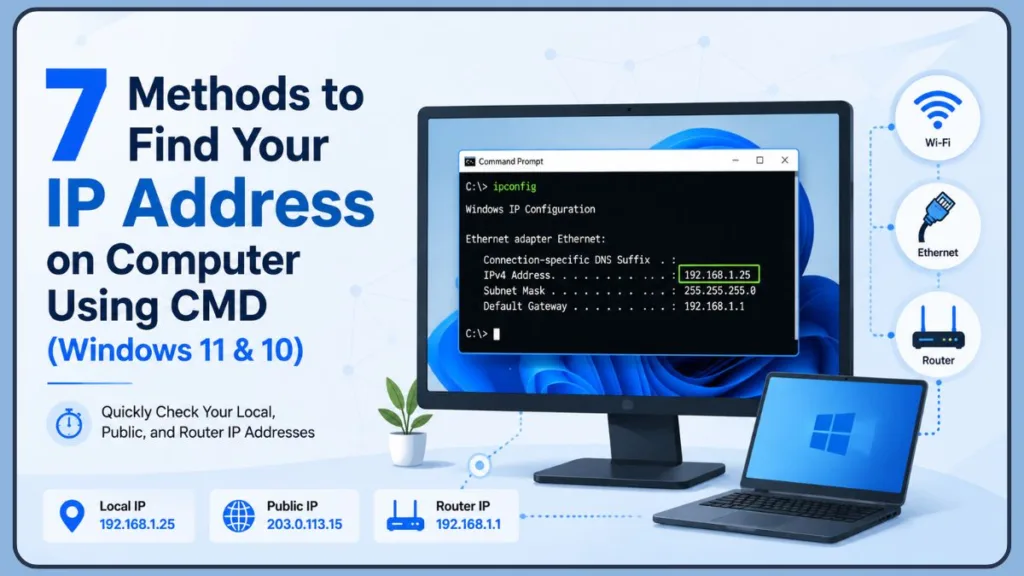
While you can click through your Windows network settings to find this information, the Command Prompt (CMD) remains the absolute fastest and most reliable method. If you are looking for how to find your IP address on a computer using CMD, you are in exactly the right place. Let’s break down everything you need to know about finding your IP address using the command prompt, step by step.
Quick Answer: Find Your IP Address Using CMD
If you are in a hurry and just want the exact address right now, here is the fastest way to get it:
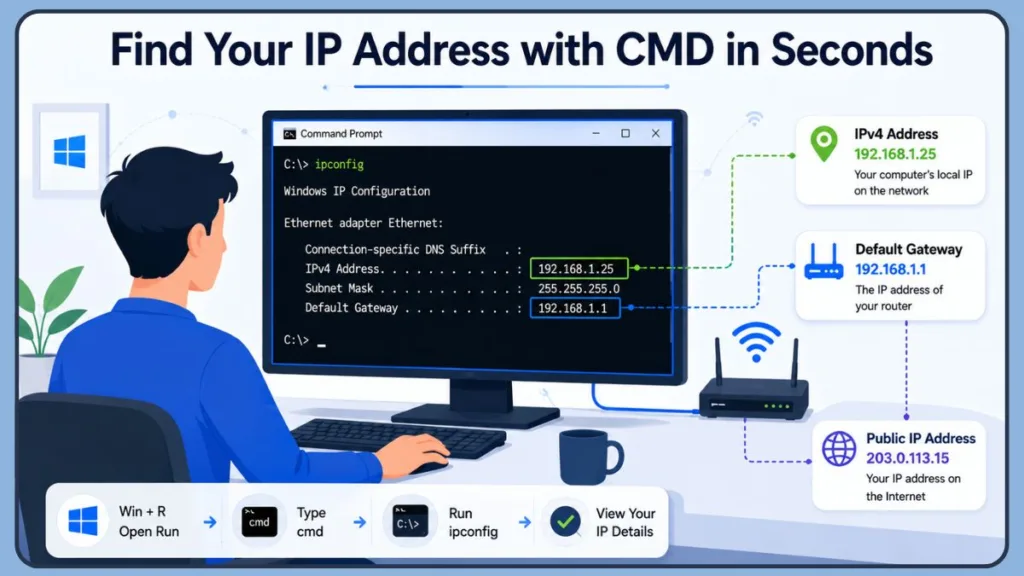
- Press Windows key + R on your keyboard to open the Run dialog box.
- Type cmd and press Enter.
- In the black window that appears, type the following command and press Enter:
ipconfig- Look through the text for your active Wi-Fi or Ethernet adapter and find the line that says IPv4 Address.
Example Output:
IPv4 Address . . . . . . . . . : 192.168.1.25That string of numbers is your computer’s local IP address on your home or office network!
Quick Tip: You do not need administrator privileges just to view your IP address using
ipconfig. Only commands that change network state — likeipconfig /releaseoripconfig /flushdns— require you to run CMD as an administrator.
What Is an IP Address?
Before diving into deeper commands, it helps to know exactly what you are looking at. Think of an IP address (Internet Protocol address) as your device’s unique home address on a network. Just like your physical address ensures mail gets delivered to the right house, your IP address ensures that data packets are routed to the right device. Your computer actually deals with a few different types of IP addresses simultaneously.
Private (Local) IP Address
This is the address your home router assigns to your computer via a process called DHCP (Dynamic Host Configuration Protocol). It is invisible to the outside internet and only matters to other devices inside your house — like your printer, smart TV, gaming console, or a roommate’s PC. These addresses typically fall within these ranges:
- 192.168.x.x (most common in home networks)
- 10.x.x.x
- 172.16.x.x – 172.31.x.x
Public IP Address
This is the address your Internet Service Provider (ISP) assigns to your router. When you visit a website, log into an online game, stream content on Netflix, or use any web service, this is the IP address they see. All devices in your home share this single public address when accessing the internet. Your public and private IP addresses are always different.
Static vs. Dynamic IP Addresses
It is also worth knowing that IP addresses can be static (fixed and never change) or dynamic (automatically reassigned by your router each time you connect). Most home networks use dynamic IP addressing, meaning your local IP could change after a router restart. If you are hosting a server or setting up permanent port forwarding, a static IP address is more reliable.
IPv4 vs. IPv6
You will likely see both of these terms when running network commands. IPv4 is the older, standard format made up of four sets of numbers separated by dots (like 192.168.1.5). It supports around 4.3 billion unique addresses. IPv6 is the newer format made of long strings of letters and numbers (like 2601:abcd:1234::100) and was introduced to handle the growing number of internet-connected devices worldwide. For most home networking and troubleshooting tasks, you only need to focus on the IPv4 address.
How to Open Command Prompt in Windows
To run any of the commands in this guide, you first need to open the Command Prompt terminal. You do not need administrator privileges for these tasks.
Method 1: Using the Run Dialog (Fastest)
- Press Windows + R.
- Type cmd.
- Press Enter.
Method 2: Using the Start Menu
- Click the Start button (or press the Windows key).
- Type Command Prompt.
- Click on the Command Prompt app from the search results.
Pro Tip: On Windows 11, Microsoft promotes Windows Terminal as the default command-line environment. You can use it instead of the classic CMD window — all the
ipconfigcommands below work identically in Windows Terminal, Command Prompt, and PowerShell.
Method 1: Find Your Local IP Address Using Command Prompt
If you want to figure out how to get your IP address using CMD, the standard ipconfig command is all you need. This is the perfect go-to method when you are setting up local file sharing, configuring a Remote Desktop connection, or connecting to a network printer.
Command:
ipconfigHow to Read the Results
When you press Enter, you will see a list of network adapters. Look for the one you are actively using — usually labeled “Wireless LAN adapter Wi-Fi” or “Ethernet adapter Ethernet”.
- IPv4 Address: Your computer’s specific address on your home or office network.
- Subnet Mask: Usually
255.255.255.0— this determines the size of your local network segment. - Default Gateway: This is the local IP address of your router, which is the device routing your traffic to the internet.
Using this simple command gives you everything you need for basic network configuration and connectivity troubleshooting.
Method 2: View Detailed Network Information
Sometimes, basic IP details are not enough. If you are setting up advanced router rules, configuring a Raspberry Pi, managing network segmentation, or dealing with strict firewall settings, you will need more data.
Command:
ipconfig /allWhat Information Does It Show?
- MAC Address (Physical Address): The unique hardware identifier burned into your network interface card (NIC). This never changes unless the adapter is replaced, and it is often needed for MAC address filtering on routers or registering devices on a corporate network.
- DNS Servers: The servers responsible for domain name resolution — translating web addresses like
google.cominto the actual IP addresses your computer connects to. - DHCP Server: The device (almost always your router on a home network) that automatically assigns IP addresses to devices on your network.
- DHCP Enabled: Shows whether your IP is being assigned automatically (
Yes) or set manually (No). - Lease Information: Exactly when your device received its current IP address (Lease Obtained) and when it is scheduled to expire (Lease Expires). Your computer automatically renews the lease before it runs out.
Important Tip: The Physical Address shown by
ipconfig /allis your MAC address. This is particularly useful when setting up router-level device controls, parental controls, or troubleshooting a corporate network registration issue.
Method 3: Show Only the IPv4 Address
If you find the standard ipconfig output too cluttered and just want a clean, instant answer, you can filter the results directly in the terminal. This is a great trick when you are in a hurry and do not want to scroll through disconnected Bluetooth adapters or virtual machine network interfaces.
Command:
ipconfig | findstr /i "IPv4"Example Output:
IPv4 Address. . . . . . : 192.168.1.25The | symbol (called a pipe) sends the output of ipconfig into the findstr command, which searches for a specific text string. The /i flag makes the search case-insensitive. Use this shortcut when you just want your IP address with zero distractions.
Note: If your PC has multiple adapters (for example, a VPN adapter and a Wi-Fi adapter), this command may display more than one IPv4 address. You will still need to identify which adapter is actively in use.
Method 4: Find Your Public IP Address Using CMD
Many people confuse local and public IP addresses. The ipconfig command cannot show your public IP address because that information lives outside your computer — it belongs to your router as assigned by your ISP. To find it, you have to ask an external server what your connection looks like from the outside.
Option 1: Using Curl with ipify API
curl https://api.ipify.orgOption 2: Using ifconfig.me
curl ifconfig.meExample Output:
203.0.113.15When You Need Your Public IP Address
You specifically need your public IP address if you are:
- Setting up port forwarding to host an online game server or a personal web server.
- Whitelisting your home location in a corporate firewall or VPN access rule.
- Checking whether your VPN is successfully masking your real IP address.
- Configuring remote access tools like TeamViewer, AnyDesk, or a self-hosted Remote Desktop setup.
Security Tip: Your public IP address is technically visible to every website you visit. If you want to keep it private — especially on public Wi-Fi — using a VPN (Virtual Private Network) like NordVPN or ExpressVPN will mask it and encrypt your traffic.
Method 5: Find Your Router’s IP Address
If you need to log into your router’s admin panel to change your Wi-Fi password, set up parental controls, configure port forwarding, or update your DNS settings, you need your router’s local IP address.
Command:
ipconfigLook for the line that says Default Gateway under your active network connection.
Example:
Default Gateway . . . . : 192.168.1.1Common router IP addresses include 192.168.0.1, 192.168.1.1, and 10.0.0.1. You simply type this number directly into your web browser’s address bar to access your router’s settings page. Most routers will prompt you for a username and password — the defaults are often printed on a sticker on the bottom of your router.
Method 6: Find Your Public IP Address Using NSLookup
If you are performing an IP lookup in the command prompt and the curl commands are not working — perhaps because your firewall blocks outbound HTTP requests — you can use the built-in nslookup tool instead.
Command:
nslookup myip.opendns.com resolver1.opendns.comThis command queries OpenDNS, a popular public DNS resolver, and asks it to echo back the public IP address it sees your request coming from. Look at the bottom “Address” line in the results to find your public IP. This method works entirely through DNS (Domain Name System) traffic, which is rarely blocked by firewalls.
Method 7: Find IP Information Using PowerShell
While CMD is great, Windows also includes PowerShell, a more advanced and scriptable command-line environment. If you prefer modern scripting, you can retrieve your public IP address here as well.
Command:
(Invoke-WebRequest -UseBasicParsing -URI ifconfig.me).ContentPowerShell also supports a dedicated networking command for viewing local IP configuration:
Get-NetIPAddressThis outputs your IP addresses as structured objects rather than plain text, which is ideal if you are automating network diagnostics or want to pipe the results into other scripts. PowerShell is highly preferred by IT professionals and system administrators who need to manage multiple machines or export network data to a file.
How to Find IP Addresses on a Network Using CMD
Can CMD show IP addresses of other devices — not just your own computer? Yes! If you are trying to locate a missing wireless printer, a smart home hub, or another PC on your local network, you can check your computer’s ARP (Address Resolution Protocol) cache, which acts like an address book for your local network.
Command:
arp -aThis will display a list of all devices that your computer has recently communicated with, showing both their local IP addresses and their MAC addresses. It is a quick way to scan your local area network (LAN) without installing any additional software.
Tip: The ARP cache only shows devices your computer has actively talked to. If you want to discover all devices on your subnet — including ones you have never contacted — you can run an extended ping sweep by pasting this into CMD:
for /L %i in (1,1,254) do ping -n 1 -w 100 192.168.1.%i. After it finishes, runarp -aagain for a more complete list.
Why Your Computer May Show Multiple IP Addresses
When you run ipconfig, you might see three or four different IP addresses listed. This is completely normal. Your computer assigns an IP address to every single network interface it has, including:
- Wi-Fi Adapter: Your wireless connection.
- Ethernet Adapter: Your hardwired connection.
- VPN Adapters: Virtual tunnel interfaces created by software like NordVPN, ExpressVPN, or a corporate VPN client.
- Virtual Machines: Software like VirtualBox, VMware, Docker, or Windows Hyper-V creates its own isolated virtual network on your PC, each with a separate IP.
- Bluetooth Adapter: May appear as a disconnected interface with no IP assigned.
- Loopback Adapter: The address
127.0.0.1is your computer’s loopback address, used for internal testing and never tied to a physical connection.
To find the right one, just look for the adapter you know you are actively using to reach the internet. For most people at home, this will be the Wireless LAN adapter Wi-Fi or the Ethernet adapter.
What If CMD Doesn’t Show an IP Address?
Sometimes things break. If you run the command and do not get the numbers you expect, try these fixes.
Fix 1: Check for “Media Disconnected”
If your adapter says Media disconnected, your computer simply is not communicating with the router. Check your Wi-Fi connection, make sure Airplane Mode is turned off in your Windows settings, and ensure any physical Ethernet cables are plugged in securely at both the PC and the router end.
Fix 2: Renew Your IP Address
If your connection appears active but something seems stuck, you can force your computer to request a fresh IP address from the router’s DHCP server:
- Run:
ipconfig /release - Run:
ipconfig /renew
Important: If you are connected to your computer remotely (for example, via Remote Desktop), do not run
ipconfig /release— it will drop your connection immediately.
Fix 3: Restart Your Router
If the steps above do not work, your router’s DHCP service may have stalled. Unplug your router from the power outlet, wait 30 seconds, and plug it back in. Give it about a minute to fully restart before testing your connection again.
What Does a 169.254 IP Address Mean?
If you see an address like 169.254.83.12, this is called an APIPA address (Automatic Private IP Addressing). It is a sign that something has gone wrong with your DHCP connection.
Here is what happens behind the scenes: when your computer starts up, it broadcasts a request to the router asking for an IP address. If the router does not respond within about 60 to 90 seconds, Windows stops waiting and assigns itself a fallback address in the 169.254.0.0/16 range. This keeps the network adapter technically active, but you will have no internet access and no default gateway — you are essentially stranded on the local link.
An APIPA address is not a solution — it is a symptom. Common causes include:
- Your router is offline or still booting up.
- Your Wi-Fi password is incorrect.
- Your Ethernet cable is faulty or not fully plugged in.
- The router’s DHCP server has run out of available addresses.
To fix it, try ipconfig /release followed by ipconfig /renew. If the problem persists, restart your router and reconnect.
Useful CMD Network Commands You Should Know
Once you master finding your IP address, you can use these other built-in Windows network diagnostic tools to troubleshoot your connection like a pro. For even more tips, check out our guide on the 10 Most Useful Command Prompt Commands Every Windows User Should Know.
Test Router Connectivity: Send a test packet to your router to see if it responds.
ping 192.168.1.1Test Internet Access: Check whether your computer can reach the outside internet at all.
ping 1.1.1.1Trace Network Route: See the exact path your data takes to reach a website, and identify where slowdowns are happening.
tracert google.comFlush DNS Cache: Clear your computer’s stored DNS records to fix issues where websites will not load even though your internet is working.
ipconfig /flushdnsDisplay DNS Cache: See all the domain-to-IP mappings currently stored on your computer.
ipconfig /displaydnsCheck All Active Connections: See which programs are currently communicating over the network and which ports they are using.
netstat -anFrequently Asked Questions
How to find my IP address using command prompt?
Open the Run dialog (Windows + R), type cmd, press Enter, and then type ipconfig. Your local IP address will be listed next to “IPv4 Address” under your active network adapter.
How do I see my IP address on Windows 10?
The process is identical across Windows 10 and Windows 11. Just open Command Prompt and type ipconfig. Your IPv4 address will appear under your active Wi-Fi or Ethernet adapter.
Can CMD show another device’s IP address?
Yes. It can show your own device’s IP using ipconfig, and it can list other devices currently connected to your local network using the arp -a command, which displays the ARP table with IP and MAC addresses of nearby devices.
How do I check only my public IP address in CMD?
Use the command curl ifconfig.me or curl https://api.ipify.org to see the external public IP address that your internet provider assigns to your router. You can also use nslookup myip.opendns.com resolver1.opendns.com if curl is unavailable.
How do I find my local IP address?
Use ipconfig and look for the IPv4 Address line under your active Wi-Fi or Ethernet adapter. That is your computer’s address on your home or office network.
How do I see full network details including my MAC address and DNS servers?
Use ipconfig /all to see everything — including your MAC address (Physical Address), DNS server addresses, DHCP server, and IP lease information.
What is the difference between a local IP address and a public IP address?
Your local IP address (found with ipconfig) is assigned by your router and is only visible to devices on your home network. Your public IP address is assigned by your ISP and is the address the wider internet sees. Use curl ifconfig.me in CMD to view your public IP.
Conclusion
Finding your IP address does not have to be complicated. If you need your local network details to set up a printer, share files, or configure a Remote Desktop connection, ipconfig is your best friend. If you are setting up remote access and need to know what the outside world sees, curl ifconfig.me will hand you your public IP address in seconds. And if you ever need to tweak your Wi-Fi settings, just look at your Default Gateway to find your router’s address.
Do not be afraid to keep the Command Prompt handy. With just a few simple keystrokes, you can completely bypass buried settings menus, troubleshoot your TCP/IP configuration, and manage your home network with total confidence. If you found this guide helpful, feel free to leave a comment below, share it with someone who is struggling with their connection, or ask any questions you have — we are happy to help!
Useful Official Resources for Finding Your IP Address in Windows
If you want reliable, Microsoft-backed information about finding your IP address and troubleshooting network connections, the following official resources are worth reviewing. They cover how to use built-in command-line tools, how to retrieve public and private network details, and how to resolve common connectivity issues safely.
- ipconfig Command Reference – Official Overview: Microsoft explains the full logic behind the
ipconfigcommand, including how it displays local IPv4 and IPv6 addresses, subnet masks, and default gateway information for your network adapters. - curl on Windows – Official Support Guide: A user-friendly guide covering how the
curlutility is natively integrated into Windows 10 and Windows 11, allowing you to quickly look up your public IP address without downloading third-party software. - arp Command Reference – Advanced Network Discovery: Technical documentation outlining how to view the Address Resolution Protocol (ARP) cache. This is perfect for learning how to find the IP and MAC addresses of other devices connected to your local network.
- nslookup Command Reference – DNS Query Details: An official explanation of how to use the
nslookuptool to query Domain Name System (DNS) infrastructure. This is highly useful for finding public IP information when standard web requests are blocked by firewalls. - Get-NetIPAddress Module – PowerShell Configuration: Advanced documentation detailing how to use PowerShell to retrieve structured local IP configuration data. This is ideal for power users and IT professionals looking to automate network diagnostics.
- Fix Wi-Fi Connection Issues in Windows: Microsoft’s general network troubleshooting guide that includes using
ipconfig /release,ipconfig /renew, andipconfig /flushdnsto repair broken internet connections as part of routine network maintenance.
Visit Our Post Page: Blog Page
Discover more from Izoate
Subscribe to get the latest posts sent to your email.