
Learn how to check battery health in Windows 11 using the CMD command. Generate a battery report, analyze capacity, cycle count, and battery life.
Have you ever unplugged your laptop at 100%, only to watch the power plummet to 50% in what feels like minutes? If your device is experiencing rapid drains, unexpected shutdowns, or simply isn’t holding a charge like it used to, you are likely dealing with battery degradation.
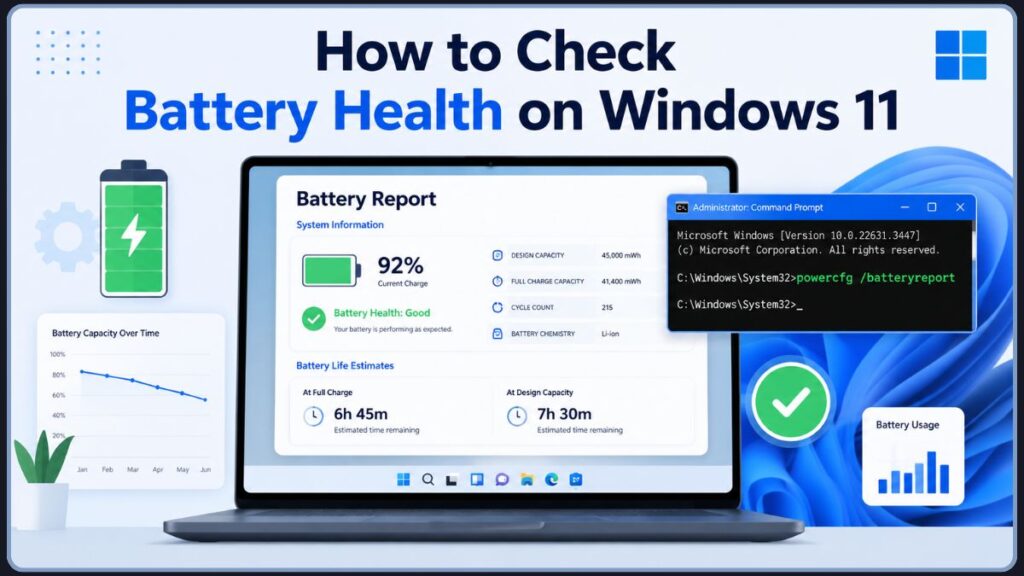
Understanding why your laptop battery health matters is the first step toward fixing the problem. Fortunately, Windows includes a built-in battery health report tool that gives you a completely transparent look into your hardware’s condition. You do not need to download any sketchy third-party software or pay for a diagnostic scan. All you need is a simple text command: powercfg /batteryreport.
Here is everything you need to know to run a battery health check Windows 11 CMD command, read the results, and decide your next steps.
Quick Answer: How to Check Battery Health in Windows 11 Using CMD
If you need your battery report right now, follow these quick steps:
- Open Command Prompt as Administrator: Click your Start menu, type cmd, right-click the Command Prompt app, and select Run as administrator.
- Run the command: Type powercfg /batteryreport and press Enter.
- Open the generated battery report: Navigate to your C:\ drive (or the user folder path shown on your screen) and double-click the battery-report.html file to open it in your web browser.
- Compare Design Capacity and Full Charge Capacity: Scroll down to the Installed Batteries section. If your Full Charge Capacity is significantly lower than your Design Capacity, your battery is wearing out.
What Is the PowerCFG Battery Report in Windows 11?
The PowerCFG battery report is a highly detailed HTML file generated directly by your operating system. PowerCFG (Power Configuration) is a hidden command-line utility designed to control all of your system’s power plans and hardware states.
Microsoft recommends using this tool because it pulls raw, unedited data straight from your laptop’s firmware. While your battery percentage simply tells you how much juice is left in the tank right now, your battery health tells you how big that tank is compared to when you first bought the computer.
It is worth knowing that PowerCFG has been part of Windows since Windows Vista, and the battery reporting feature has been steadily refined. In Windows 11, the tool is more accurate than ever, with improved battery life estimates based on real-world usage patterns rather than just theoretical calculations. Unlike macOS, which surfaces battery health directly in the system settings, Windows 11 keeps this data inside the PowerCFG report — which is why knowing this command is so valuable.
How to Get a Battery Report in Windows 11
Ready to dive a bit deeper? Generating your Windows 11 run battery report is incredibly straightforward.
Step 1: Open Command Prompt as Administrator
You need elevated privileges to pull system-level hardware data. Open your Start menu, search for cmd, right-click the result, and choose Run as administrator.
Alternative options: You can also use Windows Terminal (Admin) or PowerShell (Admin) to run this exact same command.
Step 2: Run the Battery Health CMD Command
In the black window, type the following exact phrase and hit Enter:
powercfg /batteryreportAlternative option: If you want to force the report to save in a very specific place (like your main C: drive) so it is easier to find, use this command instead:
powercfg /batteryreport /output "C:\battery-report.html"Pro tip: You can also use the /duration switch to limit the analysis to a specific number of days. For example, powercfg /batteryreport /duration 14 generates a report based on only the last 14 days of data. This is useful if you want a focused view of recent battery behavior after a system update or a change in your charging habits.
Step 3: Locate the Generated Battery Report
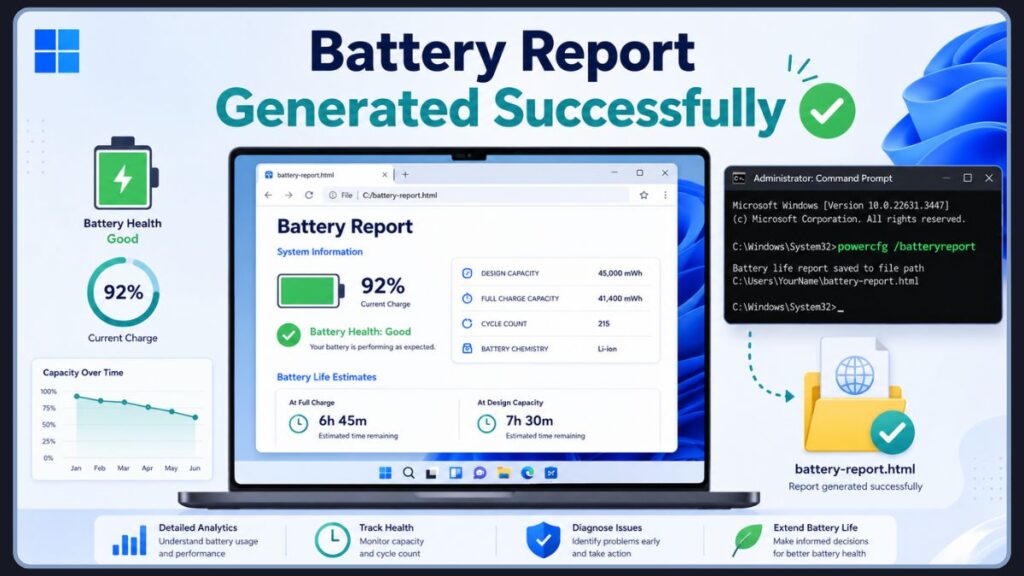
Once the command finishes, it will print a file path on your screen telling you exactly where the report lives.
- User folder: By default, it usually saves in
C:\Users\[YourUsername]\battery-report.html. - Custom output path: If you used the alternative command above, it will be sitting right in your main C:\ drive.
- System32: If you opened the Command Prompt as an administrator and didn’t specify a path, some older Windows versions might drop the Windows system32 battery report.html file directly into the
C:\Windows\System32folder.
How to Open and Read the Battery Report
Double-click the HTML file to open it in your favorite web browser (like Edge, Chrome, or Firefox). You will be greeted with a long page of battery statistics for Windows 11. Here is how to read the most important sections.
Installed Batteries
This is the most critical part of the battery report.
- Manufacturer & Battery Type: Confirms exactly who made your battery and its chemical makeup (usually Lithium-Ion or Lithium-Polymer).
- Design Capacity: The absolute maximum amount of power your battery could hold the day it left the factory, measured in mWh (milliwatt-hours).
- Full Charge Capacity: The maximum amount of power your battery can hold today — the key number for measuring battery wear level.
- Cycle Count: The total number of times your battery has drained and fully recharged from 0% to 100%. Note: Not every laptop exposes this value. If it appears blank or shows a dash, it typically means your battery’s firmware or ACPI drivers are not reporting that data to Windows — not necessarily that something is broken. In that case, rely on the capacity comparison instead.
Recent Usage
This section logs every time your laptop was plugged into AC power or switched to battery power over the last 72 hours. It is great for spotting sudden, massive drops in power.
Battery Usage
Here, you will find a visual graph showing how your battery drained over the last few days. If you see steep, vertical drops, it indicates rapid battery drain.
Usage History
This offers a week-by-week historical breakdown of your battery usage habits, including time spent on battery versus time spent plugged into AC power.
Battery Capacity History
This is a timeline showing how your Full Charge Capacity has slowly dropped away from your Design Capacity over the months and years. This is your most important long-term indicator of battery degradation. A gradual, steady decline is normal. A sudden sharp drop over just a few weeks could point to a failing battery cell or a driver issue worth investigating.
Battery Life Estimates
Windows calculates how long your laptop should last based on its original design, versus how long it is actually lasting based on your current battery health. Pay close attention to this section. If the gap between your “design” runtime and your “observed” runtime is large, your battery is significantly degraded even if the percentage looks fine at a glance.
How to Calculate Battery Health Percentage
The report gives you raw numbers (usually in mWh, or milliwatt-hours), but you might prefer a simple percentage. Here is the formula:
Battery Health % = (Full Charge Capacity ÷ Design Capacity) × 100
Example calculation: If your Design Capacity is 50,000 mWh, and your Full Charge Capacity is 40,000 mWh, you would divide 40,000 by 50,000 to get 0.8. Multiply by 100, and your current battery health is 80%.
Battery Health Rating Guide
| Health % | Condition |
|---|---|
| 90–100% | Excellent condition. |
| 80–89% | Good condition. Normal wear and tear. |
| 60–79% | Moderate Wear. You will likely notice shorter lifespans. |
| Below 60% | Consider Replacement. Your laptop may die quickly or shut down unexpectedly. |
Most lithium-ion batteries retain roughly 80% of their original capacity after 300 to 500 full charge cycles. This is an industry-wide standard across brands including Dell, HP, Lenovo, Asus, and Microsoft Surface devices.
How to Check Laptop Battery Health in Windows 11
When you are trying to check laptop battery Windows 11 data, it is vital to remember the difference between battery level and battery health.
Your battery level might say 100% in the bottom corner of your screen, but if your battery health is severely degraded, that “100%” might only last for 45 minutes. The battery report is infinitely more accurate than simply glancing at your taskbar because it tells you the physical, chemical reality of the hardware inside your machine.
Keep in mind: If you use your laptop primarily plugged into AC power, the battery capacity history section of the report may look relatively stable — but the moment you switch to battery-only use, you will feel the difference. It is a good habit to check your report every few months even when you think everything is fine.
How to Check Battery Health in Windows 10
If you haven’t upgraded your operating system yet, do not worry. The exact same battery health check Windows command works perfectly on older systems.
To check battery health in Windows 10:
- Right-click the Start button and select Windows PowerShell (Admin) or Command Prompt (Admin).
- Type powercfg /batteryreport and press Enter.
- Open the file path provided to view your results.
How to Check Battery Level in Windows 11 and Windows 10
If you are simply looking for your current charge percentage, you have a few easy options:
- Taskbar battery icon: Look at the bottom right corner of your screen by the clock. Hover over the battery icon to see your percentage.
- Quick Settings: Click the battery/Wi-Fi/volume cluster on your taskbar to open a menu with your exact battery percentage.
- Windows Settings: Press Windows Key + I to open Settings, then navigate to System > Power & battery to see a detailed breakdown of which apps are eating up your current charge. This section also lets you toggle Battery Saver mode on or off and configure when it activates automatically.
How to Check Battery Cycle Count on Windows 11
Your battery cycle check Windows 11 data is located right under the Installed Batteries section of your HTML report.
A cycle count refers to one full discharge and recharge. For example, draining your laptop from 100% to 50% two days in a row equals one full cycle. Partial discharges add up over time — it is not just complete 0-to-100 trips that count.
Most modern lithium-ion laptop batteries are designed to handle anywhere from 300 to 1,000 cycles before their capacity drops significantly. Here is a practical way to think about your cycle count:
- Under 300 cycles: Your battery is still relatively young, even if you have had the laptop for a while.
- 300–500 cycles: You may start noticing slightly reduced runtime. This is a normal range for a laptop that is 1–2 years old with regular use.
- 500–800 cycles: Battery wear is becoming more apparent. If your health percentage is dipping below 80%, start budgeting for a replacement.
- Over 800–1,000 cycles: The battery is nearing the end of its manufacturer-rated lifespan. Replacement is likely worthwhile if portability matters to your workflow.
Important: If your cycle count is not visible in the report, do not panic. Some laptop manufacturers and battery firmware configurations do not expose this metric to Windows. In those cases, focus entirely on your Full Charge Capacity vs. Design Capacity comparison.
Additional PowerCFG Diagnostic Commands
If the battery report gives you the capacity data, but you want to dig into what is actually draining your power, the PowerCFG tool has several other useful commands worth knowing about.
powercfg /energy
Open your admin Command Prompt and type:
powercfg /energyThis command runs a 60-second energy efficiency analysis of your system. It monitors everything happening on your laptop in real time and produces a separate HTML report pinpointing issues such as:
- Apps or services that are preventing your laptop from going to sleep properly
- Driver errors or misbehaving hardware devices causing power drain
- Incorrect power plan settings wasting battery
- Background processes keeping your CPU unnecessarily active
Pro tip: If your battery drains unusually fast during sleep, this command is your best friend. It is especially useful for spotting Modern Standby issues where your laptop appears to be sleeping but is actually consuming power in the background.
powercfg /sleepstudy
On laptops that support Modern Standby (S0 Low Power Idle), you can also run:
powercfg /sleepstudyThis generates a detailed sleep study report that shows exactly how much power your laptop consumed overnight or during idle periods. It identifies the top power consumers during sleep — whether that is a rogue background app, your Wi-Fi adapter, or Bluetooth activity — so you can address the root cause rather than just noticing a drained battery in the morning.
powercfg /requests
To see which apps or drivers are actively blocking your computer from entering sleep mode, run:
powercfg /requestsThis is particularly helpful if you notice your laptop fan keeps spinning or the screen stays on even when you walk away. Some video streaming apps, VPN clients, and system services are common culprits.
Battery Health Check Windows 11 CMD Command Not Working?
If you are running into roadblocks, here is a troubleshooting guide to help you fix common errors.
CMD Command Not Recognized
If you get an error saying the command isn’t recognized, check for these causes:
- Typo: Ensure there is a space between powercfg and /batteryreport.
- Incorrect syntax: Do not use dashes or backslashes incorrectly.
- Non-admin CMD: You must right-click and “Run as administrator” for this to work.
Battery Report Not Found
If the command says it worked, but you cannot find the HTML file:
- Use a custom output path: Force it to save to your C drive using the alternative command:
powercfg /batteryreport /output "C:\battery-report.html". - Search for it: Open File Explorer and type battery-report.html into the search bar.
Battery Report Missing Information
If your report generates but the numbers are blank or missing:
- Driver issues: You may need to update your battery drivers via Device Manager. Right-click the Start button, open Device Manager, expand the Batteries section, right-click Microsoft ACPI-Compliant Control Method Battery, and select Update driver.
- BIOS issues: Check your laptop manufacturer’s website for a BIOS update or firmware update. Outdated firmware is a surprisingly common cause of missing or inaccurate battery data.
- ACPI problems: Your motherboard may not be communicating properly with Windows. Updating your chipset drivers often fixes this.
- Try sfc /scannow: Open an admin Command Prompt and run
sfc /scannowto check for and repair corrupted system files that might be interfering with data collection.
Battery Health CMD Command Not Working in PowerShell
If you are using PowerShell instead of Command Prompt, the standard command usually works. However, if it throws an error, ensure you are running PowerShell as an Administrator.
Tips to Improve Laptop Battery Health
If your battery report shows you are losing capacity, here is how you can slow down the battery aging process and get more life out of your existing hardware.
- Keep Charge Between 20% and 80%: Pushing a battery to 0% or leaving it plugged in at 100% all the time stresses the lithium-ion cells. Keeping it in the 20–80% range significantly reduces chemical wear and can extend your battery’s physical lifespan.
- Avoid Excessive Heat: Heat is the ultimate battery killer. Never leave your laptop in a hot car or use it on soft blankets that block the cooling vents. Thermal management matters as much as your charging habits.
- Reduce Screen Brightness: Your display is the biggest power draw on most laptops. Lowering it buys you significant runtime and reduces the charge cycles you burn through daily.
- Enable Battery Saver: Windows can automatically pause background syncing and limit heavy background processes to stretch your battery. You can configure Battery Saver to kick in automatically under Settings > System > Power & battery.
- Limit Background Apps: Check Task Manager (Ctrl + Shift + Esc) to see what is running in the background and close apps you aren’t actively using. The Power Usage and Power Usage Trend columns in Task Manager are particularly helpful for identifying which apps are the biggest energy drains.
- Update Windows and Drivers: Software updates frequently include power management optimizations that can meaningfully improve battery performance. Keep your Windows 11 installation, chipset drivers, and firmware up to date.
- Use OEM Battery Conservation Modes: If you own a Dell, Lenovo, HP, or Asus, check their included software for dedicated battery care settings:
- Lenovo Vantage offers a Conservation Mode that caps charging at 60% to minimize chemical stress.
- Dell Power Manager includes a Peak Shift and Battery Extender mode.
- HP Support Assistant provides a Battery Health Manager with options to maximize overall battery lifespan.
- Asus Armoury Crate and MyASUS include a Battery Health Charging feature with customizable charge limits.
When Should You Replace Your Laptop Battery?
It is time to start shopping for a replacement if you notice any of these signs:
- Your battery health percentage falls below 60–80%.
- You experience rapid battery drain where percentages drop in chunks (e.g., 80% down to 40% instantly).
- Your laptop suffers from unexpected shutdowns even when Windows says you have power left.
- Your cycle count is exceptionally high (over 800–1,000).
- Your device has significantly reduced runtime that affects your daily workflow.
- Your battery report shows a sharp, sudden drop in the Battery Capacity History chart rather than a gradual decline — this can indicate a failing cell rather than normal aging.
If your laptop is still under warranty and the battery health has dropped significantly, contact your OEM support (Dell, HP, Lenovo, etc.) before paying for a replacement out of pocket. Many manufacturers cover battery replacement under warranty if the capacity falls below a certain threshold, typically 80%, within the coverage period.
Frequently Asked Questions
Does Windows 11 Have a Battery Health Report?
Yes. Windows 11 includes a native battery diagnostic tool accessible via the Command Prompt, removing the need for third-party software.
How Do I Check Battery Health Using Command Prompt (CMD)?
Open Command Prompt as an administrator, type powercfg /batteryreport, press Enter, and open the generated HTML file.
How Do I Monitor Battery Health in Windows 11?
You can periodically generate a battery report to watch your Full Charge Capacity drop over time, or use built-in Windows Settings under System > Power & battery to monitor app drainage. For a complete picture, combine the battery report with the powercfg /energy and powercfg /sleepstudy reports.
How to Check Laptop Battery Health in Windows 11?
Follow the step-by-step instructions in this guide to run the PowerCFG command and calculate your health percentage based on your design capacity.
How Do I Check Battery Health in Windows 10?
The process is identical to Windows 11. Run powercfg /batteryreport in an elevated Command Prompt or PowerShell window.
What Is the PowerCFG Battery Report?
It is a system-generated HTML document that pulls raw firmware data to show you your battery’s history, wear level, and cycle counts.
Where Is Battery-Report.html Saved?
By default, it usually saves in C:\Users\[YourUsername], or C:\Windows\System32 if you didn’t specify a path.
What Battery Health Percentage Is Considered Good?
Anything between 80% and 100% is considered good and indicates normal, healthy functionality.
How Often Should I Check Battery Health?
Checking it every 3 to 6 months is a great habit to catch degradation early. If you recently installed a major Windows update or noticed a sudden change in runtime, running a fresh report right away is worth doing.
Can Battery Calibration Improve Battery Health?
Calibration (draining to 0% and charging uninterrupted to 100%) can make your on-screen percentage more accurate, but it cannot reverse physical chemical degradation or restore lost capacity. It is a one-time fix for accuracy, not a health restoration tool.
What Is the Difference Between powercfg /batteryreport and powercfg /energy?
The battery report (powercfg /batteryreport) focuses on your battery’s physical condition — capacity, cycle count, and long-term degradation history. The energy report (powercfg /energy) focuses on real-time system behavior — identifying software, drivers, or devices that are actively draining your battery or preventing proper power management. Both are useful, and they complement each other well.
Conclusion
Checking your battery health on Windows 11 doesn’t have to be intimidating. By simply opening the Command Prompt and running the powercfg /batteryreport command, you instantly gain access to a wealth of diagnostic data about your device. And if you want to go even deeper, the powercfg /energy and powercfg /sleepstudy commands give you a fuller picture of how your entire system manages power.
We highly recommend reviewing your Design Capacity, Full Charge Capacity, and Cycle Count every few months. Catching battery degradation early helps you avoid the frustration of an unexpected shutdown in the middle of an important project.
Have you run your battery report yet? Let us know what your battery health percentage is looking like in the comments below, and feel free to share this guide with anyone whose laptop is constantly dying!
Useful Official Resources for Managing Battery Health in Windows
If you want reliable, Microsoft-backed information about checking your laptop’s battery health and troubleshooting power issues, the following official resources are worth reviewing. They cover how to use built-in command-line tools, how to extend battery lifespan, and how to resolve common power-drain issues safely.
- Powercfg Command-Line Options – Official Overview: Microsoft explains the full logic behind the
powercfgcommand, including how the/batteryreportargument works. This is perfect for learning how to control power plans, set sleep timeouts, and analyze your system for energy-efficiency problems. - Caring for Your Battery in Windows – Official Support Guide: A user-friendly guide covering how lithium-ion cells degrade over time. It details the best practices for extending battery life, such as the 20% to 80% charging rule and safe device storage practices.
- Battery Saving Tips for Windows – Built-in Optimizations: Microsoft’s official documentation outlining how to maximize your device’s runtime. It walks you through adjusting screen refresh rates, managing background app activity, and configuring advanced display settings to reduce battery wear.
- Troubleshooting Battery Issues in Windows – Hardware Diagnostics: Technical guidance on resolving charging and power issues. This includes step-by-step instructions for managing power efficiency settings, screen timeouts, and understanding battery diagnostic states.
- Sleep Study and Energy Diagnostics – Advanced Power Discovery: Advanced documentation detailing how to use
powercfg /sleepstudyandpowercfg /energyto dump system resource usage data. This is ideal for power users looking to identify background tasks that are keeping their laptops awake and silently draining the battery.
Visit Our Post Page: Blog Page
Discover more from Izoate
Subscribe to get the latest posts sent to your email.