
Fix Facebook Marketplace Error Performing Query message. Learn what causes it and discover 10 proven fixes for listing, messaging, search, and publishing issues.
Facebook Marketplace is, without a doubt, one of the most popular platforms in today’s digital world for buying and selling locally. It’s where we connect with buyers, hunt for great deals, market businesses, and much more. But as smooth as the experience usually is, every now and then, you might run into an annoying glitch.
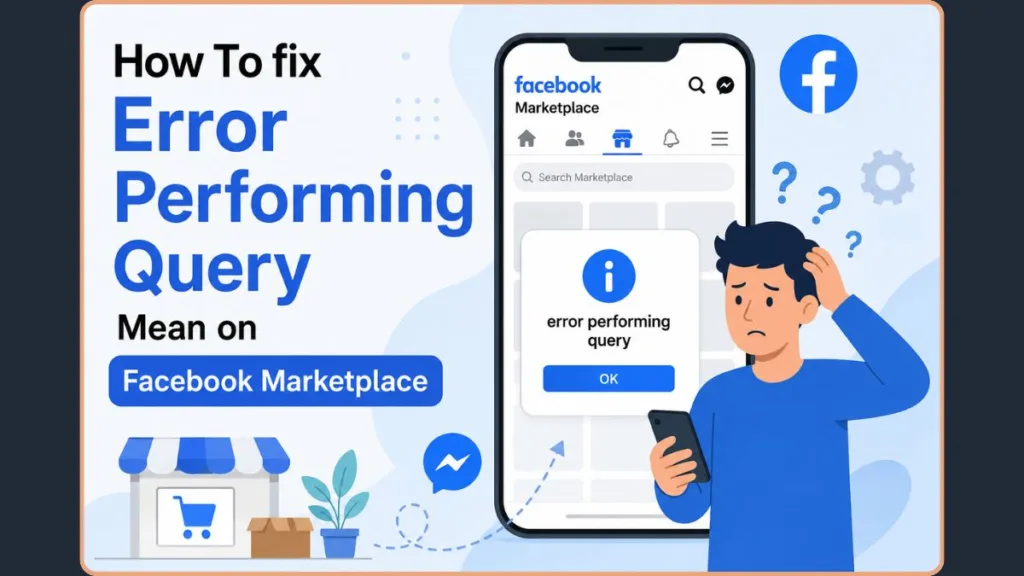
If you’ve recently seen the dreaded “error performing query” message while trying to use Marketplace, don’t worry—you’re not alone, and this guide is here to help you fix it. You might run into this annoying pop-up when:
- Opening listings
- Messaging sellers
- Publishing Marketplace listings
- Searching Marketplace
In this post, we’ll break down exactly what causes the facebook marketplace error performing query issue, give you some solid fixes to try, and arm you with the knowledge to get back to browsing and selling like nothing happened.
What Does Error Performing Query Mean on Facebook Marketplace?
So, What’s Happening Here?
If you’ve come across the error performing query facebook message, you’re dealing with a communication glitch between your device and Meta’s databases.
Facebook relies on a data-fetching system called GraphQL to pull listing data. When you click on a couch or try to message a seller, your app asks Meta’s servers for that specific data. When the servers fail to complete the request, you get this vague error. Essentially, Facebook’s servers are having a bad day and can’t process your request properly, so it throws up a wall instead of loading your page.
Why Does Facebook Marketplace Say Error Performing Query?
Before we jump into the solutions, it helps to understand why this happens.
Temporary Meta Server Outage
Most commonly, this error pops up because of a temporary meta server outage. Facebook’s GraphQL server might be having a rough time processing global requests. This isn’t a problem you can solve, but understanding that a facebook marketplace glitch today is a server issue can help ease the frustration.
In real-time, many users start facing the error after recent platform changes. For example, a massive global outage occurred just recently on June 12, 2026, disrupting Facebook Marketplace, Messenger, and Instagram across the US, Philippines, and India with widespread “query error” messages. Earlier, the March 2026 and July 2025 updates to Meta’s backend architecture caused similar functional conflicts that temporarily locked thousands out of posting ads and contacting sellers.
How to Check if Facebook Marketplace Is Down
Before tweaking your phone, check the live downdetector facebook status. You can also search other social media platforms or ask a friend to test their app. If thousands of people are reporting the same thing, it’s a Meta outage.
The Marketplace Listing Was Removed
If you are seeing the facebook marketplace something went wrong error when clicking an old notification, the listing might just be gone. If the seller deleted it, the item sold, or Facebook removed it, the link is dead.
Cache & Cookies: The Hidden Culprit
Facebook relies on cache and cookies to speed up your interactions with the site. But here’s the thing: Over time, these temporary files can get corrupted, messing with your browsing experience. This is exactly why you need to occasionally clear browser cache and cookies. For instance, Google Chrome users in Europe and Microsoft Edge users on Version 113 noticed that clearing cache was the only way to resolve persistent query issues in Marketplace after a recent Facebook backend update.
Internet Connection Problems
You need a stable internet connection to load image-heavy listings. Weak Wi-Fi, spotty mobile data, or strict public network restrictions will cause your data requests to time out.
Marketplace Restrictions or Eligibility Issues
Sometimes, an account is marketplace suspended without any reasons (or so it seems). If you’re using a brand new profile and cant make new facebook account to use marketplace, or if you’ve been temporarily restricted for spamming sellers, Facebook will block your queries.
Outdated App or Browser Versions
It’s easy to overlook, but an old version of the app could be another reason the error’s popping up. Facebook is constantly pushing new updates, and if you’re behind on those, you need to update facebook app versions to avoid compatibility issues. For example, in August 2025, users on older Apple software (specifically iOS 14.7) had significant problems posting in groups or accessing the Marketplace. Facebook’s developers quickly fixed the issue with an app update (Version 398.0.0.34), which is a good reminder to always keep your app up to date.
Device-Specific Problems
Lastly, there’s the chance your specific device could be playing a part. Apps running in the background or software incompatibilities with Facebook’s recent updates might prevent the platform from functioning properly. For example, Samsung Galaxy and OnePlus users who updated their Android 13 software in July 2025 ran into persistent query issues with Facebook Marketplace. If you fall into a specific device group facing a glitch, you’ll want to look out for dedicated system updates or check if Facebook’s app needs a fresh install.
How to Fix Query Error on Facebook Marketplace
Here are a few simple steps you can take to fix the facebook query error fix and get back to browsing Facebook like a pro. We recommend following these how to fix query error on facebook marketplace steps in order. Let’s dive in.
1. Refresh Facebook Marketplace
The fastest fix is often the simplest. Pull down to refresh your feed, reload the listing, or fully close and reopen the Marketplace tab to clear a stale session.
How to do it in detail:
- On the mobile app: Tap and hold anywhere on your Marketplace feed, then pull your finger down until you see the loading circle spin.
- On a PC browser: Press Ctrl + R (Windows) or Command + R (Mac) to refresh the page.
- Hard refresh: If a simple refresh fails on desktop, press Ctrl + F5 (Windows) or Command + Shift + R (Mac) to bypass cached data and force a full page reload.
- Force close the app: Swipe up from the bottom of your phone screen, find the Facebook app preview, and swipe it away to kill the process completely before reopening it.
2. Check Facebook Marketplace Server Status
Check the downdetector facebook status for a facebook marketplace glitch today. If the servers are down, you just have to be patient—Facebook’s team is likely already working on a fix.
How to check status:
- Open a web browser and go to Downdetector.com.
- Use the search bar to look up “Facebook.”
- Review the live outage graph on the screen.
- If you see a massive, sharp spike in reports matching your current time, the issue is on Meta’s end. Step away and check back in an hour.
3. Open a Different Marketplace Listing
Check if only one listing is affected. If other listings load perfectly fine, the original item was simply deleted or removed by the seller.
How to test listings:
- Navigate back to the main Facebook Marketplace homepage.
- Scroll past the item that gave you the error.
- Click on three or four completely random, unrelated listings from different sellers.
- If these new listings open without any errors, the first listing you tried to view is dead or unavailable.
4. Log Out and Log Back Into Facebook
This may seem too simple, but trust us—it works. When you log out of Facebook and log back in, it refreshes your account session and resolves authentication issues. In May 2025, Facebook users across the US and Brazil found that logging out and back in was the quickest temporary fix for this error.
How to refresh your session:
- Open the Facebook app and tap the Menu icon (three horizontal lines or your profile picture in the bottom-right or top-right corner).
- Scroll all the way down to the bottom of the menu.
- Tap Log out and confirm your choice.
- Wait for 10-15 seconds on the login screen.
- Enter your email and password, log back in, and immediately try opening Marketplace again.
5. Clear Your Cache and Cookies
They’re like little leftovers from your Facebook browsing that can slow down or break functionality over time.
How to clear cache on Android:
- Open your phone’s Settings app.
- Tap on Apps or Apps & notifications, then find and select Facebook.
- Tap on Storage & cache.
- Tap Clear cache. (Do not tap “Clear data” unless you want to log out entirely.)
How to clear cache on iPhone:
- Open the iPhone Settings app.
- Navigate to General > iPhone Storage.
- Scroll down and tap on Facebook.
- Tap Offload App and confirm. Once finished, tap Reinstall App.
How to clear browser cache and cookies:
- In Google Chrome or Edge, click the three-dot menu in the top-right corner.
- Go to More Tools (or Settings) > Clear Browsing Data.
- Set the time range to All time or Past week.
- Check the boxes for Cookies and other site data and Cached images and files, then click Clear data.
6. Switch Networks
Toggle from your Wi-Fi over to your mobile data, or vice versa, to ensure you have a stable internet connection.
How to switch connections:
- Swipe down from the top of your phone screen (Android) for Notification Menu, or from the top-right corner (iPhone) to open the Control Center.
- If you are connected to Wi-Fi, tap the Wi-Fi icon to turn it off. Ensure your cellular data icon is turned on.
- Open Facebook and test Marketplace on mobile data.
- Alternatively, if you are on cellular data, turn on Wi-Fi and connect to a trusted home or office network to see if the error disappears.
7. Disable VPN and Proxy Services
VPNs change your location and can cause Marketplace location conflicts or request validation problems. Turn them off temporarily.
How to disable VPNs:
- Open the dedicated VPN application you use on your device (e.g., NordVPN, ExpressVPN).
- Tap the large Disconnect or Power button to pause the connection.
- If you use a built-in phone VPN, go to Settings > Network & internet > VPN and toggle the active profile off.
- Close the Facebook app entirely, reopen it, and attempt your query again.
8. Update Your Browser or Facebook App
It’s easy to forget that keeping both your browser and app up to date is crucial. Head to the App Store, Google Play Store, or your browser settings and update facebook app versions to squash old bugs.
How to update on mobile:
- Open the App Store (iPhone) or Google Play Store (Android).
- Search for “Facebook” in the search bar.
- If you see a button labeled Update next to the app icon, tap it and wait for the installation to finish.
How to update your browser:
- On Google Chrome: Click the three-dot menu in the top-right corner, hover over Help, and select About Google Chrome. Chrome will automatically check for updates and prompt you to relaunch the browser if a new version is installed.
- On Microsoft Edge: Click the three-dot menu in the top-right corner, hover over Help and feedback, and select About Microsoft Edge. Edge will automatically check for updates and prompt you to restart to finish updating.
9. Check Marketplace Eligibility and Account Status
Go into your Facebook Settings and check your Account Quality section. You may have Marketplace access restrictions or policy violations blocking your actions.
How to check your status:
- Open the Facebook app and tap the Menu icon.
- Scroll down and tap Settings & privacy, then tap Settings.
- Scroll down to find the Account Status, Support Inbox, or Account Quality tab.
- Tap it to review any active warnings, spam blocks, or feature restrictions placed on your profile.
10. Uninstall & Reinstall the Facebook App
For mobile users, if all else fails, a complete uninstall and reinstall facebook app process is often the fix. This clears up any corrupted local files and gives you a fresh start.
How to reinstall the app:
- Go to your phone’s home screen or app drawer.
- Tap and hold the Facebook app icon.
- Select Remove App or Uninstall from the pop-up menu and confirm.
- Restart your phone to clear temporary system memory.
- Open your app store, search for Facebook, and download the app fresh.
Troubleshooting Specific Facebook Tools
How to Fix Facebook Marketplace Failed to Publish Error
If you are specifically getting the facebook marketplace failed to publish error (or facebook failed to publish marketplace), you likely have a corrupt draft, an unsupported category, or an image file that is too large.
- The Fix: Delete the draft and recreate the listing from scratch. Reduce your image sizes so they upload easier, and check your account status.
Error Performing Query Facebook Marketplace on PC
If you’re dealing with the error performing query facebook marketplace pc issue, the culprit is usually your browser environment.
- The Fix: Disable browser extensions (especially ad blockers and privacy shields), try using Incognito Mode, or test everything in a completely different browser.
How to Identify the Exact Cause of the Marketplace Error
Use this quick diagnostic table to narrow down your problem:
| Situation | Likely Cause |
| One listing won’t open | Listing removed |
| All listings fail | Marketplace outage |
| Works on browser only | App issue |
| Works on app only | Browser issue |
| New listings won’t publish | Account restriction |
| Error appears everywhere | Server issue |
When to Wait for Facebook’s Fix (Or Contact Support)
Sometimes, despite doing everything on your end, the issue might still persist for several days. If that’s the case, and you’ve lost Marketplace access or failed account reviews, you may need to reach out to the facebook customer support team. Otherwise, if it’s a server issue, keep an eye on Downdetector or official Meta status updates.
Frequently Asked Questions
What Does Error Performing Query Mean on Facebook Marketplace?
It means Facebook’s servers failed to complete your request to load a listing or process an action.
How Do I Fix the Query Error on Facebook Marketplace?
Start by refreshing the app, checking server status, clearing your cache, and ensuring your internet connection is stable.
Why Is My Facebook Marketplace Failing to Publish?
Usually due to network timeouts, corrupted drafts, or temporary account restrictions preventing new posts.
Is Facebook Marketplace Down Right Now?
You can verify this by checking Downdetector for a spike in user outage reports.
Does Clearing Your Cache Fix Facebook Marketplace Errors?
Yes, clearing corrupted cache files forces Facebook to download fresh, working data from its servers.
Why Does Facebook Marketplace Say Something Went Wrong?
This is another generic message that appears when a listing is removed, your cache is bad, or the server drops your request.
Can a Marketplace Restriction Cause Query Errors?
Yes, if your account is temporarily restricted from taking actions, Facebook will often throw this error instead of a specific warning.
Why Can’t I Access Facebook Marketplace on a New Account?
New accounts don’t have enough history or “trust signals” yet, so Meta restricts their access to Marketplace until the account ages.
Conclusion
The “Error Performing Query” issue on Facebook Marketplace is annoying, but it’s not something that’ll stop you for long. It almost always boils down to server outages, cache corruption, connectivity problems, or outdated apps.
Useful Sources
Facebook Help Center: The Facebook Help Center is your first stop for understanding issues related to Facebook functionality. It provides step-by-step guides and FAQs about common errors, including the “Error Performing Query.”
Facebook Status Page: If the issue is server-related, Facebook’s status page will give you updates on any ongoing outages or disruptions in service.
Facebook Ads Help Center: For issues related to Facebook Ads, you can refer to the Facebook Ads Help Center. It provides resources specific to advertising errors, including troubleshooting tips for Marketplace-related queries.
Facebook Developer Forum: If you’re encountering issues with Facebook’s API or GraphQL server, the Facebook Developer Forum can provide insights, code examples, and fixes from other developers who’ve faced similar issues.
Facebook’s Official Twitter Account: For real-time updates, the official Facebook Twitter account (@Facebook) may post information about server outages, known issues, and tips for resolving problems.
Visit Our Post Page: Blog Page
Discover more from Izoate
Subscribe to get the latest posts sent to your email.