
Want to speed up a slow PC? Try these 15 CMD commands to boost PC performance and improve Windows performance without installing third-party optimizer tools.
If your PC has started feeling sluggish, you don’t necessarily need new hardware or a paid “optimizer” tool to fix it. Windows already comes with a powerful built-in troubleshooting toolkit: Command Prompt (CMD).
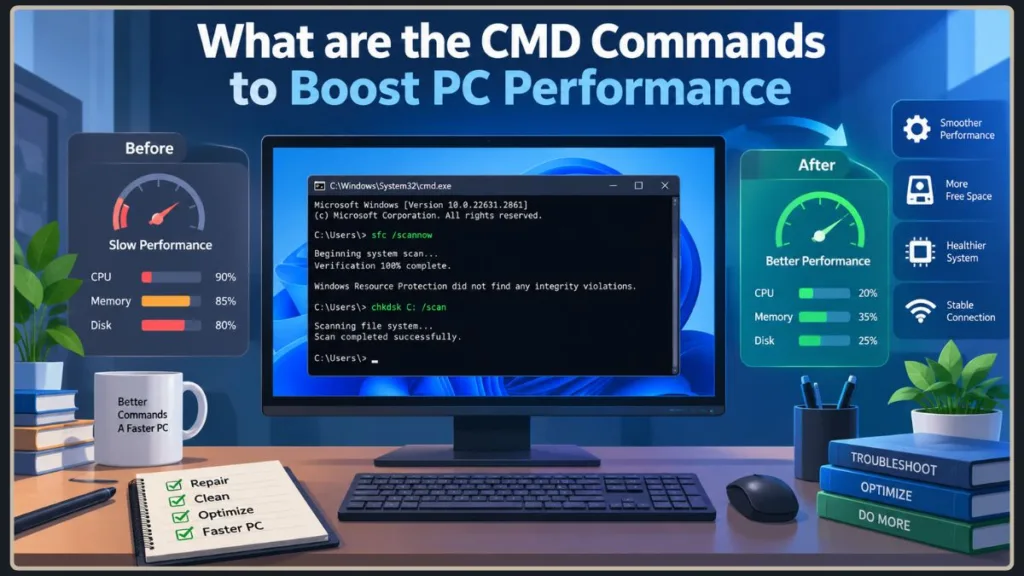
In this guide, you’ll learn how to open and use Command Prompt, plus 15 commands and methods that can genuinely help with a slow PC — from repairing corrupted system files to cleaning up disk space and diagnosing what’s actually eating your resources. You’ll also get an honest look at the more advanced “performance hack” commands that circulate online, including which ones are worth trying and which ones you should leave alone.
By the end, you’ll have a clear, safe workflow for using CMD to fix what’s actually slowing your PC down.
Why Should You Learn These Windows Commands?
You don’t need to be an IT professional to benefit from knowing a handful of CMD commands. Here’s why it’s worth the ten minutes it takes to learn them:
- They’re free and already installed. You don’t need to download or trust a third-party “PC cleaner” app — everything here comes built into Windows.
- They fix real problems, not just symptoms. Many slowdown issues trace back to corrupted system files, a cluttered disk, or a stuck background process. CMD lets you address those directly instead of guessing.
- They give you more control than clicking through menus. Some of these commands (like checking your disk for errors or repairing Windows system files) either aren’t available in the standard Settings app or are faster to run through CMD.
- They help you troubleshoot, not just tweak. Once you know what a command actually does, you can use it with confidence instead of copy-pasting things you found in a random forum post.
With that said, it’s worth setting expectations early: CMD commands can help your PC run the way it’s supposed to. They can’t turn an aging laptop into a gaming rig. Keep that distinction in mind as you go through this list.
How to Use Command Prompt in Windows 10 (and Windows 11)
Before you run any of the commands below, it helps to know exactly how to open Command Prompt and run it with the right permissions.
How to Open Command Prompt
You’ve got a few easy options:
- Press the Windows key, type
cmd, and select Command Prompt from the results. - Press Windows key + R to open the Run box, type
cmd, and press Enter. - Right-click the Start button and choose Terminal or Command Prompt (the exact label depends on your Windows version). Note that on Windows 11, this usually opens Windows Terminal with a PowerShell tab by default — you can still run CMD commands inside it, or type
cmdand press Enter to switch that tab to Command Prompt.
How to Run Command Prompt as Administrator
Most of the commands in this guide need administrator access to actually make changes to your system. Here’s how to launch it correctly:
- Search for cmd in the Start menu.
- Right-click Command Prompt and select Run as administrator.
- Click Yes on the User Account Control prompt.
If you skip this step, several of the commands below will return an “Access is denied” message instead of doing anything.
How Do I Run a Command in Windows 10?
Once Command Prompt is open, running a command is simple:
- Type or paste the command exactly as shown.
- Press Enter.
- Wait for Command Prompt to finish processing — some commands (like a full disk scan) can take several minutes.
- Read the output. Command Prompt will usually tell you if something completed successfully, found an error, or needs a restart.
Before You Run Any Performance Commands
A couple of quick precautions will save you a headache later:
- Back up anything important before running disk-repair commands, just in case.
- Don’t expect miracles. If your PC is genuinely underpowered for what you’re using it for, CMD commands can clean things up and fix errors, but they won’t add RAM or a faster processor.
- Understand the difference between troubleshooting and tweaking. Commands like
sfcandchkdskfix known problems. Commands you’ll see later in this guide (like certainbcdeditsettings) are closer to experimental tweaks — and you should treat them that way.
With that groundwork out of the way, let’s get into the commands.
CMD Commands to Repair Windows and Fix Corrupted Files
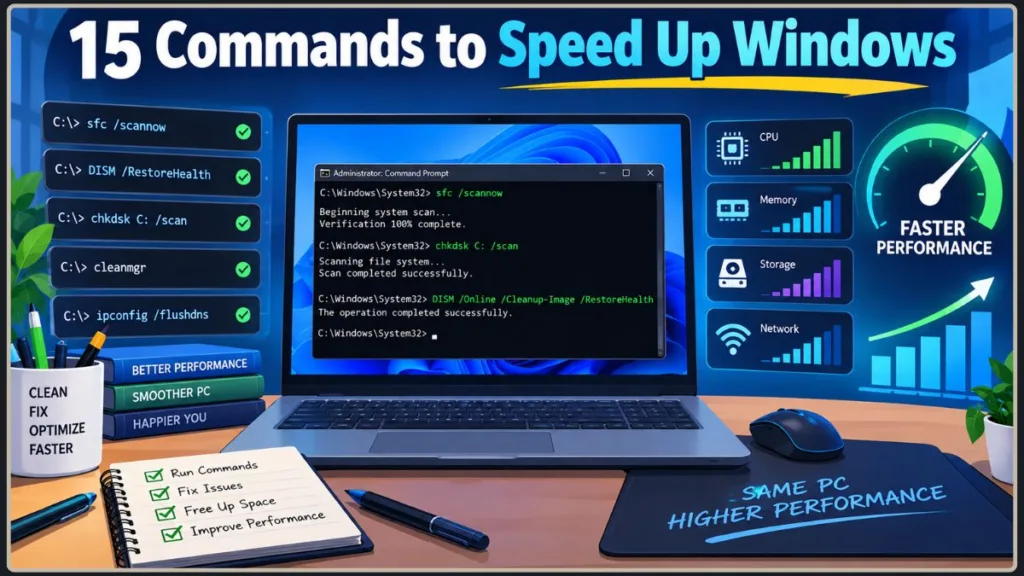
Corrupted or missing system files can contribute to slowdowns, instability, or glitches on your PC. These four commands are your first line of defense.
1. sfc /scannow
System File Checker scans your protected Windows system files and attempts to replace any that are incorrect, missing, or corrupted with the correct Microsoft version, when possible.
sfc /scannowRun this from an administrator Command Prompt and let it finish — it typically takes 5 to 15 minutes. If it finds and repairs issues, restart your PC afterward.
2. DISM /Online /Cleanup-Image /RestoreHealth
If sfc /scannow can’t fix a problem, it’s often because the underlying Windows image itself is damaged — which means SFC doesn’t have a healthy file to copy from. That’s where DISM (Deployment Image Servicing and Management) comes in.
DISM /Online /Cleanup-Image /RestoreHealthThis command checks your Windows component store/image for corruption and repairs it. In most default configurations, Windows Update is the repair source it uses, but DISM can also pull from another configured or manually specified source. It can take 20–30 minutes, so don’t worry if it looks like it’s stalled.
Tip: If both commands are needed, run DISM first, then follow up with
sfc /scannow— that order gives SFC a properly repaired image to pull from.
3. DISM /Online /Cleanup-Image /ScanHealth
Before jumping straight to a repair, you can check whether Windows has actually flagged any corruption:
DISM /Online /Cleanup-Image /ScanHealthThis is a good diagnostic step if you’re not sure whether a full RestoreHealth repair is even necessary.
4. chkdsk
Check Disk scans your drive for file system errors — issues that can cause slowdowns, freezes, or crashes.
chkdsk C: /scanThis runs an online NTFS scan without needing to take the drive offline. If you want CHKDSK to actually fix file-system errors it finds (not just report them), use:
chkdsk C: /fAnd if you’re also dealing with suspected bad sectors, /r performs a more extensive check and attempts to recover readable data from them:
chkdsk C: /rSince your C: drive is in use while Windows is running, you’ll likely be asked to schedule the scan for your next restart. Type Y and reboot to let it run.
CMD Commands to Clean Up and Free Space
A cluttered drive can genuinely slow your PC down, especially if you’re running low on free storage. These commands help you clear out the digital junk.
5. cleanmgr
Disk Cleanup is a built-in Windows utility, and you can launch it straight from Command Prompt:
cleanmgrThis opens a familiar window where you can select a drive, then choose which types of files to remove — temporary files, system error memory dumps, old Windows update files, and more.
6. Clearing Temporary Files via Run
Temporary files pile up from everyday use — installers, cached data, crash reports — and rarely get cleaned out on their own. This isn’t a CMD command on its own, but it’s a closely related Windows cleanup method worth pairing with the commands above. Rather than deleting system folders blindly, open your temp folder directly through the Run box and clean it out by hand:
- Press Windows key + R.
- Type
%temp%and press Enter. - Select all the files (Ctrl + A) and delete them.
Some files may be in use and skip deletion — that’s normal, just skip past them.
7. defrag (HDD Only)
Defragmentation reorganizes fragmented data on a drive so your PC can read it more efficiently:
defrag C: /OOne important distinction: the /O option tells Windows to apply the optimization that’s actually appropriate for the drive it detects — traditional defragmentation for older mechanical hard drives (HDDs), and SSD-appropriate optimization such as TRIM/retrim for solid-state drives (SSDs), since SSDs don’t store data the same way HDDs do. In practice, you generally don’t need to manage this manually at all — the Optimize Drives tool in Windows Settings already handles the correct optimization type for each drive automatically.
CMD Commands to Diagnose What’s Slowing You Down
Sometimes the issue isn’t Windows itself — it’s a specific app or process hogging your resources. These commands help you find and deal with it.
8. tasklist
This command shows you every process currently running on your PC:
tasklistIt’s a quick way to spot something unfamiliar or unusually resource-heavy without opening Task Manager.
9. taskkill
Found a frozen or misbehaving process? You can shut it down directly:
taskkill /IM processname.exe /FReplace processname.exe with the actual process name from your tasklist results. The /F forces the process to close, which is useful when a program has stopped responding.
10. systeminfo
Want a full snapshot of your PC’s specs and configuration in one place?
systeminfoThis pulls together your OS version, installed memory, processor details, and more — handy for diagnosing whether a slowdown is a software issue or simply a hardware limitation.
CMD Commands to Fix Network-Related Slowdowns
If your PC feels slow specifically when browsing or using online apps, the issue might be your network configuration rather than your PC’s performance. It’s worth being upfront here: these commands troubleshoot connection problems — they won’t add extra Mbps to your internet plan.
11. ipconfig /flushdns
Your PC keeps a local cache of website addresses (DNS records) to load pages faster. When that cache gets outdated or corrupted, it can cause slow or failed connections.
ipconfig /flushdnsThis clears the cache so your PC looks up fresh, current addresses.
12. ipconfig /release and ipconfig /renew
If your PC is having trouble getting a stable connection, you can manually release and renew your IP address:
ipconfig /release
ipconfig /renew
Run /release first, then /renew right after.
13. netsh winsock reset
Winsock is the part of Windows that manages network connections. If it gets corrupted, you might notice connectivity issues that a simple DNS flush doesn’t fix.
netsh winsock resetYou’ll need to restart your PC after running this one for the reset to take effect.
How to Enable High Performance Mode in CMD
You may have come across advice online about using CMD to unlock the “High Performance” power plan for better performance — especially for gaming. Here’s how it works, and just as importantly, what to actually expect from it.
14. Restore the High Performance Power Plan
On some PCs, the High Performance plan isn’t visible by default. This command duplicates the predefined High Performance scheme so it can become available and selectable where applicable — keep in mind that power-plan availability and behavior can vary by Windows version, hardware, and power-management configuration:
powercfg -duplicatescheme 8c5e7fda-e8bf-4a96-9a85-a6e23a8c635c15. Activate High Performance Mode
Once it’s available, activate it with:
powercfg /s SCHEME_MINYou can confirm your available power plans at any time with:
powercfg /listWhat users actually reported: In community discussions about this exact command, several users described switching to High Performance mode as safe to try, but reported they couldn’t reliably tell whether it produced a noticeable FPS or speed improvement — this is anecdotal user experience, not a controlled test. One user’s own side-by-side comparison suggested the newer “Best performance” mode in Windows Settings performed as well as or better than the classic High Performance plan, though this too is a single anecdotal report rather than proof either way. It’s also worth knowing that on many newer Windows 11 PCs with Modern Standby support, only the Balanced plan may be available at all, regardless of this command.
If you want to go a step further, there’s also an Ultimate Performance scheme:
powercfg -duplicatescheme e9a42b02-d5df-448d-aa00-03f14749eb61This shifts Windows’ power-management behavior to favor performance over power savings. Depending on your hardware and workload, that can mean increased power consumption, heat, and fan activity — and a meaningful gaming improvement isn’t guaranteed. It’s worth using with some caution, especially on laptops that already run warm.
CMD Timer Tweaks and FPS: What to Know Before You Try Them
If you’ve spent any time looking up “CMD commands to boost FPS,” you’ve probably come across two specific commands:
bcdedit /set disabledynamictick yes
bcdedit /set useplatformclock yes
The theory behind these is that changing how Windows handles its internal timer and clock source can reduce stuttering in games. Before you try them, though, it’s worth understanding what they’re actually for.
What Microsoft Says
Both of these settings are officially documented by Microsoft — and both come with the same note: they’re intended to be used for debugging, not as general performance tweaks. disabledynamictick controls whether Windows uses a dynamic or fixed timer interrupt, and useplatformclock forces Windows to use your hardware’s platform clock as its performance counter instead of a synthetic timer. Neither one is documented as a way to improve gaming performance.
What Users Reported
Real-world experiences with these commands are genuinely mixed. Some users report a slight improvement in smoothness, but paired with side effects like their PC failing to sleep or wake properly. Others report the opposite — noticeably worse performance, erratic mouse movement, or stuttering that wasn’t there before. A few PC hardware communities have specifically pushed back on the whole idea, pointing out that if this tweak reliably improved gaming performance, it’s unlikely game developers and Windows itself wouldn’t already be doing it.
Given that these settings are explicitly documented for debugging use, it’s fair to treat them as advanced and situational at best — not something to add to your everyday PC-maintenance routine.
How to Undo These Changes
If you’ve already tried them and want to revert to Windows’ default behavior:
bcdedit /set disabledynamictick no
bcdedit /set useplatformclock no
Restart your PC afterward for the change to fully take effect. You can also review your current boot configuration at any time with:
bcdeditBonus CMD Commands Worth Knowing
What Does msg * Do in CMD?
This one isn’t a performance command, but it’s commonly searched, so it’s worth a quick mention. Running:
msg * Hellosends a pop-up message (“Hello,” in this case) to users and sessions that the command can reach in a supported Windows session or Remote Desktop environment — for example, other logged-in sessions on the same machine or on a network where messaging is enabled, rather than simply broadcasting to everyone on your local network. It’s mostly used for quick notifications on shared or managed computers rather than anything related to speed or performance.
Wrapping Up
CMD commands genuinely can help with a slow PC — but the most reliable ones are the ones that repair, clean, and diagnose, not the ones promising a dramatic FPS boost. Start with sfc /scannow, DISM, and chkdsk if you suspect corrupted files or disk errors, use cleanmgr and a manual temp-file cleanup if storage clutter is the issue, and lean on tasklist/taskkill if a specific app is the culprit. Treat the power-plan and timer commands as optional extras to experiment with cautiously, not guaranteed fixes.
Have you tried any of these commands on your own PC? Let us know in the comments how it went — or if there’s a specific slowdown issue you’re still trying to solve.
Frequently Asked Questions
What CMD commands can speed up a PC? The most reliable ones repair or clean your system rather than directly “speeding up” hardware — commands like sfc /scannow, DISM /RestoreHealth, chkdsk, and cleanmgr fix corrupted files and free up disk space, both of which can resolve slowdowns.
Does CMD actually make a PC faster? CMD can fix issues that are causing your PC to run slower than it should — like corrupted system files, disk errors, or a cluttered hard drive. It can’t upgrade your hardware or guarantee a faster PC than your components allow.
How do I use Command Prompt in Windows 10? Search for “cmd” in the Start menu, right-click Command Prompt, and select “Run as administrator” for full access. Then type a command and press Enter to run it.
Why should you learn Windows CMD commands? They’re free, already built into Windows, and let you troubleshoot problems — like corrupted files or disk errors — more directly and often faster than clicking through menus.
What is the best CMD command to fix a slow PC? There’s no single universal “best” command — it depends on what’s actually wrong. That said, sfc /scannow is a reasonable first step if you suspect corrupted Windows system files, since it directly targets one of the more common software-side causes of slowdowns and glitches.
How do I clean my PC using CMD? Run cleanmgr to open Disk Cleanup, or navigate to %temp% via the Run box to manually clear out temporary files that build up over time.
Can CMD commands boost internet speed? Not directly. Commands like ipconfig /flushdns and netsh winsock reset fix network configuration issues that can cause slow or unstable connections, but they won’t increase the speed your internet provider gives you.
How do I enable High Performance mode using CMD? Run powercfg -duplicatescheme 8c5e7fda-e8bf-4a96-9a85-a6e23a8c635c to restore the plan, then powercfg /s SCHEME_MIN to activate it. Keep in mind reported results on actual performance gains are mixed.
How do I boost FPS using CMD, and is it safe? Some tweaks — like bcdedit /set disabledynamictick and bcdedit /set useplatformclock — are sometimes shared online as FPS fixes, but Microsoft documents both as debugging settings, and user reports on their effect on gaming performance are inconsistent. Use them cautiously, if at all.
What does msg * do in CMD? It sends a pop-up text message to users and sessions the command can reach in a supported Windows session or Remote Desktop environment — it’s not related to performance.
Should I run DISM before SFC? It’s a reasonable sequence when you suspect deeper Windows-image or component-store corruption — running DISM /RestoreHealth first repairs the underlying image, which gives sfc /scannow a healthy source to pull replacement files from. It’s not the only workflow you’d use for every slow-PC problem, though.
Are CMD performance commands safe to use? The repair and cleanup commands in this guide (SFC, DISM, CHKDSK, Disk Cleanup, network resets) are standard, Microsoft-supported troubleshooting tools and are safe to use. The more advanced tweaks — particularly the bcdedit timer commands — are officially meant for debugging, so they carry more risk and should be used with caution.
Visit Our Post Page: Blog Page
Discover more from Izoate
Subscribe to get the latest posts sent to your email.