
Getting too many Facebook birthday alerts — or want to hide your own? Here’s the complete fix, covering mobile, web, and desktop in one guide.
Your phone won’t stop buzzing. It’s someone’s birthday — again — and Facebook wants you to know about it every single time a friend drops a comment. Or maybe it’s the opposite problem: your own birthday is coming up, and you’d rather not have your entire friends list reminded to post on your wall.
Either way, you’ve probably landed here searching for how to turn off birthday notifications on Facebook, and the good news is: you can, and it only takes a couple of minutes.
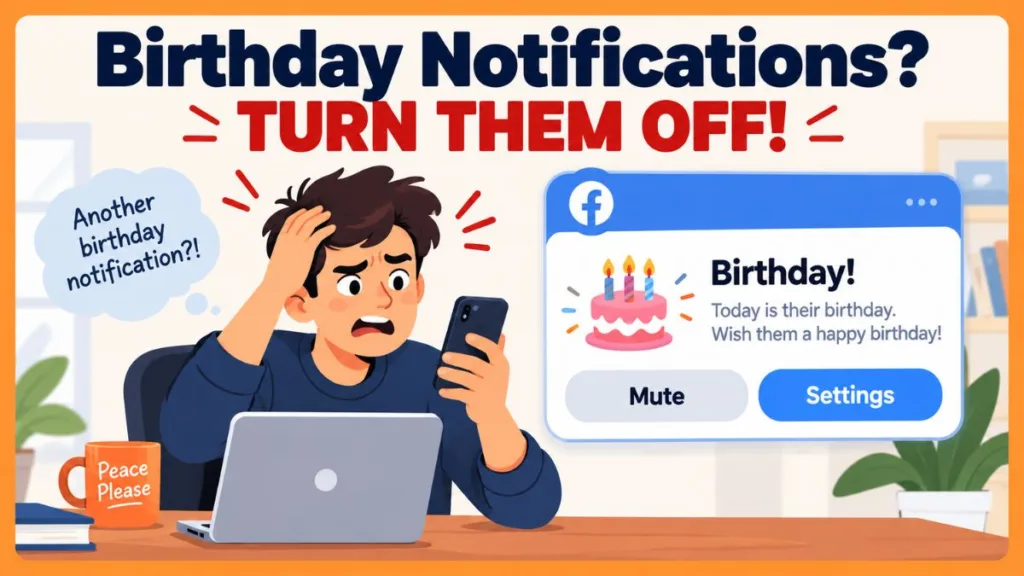
Here’s the part most guides skip: there are actually two different settings involved, and they do completely different things. One controls whether your birthday shows up and notifies other people. The other controls whether you get notified about everyone else’s birthdays. Mixing these up is the most common reason people think they’ve turned notifications off, only to have them come right back.
This guide walks you through both settings on mobile and desktop, plus what to do if the notifications keep showing up anyway.
Two Different Settings You Need to Know About
Before you dive into your settings, it helps to know which one you actually want to change:
- Hiding your own birthday — This is a privacy setting. It controls who can see your birthdate on your profile, and it’s what stops Facebook from notifying your friends when your birthday rolls around.
- Turning off notifications about other people’s birthdays — This is a notification setting. It controls the alerts you receive when it’s a friend’s birthday. It has zero effect on whether people see your birthday.
If you want to stop your own birthday from being announced, jump to the first section below. If you’re tired of getting pinged about everyone else’s birthday, skip ahead to the second one.
How to Hide Your Own Birthday on Facebook
Hiding your birthday keeps it off your profile and stops Facebook from prompting your friends to wish you a happy birthday. Here’s how to do it, whether you’re on the app or using a browser.
On the Facebook Mobile App
- Open the Facebook app and tap your profile picture.
- Scroll down and tap See your About info.
- Tap Basic info, then tap Edit.
- Next to your birth date, tap the privacy icon (it’ll show something like Public or Friends).
- Select Only me from the list.
- Tap Save.
A quick heads-up: your birth month/day and your birth year are set separately. If you also want to hide your age, repeat the same steps for the birth year field. If you’re generally tightening up your account, it’s also worth a look at your broader Facebook privacy settings.
On Facebook Web or Desktop
- Go to your profile and click the About tab, just below your cover photo.
- Select Contact and Basic Info from the left-hand menu.
- Find your birthday and click the small globe or people icon next to it.
- In the pop-up, choose Only me.
- Click Save.
If you use the Facebook desktop app on Windows, the steps are nearly identical to the web version above. There isn’t currently an official Facebook desktop app for macOS, so Mac users will want to stick with the browser or mobile app.
Tip: Hiding your birthday also stops it from syncing to your friends’ phone or Google calendars. That said, close friends and family who already know your birthdate can still reach out on their own — this setting only controls what Facebook shows and reminds people about.
How to Turn Off Notifications About Other People’s Birthdays
This is the setting you want if your notifications tab feels like an endless stream of “It’s [name]’s birthday today!” alerts.
Turn Off All Birthday Notifications
- Tap the notifications bell in the top corner of Facebook.
- Tap the three-dot icon in the dropdown.
- Select Notification settings.
- Scroll down and tap Birthdays.
- Toggle off Allow notifications on Facebook.
Keep in mind this only changes what shows up in your notifications — it doesn’t affect whether your own friends get notified about your birthday. That’s the separate setting covered above. If you’re cleaning up your notifications in general, this pairs well with our guide on how to delete Facebook notifications.
A Faster Mobile Shortcut
If you already have a birthday notification sitting in your notifications screen, you can skip the settings menu entirely. Just tap and hold (or tap the three-dot icon on) the notification itself, then select Turn off notifications about friends’ birthdays.
Customize Instead of Turning Everything Off
Not everyone wants to go all-or-nothing. If you’d still like a heads-up about close friends’ birthdays without the constant noise, you can fine-tune things instead of disabling notifications completely:
- Choose how you’re notified — Push, Email, SMS, or a combination.
- Choose which type of birthday alerts you get — Upcoming Birthdays, Belated Birthdays, or both.
These sub-toggles live in the same Birthdays notification settings screen mentioned above, so it’s worth a look before you flip everything off.
Tip: If the real issue is just volume, try turning off Belated Birthday alerts first. Those are usually the reminders that pile up days after the fact.
How to Turn Birthday Notifications Back On
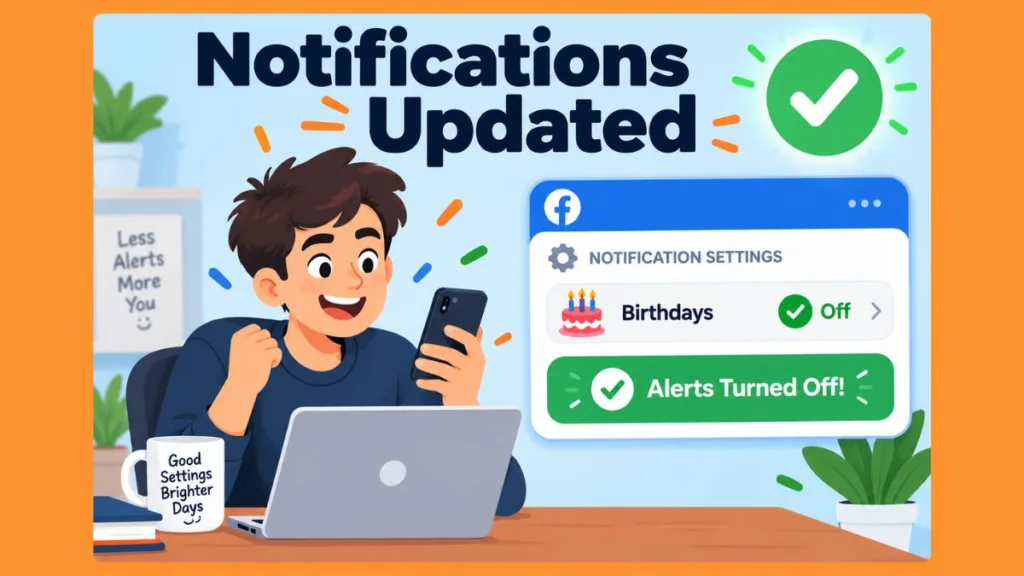
Changed your mind, or just want reminders back for a specific reason? Head back to the same Notification settings > Birthdays screen and switch Allow notifications on Facebook back on. You can also re-enable the individual Push, Email, or SMS toggles from there.
Birthday Notifications Still Showing Up? Try This
If you’ve flipped the toggle off but notifications keep showing up anyway, it’s usually one of these:
- Update the Facebook app. An outdated version can cause settings to behave inconsistently.
- Clear the app’s cache. Old cached data can sometimes override newer settings.
- Check your phone’s notification permissions. Even with Facebook’s toggle off, your device settings could still be allowing notifications through.
- Log out and back in. This forces Facebook to re-sync your settings, which can resolve stubborn cases.
Frequently Asked Questions
How often can I change my birthday on Facebook? Facebook limits how frequently you can edit your birthdate. If you’ve recently changed it, you’ll typically need to wait somewhere between 14 and 30 days before changing it again.
Can I turn off birthday notifications for just one friend? Facebook’s built-in settings apply to birthday notifications as a whole rather than letting you mute a single friend’s birthday specifically. Adjusting the Push, Email, or SMS toggles is currently the closest option for controlling how much you’re notified.
Does hiding my birthday stop people from wishing me happy birthday? It stops the automatic notification and calendar reminder, but anyone who already knows your birthdate — or happens to check your profile that day — can still send a message.
Who can see my birthday posts on Facebook? By default, birthday posts and photos are visible to your friends list, though you can adjust the audience for individual posts through Facebook’s regular privacy controls.
Will turning off my notifications change what my friends see about my birthday? No. Your notification settings only affect what you see. If you want to control what others see about your birthday, use the privacy setting covered earlier in this guide.
Wrapping Up
Once you know where to look, taking control of Facebook birthday notifications is a quick fix — whether you’re hiding your own birthday from your profile or muting the endless stream of reminders about everyone else’s. Just remember: those are two separate settings, so head to the right one for what you’re actually trying to fix.
Got a specific case that isn’t covered here, or found a workaround that worked for you? Drop it in the comments — it might help the next person scrolling through their notifications trying to figure out the same thing.
Visit Our Post Page: Blog Page
Discover more from Izoate
Subscribe to get the latest posts sent to your email.