
Diablo 4 Code 15 blocking the login screen on PS5 or Xbox? Find out what’s behind the error when Diablo 4 won’t let you log in.
Getting Diablo 4 Code 15 when you try to start the game? The error can stop you at the login screen before you even reach character selection.
Diablo 4 ties every character to a Battle.net account, so console players need to connect their PlayStation or Xbox profile before the game can let them in. When that connection is missing or broken, Code 15 is the login error many PS5 players report seeing, often during their first launch.
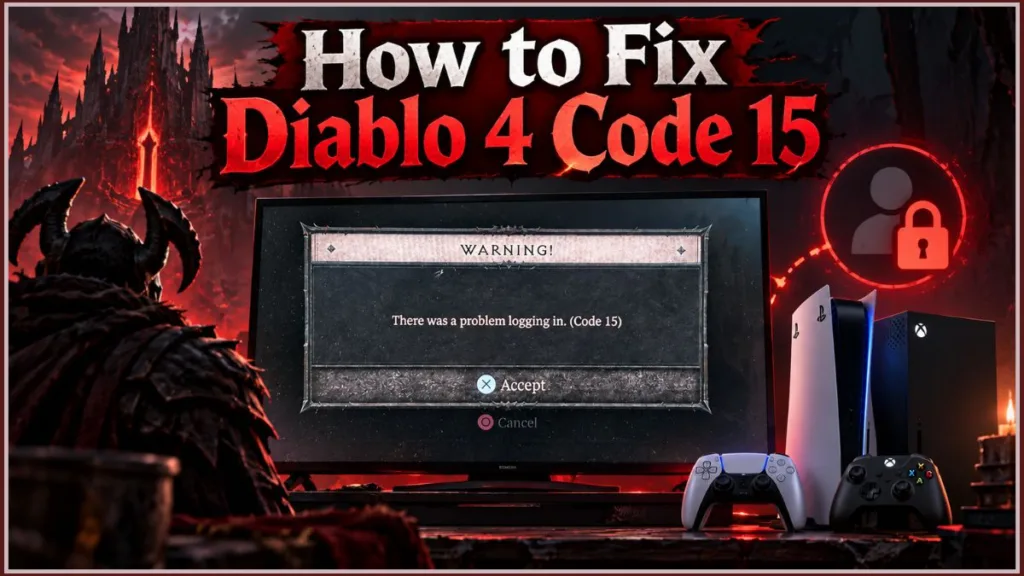
The error can feel alarming, especially right after buying the game or downloading it through PS Plus. In most reported cases, the problem comes down to how your console account and Battle.net account are connected, not a broken console or damaged game installation.
This guide explains what Code 15 appears to mean, when it shows up, what can cause it, and how to fix it on PS5 and Xbox. It also covers what to do when the account-linking process itself fails.
What Does Diablo 4 Code 15 Mean?
Blizzard has not published an official definition for Code 15, so the information here is based on player reports and Blizzard’s documented account-linking rules.
The error appears during the login stage, before character selection, and can stop Diablo 4 from starting completely. Reports come mostly from PS5 players, and the fix they describe is linking the console account to a Battle.net account.
That matches how Diablo 4 works. A Blizzard community representative has confirmed that a Battle.net account is required to play on PC, Xbox, and PlayStation, and that all progress is stored with the Battle.net account that was linked when it was earned.
In practice, treat Code 15 as a login and account-connection problem rather than a server crash or corrupted installation.
When Does Code 15 Show Up?
The reports fall into a few recognisable situations:
- First launch after purchase: You’ve just bought Diablo 4 on PS5 and the login step fails on your first attempt.
- New PS Plus downloads: You claimed or downloaded the game through a subscription and haven’t connected it to Battle.net yet.
- A new console or profile: You’re signing in with a different PSN or Xbox profile than the one you used before.
- An interrupted linking attempt: You started connecting the accounts, the process timed out or was cancelled, and the connection never completed.
- Mismatched accounts: Your console profile is tied to a different Battle.net account than the one you think you’re using.
If one of these situations sounds familiar, the causes below can help explain why it happened.
What Can Trigger Diablo 4 Code 15?
Could Your Console Account Be Missing the Battle.net Link?
This is the most commonly reported cause.
Diablo 4’s cross-platform system is built around a centralized Battle.net profile, while your Xbox or PlayStation account identifies you on the console network. Without the link, the login has nothing to attach to.
What to Do: Link your PSN or Xbox account to your Battle.net account, then relaunch the game. The full walkthrough is in the fixes section below.
Did the Account-Linking Process Stop Partway?
Sometimes the connection starts but never finishes. A code can expire, a browser tab can be closed, or the sign-in can be cancelled halfway through.
Icy Veins’ compiled list of Diablo 4 Battle.net errors includes a message saying that a request to link a device to a Battle.net account has expired, showing that half-finished links are a known failure point.
What to Do: Start the linking process again from the beginning and complete every step in one sitting.
Are You Signed Into the Wrong Battle.net Account?
Many players have more than one Battle.net account, such as an older account from Diablo 3 or Overwatch and a newer one.
If your console profile is connected to a different account than the one you expected, the login won’t match your purchase or saved characters.
What to Do: Sign in to Battle.net Account Management and check which account your PlayStation or Xbox profile is actually connected to.
Is Your Console Account Already Linked to Another Battle.net Account?
Blizzard limits how account linking works.
Each Battle.net account can have only one third-party platform account of each type, and the same platform account can’t be linked to multiple Battle.net accounts. If your PSN profile is already connected to another Battle.net account, a new link will be refused.
What to Do: Check both sides of the connection and remove the incorrect link before adding the right one. Read the cooldown rules in the fixes section first.
Could a Temporary Service or Connection Issue Be Involved?
Sometimes the cause is a service hiccup or an unstable connection rather than your accounts.
Code 15 reports don’t point to this often, but it’s worth ruling out when the account fixes don’t help.
What to Do: Restart your console and router, then try again after a short wait.
How to Get Past Diablo 4 Code 15
Start with the fixes for your platform, since linking accounts is the step players report working. Then finish with the checks that apply to everyone.
A few minutes of preparation can save you from the one mistake that’s difficult to undo.
Get These Things Ready First
Before you start, get these five things in place:
- Know which Battle.net account should own your Diablo 4 progress. If you’ve played Diablo 4 on this console before, you were already linked to a Battle.net account. Use that same account because progress stays with the account where it was earned.
- Sign in to the right console profile. Blizzard’s guidance is to log in to the correct third-party platform account before linking, so make sure the PSN or Microsoft account you’ll authorize is the one you actually play on.
- Have a phone or computer with a web browser nearby. Most linking happens outside the console.
- Keep access to your Battle.net email and login details. You may be asked to verify your identity when signing in.
- Understand the limits. Only one account of each platform type can connect to a Battle.net account, and changes are restricted by cooldowns, which are covered below.
What to expect: With these in place, the rest is a matter of a few clicks, and you’ll know in advance which account you’re aiming for.
Don’t Have a Battle.net Account Yet? Create One First
A brand-new console owner may not have a Battle.net account at all.
Here’s how to create one:
- Open the official Battle.net website and choose Account → Create Account in the top right. Blizzard’s site layout changes occasionally, so use the create-account option if the wording differs.
- Enter your date of birth. You can also start with a Facebook, Google, Apple, PlayStation Network, Xbox, or Nintendo account to skip entering an email and personal details.
- Set a password and choose your BattleTag, the display name other players see.
- Confirm your email address using the message Blizzard sends you.
What to expect: Once the email is confirmed, you can sign in to Account Management and connect your console profile.
Tip: Use one Battle.net account for every platform you play on. It keeps your characters in one place and avoids most link conflicts.
PS5: Connect Your PlayStation Account to Battle.net
Use Battle.net Account Management
This is the method players report working, and it is the first one to try.
- On a phone or computer, open Battle.net Account Management and sign in with the Battle.net account you want to use for Diablo 4.
- Open the Connections section of your account settings.
- Click “+Connect” beside PlayStation Network.
- Sign in with the same PSN account your PS5 uses and approve the connection.
- Return to Connections and confirm that PlayStation Network now appears as connected.
- Close Diablo 4 completely on your PS5. Highlight the game, press the Options button, choose Close Game, then relaunch it.
What to expect: After step 5, your Connections page lists the PSN profile. After step 6, Diablo 4 should move past the login screen to character selection instead of showing Code 15.
Why It Helps: The game needs to know which Battle.net account belongs to your PSN profile. Once that connection exists, the login has somewhere to send you.
Tip: Menu names on Blizzard’s site can change over time. If you don’t see “Connections” exactly as written, look for the section that lists connected third-party platforms.
Use the Code Shown in Diablo 4
Depending on your setup, Diablo 4 may show a linking screen with a code when you launch it.
Blizzard’s device page is built for this. It asks you to enter the code from your game screen to connect to your Battle.net account.
- Launch Diablo 4 and leave the code screen open. Do not back out or restart yet.
- On a phone or computer, open Blizzard’s device verification page.
- Sign in to the correct Battle.net account if prompted, then enter the code exactly as it appears on screen.
- Wait for the game to update. It should continue on its own.
What to expect: The console screen advances once the code is accepted. If the code has expired or was mistyped, relaunch the game to generate a fresh code and try again promptly.
Note: The prompt can differ by platform and update. If no code appears, use the browser method above.
Check Your Characters After Linking
If you already had characters on your Battle.net account, they appear on the character screen.
If they don’t, stop and recheck which account you linked before changing anything else.
Progress cannot be moved between Battle.net accounts, so a missing-characters screen almost always means the console profile is attached to a different account than the one you played on.
Blizzard has a dedicated support article on recovering characters that go missing after linking a console account.
Xbox: Connect Your Account to Battle.net
Use the Verification Code or QR Code
Xbox linking works like PlayStation linking.
According to one 2026 walkthrough, if your Xbox profile isn’t yet associated with a Battle.net account, Diablo 4 can present a linking screen with a temporary verification code and, depending on the interface, a QR-based activation option.
- Launch Diablo 4 on your Xbox and note the verification code or QR code on screen.
- On your phone or computer, follow the QR code or open Blizzard’s device verification page and enter the code.
- Sign in to the Battle.net account you intend to use and complete the authentication.
- Approve the Xbox connection when Microsoft asks you to confirm.
- Return to the console and continue to the login screen.
What to expect: The game leaves the linking screen and proceeds to character selection. In Account Management under Connections, your Xbox account should now be listed.
Why It Helps: The code ties your Xbox session to the Battle.net account you signed in with, which is exactly the connection the login needs.
Tip: Keep your Xbox and phone on the same home network while you do this, since mismatched networks are a common reason verification codes fail.
When Xbox Account Linking Shows an Error
Blizzard documents a handful of specific errors that block Xbox linking:
- 2148916233: The Microsoft account doesn’t have an Xbox account.
- 2148916238: The Microsoft account is under 18, so an adult must add it to a family group.
- 2148916236 and 2148916227: Adult or age verification is required. These apply to South Korea.
- 2148916237: The account is affected by Xbox enforcement, such as a ban, suspension, or strike.
For the first four, Blizzard directs you to Microsoft’s sign-in page at xbox.com/auth/msa to resolve the issue. If the problem persists, contact Xbox Support.
What to expect: Once Microsoft clears the account issue, the link should complete on the next attempt. These errors come from Microsoft’s side, so Blizzard Support can’t clear them for you.
Note: Most Code 15 reports mention PS5, so Xbox results may vary. The steps above use the same account-linking approach, but confirmed Code 15 cases on Xbox are scarce.
If Code 15 Still Appears
Correct a Wrong Account Link Carefully
If you’ve discovered that your console profile is attached to the wrong Battle.net account, follow Blizzard’s process carefully because this is where cooldowns can bite.
Blizzard says connections can be removed at any time, and you get one chance to retry linking the correct account before a cooldown is applied. After a further mistake, you must wait for the cooldown to expire.
- Make sure you’re signed in to the correct console account first—the profile you actually play on.
- Sign in to Account Management with the Battle.net account that currently holds the wrong link.
- Open Connections and remove the incorrect platform connection.
- Read the cooldown warning shown before you confirm. Blizzard says the warning specifies the exact cooldown length when you disconnect an account type that has a cooldown.
- Sign in to the correct Battle.net account and click Connect beside the platform to link the right profile.
- Restart Diablo 4 and log in.
What to expect: After step 5, the Connections page shows the correct profile. If you were locked out of earlier progress, it returns once the console is back on the account where that progress was earned.
Why It Helps: Most link failures come from an account already being attached somewhere else, and this process replaces the wrong link with the right one in a single pass.
Warning: If your console profile is linked to a different Battle.net account than the one you played on, you lose access to the progress from the original account. A Blizzard community representative says the fix is to relink to the original account, and that any cooldown triggered along the way can’t be reset or bypassed. Confirm the account before you disconnect anything. If Blizzard shows a “Whoops! Something went wrong.” message while connecting, you may have to wait up to 30 days to establish a new connection.
Restart Diablo 4 and Your Console
After linking, fully close Diablo 4 and relaunch it.
If the error remains, restart the whole console. On PS5, hold the PS button, open the power options, and choose Restart PS5. Then try logging in again.
What to expect: The game should ask for a fresh login and detect the new connection.
Why It Helps: The game is likely still using the old, unlinked session, and a clean start makes it check your account status again.
Check for Updates and Blizzard Service Issues
Make sure Diablo 4 and your console’s system software are up to date.
On PS5, highlight the game, press Options, and choose Check for Update.
Then check whether Blizzard is reporting a service issue. One guide suggests following the official Blizzard Customer Support account on X, which almost always posts about server problems and maintenance. If Blizzard reports an outage, waiting is the only real option.
What to expect: With the game updated and no reported outage, the login should behave normally once your account link is correct.
Why It Helps: An outdated game version or temporary service problem can interrupt login even when your accounts are set up correctly.
Get Help From Blizzard Support
If nothing works, open a ticket through Blizzard Support.
Include your platform, Battle.net account email or BattleTag, the exact error wording, and the steps you’ve already tried.
For linking rules and troubleshooting, read Blizzard’s article Cannot Link My Third Party Platform and Battle.net Accounts first.
What to expect: Support can help with account-specific problems such as access and verification, which Blizzard says can’t be handled on the public forums.
Keep expectations realistic, though. Blizzard states that customer support is unable to bypass cooldowns or fix incorrectly linked accounts, so a wrong link is best fixed with the steps above.
How to Avoid the Same Login Problem Later
Once you’re back in the game, a little setup can help keep Code 15 from returning.
Connect Your Accounts Before the First Launch
If you know you’ll play on console, connect your PSN or Xbox account to Battle.net before the first launch instead of waiting for the game to ask.
Why It Helps: You avoid hitting an error at the moment you’re most eager to play.
Keep One Battle.net Account Across Platforms
Because progress is stored with the Battle.net account, keeping every platform on the same one means your characters follow you.
Blizzard’s own announcement for the Steam release said players need to buy the game on that platform first, then connect it to a Battle.net account, as the game requires for all platforms. Each platform still needs its own copy of the game.
Why It Helps: A single account keeps your progress in one place and avoids duplicate profiles.
Check Before You Unlink Anything
Changing a connected platform account can trigger a cooldown, and linking the wrong account can leave characters looking missing.
Practical Advice: Check which account holds your progress before you touch any connection.
Why It Helps: A few minutes of checking beforehand can spare you a wait of weeks.
Is Diablo 4 Code 15 Something to Worry About?
With the fixes covered, it’s fair to ask whether the error signals something more serious.
It doesn’t.
Nothing suggests Code 15 harms your console, your game files, or your saved characters. It’s a login barrier, not a corruption warning, and once the account connection is sorted out, you can log in normally.
The only real risk comes from how you fix it, since unlinking the wrong account can start a cooldown and lock you out of earlier progress.
Common Questions About Diablo 4 Code 15
The questions below cover what players ask most often once the basic fix is in hand.
What Does Code 15 Mean in Diablo 4?
Blizzard hasn’t published an official definition for Code 15.
In player reports, it appears when logging in on a console, most often PS5, and stops the game from starting. The fix players describe is linking their PlayStation or Xbox account to a Battle.net account.
That points strongly toward an account-connection problem rather than a server or installation fault.
How Do I Fix Code 15 on PS5?
Sign in to Battle.net Account Management, open Connections, and connect your PlayStation Network account.
Then fully close Diablo 4 on your PS5, relaunch it, and try logging in again.
If the game shows a code on screen, you can enter it on Blizzard’s device page instead.
If it still fails, confirm you’re using the correct Battle.net account and restart your console.
Why Can’t I Log Into Diablo 4 on PS5?
The usual suspects are an unlinked PSN account, a link to the wrong Battle.net account, or an interrupted linking attempt.
Less often, a service or connection problem is responsible.
Checking your account connections first will tell you which one applies. If the connections look right, restart the game and console, then check for a reported Blizzard outage.
Do I Need a Battle.net Account to Play Diablo 4 on Console?
Yes.
A Blizzard representative confirms that a Battle.net account is required on PC, Xbox, and PlayStation. Blizzard also has a support article covering the error that appears when one is missing.
Your characters and progress live on that account, so it’s worth using one you’ll keep long term.
If you don’t have one yet, the account creation steps are in the fixes section above.
How Do I Create a Battle.net Account?
Choose Account → Create Account on the Battle.net website.
Enter your date of birth, then either fill in your details or start from a linked Google, Apple, PSN, Xbox, or Nintendo account.
Set a password and BattleTag, then confirm your email.
The full walkthrough is in the “Don’t Have a Battle.net Account Yet? Create One First” section.
Once the account exists, sign in and connect your console profile.
Can I Fix Diablo 4 Code 15 on Xbox?
The same account-linking approach should apply.
Launch the game, follow the on-screen verification code or QR prompt, and sign in to the correct Battle.net account.
If linking fails with an error, check Blizzard’s list of Xbox error codes for the cause.
Most Code 15 reports mention PS5, so results on Xbox may vary.
Can I Use the Same Battle.net Account on PS5 and PC?
Yes, and it’s the recommended approach.
Progress is stored with the Battle.net account, so using one account across platforms lets your characters follow you.
Each platform still needs its own copy of the game, and each platform account has to be linked to that same Battle.net account.
Linking a second, different account per platform is what tends to create confusion later.
Why Won’t My PSN or Xbox Account Link to Battle.net?
Usually because of Blizzard’s linking rules.
Your Battle.net account may already have a PSN or Xbox profile attached, or your platform account may already belong to a different Battle.net account.
Check both sides and remove the incorrect connection if needed, keeping the cooldown warning in mind.
If a “Whoops! Something went wrong.” message keeps appearing, Blizzard says a new connection can take up to 30 days to establish.
Can Blizzard Support Remove a Cooldown or Fix a Wrong Link?
Not according to Blizzard.
The company says support can’t bypass cooldowns or fix incorrectly linked accounts, and a staff member has added that a triggered cooldown can’t be reset.
What you can do is use the one correction Blizzard allows before a cooldown applies.
Support tickets are still worthwhile for account access and verification problems.
Is Code 15 a Server Problem?
Not according to the reports gathered so far, which point to account linking.
Still, if your accounts are set up correctly and the error continues, check whether Blizzard is reporting service issues.
A restart of the game, console, and router is also worth trying.
If everything looks fine on your end, open a support ticket so Blizzard can check your account.
What Should I Include in a Support Ticket?
Give Blizzard your platform, Battle.net account details, exact wording of the error, and the steps you’ve already tried.
Mention whether the game was newly purchased or downloaded through PS Plus, since that context matches the common reports.
Clear details save back-and-forth and help support find the problem faster.
Conclusion
Diablo 4 Code 15 is frustrating because it stops you before you’ve even seen your character, but the most commonly reported fix is refreshingly simple.
Connect your PlayStation or Xbox account to the right Battle.net account, restart the game, and log in again.
If that doesn’t work, go through the checks in order: confirm you’re on the correct account, respect the linking rules and cooldowns, restart everything, and rule out service issues.
Be careful when you unlink anything, since Blizzard’s cooldowns can’t be bypassed.
A few minutes of careful setup now can get you back into Sanctuary and keep your progress safe on every platform you play on.
Visit Our Post Page: Blog Page
Discover more from Izoate
Subscribe to get the latest posts sent to your email.