
Getting Diablo 4 error 315306? Learn how to fix the “Unable to Find a Valid License” error with step-by-step solutions for PC, PS5, and Xbox.
There is nothing quite as frustrating as gearing up to slay demons in Sanctuary, only to be stopped cold at the login screen by Diablo 4 error 315 306. Instead of loading into the character select screen, you are blocked by a prompt stating that the system is unable to find a valid license.
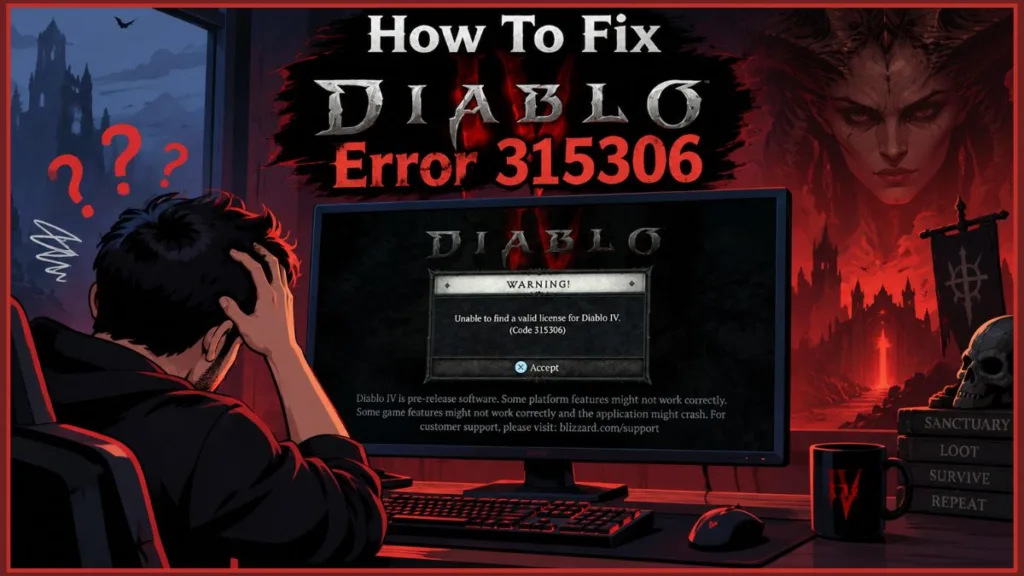
If you are staring at this error code right now, take a breath. Your purchase has not vanished, your account is completely safe, and your characters are right where you left them. This guide breaks down why this error occurs and provides the exact, step-by-step tutorial needed to resolve it and get you back into the game.
What is Error Code 315306 in Diablo 4?
When you boot up Diablo 4 on PC, PlayStation, or Xbox, your client performs an automated digital handshake with Blizzard’s authentication servers to confirm your ownership rights. Error code 315306 indicates that this authentication handshake failed. The Battle.net infrastructure failed to validate your account credentials against its digital entitlement database, triggering the generic warning about an invalid license.
In the vast majority of cases, the root cause lies on Blizzard’s side rather than your hardware. Historically, this error spikes whenever login queues are overwhelmed, authentication clusters desynchronize, or servers are taken offline ahead of major seasonal launches. It does not indicate a billing dispute, a declined credit card, or a revoked game key.
Does Error 315306 Mean I Am Banned?
Seeing Diablo 4 error 315 306 does not mean your account has been banned.
Because the error message explicitly references an invalid license, many players assume their access was revoked due to an account penalty or anti-cheat flag. If Blizzard takes disciplinary action against an account, the launcher presents an explicit Terms of Service suspension code accompanied by an official notification email sent to your registered address. This specific error is strictly an authentication failure caused by network instability or server downtime.
How to Fix Diablo 4 Error 315306 (Step-by-Step Solutions)
Work through these tutorial steps in order. They begin with external server checks and move directly into platform-specific fixes for PC and console.
1. Check Blizzard Server Status
Before tweaking system settings or reinstalling massive game files, determine whether the outage is global. Server-side maintenance, emergency hotfixes, or DDoS attacks targeting Battle.net are the leading causes of license verification failures.
- Check official support alerts: Open your browser and navigate to the official Blizzard CS (Customer Support) page on X for real-time announcements regarding emergency maintenance or authentication outages.
- Review community outage spikes: Head to DownDetector.com > Search “Diablo” to see if hundreds of other players are reporting the same sudden login failure.
- Inspect the official forums: Visit the Blizzard Forums > Diablo IV Technical Support board. If Blizzard is preparing for a seasonal transition or server downtime, announcements are pinned directly at the top.
If the servers are down, local troubleshooting will not work. You must wait until Blizzard’s engineering team finishes deploying server-side updates.
2. PC Fix: Restart Battle.net and Change Regions
If servers are operational, the local Battle.net launcher is likely stuck in a cached authentication loop. Follow this procedure to force a fresh server handshake.
- Terminate background processes: Close the Diablo 4 game client and exit Battle.net. Press Ctrl + Shift + Esc to launch Task Manager. Locate any running instance of Battle.net or Blizzard Update Agent, right-click each, and select End task.
- Relaunch the client: Open the Battle.net Desktop App and log back into your account.
- Switch server regions: Navigate to the Diablo IV tab. Locate the Globe icon sitting immediately next to the blue Play button. Click the icon and select a different region (e.g., if you play on Americas, select Europe).
- Trigger re-authentication: Click Play and allow the game to connect to the new server region. This forces the Battle.net backend to verify your license on a fresh cluster.
- Return to your home region: Once the game successfully logs in, quit back to desktop, click the Globe icon, select your original region, and hit Play again.
3. Console Fix (PS5/Xbox): Restore Licenses or “Buy” a Free Game
Console players encounter this problem frequently because authentication requires communication across two separate ecosystems: the console network (PlayStation Network or Xbox Network) and Blizzard’s Battle.net servers.
PlayStation 5: Restore Licenses
- From the PS5 home screen, open Settings (gear icon in the top right).
- Select Users and Accounts > Other > Restore Licenses.
- Select Restore and wait for the verification bar to complete. (You can read more about this process on the official PlayStation Support site).
- Launch Diablo 4 to check if your account authenticates.
PlayStation 5: The “Free Game” Refresh Workaround If restoring licenses directly fails, use this proven community workaround to force PSN to rebuild your digital entitlement catalog:
- Open the PlayStation Store from the home screen.
- Navigate to the Free-to-Play section or search for any small, free title (or free streaming app).
- Select Download or Add to Library.
- Cancel the download as soon as it begins. Initiating the transaction forces Sony’s servers to re-sync every license attached to your PSN ID.
- Immediately boot Diablo 4.
Xbox Series X|S and Xbox One: Profile Resync and Power Cycle
- Press the Xbox button on your controller to open the guide.
- Go to Profile & system > Sign out, and sign out of the profile that owns the game.
- Hold the physical Power button on the front of the Xbox console for 10 seconds until the machine shuts down completely.
- Unplug the power cable from the back of the console and wait 30 seconds to clear the system cache.
- Reconnect the power cable, boot up the console, sign back into your gamer profile, and open Diablo 4.
4. Scan and Repair Game Files via Battle.net
If you are on PC and region swapping fails, damaged installation files or corrupted cache blocks may be preventing the Battle.net agent from validating ownership.
- Open the Battle.net Desktop App.
- Click the Diablo IV icon in your top favorites bar or library list.
- Click the Cogwheel icon (Options) located directly next to the blue Play button.
- Select Scan and Repair from the context menu.
- Click Begin Scan in the pop-up prompt.
- Wait for the client to cross-examine your local game files against the master repository. Battle.net will automatically identify and replace any corrupted files. Once the process reads 100%, launch the game.
Does Diablo 4 Game Sharing Cause License Errors?
Yes, console game-sharing arrangements frequently trigger license verification errors, particularly for players setting up couch co-op.
Diablo 4 allows game sharing, but its license verification policy is strict. If you attempt to play on a secondary account while the purchasing account does not have that device set as its designated Home Console, the license check will fail.
To eliminate sharing conflicts, configure your console ownership settings properly:
- On PlayStation 5: Log in with the account that bought the game > Navigate to Settings > Users and Accounts > Other > Console Sharing and Offline Play > Enable.
- On Xbox: Log in with the purchasing account > Navigate to Settings > General > Personalization > My home Xbox > Make this my home Xbox. (For more detailed instructions, visit Xbox Support).
Additionally, both local players jumping into couch co-op must have their individual console accounts connected to unique, verified Battle.net accounts before joining the session.
Frequently Asked Questions
How do I fix Diablo 4 error 315306?
Start by verifying that Blizzard’s servers are operational. If the servers are healthy, PC players should restart Battle.net, change their server region via the launcher Globe icon, or run the Scan and Repair tool. Console players can resolve the issue by running the Restore Licenses function in system settings or restarting their console to re-authenticate with the network.
Why does Diablo 4 say “Unable to Find a Valid License”?
This message appears when the communication link between your gaming platform and Blizzard’s Battle.net servers breaks down. The game cannot verify that your active profile holds a legitimate entitlement to play, usually due to heavy login traffic, ongoing maintenance, or a stale local network cache.
Is Diablo 4 error 315306 a server-side problem?
Yes, in the vast majority of cases, it is entirely a server-side issue. It occurs en masse when server capacity maxes out, when authentication clusters go down, or when Blizzard restricts access right before deploying a major update or seasonal patch.
How long does Diablo 4 error 315306 last?
If the error is caused by scheduled maintenance or server downtime, it typically lasts anywhere from 30 minutes to a few hours, depending on how quickly Blizzard deploys the fix. If the cause is a local credential desync, applying a license refresh or region swap will resolve it immediately.
How do I fix Diablo 4 error 315306 on PS5 or Xbox?
On PS5, go to Settings > Users and Accounts > Other > Restore Licenses, or download any free item from the PlayStation Store to force an entitlement update. On Xbox, sign out of your profile and perform a hard power cycle by holding the power button for 10 seconds before restarting.
Does Diablo 4 error 315306 mean I need to buy the game again?
No, you do not need to repurchase the game. Your purchase history and ownership rights remain securely attached to your platform account and Battle.net profile. The system is simply having trouble confirming that entitlement due to temporary network or server lag.
Can game sharing cause Diablo 4 error 315306?
Yes. If the console you are using is not set as the primary or home console for the account that purchased Diablo 4, secondary users will be locked out. Make sure the purchasing account activates console sharing in system settings and that both profiles are linked to separate Battle.net accounts.
Visit Our Post Page: Blog Page
Discover more from Izoate
Subscribe to get the latest posts sent to your email.