
Is Windows 11 update KB5121003 causing game crashes, HP BIOS errors, or Lenovo battery drain? Learn how to safely uninstall the patch and fix your PC.
If you recently updated your PC for the August 2026 Patch Tuesday and suddenly find your games crashing, your HP laptop refusing to boot, or your Lenovo battery draining while plugged in, you are not alone.
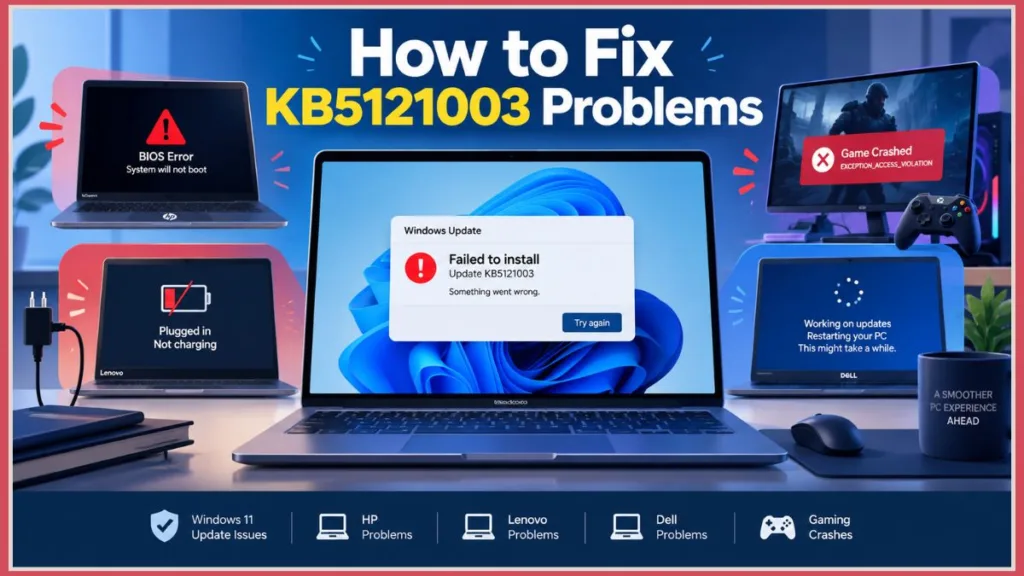
Microsoft’s latest release is causing widespread havoc. Support forums are currently flooded with Windows 11 KB5121003 issues, ranging from minor software glitches to severe hardware conflicts that render devices unusable.
For the later emergency response to related Windows 11 problems, see our Windows 11 Emergency Update KB5129194 coverage, which explains Microsoft’s emergency update addressing broken audio and Remote Desktop issues.
In this comprehensive troubleshooting guide, we are breaking down the exact technical reasons why this update is failing across major laptop brands. Most importantly, we will provide the step-by-step instructions on how to uninstall KB5121003 and perform hardware resets to get your system back to normal.
What Is Windows 11 KB5121003 and Why Is It Failing?
Update KB5121003 was rolled out as a mandatory cumulative security and maintenance patch for Windows 11. However, shortly after its release, users began reporting major system instability.
The core issue stems from how the patch alters Windows 11’s memory integrity and Advanced Configuration and Power Interface (ACPI) protocols. This leads to severe clashes with OEM-specific motherboards and third-party kernel-level drivers. Currently, Microsoft has acknowledged the RGB peripheral issues on their Windows Health Dashboard, but there is no official hotfix for the broader hardware failures, leaving users to manage the fallout themselves.
Tip: You can monitor the official Microsoft Windows Health Dashboard webpage to see in real-time when Microsoft officially deploys a permanent patch for KB5121003.
Hardware Failures: HP, Lenovo, and Dell Breakdowns
The most alarming issues surrounding this update involve direct hardware interference on laptops from the top three global PC manufacturers.
HP Laptops: BIOS Corruption and Boot Failures
If you own an HP Envy, Pavilion, or Spectre, you might be dealing with the dreaded HP laptop BIOS corrupted update bug. The KB5121003 installation process is failing to properly interface with HP’s firmware management, causing the update to get stuck. Worse, HP support has confirmed that interrupting this failed installation is actively corrupting the system BIOS, resulting in a black screen on boot.
Tutorial: How to Perform an HP BIOS Reset Before you can roll back the update, you must recover the BIOS:
- Power Down: Turn off the laptop completely and disconnect all external devices.
- Hold the Keys: Press and hold the Windows Key + B (on some older models, use Windows Key + V).
- Trigger the Reset: While holding those keys, press and hold the Power button for exactly 2 to 3 seconds.
- Release Power Only: Release the Power button but keep holding the Windows + B keys until you see the screen turn on.
- Wait for Recovery: You should hear a series of beeps, and the HP BIOS Update screen will appear to recover your firmware automatically. (For complete documentation, refer to HP’s official BIOS recovery guide).
Crucial Warning: Always ensure your laptop is plugged directly into a reliable wall outlet using the official AC adapter during a BIOS reset. A power loss during this phase can permanently brick your motherboard.
Lenovo Laptops: AC Power Randomly Disconnecting
Lenovo users (particularly on ThinkPad and Legion models) are dealing with a severe battery bug: Lenovo laptop not charging on Windows 11.
A deep dive into the issue reveals that KB5121003 contains a glitch that misreads the motherboard’s ACPI power state. This causes Lenovo Vantage and Windows to falsely believe the charger has been physically removed. If your Lenovo is plugged into the wall but the screen keeps dimming and the battery is draining, your AC adapter isn’t broken—it is a software bug artificially dropping the power connection.
Troubleshooting Tip: If you open the Lenovo Vantage app, you will likely see the battery status rapidly flickering between “Charging” and “On Battery.” Do not replace your battery; this confirms you have the KB5121003 bug.
Dell Systems: Continuous Installation Loops
Dell XPS and Inspiron users are reporting widespread installation failures on the Dell Community forums. The KB5121003 update downloads to 100%, restarts, and then throws generic Windows Update error codes—most commonly 0x800f0922 and 0x80070002. The system then rolls back the changes, only to try (and fail) to install the update again the next day in an endless loop.
Gaming Crashes: The inpoutx64.sys Driver Conflict
If you are a PC gamer, this update might be rendering your favorite multiplayer titles completely unplayable. Players in games like The Finals, ARC Raiders, and MARVEL Tōkon: Fighting Souls are experiencing sudden freezes, forced PC reboots, and the dreaded EXCEPTION_ACCESS_VIOLATION memory error.
The culprit is an inpoutx64.sys game crash.
- What is happening:
inpoutx64.sysis a third-party, kernel-level driver used by popular hardware management software (like ASUS Armoury Crate, Razer Synapse, and Corsair iCUE) to control RGB lighting. - The Conflict: KB5121003 changes how Windows handles hardware memory mapping. When a game’s anti-cheat engine (like Easy Anti-Cheat or Ricochet) scans the system, the newly updated Windows kernel flags the
inpoutx64.sysRGB driver as a critical security violation, instantly crashing the game engine to protect the system.
Important Note: Do NOT navigate to your System32 folder and manually delete the
inpoutx64.sysfile. While some advanced users are disabling the driver via the Windows Registry or Command Prompt, doing so will completely break your RGB hardware lighting and can cause dependent apps to crash. The safest fix is uninstalling the Windows update.
Other Bugs: Broken Printers, PDFs, and ARM PC Crashes
The update’s blast radius isn’t limited to hardware and gaming. Core productivity software is also taking a hit:
- ARM-Based Laptops: Users on new Snapdragon X Elite devices are reporting that the x86 emulation layer is failing for specific Microsoft apps. Microsoft Teams and Outlook are crashing immediately upon launch.
- Print Spooler Failures: Standard system functions are breaking due to the Print Spooler service crashing in the background. This not only prevents physical printing but also breaks the “Print to PDF” function in web browsers and Microsoft Word.
How to Uninstall Windows 11 KB5121003 (Step-by-Step)
Because Microsoft has not yet released a comprehensive patch for these bugs, the only reliable way to fix your HP, Lenovo, or gaming rig is to roll back Windows 11 KB5121003.
Follow this tutorial (also outlined on Microsoft’s official support page for removing updates) to safely remove the buggy patch:
- Open Settings: Click the Start button and type Settings, or simply press Windows Key + I on your keyboard.
- Navigate to Updates: On the left-hand navigation menu, select Windows Update.
- View History: Scroll down under the “More options” section and click on Update history.
- Access Uninstall Menu: Scroll to the very bottom of the history page and click Uninstall updates.
- Locate the Buggy Patch: Look carefully through the list of installed patches until you find Update for Microsoft Windows (KB5121003).
- Execute Removal: Click the Uninstall button next to it and confirm your choice in the pop-up warning window.
- Reboot: Restart your PC when prompted by the system to finalize the removal.
Safe Mode Tip: If your PC is caught in an endless boot loop and you cannot reach the desktop to open Settings, you will need to boot into Windows Safe Mode first. You can trigger Safe Mode by holding the Shift key while clicking Restart from the Windows lock screen, then navigating to Troubleshoot > Advanced Options > Uninstall Updates.
How to Pause Windows Updates to Prevent Automatic Reinstallation
Windows 11 is aggressive. Once you uninstall the broken patch, the operating system will likely try to download and install it again overnight. To stop the installation loop, you need to pause your updates temporarily.
Tutorial: Pausing Windows Updates
- Go back to Settings > Windows Update.
- Look for the Pause updates section at the top of the window.
- Click the dropdown menu and select Pause for 1 week (or up to 4 weeks depending on your preference).
This will prevent your PC from automatically downloading KB5121003 again, giving Microsoft time to investigate the issues on their end and release a stable, revised version of the patch.
Reminder: Set a calendar alert on your phone for one week from today to check the Windows Update menu again. You do not want to leave your PC unpatched indefinitely, as you will miss out on crucial future security fixes.
Frequently Asked Questions (FAQ)
Why is my Lenovo laptop not charging after the Windows update?
The KB5121003 update contains a system driver conflict that interrupts the ACPI power connection state on Lenovo motherboards. The system software falsely believes the charger has been unplugged. Uninstalling the update will immediately restore your laptop’s normal charging capabilities.
Can update KB5121003 ruin my HP laptop’s BIOS?
Yes. Multiple users and HP support agents have reported BIOS corruption occurring when the KB5121003 installation fails and attempts to revert. If your system is stuck on a black screen, it requires a hard BIOS reset via HP’s hardware key shortcuts (Windows Key + B during boot) to recover.
Is it safe to uninstall KB5121003?
Yes. While rolling back the update does remove Microsoft’s latest August security patches, it is a necessary troubleshooting step to resolve critical system stability issues, memory access game crashes, and charging bugs until Microsoft issues a fixed replacement update.
Visit Our Post Page: Blog Page
Discover more from Izoate
Subscribe to get the latest posts sent to your email.