
Learn how to check DNS records using CMD with nslookup. Step-by-step commands for A, MX, NS, and TXT records, plus troubleshooting tips for Windows and Linux.
If a website suddenly won’t load, an email keeps bouncing back, or you’ve just updated your domain’s DNS settings and want to confirm they’ve actually taken effect, there’s a good chance you don’t need to install any fancy software to figure out what’s wrong. Your computer already has everything you need built right in.
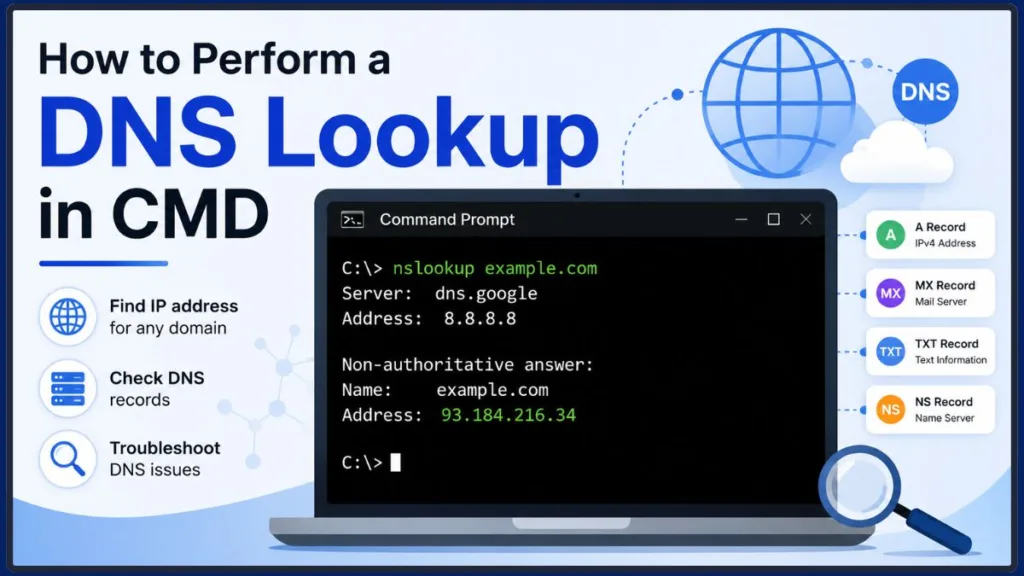
That tool is called nslookup, and it’s one of the fastest ways to check DNS using CMD (Command Prompt). Whether you’re a beginner trying to understand why your site isn’t resolving or someone more experienced looking for a quick refresher, this guide walks you through everything: how to perform a DNS lookup, what the different record types mean, how to troubleshoot common errors, and even how things look if you’re on Linux instead of Windows.
By the end, you’ll know exactly how to check DNS via CMD like a pro — no guesswork required.
So, What Exactly Is a DNS Lookup Tool?
Before jumping into commands, it helps to understand what you’re actually working with.
A DNS lookup tool is simply a utility that asks a DNS server for information about a domain name or IP address. Think of DNS as the internet’s phonebook — it translates human-friendly names like example.com into the numeric IP addresses that computers actually use to talk to each other. A DNS lookup tool is how you “look up” an entry in that phonebook.
There are a few tools that can do this, and you may come across them depending on what device or operating system you’re using:
- nslookup – built into Windows, macOS, and Linux
- dig – common on macOS and Linux, more detailed output
- host – a simpler, more lightweight alternative on Linux/macOS
For most everyday troubleshooting, nslookup is the easiest starting point since it’s already installed almost everywhere. That’s what this guide focuses on.
What Can You Actually Do With Nslookup CMD?
So what is the DNS lookup command in CMD actually good for? In short: diagnosing anything DNS-related.
Here are some real situations where you’d reach for nslookup:
- A website won’t load, and you want to check if it’s actually resolving to the right IP address
- You just updated your domain’s DNS records and want to confirm the changes have propagated
- Emails aren’t being delivered, and you suspect a problem with your MX records
- You’re setting up a new server and need to verify your nameservers are configured correctly
- You want to see whether your local DNS server is returning different results than an external one, like Google’s public DNS
Basically, any time something feels “off” with how a domain is resolving, nslookup CMD is usually your first stop before digging into more complicated network diagnostics.
Tip: If a website loads fine on your phone’s mobile data but not on your home Wi-Fi, that’s often a strong sign your local DNS server is the culprit — and a quick nslookup check will confirm it in seconds.
Ready to Run Your First DNS Lookup? Here’s How
Let’s get into the actual basic nslookup CMD commands you’ll use most often.
First Things First: Opening Command Prompt
- Click the Search icon in your taskbar
- Type
cmdor Command Prompt - Press Enter to open it
You can also press Win + R, type cmd, and hit OK — whichever shortcut you prefer.
What Does a Basic Nslookup Command Actually Look Like?
Once Command Prompt is open, a basic domain lookup looks like this:
nslookup example.comReplace example.com with whatever domain you’re checking. The output will show you the DNS server that answered the query, along with the IP address associated with that domain.
Tip: You’ll likely see something labeled a “non-authoritative answer.” Don’t worry — that’s completely normal. It simply means the response came from a cached record on a recursive DNS server rather than directly from the domain’s own authoritative nameserver.
Got an IP Address But Need the Domain Name? Do This Instead
Sometimes you have the opposite problem: you’ve got an IP address and want to know what domain it belongs to. This is called a reverse DNS lookup, and the command works the same way, just with the IP in place of the domain:
nslookup 8.8.8.8This example would return the domain name tied to Google’s public DNS address.
Quick Tip: Reverse lookups are especially handy when reviewing server logs or verifying that an email server’s IP matches its expected hostname — a common check for avoiding spam filter issues.
Want More Detail? Here’s How to Check Specific DNS Records via CMD
Beyond basic lookups, nslookup lets you pull specific DNS record types. This is where things get genuinely useful for troubleshooting.
The general syntax follows this pattern:
nslookup -type=recordtype domain.comHere’s a breakdown of the most useful record types you’ll want to know:
Need the Basic IP Address? Check A and AAAA Records
These map a domain to its IPv4 (A) or IPv6 (AAAA) address — the most basic form of DNS resolution.
nslookup -type=A example.comIs a Subdomain Aliased Somewhere Else? Look Up the CNAME
A CNAME points one domain name to another. It’s commonly used for subdomains that need to alias a main domain.
nslookup -type=CNAME www.example.comEmails Not Arriving? Check the MX Records
MX records identify the mail servers responsible for handling email for a domain. If emails are getting lost or bouncing, this is one of the first things worth checking.
nslookup -type=MX example.comWho’s Actually Managing This Domain? Check the NS Records
NS records show you the authoritative nameservers for a domain — essentially who’s “in charge” of that domain’s DNS zone.
nslookup -type=NS example.comWant the Full Administrative Picture? Pull the SOA Record
The Start of Authority (SOA) record contains administrative details about the domain zone, including the admin’s email, serial number, and refresh intervals.
nslookup -type=SOA example.comVerifying SPF or DKIM? Here’s How to View TXT Records
TXT records store text-based information, often used for things like SPF, DKIM, and domain ownership verification.
nslookup -type=TXT example.comJust Want Everything at Once? Try This
If you want the full picture in one shot, you can request every available record type using:
nslookup -type=ANY example.comHeads up: Some modern DNS providers restrict
-type=ANYqueries for security reasons, so don’t be surprised if the results come back incomplete. If that happens, just query the specific record types individually instead.
Want to Compare DNS Servers? Here’s How to Query a Specific One
One of the most underrated features of nslookup is the ability to point your query at a specific DNS server instead of relying on your default one.
This is incredibly useful when you want to compare results — say, checking whether your ISP’s DNS server is returning outdated information while a public DNS server like Google’s shows the correct, updated record.
The syntax looks like this:
nslookup example.com 8.8.8.8Here, 8.8.8.8 is Google’s public DNS server, and the command checks what that specific server knows about example.com.
You can also switch servers while inside interactive mode by typing:
server 8.8.8.8This is a favorite technique among IT professionals for spotting DNS propagation delays or stale cached records after making changes to a domain.
On Linux Instead? These Nslookup Examples Will Get You Sorted
The good news is that if you’re comfortable running nslookup CMD on Windows, you already know most of what you need for Linux. The commands are nearly identical — only the terminal changes.
If your Linux distro doesn’t already have nslookup installed, you can add it with:
sudo apt install bind-utils(On Debian/Ubuntu-based systems)
or
sudo dnf install bind-utils(On RedHat-based systems)
Once installed, here are a few practical nslookup Linux examples to try:
nslookup example.comChecks the basic A record, just like on Windows.
nslookup -type=MX example.comPulls mail server records for the domain.
nslookup example.com 1.1.1.1Queries Cloudflare’s public DNS server instead of your system default.
Tip: On many Linux systems,
digtends to be the preferred tool among sysadmins because of its more detailed output — but nslookup remains a solid, quick option when you just need a fast answer.
Running Into Error? Here Are Some Nslookup Troubleshooting Tips
Even with the right commands, you might run into a few confusing moments. Here’s how to make sense of them.
Seeing “Non-Authoritative Answer”? Here’s What That Really Means
As mentioned earlier, this message simply means the DNS server you queried isn’t the official source for that domain’s records — it’s just passing along cached information it previously retrieved. It’s not an error, just a heads-up about where the data came from.
What Do These Common Nslookup Errors Actually Mean?
Here are a few messages you might come across while running a DNS lookup command:
- DNS request timed out – The server didn’t respond in time. Try again or check your internet connection.
- Non-existent domain – The domain doesn’t exist, or there’s a typo somewhere.
- Server failure – The DNS server hit an internal error and couldn’t process your request.
- Refused – The server declined to answer your query, sometimes due to security restrictions.
Still Seeing Old Info? Try Clearing Your DNS Cache
If you’ve recently updated DNS records but you’re still seeing old information, your computer’s local cache might be the problem. Clear it with ipconfig /flushdns — this forces your system to fetch fresh DNS information instead of relying on what it already has stored.
Nothing Working? Here’s When to Look Beyond CMD
If your lookups keep returning inconsistent results even after flushing your cache and testing against an external DNS server, the issue might be sitting further upstream — at your router, your ISP, or even within your domain registrar’s settings. At that point, it’s worth reaching out to your hosting provider or domain registrar for a deeper look.
Prefer PowerShell? Here’s Your Modern Alternative to Nslookup
If you tend to work in PowerShell rather than classic Command Prompt, there’s a more modern equivalent worth knowing: Resolve-DnsName.
Resolve-DnsName example.comTip: Unlike nslookup, this cmdlet returns results as structured objects rather than plain text, which makes it much easier to filter, sort, or feed into scripts. If you’re doing any kind of automation or bulk DNS checking, this is generally the better tool for the job.
Resolve-DnsName example.com -Type MXSame idea as querying MX records with nslookup, just with PowerShell’s cleaner formatting.
Wrapping Up: You’ve Got This Covered Now
Learning how to check DNS using CMD is one of those skills that pays off the moment something breaks. Whether you’re confirming a domain’s IP address, checking MX records because emails aren’t arriving, or comparing results across different DNS servers, nslookup gives you fast, reliable answers without needing any extra software.
Keep this guide handy the next time a website won’t load or a DNS change doesn’t seem to be sticking. And if you run into a DNS lookup command CMD scenario that doesn’t quite match what’s covered here, drop a comment below — chances are, someone else is running into the exact same thing.
Official Documentation
When you need the exact syntax or want to explore every possible flag and parameter, official documentation is always the safest bet.
- Microsoft Learn: nslookup: This is the official command-line reference for Windows. It provides a comprehensive breakdown of interactive versus non-interactive modes, detailed syntax, and a helpful table of common error messages you might encounter during your checks.
- Microsoft Learn: Resolve-DnsName: If you are moving away from classic Command Prompt and transitioning into PowerShell, this official module page explains the modern equivalent to nslookup. It details how to use parameters like -Server and -Type to filter your results cleanly.
Visit Our Post Page: Blog Page
Discover more from Izoate
Subscribe to get the latest posts sent to your email.