
Are you getting kicked from the Main Stage? Discover how to quickly fix the media streaming error detected Fortnite glitch with these proven community workarounds!
You finally get your squad together in a Discord call, everyone picks their favorite Jam Tracks, and just as you are about to hit the Main Stage, you are suddenly booted back to the lobby. If you’re dealing with the dreaded media streaming error detected message, you know exactly how frustrating it is to have your gaming night interrupted. Instead of grinding out perfect scores, you’re stuck staring at a menu.
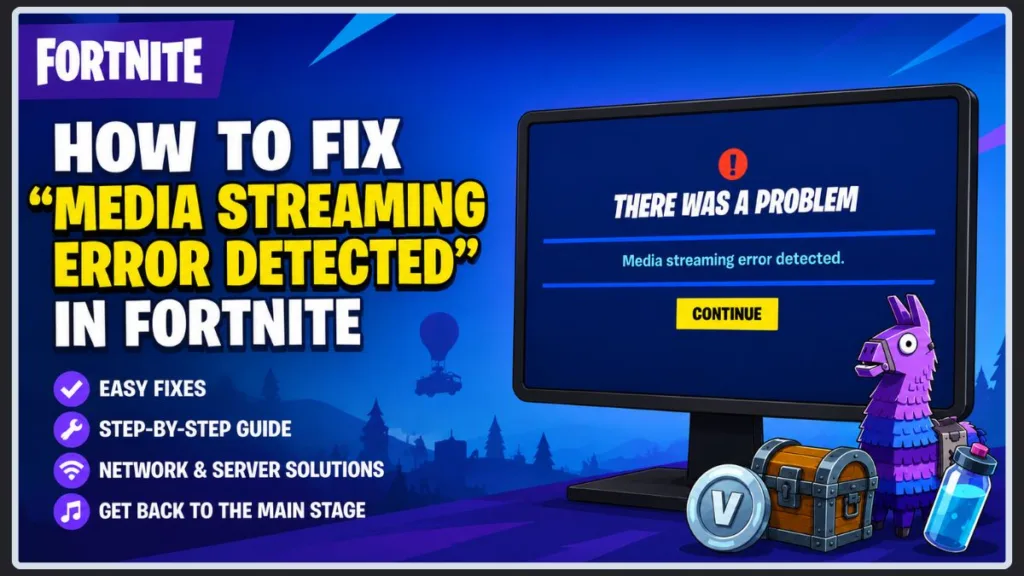
But don’t worry, you aren’t the only one dealing with this. We have put together a comprehensive mix of quick community workarounds and technical fixes to help you get right back into the rhythm and resolve this issue for good.
Why Are You Seeing the “Media Streaming Error Detected” in Fortnite?
You might be wondering, “Why do I keep getting kicked out of Fortnite Festival?” and immediately blaming your home network connection. Take a deep breath—your internet might be perfectly fine. In most cases, this is actually a server-side issue on Epic Games’ end.
When you load into a music-heavy mode, the servers occasionally struggle to authenticate officially licensed songs or fetch specific in-game assets quickly enough. As a fail-safe, the system kicks you out to prevent the game from crashing entirely. This is very similar to the Fortnite Chapter 5 Underground Lego error that players experience when massive world-building assets fail to load properly on the backend.
Whether you are clicking away on a mechanical keyboard in Windows 11, lounging on the couch with a PS5 or Xbox Series X, or playing portably on a Nintendo Switch, this Epic Games Launcher media error can strike anywhere. Even Epic Games’ official support guide acknowledges this specific Festival Main Stage glitch!
Quick Ways to Fix the Fortnite Festival Media Streaming Error
Before you start pulling out an Ethernet cable connection or resetting your home router, you can try these community-tested tricks. People dealing with the same problem often find that these simple in-game resets bypass the glitch entirely.
The Battle Royale Reset Trick
Sometimes, your current session just needs a hard refresh to re-sync with Epic’s servers. Loading into a completely different mode often clears out the bad cache that is holding you back.
- Close the error message and return to the main lobby screen.
- Change your selected game mode to a standard Battle Royale match (Solo, Duos, or Squads will work fine).
- Press play and wait until your character loads onto the pre-game spawn island.
- Once you can move around, open your menu and immediately leave the match to return to the lobby.
- Switch your game mode back to Fortnite Festival and try queuing up for the Main Stage again.
Swap Your Server Region
Routing your connection to a completely different data center can force the game to bypass a localized server jam, essentially acting as a temporary Fortnite server overloaded fix.
- Open your in-game menu and navigate to the Settings gear icon.
- Stay on the first Game tab (the gear icon at the top of your screen).
- Look for the Matchmaking Region setting at the very top of the list.
- Change your region to a completely different area (for example, if you normally play on NA-East, swap to NA-West or Europe).
- Apply the changes and completely close the Fortnite application.
- Relaunch the game, load into the lobby, and then head back into your settings to change the region back to your optimal server before playing.
“Pro Tip: Don’t forget to switch your server back! Leaving it on a distant region will drastically increase your ping and cause noticeable input delay during your songs.”
Change Your Cosmetic Skin
It sounds incredibly strange, but highly complex, reactive, or animated skins can occasionally cause rendering hiccups that trigger the error during the pre-show lineup sequence.
- Head over to your Locker.
- Swap your current outfit out for a very basic, non-reactive default-style skin.
- Unequip any heavily animated back blings or pickaxes just to be safe.
Double-Check Your Owned Jam Tracks
The game is very strict about music licensing. If the daily shop just updated, you might inadvertently be trying to load a song that recently rotated out of the free daily selection.
- Review your current setlist in the lobby.
- Ensure every Jam Track you selected is either currently available for free today or securely purchased and sitting directly in your locker inventory.
Advanced Steps: How to Fix the Media Streaming Error in Fortnite on PC and Consoles
If those quick lobby tricks didn’t get the music playing, the problem might be rooted slightly deeper in your hardware or network routing. You can try these advanced steps to stabilize your connection.
Check the Epic Games Server Status
Before doing any heavy lifting on your PC or console, you should verify that the servers are actually online and functioning properly.
Check the official Epic Games server status page or their dedicated support account on X (Twitter). If there is a massive outage or scheduled maintenance, no amount of troubleshooting on your end will let you in. You just have to wait for the developers to patch things up.
Clear Your System Software Cache
Old, corrupted temporary files can block fresh game assets from loading. You need to clear system software cache to force a clean slate for your gaming hardware.
- For PC players: Close the Epic Games Launcher entirely (make sure it isn’t hiding in your bottom-right system tray). Press the Windows Key + R, type %localappdata%, and hit enter. Find the EpicGamesLauncher folder, open the Saved folder, and delete the webcache folders inside.
- For Console players (PS5/Xbox): Turn off your console completely. Do not put it in Rest Mode or Standby. Unplug the power cable from the back of the machine or the wall outlet, wait at least 60 seconds, plug it back in, and power it back on.
Verify Your Game Files
If you are missing a tiny audio file or background texture, the game will panic and boot you out of the festival. You can easily verify game files to repair any missing data automatically.
- Open the Epic Games Launcher and navigate to your Library.
- Click the three horizontal dots next to the Fortnite game artwork.
- Select Manage from the drop-down menu.
- Click the Verify button and wait for the progress bar to finish scanning and replacing any broken files.
Flush Your DNS Cache (PC Only)
Sometimes your computer holds onto outdated network pathways, leading to poor communication with game servers. You can easily flush DNS cache to reset how your PC talks to the internet.
- Click your Windows Start button and type cmd into the search bar.
- Right-click on Command Prompt and select Run as administrator.
- In the black terminal window, type exactly: ipconfig /flushdns and press Enter.
- You should see a message saying “Successfully flushed the DNS Resolver Cache.” Restart your computer before launching the game.
Switch to a Public DNS
If you are still wondering how to change DNS settings for Fortnite to improve overall stability, moving away from your default ISP routing is a fantastic move. Switching to a highly reliable public server can seriously optimize your Fortnite network routing.
- Open your Windows Control Panel and go to Network and Internet, then Network and Sharing Center.
- Click on your active connection (Wi-Fi or Ethernet) and select Properties.
- Double-click on Internet Protocol Version 4 (TCP/IPv4).
- Select the option that says “Use the following DNS server addresses.”
- For Google Public DNS, enter 8.8.8.8 as the Preferred DNS and 8.8.4.4 as the Alternate DNS.
- Alternatively, for Cloudflare DNS, use 1.1.1.1 as the Preferred and 1.0.0.1 as the Alternate.
- Click OK, save your settings, and restart your PC.
Tip: While these steps are geared toward Windows PCs, you can also easily change your DNS settings in the ‘Network Settings’ menu of your PlayStation or Xbox dashboard using the exact same Google or Cloudflare numbers!
Wrapping Up Your Fortnite Media Streaming Error Troubles
Dealing with the media streaming error detected Fortnite glitch is undeniably annoying, especially when you just want to relax and play a few tracks. However, trying a mix of simple in-game resets and basic connection troubleshooting usually clears the hurdle and gets the music playing again. If the issue stubbornly persists, keep an eye on Epic’s social channels—it’s likely a widespread hiccup they are working to resolve.
Did one of these troubleshooting steps work perfectly for your setup? Or have you discovered a brand new trick to beat the error? Let us know in the comments below so you can help out other players!
Visit Our Post Page: Blog Page
Discover more from Izoate
Subscribe to get the latest posts sent to your email.