
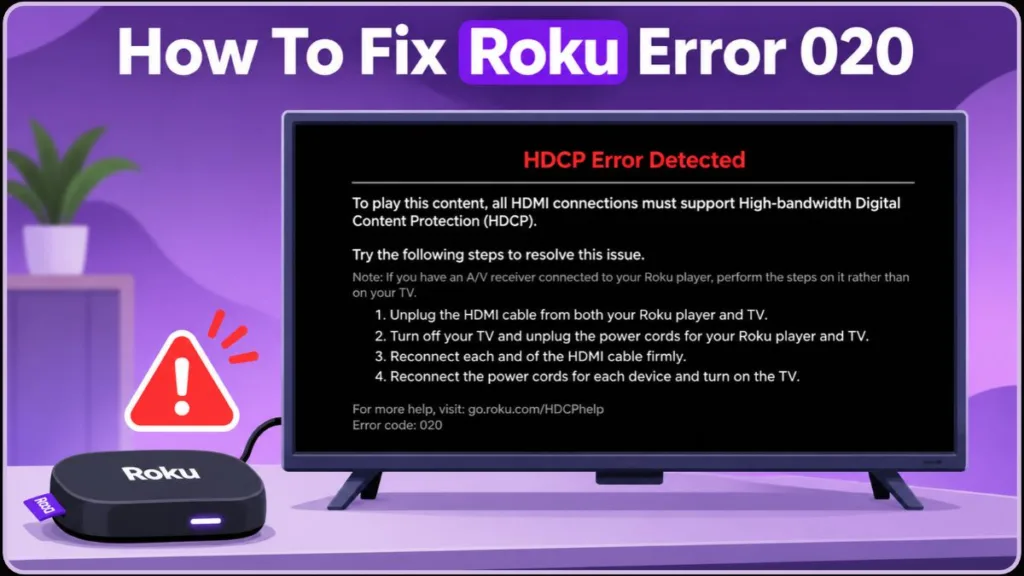
Are you getting an HDCP Error Detected message while watching your favourite shows on your Roku device? Let’s learn how to fix Roku Error Code 020 and get your streaming back on track!
You finally sit down to stream your favorite show, and right in the middle of a scene, the screen goes black. The weirdest part? You can still hear the audio playing in the background, but your TV is suddenly displaying a glaring red HDCP Error Detected message. Or maybe you’re staring at a solid purple screen that says HDCP unauthorized.
Whether you are using a compact Roku Express, a powerful Roku Ultra, or a portable Roku Streaming Stick, this dreaded error is a universal headache across all devices. In fact, industry forum data suggests HDCP handshake failures are among the top five most reported video errors across all major streaming hardware platforms.
Don’t panic—your television isn’t completely broken, and you likely don’t need to throw out your Roku just yet. We are going to walk you through exactly how to clear this error and get your streaming back online. You can also reference the official Roku troubleshooting guide for HDCP errors for additional manufacturer notes.
What Does Roku Error Code 020 Mean?
When your screen suddenly goes dark but the sound keeps playing, you are dealing with a classic HDCP Error.
What is HDCP? HDCP stands for High-bandwidth Digital Content Protection. Think of it as a digital “handshake” between your Roku device and your television. If your TV and Roku cannot securely shake hands and verify that the connection is safe, the Roku intentionally blocks the video feed to prevent digital piracy.
Major streaming platforms like Netflix, Disney+, Max, and Hulu legally require this anti-piracy protocol to be active. If the chain of trust is broken anywhere between the Roku and the TV screen, the app will instantly cut the video signal while often leaving the audio intact.
HDCP 1.4 vs. HDCP 2.2: The 4K Connection
To truly understand this error, you need to know that there are different “levels” of HDCP security.
- HDCP 1.4: The older standard designed for standard high-definition (1080p) content.
- HDCP 2.2: The modern, ultra-strict standard legally required to stream 4K Ultra HD content. Introduced in 2013, this standard became mandatory for almost all 4K hardware manufactured after 2015. (There is also a newer HDCP 2.3 standard built for 8K video, but 2.2 remains the baseline for 4K streaming today). For a deeper technical dive, check out Roku’s explanation on why HDCP 2.2 is important for 4K and HDR content.
Pro Tip: You will often notice this error pops up exclusively when you try to watch a brand-new 4K movie. If you switch over to an older, 1080p sitcom and the error miraculously disappears, it is a dead giveaway that your television’s HDMI ports do not support the strict HDCP 2.2 standard required for 4K streaming.
Why is My Roku Suddenly Showing an HDCP Error?
It is incredibly frustrating when a hardware setup you haven’t touched in years suddenly stops working. Here are the most common reasons this digital handshake fails out of nowhere.
The 30-Minute Heat Delay (Why it drops mid-show)
If your Roku works perfectly fine but suddenly drops the video feed after 30 to 40 minutes, you are likely dealing with hardware degradation. As your Roku stick or cheap HDMI cables heat up during sustained use, the microscopic internal connections physically expand and separate. During heavy 4K streaming, a Roku stick’s internal temperature can safely reach between 105°F and 115°F (40°C–46°C). However, if that ambient heat is trapped, it pushes the hardware past its thermal threshold, and this microscopic shift is just enough to drop the handshake.
How to Prevent Roku Overheating:
- Use an HDMI Extender: Roku offers free HDMI extenders that move the streaming stick a few inches away from the back of the television, reducing heat transfer from the TV’s exhaust vents. (You can usually order one for free through the Roku HDMI extender form).
- Check Placement: Ensure your Roku isn’t crammed in a closed media cabinet without airflow alongside hot AV receivers or gaming consoles.
- USB Power Supply: If your Roku is powered by a USB port on the back of the TV, try plugging it directly into a wall outlet using the included AC adapter. TV USB ports often struggle to deliver a consistent 5V/1A voltage output as the television’s internal power supply heats up.
Forced Updates on Older Legacy Televisions
Many users experience this error on heavy, older flat screens from the mid-2000s, specifically models manufactured before 2015 from brands like early-generation Vizio, Samsung, and Panasonic. Your TV might have worked flawlessly for years, but a recent background Roku software update may have quietly changed the strictness of the HDCP requirements. Suddenly, your older TV physically lacks the hardware protocols required by the new Roku update, rendering it “incompatible.”
Streaming platforms periodically revoke older digital security certificates to patch piracy loopholes. When this happens, a television that worked yesterday might be digitally locked out today.
Failing HDMI Ports and Power Issues
Sometimes the issue is deeply rooted in the television’s hardware. If your TV screen is violently flashing on and off, or if the error triggers a forced factory reset of your entire television, you are likely looking at a failing HDMI port or a dying TV mainboard.
Power surges from local lightning strikes or grid fluctuations can easily fry the tiny, sensitive HDMI controller chips inside your television, scrambling its ability to process the HDCP handshake data rates.
The Middleman Problem: Soundbars and AV Receivers
If you run your Roku through a soundbar, an Audio/Video Receiver (AVR), or an HDMI switcher box before it reaches the TV, you are introducing another point of failure. Every device in the chain must support the exact same HDCP protocol. For instance, if you are plugging your Roku into a soundbar, you must use the HDMI ARC (Audio Return Channel) or eARC port, which are specifically designed to handle the high data loads required by modern HDCP protocols. If your Roku and TV are 4K-ready, but your old soundbar in the middle is not, the handshake will fail and you will see Error 020. Roku explicitly notes this in their surround sound setup guide.
Step-by-Step Fix for Roku Error 020
Let’s fix this. We will start with the easiest software tweaks that cost absolutely nothing, and then move on to hardware workarounds.
1. The Menu Restart or “Circuit Breaker” Trick
If your TV is mounted tightly to the wall and reaching the cables is a nightmare, start with a software restart to force a fresh handshake attempt.
- Press the Home button on your Roku remote.
- Navigate to Settings, then select System.
- Scroll down and choose System Restart.
If your TV is completely frozen and the remote won’t work, skip pulling your entertainment center apart. Simply flip the room’s circuit breaker off for 30 seconds and turn it back on. This forces a complete power cycle of the entire setup without you having to touch a single physical cord.
The Capacitor Drain Method (Hard Power Cycle)
If you can reach your cords, performing a hard power cycle is incredibly effective because it drains residual electricity from the internal capacitors. Capacitors can hold a residual charge of 3 to 5 volts for several minutes, keeping corrupted digital memory active.
- Unplug the Roku from power.
- Unplug the TV from the wall outlet.
- Disconnect the HDMI cable from both devices.
- Wait a full 60 seconds. Waiting a full minute ensures this volatile memory is completely wiped.
- Reconnect the HDMI cable firmly, then plug the power cords back in and turn everything on.
2. Bypass Your Soundbar or Receiver
To test if a “middleman” device is causing the handshake failure, temporarily bypass it.
- Unplug the HDMI cord from your soundbar or AVR.
- Plug the Roku directly into the back of the television.
- If the error disappears, you know the TV and Roku are fine, but the audio receiver is stripping the HDCP signal. You may need to update your soundbar’s firmware or connect the Roku to the TV and use an optical cable to send audio down to the soundbar instead.
3. Disable “Auto Detect” and Lock the Resolution
Roku devices constantly try to auto-negotiate the best possible video feed (like 4K or 1080p). On older screens, this constant negotiation can cause the handshake to crash. Let’s lock it down.
- Go to Settings and select Display Type.
- Turn off Auto Detect and manually force a lower, stable resolution like 720p. (If 720p works but looks too blurry, try bumping it up to 1080p to see if the connection remains stable).
- Next, navigate to Settings > System > Advanced System Settings > Advanced Display Settings.
- Make sure Auto Adjust Display Refresh Rate is set to Off.
Note: By turning off the Auto Adjust refresh rate, you stop the Roku from constantly “pinging” your TV every time a show switches from 24 frames-per-second to 60 frames-per-second, which dramatically reduces the chances of a handshake failure.
4. Check for a Manual Firmware Patch
Sometimes, the HDCP error is a known software bug that Roku’s engineering team has already patched. Your device usually updates automatically, but you can force it to check for a patch.
- Press the Home button.
- Go to Settings > System > Software Update.
- Select Check Now.
- If an update is available, let it install and allow the device to reboot completely.
5. Ditch the 99-Cent HDMI Cables
HDMI cables degrade over time, even if they have been sitting completely undisturbed behind your TV. Bundled or ultra-cheap cables are notorious for internal wire failure.
Upgrade to a high-speed, brand-name HDMI cable. When you plug it in, be sure to systematically test the Roku on every HDMI port on the back of your television (HDMI 1, HDMI 2, and HDMI 3). This helps you completely rule out a single, isolated dead port on the TV.
What to Look for When Buying a New HDMI Cable:
- High Bandwidth: Look for cables rated for at least 18 Gbps.
- Proper Certification: The packaging should clearly state it supports HDMI 2.0 or HDMI 2.1.
- HDCP 2.2 Compliant: Ensure the cable description explicitly mentions HDCP 2.2 support for 4K streaming.
- Cable Length Matters: Standard passive HDMI cables begin to suffer severe signal degradation when they exceed 10 to 15 feet. If your setup requires a long run across a large room, you must invest in an Active Optical HDMI Cable to maintain the HDCP handshake integrity.
6. The Powered HDMI Splitter Workaround (Best for Older TVs)
If you have an older, legacy television that is triggering the error, you do not necessarily need to buy a new TV. You just need a middleman.
Purchasing a powered HDMI splitter is the ultimate workaround. You plug your Roku directly into the input of the powered splitter, and then run an HDMI cable from the output to your older TV. The Roku successfully “shakes hands” with the modern splitter, bypassing the error, and the splitter seamlessly passes the unencrypted video feed right to your legacy screen.
Active vs. Passive Splitters
Warning: You must buy a Powered (Active) HDMI Splitter that plugs into a wall outlet. Cheap, unpowered (passive) dongle splitters do not have the internal computer chips necessary to answer the Roku’s HDCP handshake, and the trick will not work. Look for a splitter specifically labeled as “4K@60Hz HDCP 2.2 Compliant.” A cheap 30Hz splitter will cause terrible video lag, and a non-compliant splitter will just give you the exact same Error 020.
Does Roku Error 020 Mean I Need a New TV?
Before you start shopping for a replacement screen, you need to run the isolation test.
Unplug your Roku and connect it to a completely different television or a computer monitor in your house. If the Roku streams perfectly on the second screen for over an hour with zero errors, your Roku device is completely fine. Unfortunately, this means your original television’s mainboard or HDMI interface is actively failing. If the HDMI splitter trick doesn’t save it, it might finally be time for an upgrade.
What to do if your TV’s HDMI ports are dead: If you confirm the TV’s ports are shot but the screen itself still looks great, check if your TV is a Smart TV. You might be able to bypass the broken HDMI ports entirely by downloading apps like Netflix or Hulu directly to the television’s built-in operating system via Wi-Fi.
Frequently Asked Questions (FAQ)
Can I completely disable HDCP on my Roku?
No. HDCP is a mandatory digital rights management (DRM) protocol enforced by copyright laws. Roku, Apple TV, and Amazon Firestick are legally barred from allowing users to toggle HDCP off in their settings.
Will performing a Factory Reset on my Roku fix Error 020?
A factory reset should be your absolute last resort because it wipes all your apps, logins, and settings. While it occasionally clears out deeply corrupted cache data causing handshake failures, it rarely fixes the issue if the root cause is a bad HDMI cable or an outdated TV. For help resetting your device, review the Roku factory reset instructions.
Does this error happen on Amazon Firesticks and Apple TVs too?
Yes. Because HDCP is a universal industry standard for HDMI connections, you will see similar errors across all major streaming devices. An Amazon Firestick might display “HDCP Error” while an Apple TV might simply show a static-filled screen, but the troubleshooting steps (replacing cables, bypassing soundbars, and using splitters) remain exactly the same.
Visit Our Post Page: Blog Page
Discover more from Izoate
Subscribe to get the latest posts sent to your email.