
Want to add a gift card to your Amazon account in 2026? Learn how to enter and apply your Amazon gift card code with easy steps. From using the app to redeeming at checkout, load your balance and start shopping instantly.
Amazon is the world’s largest marketplace, and an Amazon gift card is arguably the most versatile present you can receive. Whether you are gearing up for Prime Day, finally buying that professional digital camera you’ve been eyeing, or just covering everyday essentials, an Amazon gift card is as good as cash.
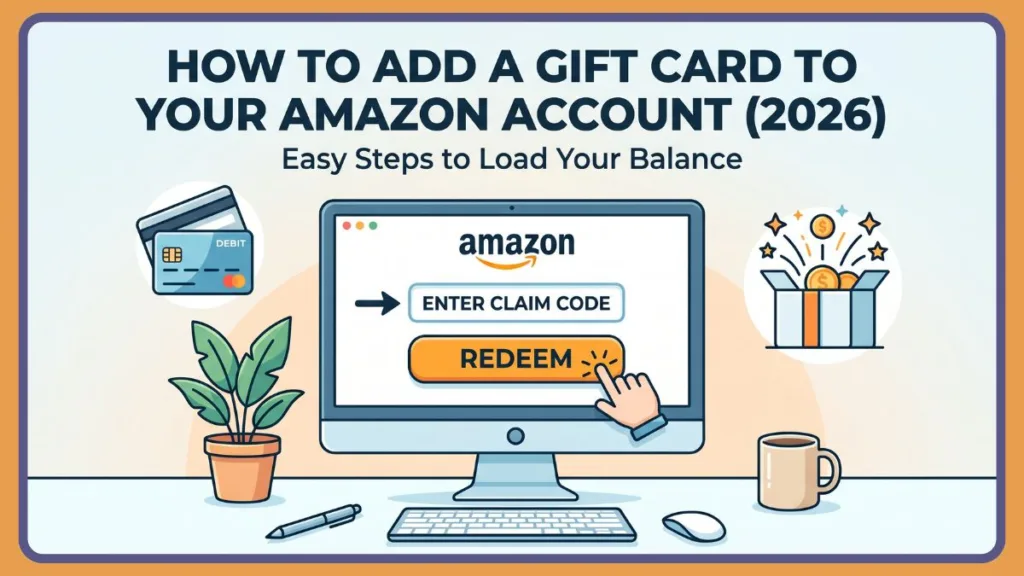
However, despite Amazon’s sophisticated interface, figuring out exactly where to go to add an Amazon gift card to my account can sometimes feel like a treasure hunt. If you’ve just received a physical card or an eGift card and are wondering how to turn that code into digital spending power, you are in the right place.
This comprehensive guide will walk you through exactly how to add an Amazon gift card using the mobile app, the desktop site, or right at checkout. We will also cover the slightly trickier process of how to add a Visa gift card to your Amazon account, so you can seamlessly load those funds and start shopping.
Understanding Your Amazon Gift Card Claim Code
Before you start clicking around your account settings, you need to identify the correct code. When you load a gift card to Amazon, you need the specific claim code, not the serial number.
- Physical Gift Cards: Turn the card over. You will see a silver scratch-off panel or a peel-off sticker on the back. Carefully remove this to reveal your Amazon gift card claim code. This code is typically 14 or 15 characters long, consisting of a mix of letters and numbers (e.g., AS25-NJZ1JX-CZCP5).
Do not confuse this with the 16- or 30-digit serial number located elsewhere on the card.
- Digital eGift Cards or Printed Receipts: If someone emailed you a gift card, or if you purchased a printed voucher at a retail store, the 14- or 15-digit claim code will be clearly displayed in the email body or directly on the paper receipt.
Once you have your claim code ready, you can proceed to Amazon enter gift card code.
How Do I Add a Gift Card to My Amazon Account?
Adding an Amazon gift card is a straightforward process once you know where to look. The best method depends on whether you prefer shopping on your smartphone, your computer, or if you are already in the middle of checking out.
Here is exactly how to add a gift card to your Amazon account balance.
Add Gift Card to Amazon Account on App
If you are one of the millions of shoppers using the Amazon mobile app on iOS or Android, this is the fastest way to Amazon upload gift card funds:
- Open the Amazon shopping app.
- Tap the Profile Icon (the person icon) located on the bottom navigation bar.
- Scroll down to the Gift Card Balance section and tap the arrow next to it.
- Tap the button that says Redeem another gift card.
- You now have two choices: You can manually add Amazon gift card code by typing the 14- or 15-digit code, or you can use the highly convenient Scan your claim code feature to use your phone’s camera to read the code instantly.
- Tap Apply to your balance. The funds will be available immediately.
Add Gift Card on Amazon Website (Desktop)
If you prefer browsing the megastore on a desktop or laptop, follow these steps to add a gift card on Amazon:
- Navigate to Amazon.com and ensure you are logged in.
- In the top-right corner of the homepage, hover your mouse over the Account & Lists menu.
- Click on Account under the “Your Account” column.
- On the next page, locate and click the large square tile that says Gift Cards.
- You will see your current balance. Click the Redeem a Gift Card button.
- Type your 14- or 15-character claim code into the box.
- Click the yellow Apply to your balance button.
Amazon Enter Gift Card Code at Checkout
Perhaps you found exactly what you want and are already on the checkout screen. You do not need to navigate away from your cart to applying gift cards to Amazon.
- Proceed through your shopping cart until you reach the final checkout page where you review your shipping address and payment options.
- Scroll down to the Payment Method section.
- Look for the field that says Add a gift card or promotion code or voucher.
- Apply Amazon gift card code by typing it directly into this box.
- Click Apply. The gift card amount will immediately be deducted from your order total.
How to Add Visa Gift Card to Amazon Account
Many people receive Visa, Mastercard, or Vanilla prepaid gift cards and assume they can be redeemed the exact same way as a native Amazon card.
However, to Amazon add credit to account using a third-party card, you must treat it like a standard debit or credit card.
Can I Use a Visa Gift Card on Amazon?
Yes! But you cannot use the “Redeem a Gift Card” page. Here is how to handle it.
Step-by-Step: Add Vanilla Gift Card to Amazon Account
To add a Visa gift card to your Amazon account (or a Vanilla/Mastercard), follow these steps:
- Hover over Account & Lists in the top right corner and click Account.
- Click on the tile labeled Your Payments.
- Under the “Wallet” tab, select Add a payment method.
- Click Add a credit or debit card.
- Enter the exact details from your prepaid card: the 16-digit card number, the expiration date, and the CVV security code. For the name on the card, you can typically use your own name or write “Gift Card.”
- Click Add your card.
You can now select this card as your payment method during checkout.
The “Balance Reload” Trick for Leftover Funds
There is one major limitation when using a Visa gift card: Amazon does not allow split-tender transactions for credit cards. > This means you cannot pay for a $50 item by draining a $20 Visa gift card and putting the remaining $30 on your regular credit card.
If you have a leftover balance on a Visa gift card, you can use the “Balance Reload” trick to convert it into permanent Amazon credit:
- Go to Account & Lists > Account > Gift Cards.
- Click Reload Your Balance.
- In the “Other” amount box, type in the exact remaining balance of your Visa gift card down to the penny.
- Click Buy Now.
- At checkout, select your saved Visa gift card as the payment method.
This drains the Visa card entirely and moves those funds into your permanent Amazon gift card balance, which can be combined with regular credit cards on future purchases.
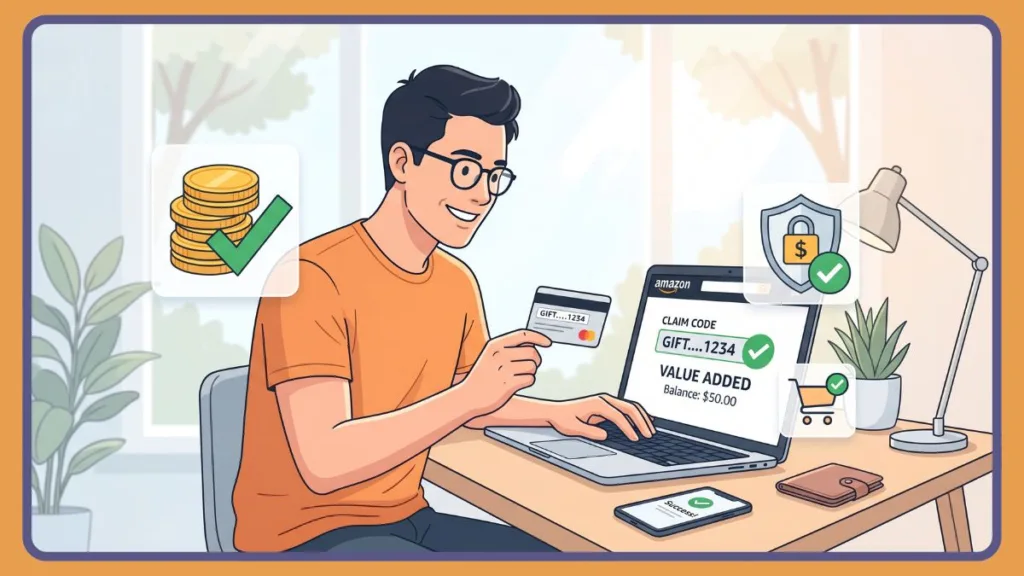
Troubleshooting: Add Gift Card to Amazon Account Not Working?
If you receive an error message while trying to redeem your code, do not panic. Here are the most common issues and how to fix them:
- Typing Errors: The most common error is simply a typo. Double-check your code. Pay close attention to easily confused characters, like the letter “O” and the number “0”, or the letter “I” and the number “1”.
Ensure you are entering the 14- or 15-digit claim code, not the serial number.
- Gift Card Already Redeemed: > Once a code has been successfully added to an account, it becomes void. If you share a computer, check if the card was accidentally redeemed under a spouse or family member’s profile.
- Unreadable Code: If you scratched off the silver panel too hard and damaged the code underneath, you will need to contact Amazon Customer Service. You must provide them with the 16- or 30-digit serial number on the back of the card so they can manually verify and issue the funds.
- Region Restrictions: > Amazon gift cards are strictly geo-locked. For example, if you are trying to do an Amazon UK redeem gift card transaction, it will only work on Amazon.co.uk. You cannot load a UK card onto a US-based Amazon.com account.
Frequently Asked Questions
Q: How do I redeem my Amazon gift card? A: To redeem your card, log into your account, navigate to “Account” > “Gift Cards,” click “Redeem a Gift Card,” and enter the 14- or 15-digit claim code located under the scratch-off panel.
Q: How do I add a gift card to my Amazon account? A: You can add it via the “Gift Card Balance” section of your account settings on desktop or mobile, or you can enter the claim code directly into the promotional code box during the final checkout screen.
Q: Do Amazon gift card balances expire? A: No. Once you add an Amazon gift card to your account, the balance never expires and carries no maintenance fees. The funds will remain in your digital wallet until you spend them.
Q: Can I transfer my gift card balance to another account? A: No. Amazon strictly prohibits transferring gift card balances between accounts.
Once a claim code is redeemed, those funds are permanently locked to that specific Amazon profile. Ensure you are logged into the correct account before hitting apply!
Visit Our Post Page: Blog Page
Discover more from Izoate
Subscribe to get the latest posts sent to your email.