
Is your Ticketmaster payment getting failed with “unable to process request”? Learn how to fix Ticketmaster error code 5005 during checkout and solve payment failed issues quickly with simple, proven steps.
If you are currently trying to secure tickets for a high-demand show and suddenly encounter a roadblock at checkout, you are certainly not alone. Many users report seeing the specific, frustrating message below:
“Sorry, we are unable to process your request. The credit card information you entered is invalid. Error code: 5005.”
This specific Ticketmaster error often strikes right when the timer is ticking down. It can appear even when your card is perfectly valid and you have used it for dozens of other purchases.
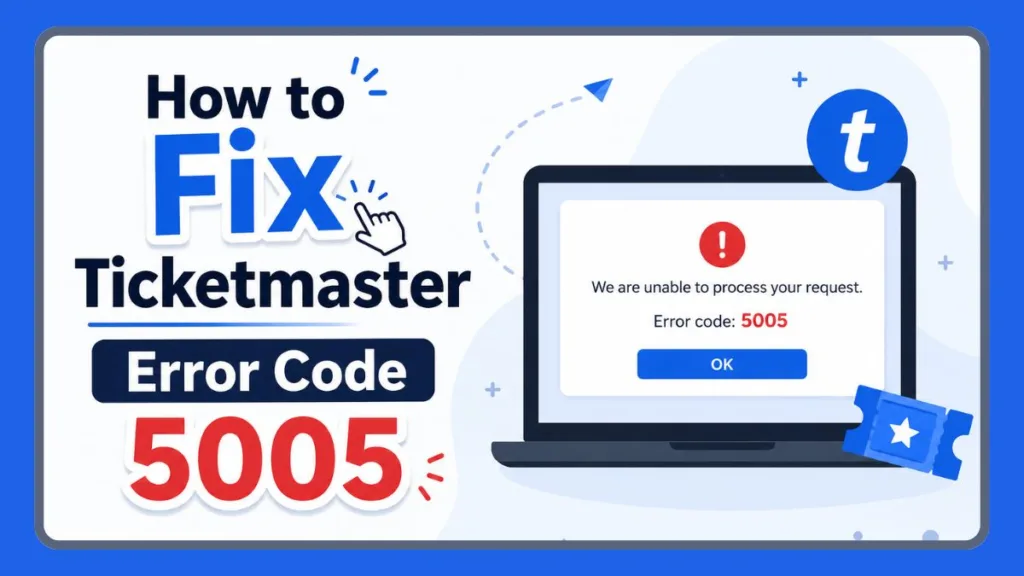
While it disrupts your purchase, the good news is that this issue is usually temporary. Furthermore, it rarely results from a permanent account ban—you haven’t broken anything. In this comprehensive guide, we will walk you through exactly what this error means, why your payment might fail, and the specific steps you must take to fix it quickly.
What Does “Error Code 5005” Mean in Ticketmaster?
To better understand the problem, we must first define what the error actually signals. This message means Ticketmaster was unable to authorize your payment at that exact moment. It does not automatically indicate that your credit card is “bad” or that your account has been deleted.
In most cases, the error points to one of the following specific triggers:
- A silent bank block: Your bank is “protecting” you from a high-value entertainment charge.
- A 3D Secure failure: The identity verification handshake between the bank and Ticketmaster failed.
- A security flag: Ticketmaster’s “bouncer” has flagged your network connection or IP address.
It is worth noting that this error is often part of a broader set of technical hurdles, much like Ticketmaster error code 0011 or the equally frustrating Ticketmaster error code U521, which can also stall your checkout process.
Why This Error Happens
Based on real usage patterns and technical analysis of the 2026 ticketing landscape, this error usually stems from one of the reasons below:
- 3D Secure (Identity Verification) Issues: Most modern cards require an SMS or app notification to approve a charge. If this window fails to pop up or the code isn’t sent, Ticketmaster defaults to the 5005 “invalid card” message.
- Bank-Side Fraud Prevention: Banks frequently flag ticketing platforms as high-risk. They may block the charge silently without sending you a decline notification.
- VPN or Masked IP Address: Ticketmaster’s fraud detection flags masked or frequently changing IP addresses. If you use a VPN or Apple Private Relay, the system treats your session as suspicious.
- Billing Address Mismatch: Even a small mismatch (using “St.” vs “Street”) can cause a verification failure. Stale data in your saved payment profile often triggers this.
- Session or Browser Corruption: A “broken” checkout session can stay stuck in your browser cache, causing the error to repeat even if you change cards.
- “Cease and Desist” Block: If you previously opted out of marketing communications or “Marketing Calls,” Ticketmaster may be legally or technically restricted from sending you the mandatory 3D Secure verification SMS, leading to an immediate 5005 failure.
Quick Checks Before You Try Fixes
Before you dive deep into troubleshooting, run through this diagnostic checklist:
- Does the error happen if you switch from a credit card to PayPal?
- Does the error still appear when you switch to Incognito Mode?
- Does the same issue occur if you switch from Wi-Fi to Mobile Data?
- Are you using a VPN or Apple Private Relay?
- Technical Check: Are you using a Citi card? Ensure you are using the primary cardholder’s details, as authorized user cards sometimes fail the “instant identity” check.
If these checks don’t work, you may be facing a broader server-side restriction similar to Ticketmaster error code U001.
How to Fix Ticketmaster Error 5005: 6 Step Guide
To resolve this efficiently, follow these steps in order. We strongly recommend that you do not skip ahead, as the first few fixes resolve the vast majority of cases.
Step 1: Switch to PayPal or a Digital Wallet Immediately
If you are in a timed queue, this is your fastest “quick win.” PayPal handles authorization through its own secure, highly-trusted servers, effectively bypassing the specific card-level fraud filters that trigger the 5005 error.
- Why it works: It creates a different “handshake” that Ticketmaster’s system is less likely to flag.
- Pro Tip: If PayPal isn’t an option, try Apple Pay or Google Pay, which also use tokenized security that can bypass standard 3DS failures.
Step 2: Call Your Bank’s Fraud Department
Call the number on the back of your card. Many institutions automatically flag entertainment purchases as high-risk in 2026. Specifically ask the representative to:
- Whitelist Ticketmaster: Ask them to allow all charges from Ticketmaster for the next 24 hours.
- Check 3D Secure: Confirm that “Mastercard Identity Check” or “Verified by Visa” is active and that your phone number is correct for SMS OTP (One-Time Password) codes.
- Verify International Processing: Sometimes Ticketmaster charges route through international servers; ensure your card allows these.
Step 3: Disable VPN, Proxy, and Apple Private Relay
Ticketmaster’s security “bouncer” is programmed to flag any masked IP address as a potential bot.
- VPNs: Fully disconnect services like NordVPN or ExpressVPN.
- Apple Private Relay: On an iPhone, go to Settings > Apple ID > iCloud > Private Relay and toggle it Off.
- Restart Browser: After disabling these, you must refresh your checkout page (or start a new session) to ensure your real IP is visible.
Step 4: Clear Cache and Use a Clean Incognito Session
If the error is “stuck,” your browser is likely holding onto a corrupted or expired session token.
- The Purge: Go to your browser settings and clear “Cookies and other site data” for the last hour.
- Incognito Mode: Open a single Private/Incognito window. This ensures no browser extensions (like ad-blockers, JavaScript inhibitors, or coupon-finding “Honey” vouchers) interfere with the payment scripts.
- One Tab Rule: Only keep the checkout tab open; multiple tabs can trigger “bot-like” behavior flags and cause a 403 Forbidden or 5005 error.
Step 5: Update Payment Details Manually (Avoid Autofill)
Outdated or mismatched information causes 43% of checkout failures. Even if your card is saved in your profile, the data might be “stale.”
- The Reset: Go to My Account > Payment Options, delete your saved cards, and add them again from scratch.
- Character Match: Type your billing address manually exactly as it appears on your bank statement. If your statement says “Apt” and you type “Apartment,” the automated verification might trigger Error 5005.
- Manual Entry: Do not use browser autofill; physically typing the numbers forces a fresh validation check with the bank.
Step 6: Switch Your Device and Network
If your current setup is “fingerprinted” with a security flag, switching your hardware and connection often breaks the loop.
- Network Switch: Turn off your Wi-Fi and use Mobile Data (5G/LTE). Ticketmaster officially recommends using carrier data over large public Wi-Fi networks (coffee shops/workplaces) which are frequently blacklisted.
- Device Swap: If you are on a laptop, switch to the Ticketmaster Mobile App. The app uses different API protocols for payments which can sometimes succeed where a browser fails.
- Router Reset: If you must stay on Wi-Fi, restart your router to attempt to pull a new IP address from your ISP.
Is Ticketmaster Down Right Now? How to Tell
Sometimes, the 5005 error can be a symptom of a wider server-side issue. You should check the official Ticketmaster Support social media channels or third-party services like DownDetector to see if other fans are reporting the same “payment failed” message.
However, be aware that the official status page may look “Operational” even if:
- The payment processor for a specific bank (like Citi or Amex) is lagging.
- Regional verification systems are experiencing a “hiccup.”
- The high volume of a specific presale is causing partial service degradation.
In high-traffic scenarios, you may also see error messages like “we couldn’t complete your request,” which are often linked to resolving Ticketmaster error code 0011.
How to Prevent This Error in the Future
While you cannot prevent every security check, you can reduce the chances of seeing Error 5005 by maintaining good “payment hygiene”:
- Verify Early: Update your billing address and card details before the tickets go on sale.
- One Session Only: Avoid having Ticketmaster open in multiple tabs or devices simultaneously.
- Stay Local: Avoid using unstable VPNs or public Wi-Fi during the checkout process.
- The 15-Minute Rule: If you hit a hard block, wait 15 minutes before retrying to allow the security filters to reset.
FAQs (Frequently Asked Questions)
Why does Ticketmaster say my card is invalid even though it works elsewhere? Some banks block transactions they deem “high-risk,” such as concert ticket purchases, especially if they route through international processors. Ticketmaster uses the generic “Invalid Card” message as a catch-all for these silent bank blocks.
Does Ticketmaster error 5005 mean I’m blocked or banned? No. It is a temporary security hold on your specific payment attempt or current session. It does not mean you have a permanent ban on your account.
Does this error happen with Apple Pay or Google Pay? Yes. Digital wallets can still trigger 5005 if your linked billing address doesn’t match your Ticketmaster profile or if the bank requires an extra 3D Secure verification step that the wallet cannot complete.
Why did I get error 5005 after a venue change or page refresh? A venue or event change can reset the checkout session and re-trigger payment authorization. If your browser holds onto “stale” data from the previous venue page, it can cause an authorization conflict.
Can I fix Ticketmaster error 5005 without calling my bank? Sometimes. Switching to PayPal at checkout or using mobile data with your VPN off are the most common ways to bypass the error without making a phone call.
What is the “Citi Presale” fix for Error 5005? If using a Citi card for a presale, try using the first 6 digits of your card as the passcode if prompted. If you are an authorized user and the card fails, try the primary cardholder’s card number, as the system often performs a specific “Primary Match” check.
Is error 5005 permanent? No. It is a temporary security block on your payment method or account. Most users find it clears instantly by switching payment methods or clearing their browser cache.
What to Do If Nothing Works
If you have tried every fix and the error still appears, the best option is to stop retrying and wait. Repeatedly hitting “Purchase” on a flagged session can trigger a longer rate limit. Come back after 15–20 minutes, clear your cache, and try one final time using a different device and network.
Contact Support Section
If you are still stuck after waiting, you likely need a manual account review.
- Access the Help Center: Go to the Help section on the Ticketmaster website.
- Find the Phone Option: Look for the “Want to Reach Us by Phone?” section.
- Speak to Fraud Protection: Specifically ask to speak with the Fraud Protection Department.
- Office Hours: Note that phone support is typically available Monday – Friday: 10 am to 6 pm and Saturday: 1 pm to 5 pm (local time).
- Request a Manual Review: Ask the representative to check if your account carries any internal “security flags,” “Cease and Desist” blocks, or “holds” that need to be cleared manually.
- Verify Your Identity: Be ready to confirm your details so they can lift any restrictions in real-time while you are on the line.
In the majority of cases, once the Fraud Protection team clears the hold, your purchase will go through seamlessly.
Visit Our Post Page: Blog Page
Discover more from Izoate
Subscribe to get the latest posts sent to your email.