
Want to streamline your Outlook inbox in 2026? Learn how to automatically forward emails in Outlook using simple steps. From setting up web forwarding to desktop rules and troubleshooting missing options. Stay in control of your email workflow today.
In the fast-paced digital landscape of 2026, managing multiple inboxes in Microsoft Outlook has become a significant hurdle for productivity. We have all been there: missing a critical client email because it was buried in an old account, juggling three different login screens to check for updates, or struggling to keep a remote team in the loop. Whether you are an entrepreneur consolidating your communications or a project manager ensuring team-wide transparency, manual forwarding is no longer a viable option. It is slow, prone to human error, and frankly, a waste of your time.
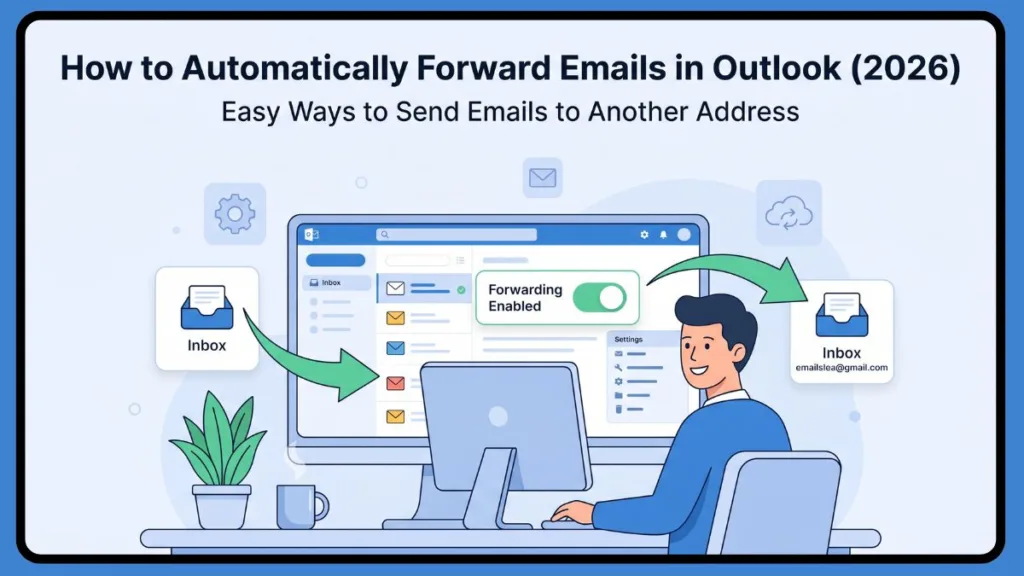
Whether you want to forward all emails or only specific ones, this guide covers both methods. Automatically forwarding a Microsoft Outlook email to another address is a set-and-forget automation that tells Microsoft’s mail servers to instantly send a copy of an incoming message to a secondary destination, such as a Gmail account. According to Microsoft documentation, utilizing these automation tools correctly can reduce manual task time significantly. We will cover the “blanket” method—forwarding every single message that arrives—as well as the more advanced “surgical” rules that only trigger for specific senders or keywords.
Quick Summary
- Use Outlook Web: Best for forwarding all emails. It works server-side, meaning it runs even when your computer is offline.
- Use Rules: Best for forwarding specific emails (by sender or keyword) for surgical precision.
- Use Desktop App: Offers the most advanced control and complex logic triggers for power users.
What Does It Mean to Automatically Forward Outlook Email to Another Address?
This process happens in the background, often before the email even appears as “read” in your main inbox. By automating this, you ensure that high-priority information is always where you need it most.
Does Outlook automatically forward emails?
Yes. Microsoft Outlook can forward emails automatically using built-in forwarding settings for entire inboxes or specific “Rules” for filtered messages, depending on your account type and preferences.
Setting up this automation involves two primary paths:
- Forwarding All Emails: This is the “Nuclear Option” where every message sent to your Microsoft Outlook address is sent elsewhere.
- Forwarding Specific Emails: This uses “Rules” to filter messages based on criteria like “from sender” or “subject keywords”. If you are new to this, you can also learn how to create Outlook rules step-by-step to master the logic.
Common Use Cases for Outlook Forwarding
- Gmail Sync: Many users prefer the Gmail interface but have a legacy Microsoft Outlook address. Forwarding unifies the experience.
- Team Collaboration: Sharing a support or info@ mailbox across several staff members to ensure transparency.
- Backups: Ensuring a copy of every receipt or invoice is sent to a dedicated storage or accounting address.
- Branding: Keeping professional correspondence separate from internal project management tools while still receiving notifications in one place.
Why You Should Set Up Email Forwarding in Outlook (Benefits + Risks)
Forwarding emails keeps communication flowing smoothly and cuts down on inbox juggling. Research from Forbes shows that professionals spend around 28% of their workweek managing emails—automation through Microsoft Outlook’s tools can help you recover several hours of that time every single week. Based on official documentation, these features are designed to enhance workflow without requiring manual monitoring.
Benefits of Automation
The benefits of Microsoft Outlook auto forwarding are clear: you gain unrivaled productivity by eliminating the need to log in and out of different accounts, and you maintain multi-account management across personal and corporate aliases. Automation allows you to respond to high-priority messages faster by centering them in the Gmail or secondary inbox you check most frequently.
Risks and Security Considerations
Despite these perks, there are critical security and technical considerations you cannot ignore:
- Hacker Exploitation: Computer hackers are increasingly setting up email forwarding rules after gaining unauthorized access to an inbox. They do this to redirect sensitive data to their own accounts.
- Spam Filtering Conflicts: Many incoming mail servers flag forwarded emails as spam. Some destination accounts (like Gmail) might block a forward if it looks like it is spoofing the original sender.
- Attachment Limitations: Some forwarding services do not handle large files well. If an email exceeds size limits (often 25MB), the forward might fail or the attachment could be stripped.
- Data Protection Policies: In corporate environments, forwarding sensitive data outside the organization may violate security protocols or compliance standards.
Outlook Forwarding Comparison: Method Breakdown
For quick reference, use the table below to determine which method fits your current hardware and software configuration.
| Method | Works when closed | Best for | Reliability |
| Web/Server-side | Yes | All incoming emails / Migrations | High |
| Desktop Rules | No (unless Exchange) | Specific filters / Power users | Medium |
| Mobile App | Limited | Quick access / One-off viewing | Low |
Important Insight: For most users, Outlook Web is the best option because it works even when your device is offline.
Method 1: How to Automatically Forward Emails in Outlook Web (Easiest Way)
If you use Outlook.com, Hotmail, or the Office 365 web app, this is the easiest and most direct method. Because it is a “server-side” setting, it works even when your computer is turned off. For corporate Office 365 users, the app launcher (waffle icon) will lead you to Mail.
How do I turn on auto forwarding in Office 365
Under Settings > Options, look for Organize email > Inbox rules or Mail > Automatic processing > Forwarding. If the option is missing, it is likely restricted by your company’s Exchange admin center settings.
Steps to Forward All Emails from Outlook Web
- Open Settings: Sign in to your Microsoft account. Click the Gear Icon (settings) in the top-right corner.
- View All Settings: Scroll to the bottom and click View all Outlook settings (or navigate directly to Mail > Forwarding).
- Enable: Check the box for Enable forwarding.
- Enter Address: Type in the email address (e.g., your Gmail address) where you want to send your messages.
- Retention: You can optionally check the box for “Keep a copy of forwarded messages.” > Important Tip: We highly recommend keeping a copy of forwarded messages so you still have a record in your original inbox.
- Save: Click Save at the bottom of the screen.
Once the “Enable forwarding” box is checked and saved, the process is instantaneous. According to Microsoft, there is no delay, and you do not need to keep a browser tab open for the forwarding to occur.
Method 2: How to Auto Forward Emails in Outlook Desktop (Windows & Mac)
The desktop version of Microsoft Outlook gives you the most control but requires a slightly deeper dive into the menus. A critical distinction to remember: rules created in the desktop app for POP or IMAP accounts are “Client Rules.” This means they only work while the Outlook app is running on your computer. If you close the app, the forwarding pauses. For 24/7 reliability, use the Web method or an Exchange account.
How to Automatically Forward Emails in Outlook 2016 / Desktop
To automatically forward emails in Outlook 2016 / Desktop on Windows:
- Access Rules: On the Home tab, look for the Move section and click the Rules drop-down. Select Manage Rules & Alerts.
- New Rule: Click New Rule and then select Apply rule on messages I receive under “Start from a blank rule.”
- No Conditions: If you want to forward all mail, click Next without checking any boxes. Microsoft Outlook will ask if you want to apply this to every message; click Yes.
- Select Action: Check forward it to people or public group.
- Assign Recipient: In the bottom window, click the blue underlined text for people or public group, type the forwarding address, and click OK.
- Finish: Name your rule and click Finish.
How to Automatically Forward Emails in Outlook on Mac
For Outlook on Mac, the process is slightly different:
- Go to the Tools tab in the top navigation and click Rules.
- Select your account type (e.g., Exchange) and click the + (plus) icon to add a new rule.
- Set the condition to All Messages and the action to Forward to.
- Confirm the rule is toggled to ON.
How to Automatically Forward Specific Emails in Outlook Using Rules
You might not want to clutter your second inbox with spam or newsletters. Selective rules allow you to be precise, ensuring your workflow stays organized without overwhelming your secondary Gmail inbox. To auto-forward messages in Microsoft Outlook based on conditions, you can use the Rule Wizard (Desktop) or the Rules tab (Web) to define specific triggers:
- By Sender: Forward only messages from your manager or a specific client.
- By Subject: Forward any email containing words like “Urgent,” “Report,” or “Invoice.”
- By Priority: Only forward messages marked with a High Importance flag.
- By Attachment: Forward messages only if they contain files—useful for sending documents to a cloud storage alias.
Simply follow the rule creation process but select a specific condition before choosing the “Forward to” action. Based on Microsoft documentation, these rules can be stacked to create complex automation workflows.
Forward vs Redirect in Outlook (Important Difference)
This is a powerful SEO and technical differentiator. When creating a rule in Microsoft Outlook, you often have two choices:
- Forward to: The message shows as being forwarded by you. If the recipient replies, the reply goes to your Microsoft Outlook address.
- Redirect to: The message looks as though it came directly from the original sender. If the recipient hits reply, they respond to the original sender, bypassing you.
Important Tip: Use “Redirect” for shared team inboxes where you want a colleague to respond directly to a customer instead of your personal address.
How to Automatically Forward Emails in Outlook App (iPhone & Android)
While the Microsoft Outlook App on various platforms focuses on accessibility, its automation options are limited. You generally cannot create a complex “Forward All” rule directly within the app settings for most IMAP or POP accounts. However, for Exchange or Office 365 users, some rules might be visible under account settings.
How to Automatically Forward Emails in Outlook Mobile App iPhone
If you are using the iPhone app and need to set up forwarding on the go, the standard app menus may not offer a “Rules” or “Forwarding” toggle.
- The Workaround: Open your mobile browser (Safari or Chrome), log in to Outlook.com, and use the Web Method described above.
- By requesting the “Desktop Site” in your mobile browser, you can access the full suite of forwarding tools.
Important Tip: Once you set the rule in the web interface, it applies to your account globally—including all mail appearing on your iPhone or Android device.
How to Forward Outlook Emails to Gmail
To unify your inbox in Gmail and stop checking two separate apps:
- In Microsoft Outlook Web, go to Settings > Forwarding.
- Enter your @gmail.com address.
- In your Gmail settings, navigate to Accounts and Import > Check mail from other accounts or Send mail as to ensure you can also reply using your Microsoft Outlook address.
Can I forward Outlook emails to Gmail?
Yes. You can automatically route your Microsoft Outlook messages to Gmail by enabling the “Forwarding” option in Outlook Web settings or by creating a specific rule to send copies to your Gmail address.
How to automatically forward emails in Outlook 365 admin
For organizations, the Office 365 Admin can manage mail flow via the Exchange Admin Center (EAC). This is essential for managing shared mailboxes or ensuring business continuity when an employee is on leave.
- Admin Access: Admins can log into the Microsoft 365 Admin Center, go to Users > Active Users, and select Manage email forwarding.
- Security Policies: Admins can disable external forwarding globally to prevent data leaks.
- Transport Rules: Admins can combine forwarding with Office 365 groups or shared folders for centralized communication.
Important Note: “Forwarding” means sending mail to an external address; if you simply want to move mail to a folder within the same account, that is a Move Rule.
Troubleshooting Common Outlook Forwarding Issues
If your forwarding is not working, it is usually due to one of several common problems identified in Microsoft Learn:
- Rule Conflicts: If you have multiple rules, one might be “stopping” the others. Check the “Stop processing more rules” checkbox.
- App Status: Desktop rules (non-Exchange) require the app to be open. To fix this, keep Microsoft Outlook running or switch to server-side forwarding.
- Wrong Address: Double-check for typos. A single misplaced dot will cause the forward to fail.
- Forwarded Emails Not Received: This is often caused by Spam Filters at the destination or Admin Blocks at the source. If emails aren’t arriving, see our guide on fixing email delivery issues.
- Duplicate Forwarding Issues: This usually happens if you have both the “Forwarding” toggle enabled and a “Rule” created to forward mail. Choose one method.
- “Forwarding Option Missing”: If the tab is gone, your IT administrator has likely disabled it for security reasons.
Security, Management, and Best Practices
Is it safe to automatically forward emails in Microsoft Outlook? Safety depends on your auditing habits. According to Microsoft Security best practices, you should monitor your account for any anomalies.
Best Practices for Safety and Efficiency
- Unauthorized Rules: Hackers love forwarding rules. Every 30 days, check your Manage Rules list for any rule you didn’t create.
- Sensitive Data: Never forward emails containing PII (Personally Identifiable Information) to an unencrypted personal account.
- Audit Regularly: Review your setup every few months to ensure it still fits your current workload.
- Avoid Loops: Do not set Account A to forward to Account B, and Account B to forward to Account A. This creates a recursive loop.
- Clear Names: Name your rules clearly, such as “Forward Invoices to Accounting.”
FAQ
How do I set up auto forward email in Outlook?
Go to Settings > Mail > Forwarding in the web app. Toggle Enable forwarding, enter the recipient, and click Save.
How do I forward emails from my Microsoft Outlook account?
You can manually click “Forward” on a message or use Rules > Manage Rules & Alerts to automate all incoming mail.
Can you automatically forward emails to another email in Microsoft Outlook?
Yes. Create a rule in the Rule Wizard that triggers on “All Messages” and uses the action “Forward it to [address].”
How to forward emails to another email automatically?
Use server-side forwarding in Microsoft Outlook Web for reliability that works even when your computer is offline.
How to automatically forward emails in Outlook app?
Use the mobile browser workaround (“Desktop View”) on your phone to apply forwarding changes globally to the Microsoft Outlook App.
How to forward emails in Microsoft Outlook XP?
Go to Tools > Rules and Alerts. Note that modern security protocols may make this legacy version unstable in 2026.
Conclusion
Setting up automatic email forwarding in Microsoft Outlook is a small task that pays massive dividends in productivity and organization. By deciding between forwarding all emails for a total migration or using selective rules for precise delegation, you ensure your workflow is both efficient and secure.
Always prioritize security by auditing your rules regularly and checking for unauthorized access. Based on Microsoft research, automation through tools like Microsoft Outlook’s forwarding rules can help recover several hours every week. Choose the method that best suits your needs, choose between forwarding all emails or only specific ones, and reinforce your decision with a quick test run to ensure everything is working perfectly.
Visit Our Post Page: Blog Page
Discover more from Izoate
Subscribe to get the latest posts sent to your email.