
Want to get rid of distracting YouTube Shorts on PC? Learn how to block YouTube Shorts and enjoy a cleaner, more focused YouTube experience without unwanted short-form videos.
YouTube has become the go-to destination for learning, entertainment, and endless discovery. It’s fast, convenient, and filled with incredible long-form content. But sometimes, focus matters more than the algorithmic feed. Whether you’re trying to study, avoid endless scrolling, or simply want to keep your desktop distraction-free, learning how to block YouTube Shorts on PC can help you maintain control over your time and attention.
YouTube Shorts is a short-form section of the platform used to share videos of less than 60 seconds. While they are great for businesses spreading brand awareness or meme generators, they can easily clutter your homepage.
Why You Might Want to Hide or Disable YouTube Shorts
There’s nothing wrong with wanting a cleaner, distraction-free YouTube experience. While YouTube doesn’t offer a simple setting to permanently turn off short-form videos for all users globally, there are smart ways to reclaim your feed.
Here are the most common reasons people want to remove YouTube Shorts from PC:
- Digital Wellbeing: Short-form content is highly addictive by design, encouraging you to spend more time scrolling through your feed, which can negatively affect your mental health and waste your time.
- Study and Work Focus: You want to watch a specific tutorial or lecture without being derailed by a 60-second meme video.
- Algorithm Integrity: Disabling Shorts significantly reduces short-form videos from your recommended feed, which prevents these rapid-fire videos from altering your personalized long-form recommendations.
- Parental Controls: You want to limit your family’s or children’s exposure to the fast-paced Shorts algorithm.
- Cluttered Homepage: Many users prefer a clean UI that only displays traditional, long-form videos in their subscriptions and search results.
Regardless of your reason, there are excellent tools and workarounds like browser extensions, custom URL filters, and built-in tricks to help you stay in control of your YouTube feed.
Can You Still Hide or Turn Off Shorts on YouTube in 2026?
In the past, YouTube allowed users to dismiss the Shorts shelf permanently, and various mobile hacks existed to hide them. For a brief period, you could even go to the mobile site and select a simple option to “Hide” Shorts for 30 days. However, as of 2026, YouTube has heavily integrated Shorts into the desktop layout, search results, and subscription feeds.
Here’s what you need to know:
- No Official Toggle: For the majority of users, YouTube does not provide a straightforward, native “off” switch to permanently disable Shorts in your account settings.
- The 30-Day Rule: The built-in “X” button on the desktop homepage only hides the Shorts shelf temporarily.
- Extensions Are Required for Permanence: If you want a completely Shorts-free experience, you will need to rely on third-party browser add-ons or custom filters.
Fortunately, you can still easily block these videos. Below is a detailed guide on how to do it using the most effective methods available today.
How to Block YouTube Shorts on Chrome, Edge, and Firefox (Using Extensions)
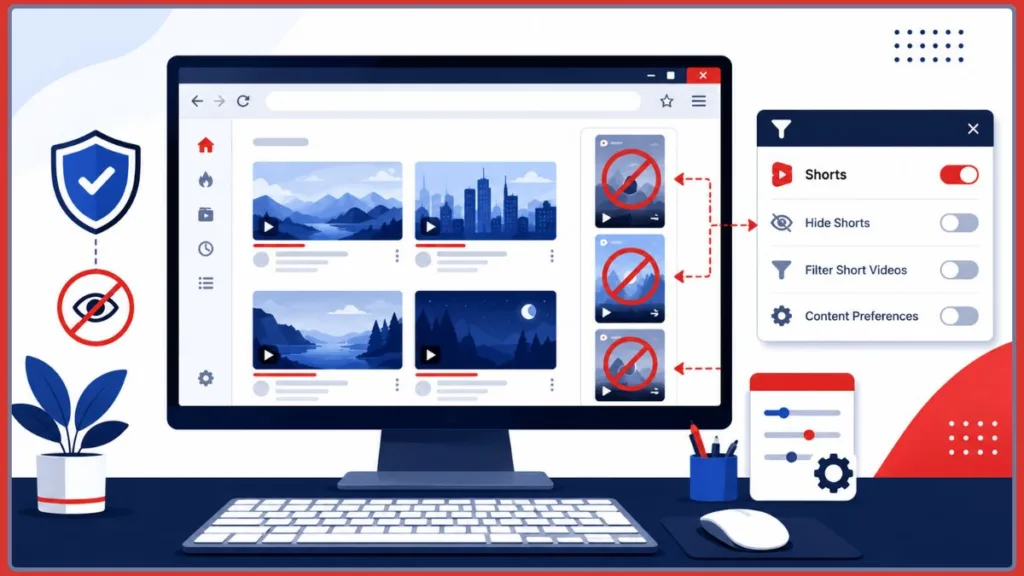
If you want a permanent, set-it-and-forget-it solution, using a dedicated browser extension is the most effective approach. These types of apps and plugins effectively filter out Shorts content, allowing you to enjoy a Shorts-free desktop.
Step-by-Step Guide to Installing a Shorts Blocker
- Open your desktop browser and navigate to your extension marketplace (e.g., the Chrome Web Store, Mac App Store for Safari, or Firefox Add-ons).
- Search for a highly-rated, purpose-built extension. We recommend:
- Hide YouTube Shorts: This extension is specifically designed to hide Shorts from your browsing experience and remove the entire Shorts section permanently on Chromium browsers and Firefox.
- Youtube-Shorts Block: This blocks Shorts videos, preventing them from appearing in your YouTube feed seamlessly.
- Remove YouTube Shorts: Designed by Arctechplugins, this is a highly reliable option to surgically remove Shorts on Firefox and Chrome.
- ShortsBlocker: Excellent if you want to target the desktop version of YouTube and customize your content efficiently.
- Shorts Blocker for YouTube: If you are a Safari user, you can find this similar third-party tool on the Mac App Store.
- Unhook: The best option if you want to remove Shorts and other distractions like recommended videos, comments, and the trending tab.
- Click Add to Chrome (or your respective browser) and confirm the installation.
- Refresh your YouTube tab. You will immediately see a cleaner, Shorts-free homepage without having to watch Shorts unnecessarily.
How to Hide YouTube Shorts Without Extensions (Built-In Method)
If you are on a work computer or prefer not to install third-party tools, you can still use YouTube’s built-in feature to hide the shelf temporarily.
Manual Method to Hide the Shorts Shelf
- Go to the YouTube homepage on your desktop browser.
- Scroll down your feed until you locate the Shorts shelf (the horizontal row of vertical videos).
- Look at the top right corner of that specific section and click the X (Not interested) button.
You will see a message confirming the shelf has been hidden. Reload the YouTube page, and you won’t see the Shorts section on your homepage anymore.
Disable Specific Channels Using the Three-Dot Menu
If you just want to disable YouTube Shorts from a particular channel rather than the whole platform, you can go to the Shorts tab on the left-side panel. Click on the three-dot menu button present on the specific video and choose Don’t recommend this channel. You won’t see Shorts from that creator anymore.
Notes About This Method:
- This trick only hides the homepage shelf for 30 days. Once it expires, you will need to click the X again.
- This does not remove Shorts from your search results or your subscription feed.
How to Filter Out Shorts Using uBlock Origin
If you already use the popular uBlock Origin ad blocker, you don’t need a separate extension. You can simply add a custom filter to wipe Shorts from the interface completely.
Step-by-Step Guide for uBlock Origin
- Click the uBlock Origin icon in your browser toolbar and open the Dashboard (the gears icon).
- Navigate to the My filters tab at the top.
- You can either paste a trusted open-source URL list like
[https://raw.githubusercontent.com/i5heu/ublock-hide-yt-shorts/master/list.txt](https://raw.githubusercontent.com/i5heu/ublock-hide-yt-shorts/master/list.txt)into the import field, or manually paste the following code to hide#shortselements:
Plaintext
! Hide all videos containing the phrase "#shorts"
youtube.com##ytd-grid-video-renderer\:has(#video-title\:has-text(#shorts))
youtube.com##ytd-grid-video-renderer\:has(#video-title\:has-text(#Shorts))

! Hide all videos with the shorts indicator on the thumbnail
youtube.com##ytd-grid-video-renderer\:has([overlay-style="SHORTS"])

! Hide shorts button in sidebar
youtube.com##ytd-guide-entry-renderer\:has-text(Shorts)

! Hide shorts section on homepage
youtube.com##ytd-rich-section-renderer\:has(#rich-shelf-header\:has-text(Shorts))
youtube.com##ytd-reel-shelf-renderer\:has(.ytd-reel-shelf-renderer\:has-text(Shorts))
- Click Apply changes in the top left corner.
- Reload YouTube to see your newly filtered feed. With this filter applied, you won’t see YouTube Shorts on your desktop ever again.
(Note: Due to recent Chrome Manifest V3 updates in 2026, this method works best on Firefox or Brave browsers).
Additional Ways to Manage Your YouTube Experience
Even if you primarily watch on a PC, you might want to extend these boundaries to your other mobile devices. Here are the main methods to disable YouTube Shorts on your Android or iPhone:
- Check Your General Settings: While demographic-specific, some regions allow you to disable Shorts directly. Launch the app, tap your profile avatar, go to Settings > General, and toggle off the Shorts button.
- Train Your Mobile Algorithm: On the mobile app, scroll down past regular videos to the Shorts section. Tap the three-dot button and choose Show Fewer Shorts. You can also consistently tap the three-dot menu on individual Shorts videos and select Not Interested. Over time, the algorithm will remove them from your feed.
- Use Mobile Desktop Mode: Open YouTube in Safari or Chrome on your phone, request the Desktop site from the browser drop-down menu, and click the “X” on the Shorts shelf just like you would on a PC.
- Downgrade Your App Version (Android): If your phone came with a YouTube version older than 14.13.54 (which introduced Shorts), you can remove them by long-pressing the app, selecting App Info, tapping the three dots, and choosing Uninstall updates. Alternatively, you can visit APKMirror to download and sideload version 14.12.56.16. Just remember to disable auto-updates!
- Try VueTube or YouTube Vanced: Android users can install FOSS streaming clients like VueTube to watch without the Shorts tab. Alternatively, download Vanced Manager, install Vanced microG, and log into YouTube Vanced. Go to Settings > Vanced settings > Layout settings and toggle off YouTube stories (Experimental) to remove the shelf.
- Set Up Parental Controls: If you are a parent, use Google Family Link or tools like VidCove to whitelist specific channels or set the daily Shorts limit to zero for your children’s accounts.
Limitations of Blocking YouTube Shorts
Even with these excellent tools, there are a few things you should know:
- Extensions usually only work sporadically, and Google actively tries to block third-party plugins. You may need to wait a few days for the developer to push an update if your extension stops working.
- Extensions only work on the specific browser where they are installed. (If you block Shorts on Chrome, they will still appear if you open Edge or an Incognito window).
- Disabling Shorts will notably impact your overall YouTube experience. It limits the diversity of content you encounter and removes a massive portion of the platform’s recommendations.
Final Thoughts on Disabling YouTube Shorts
While YouTube has made it harder to natively hide short-form content, you are still fully capable of managing your feed and getting back to enjoying regular YouTube.
To summarize:
- Use a dedicated extension like Remove YouTube Shorts or Unhook for the most reliable, permanent block on PC.
- Use the built-in X (Not interested) button for a quick, 30-day fix.
- Utilize uBlock Origin custom filters if you prefer not to install extra extensions.
These methods ensure your YouTube experience remains focused, intentional, and entirely on your terms.
Frequently Asked Questions (FAQ)
Q1: Can I permanently disable YouTube Shorts?
No, YouTube does not have a permanent settings toggle for this for the majority of users. However, installing a browser extension like Unhook or Remove YouTube Shorts will permanently block them from rendering on your PC browser.
Q2: How do I hide YouTube Shorts on my phone?
Because you cannot install Chrome extensions on the standard YouTube mobile app, your best option is to tap “Not Interested” on Shorts to train the algorithm, or use a third-party mobile browser with extension support (like Kiwi Browser on Android). You can also downgrade your Android app to an older version (pre-14.13.54).
Q3: Does hiding the Shorts shelf work forever?
No. Clicking the “X” on the desktop Shorts shelf only hides it for 30 days. You must repeat the process when the shelf returns.
Q4: Will blocking Shorts break regular YouTube videos?
No. Purpose-built extensions and filters are designed to isolate and remove only the Shorts UI elements. Your regular video playback, search, and subscriptions will work normally.
Q5: How do I stop YouTube Shorts from showing in my history?
If you want to stop them from appearing in your viewing history, go to the YouTube app, tap your profile picture, select Settings, scroll to the History & privacy section, tap on History, and toggle off the switch next to YouTube Shorts.
Q6: Is there a way to filter out YouTube Shorts from search results?
No, YouTube does not provide a direct option to filter out Shorts from search results natively. You will need to use specific search parameters or rely on the browser extensions mentioned above to scrub them from your queries.
Q7: Can I report or provide feedback about YouTube Shorts?
Yes, YouTube encourages feedback. Simply long-press the video and look for the feedback or report options on the mobile app or website to share your thoughts or concerns.
Visit Our Post Page: Blog Page
Discover more from Izoate
Subscribe to get the latest posts sent to your email.