
Want to stop unexpected charges in 2026? Learn how to cancel an Amazon Music subscription using simple steps. From finding hidden cancel buttons to bypassing the “error dog” and managing Apple billing. Take control of your auto-renewals today.
If you’re pulling your hair out trying to figure out how to cancel an Amazon Music subscription, you are not alone. Between confusing account settings, tiny hidden buttons, and mysterious website crashes, ending your auto-renewal can feel like navigating a maze.
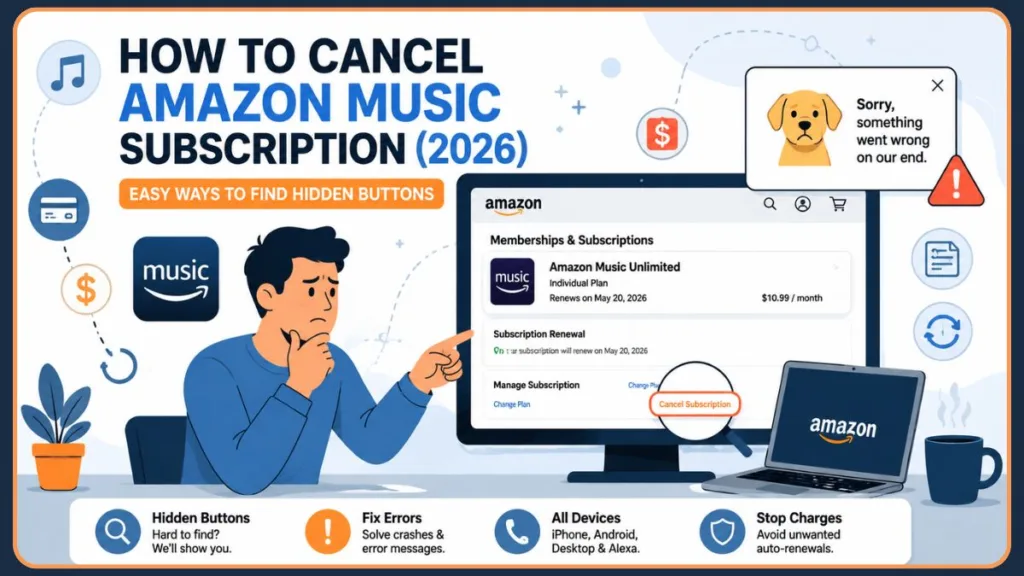
Whether you are switching to a new streaming service plan like Spotify or Apple Music, or just cutting down on your monthly expenses, we’ve got you covered. This guide will show you exactly how to stop your Amazon Music subscription across all devices—and how to bypass the frustrating errors and common Amazon subscription issues.
Quick Note: Canceling your Amazon Music Unlimited plan does not cancel your Amazon Prime membership. If you are a Prime member, you will still enjoy the leaner, ad-free Amazon Music service for free as part of your Prime benefits.
Quick Answer
- Open Amazon Music Settings
- Select Memberships & Subscriptions
- Choose Amazon Music Unlimited
- Click Cancel Subscription
- Confirm cancellation
You will keep premium access until the next billing date.
According to Amazon support documentation, you should manage subscriptions through the Memberships & Subscriptions section of your account settings.
The Fastest Method: The Direct Link Shortcut
If you’ve already spent twenty minutes clicking through your Amazon account settings and just want out, skip the menus entirely. Users who have struggled with this process have found a direct link that bypasses the clutter.
- Make sure you are logged into your Amazon account on your browser.
- Visit the Amazon Music Settings page.
- Scroll down. Look very carefully for a small, blue link that says Cancel Subscription (or sometimes Cancel renewal).
- Amazon will try to convince you to stay with a cheaper plan or offer a pause option. Ignore this and click Continue to cancellation.
If this shortcut doesn’t work for you, or if you prefer to go through the standard menus, keep reading.
How to Cancel Amazon Music on the Website (Desktop Browser)
The easiest and most reliable way to cancel Amazon Music Unlimited is through the desktop web interface. This method works best for most subscribers who signed up directly through Amazon.
Step 1: Go to Amazon.com and sign in to your account. Step 2: In the top-right corner, hover over Account & Lists (under your name) and select Memberships & Subscriptions from the drop-down menu. Step 3: Find your Amazon Music Unlimited subscription in the list and click the Cancel Subscription button on the right-hand side. Step 4: You will be prompted with several “Are you sure?” messages. Amazon may ask for a reason for leaving through an optional feedback survey, offer you a different billing cycle, or suggest you pause your subscription instead. Continue through the prompts until you reach the final cancellation confirmation. Step 5: On the final page, hit Confirm cancellation. You should see a message at the top of the screen confirming the date your plan will end. You will also receive a confirmation email for your records.
How to Cancel Amazon Music on Mobile Devices
How to Cancel Amazon Music on Android
If you manage your subscription through the Amazon Shopping app or the Amazon Music app on an Android device, you can handle the cancellation directly inside the app.
- Open the Amazon Music app and tap the gear icon in the top-right corner.
- Select Settings.
- Under the “Your Account” subheading, tap Amazon Music Unlimited Member (or Subscription Renewal).
- Scroll down, select Cancel Subscription, and follow the prompts to confirm.
(Note: If you subscribed through the Google Play Store, you must open the Google Play Store app, tap your profile icon, go to Payments & subscriptions > Subscriptions, and cancel it there.)
How to Cancel Amazon Music on iPhone and iPad (iOS)
Crucial Warning: Simply deleting the Amazon Music app from your home screen will not cancel your subscription! Because Apple handles third-party billing, you must cancel Amazon Music from Apple billing settings.
- Open the Settings app on your iPhone or iPad.
- Tap your name (Apple ID) at the very top of the screen.
- Tap Subscriptions.
- Find Amazon Music under your active subscriptions.
- Tap Cancel Subscription and confirm.
Apple processes the cancellation immediately, but you still keep access until your current billing cycle ends.
Bonus: Use Alexa
If you have an Echo dot or another Alexa-enabled smart device, you can simply say aloud: “Alexa, cancel my Amazon Music Unlimited subscription.”
Troubleshooting: Fixing the “Error Dog” & Hidden Buttons
Canceling Amazon subscriptions is notoriously glitchy. Here are the most common roadblocks and how to get around them.
The “Error Dog” Crash
Several users on Reddit also reported getting all the way to the final cancellation confirmation, only to be met with a picture of a dog and the message: “Sorry, something went wrong on our end.” This loop is incredibly frustrating. If this happens, try switching from mobile to a desktop computer, or clear your browser’s cache. If it persists, see the “Nuclear Option” below.
The “Change Plan” Trap
Sometimes, the cancel button isn’t front and center. You might only see a prominent button asking you to change to a different plan. Look closely underneath your current plan details; the cancel button is usually hidden there in small text.
“I Can’t Find My Subscription!”
If your subscription isn’t showing up under Memberships & Subscriptions, check two things:
- Are you logged into the correct Amazon account?
- Did you sign up through a third party? If you signed up via iTunes, Google Play Store subscriptions, or your mobile service provider, you must cancel through their respective customer support or app stores.
What to Do If Amazon Music Won’t Cancel
If the website is completely broken or you’re stuck in the error loop, it’s time to force the issue with these nuclear options.
1. Demand a Manual Cancellation via Live Chat
Go to Amazon’s “Contact Us” page and open a live customer service chat. Explain that the website is giving you an error and explicitly ask the representative to cancel your Amazon Music Unlimited account. Pro tip: Take a screenshot of the chat where they confirm the cancellation so you have a receipt.
2. The Virtual Credit Card Trick (For the Future)
To avoid unexpected auto-renewals like this in the future, consider using a virtual credit card (like those offered by Capital One or Privacy.com). This is especially helpful when signing up for an Amazon Music free trial. You can set a specific expiration date or a $0 spending limit on the virtual card so that when the trial ends, the charge simply declines and the subscription auto-cancels.
How to Cancel Amazon Music Free Trial
If you recently signed up to test the service, you must complete your cancellation before billing begins to avoid charges.
Free Trial Timing
Pay close attention to your free trial timing—it is highly recommended to cancel at least 24 hours before the promotional period ends to safely avoid any auto-renewal warning triggers.
Cancel Immediately
The best part is that you can cancel immediately after signing up, and you will still retain full premium access for the remainder of the 30-day (or 90-day) free trial period.
What Happens After You Cancel?
- Billing, Fees & Access: Amazon does not charge a cancellation fee. They do not prorate or refund partial months. Once you confirm your cancellation, you will retain access to your premium features until the end of your current billing cycle.
- Will I lose my music library and playlists? No, your playlists will remain in your account. However, once the billing cycle ends, any songs that are exclusive to the Unlimited tier will become grayed out and unplayable. Notably, any music you have officially purchased through Amazon will remain yours forever and be fully playable regardless of your subscription status.
Amazon Music Still Charging You After Cancellation?
If you notice a charge after you thought you ended your service, take the following steps to investigate:
- Check active subscriptions: Log into your Amazon account to ensure it didn’t somehow renew, you didn’t accidentally select “pause” instead of cancel, or it didn’t fail to cancel.
- Look for a confirming cancellation email: If you didn’t receive one from Amazon, Apple, or Google, the cancellation likely didn’t go through.
- Watch out for Apple billing confusion: Users often assume deleting the app canceled the service, not realizing they are still being charged through their Apple ID.
- Review pending billing cycles: Sometimes a charge that appears new was actually processed slightly before you canceled.
Support Escalation
If you have a cancellation confirmation but are still being charged, you will need to pursue a support escalation and contact Amazon Customer Service directly to secure a refund.
Popular Amazon Music Alternatives
If you are leaving Amazon Music, here are a few popular services to consider for your next subscription:
- Spotify: Best for Discovery & Social Features. Known for its highly personalized, AI-driven recommendations and collaborative “Jam” listening sessions. It offers an enormous, all-in-one library of music, audiobooks, and video podcasts.
- Apple Music: Best for Apple Users. Features high-quality lossless audio and Dolby Atmos Spatial Audio at no extra cost. It seamlessly integrates across the entire Apple ecosystem and offers live, human-curated DJ stations like Apple Music 1.
- YouTube Music: Best for Deep Cuts & Videos. Uniquely allows you to seamlessly switch between audio tracks and official music videos. Its biggest strength is a massive catalog of user-generated remixes, covers, and live performances you won’t find anywhere else.
- Tidal: Best for Audiophiles. Renowned for its high-resolution lossless FLAC streaming (up to 24-bit/192kHz) that preserves studio-quality sound. It also generally offers higher per-stream royalty payouts, making it a favorite for users who want to better support independent artists.
Frequently Asked Questions (People Also Ask)
Why can’t I cancel my Amazon Music subscription? If you don’t see the option to cancel, you likely subscribed through a third-party service (like Apple, Google, or a mobile carrier). You must cancel through their device settings. Alternatively, you may be logged into the wrong Amazon account.
Where is the Amazon Music cancel subscription button? The cancel button is notoriously difficult to find. On a desktop browser, you must go to your account’s Memberships & Subscriptions, find Amazon Music Unlimited, and look carefully below the upgrade or “change plan” offers. It is often a tiny, subtle link rather than a prominent button. The easiest way to find it is to bypass the menus entirely and go directly to the Amazon Music Settings page.
What should I do if Amazon Music says “Sorry something went wrong” with a dog picture? This “error dog” is a well-known glitch that often appears when users try to finalize their cancellation. If you get stuck in this endless loop, try switching from your mobile phone to a desktop computer, or clear your browser’s cache. If it still won’t work, you may need to contact Amazon customer support via live chat to manually force the cancellation.
Does deleting Amazon Music cancel the subscription? No. Deleting the app from your iPhone or Android home screen only removes the application from your device; it does not stop your billing. To officially cancel your subscription, you must manage it through your Amazon account settings, or through your Apple ID/Google Play settings if you subscribed via a third party.
Why am I still being charged after canceling Amazon Music? If you are still seeing charges, the cancellation likely failed to process. Check your email to see if you received an official cancellation confirmation—if you didn’t, the subscription renewed unexpectedly. This also frequently happens to iPhone users who mistakenly thought deleting the app canceled their Apple billing.
How do I cancel Amazon Music if I subscribed through Apple or Google Play? If you signed up through a third-party app store, Amazon cannot cancel it for you on their website. iPhone users must go to their device Settings > [Your Name] > Subscriptions to cancel. Android users who billed through Google Play must open the Google Play Store app, tap their profile icon, and navigate to Payments & subscriptions > Subscriptions.
How do I cancel Amazon Music on my phone only? You don’t need a computer to cancel. Android users can cancel directly inside the Amazon Music app by going to the gear icon, tapping Settings, and selecting Cancel Subscription under the account details. iPhone users can cancel via their Apple ID subscription settings. Alternatively, you can log into Amazon.com on your phone’s mobile web browser and navigate directly to the Amazon Music Settings page.
Can I cancel Amazon Music immediately after starting a free trial? Yes. To avoid accidental charges, you can cancel your free trial immediately after signing up. You will not lose access right away; you can continue to enjoy the premium features for the remainder of your 30-day or 90-day promotional period without worrying about surprise auto-renewals.
How do I contact Amazon customer service to cancel Amazon Music? If the cancellation flow is broken or you are trapped in an error loop, you can bypass the automated system by visiting Amazon’s “Contact Us” page. Open a live chat and firmly request that the representative manually cancel your Amazon Music subscription and halt any further billing.
Do you get a refund if you cancel Amazon Music? Generally, no. Amazon does not offer partial refunds for the remainder of a month and they don’t charge any cancellation fees. You will continue to have access to the service until your next billing date.
Can I still use Amazon Music after canceling? Yes. Your account will simply revert to the ad-supported free tier. If you are an Amazon Prime member, you will be downgraded to the standard Prime Music tier, which still allows for ad-free listening but with a smaller catalog and shuffle-only play for most artists.
If the standard cancellation steps didn’t work, try the troubleshooting fixes above before contacting Amazon support. Most users are eventually able to cancel successfully once they reach the correct subscription page.
Have you managed to successfully cancel your subscription? Let us know in the comments if the direct link worked for you, and tell us which streaming service you are planning to switch to next!
Visit Our Post Page: Blog Page
Discover more from Izoate
Subscribe to get the latest posts sent to your email.