
Getting the “Something Went Wrong (13)” error on Google Gemini? Don’t panic. Here is the complete step-by-step guide to fix Gemini Error 13 and get Gemini AI working again.
If you are getting the “Something went wrong. Please try again (13)” message in Google Gemini, you are not alone. Google Gemini Error 13 is affecting both free and Gemini Advanced users, especially during image uploads, long chats, and multi-device sessions. While Google’s official support channels often point to standard troubleshooting steps, real users on forums like Reddit have discovered specific triggers and a workaround that bypasses the problem entirely.
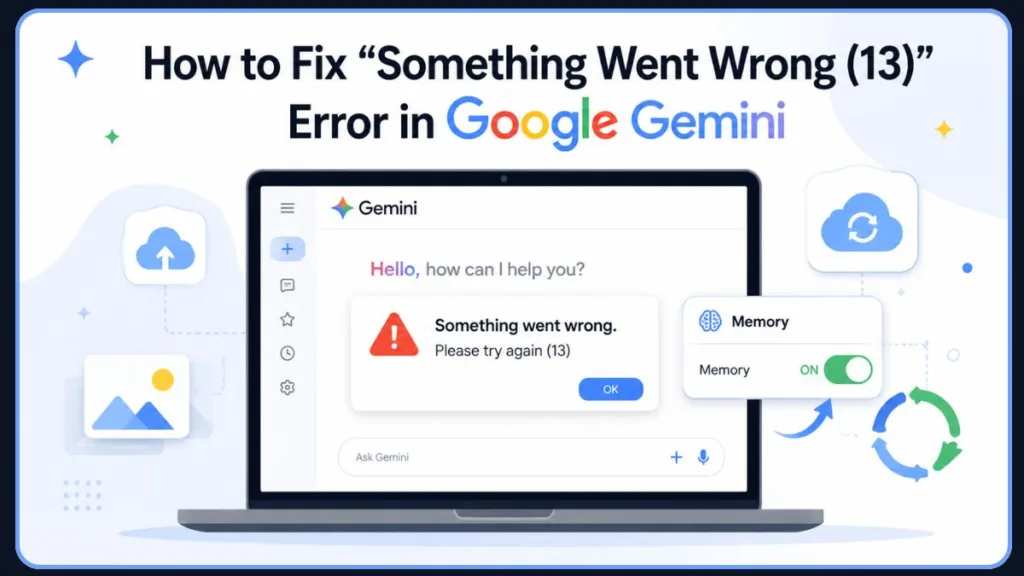
In this guide, we will break down exactly what Gemini AI Error 13 means, why it happens, and how to fix it so you can get back to your AI workflow when Gemini failed to respond.
⚡ Quick Fixes for Gemini Error 13
- Toggle Gemini Memory OFF and ON (The most successful user fix)
- Start a new chat if the session is stuck loading indefinitely
- Wait 24 hours after heavy image or file uploads
- Clear browser/app cache to reset a Gemini connection issue (specifically the AI Core cache on Android)
- Reduce image upload batches to small, single-digit groups
- Sign out and sign back in on all devices
- Check Google Workspace admin controls or your Google Cloud API settings if you are an enterprise user
What Does Error 13 Mean on Google Gemini?
At its core, Google classifies Error 13 as a generic request or connection issue. This suggests the issue may involve session issues or request failures. Some Google Workspace community experts describe Error 13 as a possible permission-related issue where the system actively blocks requests due to underlying policy violations or account-side restrictions. This means that while Gemini is trying to process your prompt or file, something in the background—a server-side handshake failure, a permission block, or a temporary rate limit—is preventing the operation from completing successfully.
A common misconception is that this is a billing or quota problem. It is not. Even users with paid Google Workspace or Gemini Advanced subscriptions encounter this. Error 13 points to a technical data-processing bottleneck, meaning your account has hit a specific processing wall, not a financial one.
Common Signs of Gemini Error 13
Before diving into the causes, here is how the issue typically presents itself across devices:
- Gemini stops responding after uploads
- Chats remain stuck loading
- Custom Gems fail to share
- Prompts return “Something went wrong (13)”
- Mobile app works differently than desktop
Common Triggers: Why Did Gemini Stop Working?
In most cases, Gemini Error 13 appears when Google’s AI systems fail to properly process requests, manage conversations, or analyze uploaded content. The issue can originate from overloaded chat memory, temporary upload restrictions, or unstable session conflicts between devices.
Based on recent Reddit threads and Google Support community data, the error rarely happens out of nowhere. It is usually triggered by one of the following scenarios:
Trigger 1: Mass Image Uploads Uploading a large batch of images (for example, 30+ images in a short span) for analysis is a major culprit and one of the most common causes behind Gemini image upload failures. This can trigger a temporary system conflict, restricting your account from processing multiple files or breaking the chat entirely.
Trigger 2: Context Limit Overload Gemini needs to retain your entire conversation history to provide coherent responses. If you have been chatting in the same window for hours, the sheer volume of data overwhelms the specific chat’s memory limit, causing the session to “brick” or freeze.
Trigger 3: Non-English Text Encoding Many users report encountering Error 13 specifically when inputting pure non-English text or mixed languages. This suggests an AI processing failure related to character encoding. A community workaround for this is to “prime” Gemini by starting the conversation with an English prompt before switching to the non-English text to help it correctly route the language change.
Trigger 4: Cross-Device Syncing Bugs Sometimes the error is localized. A PC browser might process prompts smoothly while the Gemini mobile app throws the Error 13 message, or vice versa.
Trigger 5: Sharing Custom Gems Users frequently report getting the “Something went wrong (13)” message specifically when attempting to share custom Gems, even without attached files. This indicates a server-side permission conflict that prevents the sharing operation from completing.
How to Fix Gemini Error 13 (Step-by-Step Solutions)
Because Google has not officially documented every trigger behind Error 13, many fixes are based on verified user reports and community testing.
If standard fixes haven’t worked, try these community-tested solutions. Start with the most effective fix first.
🌟 Fix 1: The Reddit-Discovered Workaround (Toggle Memory)
When standard cache-clearing fails, a highly praised workaround from the Reddit community has proven to instantly fix the bug, even for users who have been stuck with it for a week. Users are calling it a “magic fix” on Reddit because of its high success rate.
How to do it:
- Open your Gemini web interface or app.
- Navigate to your Settings (usually a cog icon or your profile picture).
- Select Personalization.
- Toggle the Memory feature OFF.
- Toggle the Memory feature immediately back ON.
Why it works: Users believe this refreshes account personalization and session data, forcing the system to clear the Gemini AI Error 13 loop without erasing your previously saved context or personal criteria.
Fix 2: Start a Fresh Chat Session
If your existing chat is paralyzed due to a context limit overload, the easiest immediate fix is to click New Chat. By starting a fresh conversation, you drop the weight of the previous hours of data, giving Gemini a clean slate to operate on and often fixing chats that become stuck loading indefinitely.
Fix 3: Wait Out the 24-Hour Restriction
If you triggered the error by mass-uploading images or files to a custom Gem, you may have hit a temporary account-side restriction. Google’s official advice in these cases is to wait. The restriction usually clears itself within a few hours to a full 24-hour cycle.
Fix 4: Clear App / Browser Cache
Corrupted cache data can sometimes cause a Gemini connection issue between your device and Google’s systems.
- For Desktop: Sign out of your Google account entirely, clear your browser cookies and cache, and sign back in.
- For Mobile: Go to your phone’s settings, locate the official Google app or the Android AI Core app, and clear the cache data. For Android users specifically, go to Settings > Apps > Show system, locate the AI Core app, and select Storage & cache to clear its cache.
For Developers Using Gemini API
If you are encountering Error 13 inside Google AI Studio rather than the regular Gemini app, the issue may be related to API permissions or service configurations instead of chat conflicts. This typically points to account-side restrictions or a disabled service state. Ensure that the Gemini API is still active under APIs & Services in your Google Cloud Console. If you are operating within a Google Workspace environment, check with your Workspace Administrator, as policy violations or updated security measures can silently block API access at the organizational level.
Frequently Asked Questions (FAQ)
Why am I getting Error 13 when uploading images to Gemini?
This usually happens if your image files are too large, or if you are uploading too many at once (like batches of 8 or more). It can also indicate a lack of Google file share permissions, especially if you are using integrated external storage or custom Storybook Gems. Try compressing your files or uploading them one at a time.
How do I report a persistent Gemini error code 13?
If the error persists across all your devices for more than 24 hours, use the feedback button located in the bottom corner of the Gemini interface. Include the hashtag #GoogleGemini or #Error13 in your report. Detailed feedback flows directly to Google’s cloud engineers and helps resolve account-specific request failures.
Is Gemini error 13 a billing or subscription issue?
No. Error 13 is fundamentally a permission or connection error. Upgrading from a free plan to Gemini Advanced will not resolve the issue if an account-side restriction is active.
Can Gemini Error 13 fix itself?
Yes. Many users report the issue disappears automatically after several hours, especially after heavy image uploads or long chat sessions.
Does Gemini Error 13 affect Gemini Advanced users?
Yes. Both free and paid Gemini users have reported the issue.
Why does Gemini Error 13 happen on mobile but not desktop?
This may be caused by temporary system conflicts, outdated app cache, or differences between browser and app processing.
Why am I getting Error 13 when sharing a Custom Gem?
This typically occurs due to a request failure or permission conflict on Google’s end. Users recommend trying to share it from the mobile app first and then switching back to the desktop, or waiting for a session refresh since it is rarely user-caused.
Conclusion
While Gemini Error 13—much like the equally frustrating “Something went wrong (1076)” error and “Something went wrong (1099)” error—can abruptly halt your productivity, it is almost always a temporary, solvable issue. Whether you have overloaded the context limits, encountered a Gemini not working message, or tripped an image-upload restriction, simply starting a new chat or using the Memory toggle trick will usually get you back on track.
Visit Our Post Page: Blog Page
Discover more from Izoate
Subscribe to get the latest posts sent to your email.