
Stop unwanted recurring charges in under 3 minutes. Learn exactly how to completely cancel your YouTube Premium subscription on iOS, Android, or PC before your next billing date.
Managing your monthly tech expenses is no longer just a good idea—it is a financial necessity. With streaming costs climbing across the board, knowing exactly how to pause, downgrade, or terminate recurring charges is an essential skill for protecting your budget.
Following the June 2026 price hikes that pushed the individual YouTube Premium price to $15.99 per month and the family tier to a hefty $26.99, putting this subscription on the chopping block is a completely logical move. Whether you are migrating your music library over to Spotify, strictly auditing your monthly spending, or simply making peace with ad-supported videos, reclaiming that cash adds up quickly. At roughly $179.88 a year for an individual plan, it is currently one of the most frequently abandoned streaming services on the market.
If you are trying to figure out how to completely cancel YouTube Premium, you can breathe easy: the process takes less than three minutes once you know which digital door to walk through. Tech companies love to bury the cancellation button, but Google’s system is actually relatively straightforward, usually taking just three to five clicks to finalize.
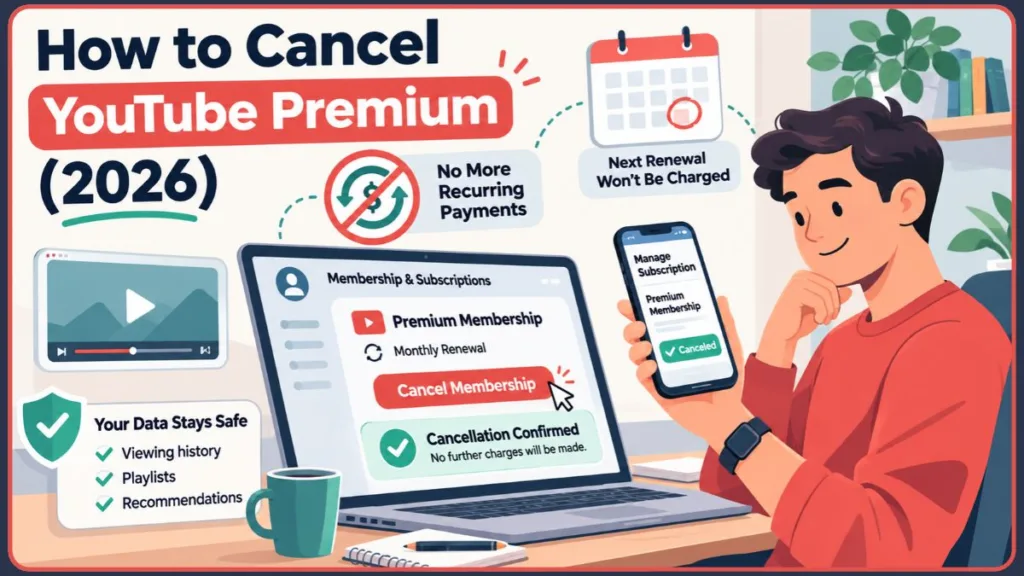
Crucially, there is absolutely no penalty for pulling the plug early. When you terminate your YouTube paid membership, your perks—like ad-free viewing, background play, and offline downloads—remain entirely active until the final day of your current billing cycle. You simply will not be charged when the next renewal date rolls around. Plus, walking away doesn’t mean sacrificing your data. Your viewing history, custom playlists, and algorithmic recommendations are all safely preserved on your Google account.
Pro Tip: Before you officially pull the trigger, check your account settings to see your exact billing date. I highly recommend setting a calendar alert to cancel at least 48 hours before that date. This guarantees you aren’t caught off guard by a pending authorization charge for another month.
Also, take a quick second to verify whether your mobile carrier or another streaming bundle already covers your YouTube Premium access for free. Consolidating your digital services into an existing cellular plan can sometimes save you $7.00 or more a month without forcing you to give up the service.
Why Are So Many Viewers Dropping Their YouTube Paid Membership?
If you are feeling the urge to unsubscribe, you are in good company. Over the past year, search volume for cancellation walkthroughs has surged. Here is exactly why consumers are hitting the brakes:
- Subscription Fatigue: With dozens of platforms demanding a monthly cut of our paychecks, people are actively auditing and slashing their recurring expenses.
- The Ad-Blocker War: Some viewers feel burned by YouTube’s aggressive crackdown on ad-blockers and are choosing to reduce their watch time entirely rather than hand over a monthly fee.
- Price Increases: The relentless wave of price hikes from 2023 through 2026 has pushed this service out of the “impulse buy” category for most households.
Step One: Locate Where Your YouTube Premium is Actually Billed
The absolute biggest hurdle people face when trying to cancel their YouTube Premium account is searching on the wrong platform. You must disable the subscription through the exact same billing provider that originally processed your sign-up.
If you have no idea where you originally subscribed, open your banking app and pull up your most recent statement:
- Billed by Google: The transaction will likely read
GOOGLE *YOUTUBE PREMIUMor something very similar. You can handle this cancellation directly on your computer or an Android device. - Billed by Apple: The charge will show up as
APPLE.COM/BILL. You are locked into Apple’s billing ecosystem and must use your iOS settings to get out. - Billed via a Third Party: If you get Premium through a bundled package like Google’s Pixel Pass or a specific cellular carrier plan, you have to manage the cancellation directly through that specific provider’s portal.
Expert Troubleshooting Tip: Still can’t figure out who is taking your money? Open your primary email inbox and search for the exact phrase
"YouTube Premium receipt". The automated invoice you get every month will explicitly state whether Google, Apple, or a third party is processing the payment.
Once you have identified the culprit, follow the matching guide below. Alternatively, you can always point your browser to youtube.com/paid_memberships. The “Status” field on that page will explicitly tell you who owns your billing contract, or if you’ve already successfully canceled.
How to Cancel YouTube Premium on Your Computer or Laptop
If you originally handed your credit card directly to Google, the most painless way to end your subscription is right on your desktop web browser. This workflow is identical across Windows, macOS, or ChromeOS.
- Navigate to YouTube.com and ensure you are logged into the correct Google account.
- Click your profile picture up in the top right corner of the interface.
- Click on Purchases and memberships from the dropdown menu.
- Spot your active Premium tier and click Manage membership.
- Hit the Deactivate button.
- The system will try to pivot by asking if you’d rather pause your membership instead. If you just need a financial breather, select the pause option (you can freeze billing for up to six months). Otherwise, click Continue to cancel. (Note: If you choose to pause, you can specify exactly how many months—between 1 and 6—you want it to last. Pausing suspends the financial charges while leaving your downloaded videos and settings perfectly untouched.)
- Pick a quick reason for leaving, and click Cancel subscription to lock in your choice.
Important Note on Retention Offers: Unlike cable companies or other streaming platforms that throw last-minute discount offers at you to keep your business, YouTube Premium does not negotiate here. The pause feature is the only alternative they will offer.
The “Pause” Trap: Pausing vs. Canceling Your Membership
The “Pause” feature trips up a lot of folks. Here is the mechanical breakdown of how it actually operates:
- When does the pause start? It does not kick in immediately. The freeze begins the second your currently paid billing cycle ends.
- What happens to billing? Your credit card will not be touched while the account remains in a paused state.
- How does it resume? When your designated pause duration (1 to 6 months) expires, the membership automatically reactivates, and your card on file is charged for a fresh month.
- The Annual Exception: If you bought into an annual, prepaid Premium plan, you do not have the luxury of pausing. The subscription simply runs its course until the prepaid year is up.
What Actually Happens When You Deactivate Your Account?
The moment you confirm your exit, Google will fire off an automated email proving that you’ve stopped the auto payment. Your account dashboard will update instantly to display the exact date your ad-free privileges expire.
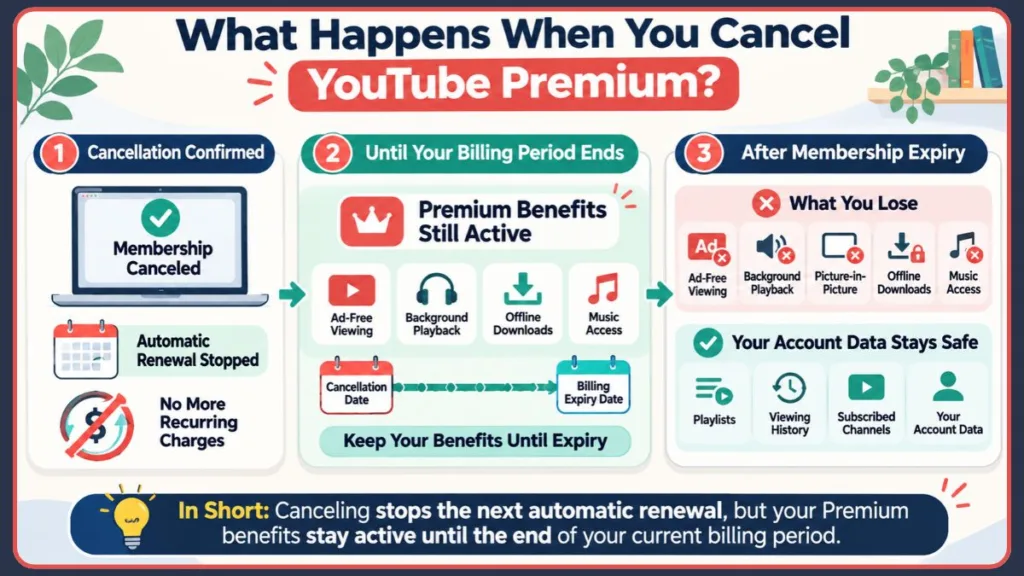
To clear up any anxiety about what you keep and what you lose when that final day hits:
- What You Keep: Every channel you subscribe to, your meticulously curated custom playlists, and your search history remain fully intact. The platform simply reverts to the standard, free version of YouTube.
- What You Lose: You will instantly lose the ability to play audio in the background while using other apps, unskippable ads will return to all videos, Picture-in-Picture (PiP) functionality goes dark, and your access to YouTube Music Premium is revoked entirely.
Important Note on Downloads: The absolute second your billing cycle officially ends, any videos or music tracks you saved for offline viewing will lock you out. If you are hopping on a long flight or heading into the wilderness, verify that your active subscription covers the dates of your trip before you pull the plug.
Why does this happen? Downloaded videos rely on a continuous digital license check. Once the server registers your status as canceled, the app instantly locks or deletes those offline files to enforce digital rights management. This exact rule applies to downloaded tracks inside the separate YouTube Music app.
How to Cancel YouTube Premium on Your Smartphone (iOS & Android)
Managing subscriptions on a mobile device requires you to navigate the walled garden of your phone’s native app store. Because mobile billing involves Apple or Google taking a cut of the revenue, the cancellation mechanics vary entirely based on the phone in your hand.
Canceling YouTube Premium on an iPhone or iPad (The Apple ID Method)
If you initially tapped “upgrade” while inside the iOS video app, Apple is the entity holding your billing contract. This answers the incredibly common, frustrating question of how to cancel subscriptions on YouTube on an iPhone: you will not find a cancellation button anywhere inside the video app itself. You must route through your Apple ID.
- Open the native Settings app on your iOS device.
- Tap your name and Apple ID banner located at the very top of the screen.
- Tap on Subscriptions.
- Scroll down your active list and tap YouTube Premium.
- Hit Cancel Subscription and confirm your choice.
Troubleshooting for iOS: If you are staring at your Apple ID screen and the membership is completely missing, yet the money keeps leaving your checking account, you almost certainly subscribed directly through Google via a web browser. Simply open Safari or Chrome, log into YouTube.com, and handle it there. Alternatively, check if a partner or child’s Apple ID is currently signed in on a shared family iPad.
Expert Tip on Apple Billing: Because your financial relationship is with Apple, you are strictly bound by Apple’s terms of service. Google literally does not have the power to issue refunds for iOS purchases. If you need to dispute a phantom charge, you must bypass Google entirely and visit reportaproblem.apple.com to deal with Apple Support.
Canceling YouTube Premium on Android via the Google Play Store
If you upgraded on an Android phone, your billing is interwoven with the Google Play ecosystem.
- Launch the Google Play Store app (leave the video app closed).
- Tap your profile avatar in the top right corner.
- Tap Payments & subscriptions, then select Subscriptions.
- Find YouTube Premium in the active roster and tap it.
- Hit Cancel subscription.
- Select a reason for leaving, tap Next, and hit Cancel Premium to finish the job.
The Alternative Route: Canceling Inside the Android YouTube App
If you’d rather avoid the Play Store, Android users have the luxury of canceling right inside the video app:
- Open the YouTube app.
- Tap your profile picture (top right corner).
- Select Purchases and memberships.
- Tap your active Premium membership.
- Tap Deactivate, then Continue to cancel.
- Confirm everything by tapping Cancel Premium.
Troubleshooting for Android: It is incredibly common to juggle multiple Google accounts on one device—like a personal inbox and a separate work profile. If your streaming plan refuses to show up in the Play Store, tap your profile picture to switch over to the specific email address that actually pays the bill. And remember: simply uninstalling the YouTube app from your home screen does absolutely nothing to cancel your membership.
Additionally, if you rock a Pixel smartphone and bundled your ad-free viewing into a Pixel Pass subscription, you cannot isolate and cancel Premium here. You have to manage your overarching Pixel Pass plan to change your YouTube benefits.
How to Cancel a YouTube Premium Free Trial (Without Paying a Cent)
If you are just taking the service for a test drive and need to know how to cancel a YouTube Premium free trial (or a promotional preview period), the workflow mirrors the exact steps above.
I always advise people to cancel free trials early because it does not instantly revoke your ad-free viewing. You still get to ride out the full 30-day or 90-day promotional window. Backing out early simply yanks your credit card out of the automatic renewal queue, offering total peace of mind that you won’t be charged a dime when the trial expires. (This exact logic also holds true if you are trying to figure out how to cancel YouTube Premium Lite in international regions that offer the budget tier).
Crucial Timing Warning: To dodge a pending authorization charge on your bank statement, you must cancel your free trial at least 24 hours before the expiration date. If you wait until the midnight hour, the automated billing system may have already initiated the charge.
Always screenshot the final confirmation page and save the automated cancellation email. Having hard proof of your cancellation is an absolute lifesaver if a system glitch results in an unexpected charge down the road.
Why You Can’t Cancel YouTube Premium Directly on Your Smart TV
As a rule of thumb, you cannot manage digital billing directly through a smart TV interface. The operating systems powering Roku, Apple TV, and Samsung displays are engineered for leaning back and watching content, not for secure subscription management.
If you are lounging on the couch watching TV and decide you are done paying for the service, you will need to grab your laptop or smartphone and follow the device-specific steps outlined earlier. Every now and then, your smart TV app might generate a QR code in its settings menu; scanning that code with your phone’s camera will conveniently kick you straight over to the correct mobile billing page.
Why is it designed this way? Smart TV app stores (like the Roku Channel Store or tvOS) heavily police in-app purchases and outside links to protect their own revenue cuts. To comply with these strict marketplace guidelines, YouTube intentionally strips account management links entirely out of their television apps. You will run into the exact same limitation if you are watching via a gaming console like a PS5 or Xbox Series X.
Expert Troubleshooting: Missing Buttons, Refunds, and Family Plans
“Why Can’t I Find the Cancel Button on YouTube?”
If you are staring at your dashboard and the deactivate button is completely missing, you are likely hitting one of two common walls. First, you might be checking the wrong platform (like hunting around YouTube.com when Apple is actually the one controlling your billing). Second, you cannot cancel YouTube Premium without a login—you absolutely must be signed into the exact Google account tied to the active membership.
A third, often-overlooked possibility is that you have already successfully canceled it. You can verify this by navigating to youtube.com/paid_memberships and checking the “Status” field to see if it displays a hard cancellation date.
Workspace Account Error: If the interface throws an error stating that your account is “Managed by your Administrator,” you are accidentally logged into a corporate or school Google Workspace account that locks down billing changes. Switch back to your personal Gmail profile to regain control.
Are You Locked In? (Canceling Mid-Billing Cycle)
Yes, absolutely. There are zero long-term contracts holding your wallet hostage. If you’ve been putting this off wondering if the service is notoriously hard to cancel, rest easy. You can walk away on any day of the month, and you will retain full access until the 30 days you’ve already paid for run dry. As mentioned earlier, if you are just suffering from temporary budget strain, utilizing the 1 to 6-month pause feature is a brilliant alternative to burning the bridge entirely.
How to Cancel YouTube Premium and Actually Get a Refund
By default, the platform’s policy dictates that they do not offer prorated refunds for the remaining days left in a billing cycle. However, if the underlying tech was broken—for example, if you were still being assaulted by unskippable ads despite paying for the Premium tier—you can request a manual exception by reaching out to support via the official Help page. Again, remember that if you bought your membership through an iPhone, your transaction is shackled to Apple’s strict refund policies, meaning you have to contact Apple Support directly to request your money back.
That said, if you were hit with an unexpected renewal charge and you have not used the ad-free service at all in the current billing period, immediately contacting YouTube support can occasionally yield a polite accommodation. You just need to act incredibly fast. Also, keep in mind that YouTube channel memberships (where you pay a specific creator $4.99 a month) operate independently from Premium and have entirely different refund criteria.
Pulling the Plug on a YouTube Premium Family Plan
If you are the designated Family Manager holding the master credit card, stopping your auto-pay using any of the guides above will instantly terminate the service for everyone in your household at the end of the billing cycle. If you are just a standard family member coasting on someone else’s dime, you cannot cancel the master subscription yourself; your only option is to manually leave the family group via your personal Google account settings.
Because canceling a family plan forcefully removes Premium access for up to five other people, I strongly advise giving everyone in your group a heads-up before you initiate the cancellation. Nobody likes being surprised by mid-video ads. Also, keep in mind that Google heavily restricts family hopping: you are only allowed to switch to a new family group once every 12 months.
Will I Lose My Data if I Reactivate Later?
Yes, you can easily resubscribe to YouTube Premium at any time using your original email address. While your carefully curated playlists and watch history will be waiting right where you left them, keep in mind that you may permanently forfeit any promotional pricing or grandfathered rates you originally enjoyed.
What Happens to Your YouTube Music Subscription?
Because YouTube Music Premium is bundled directly into the main Premium tier, canceling your ad-free video viewing will automatically nuke your ad-free music access as well. If you realize you miss the music streaming but still refuse to pay for ad-free videos, you can easily resubscribe to a standalone YouTube Music plan later for a significantly cheaper monthly rate. This unbundling strategy is one of my favorite ways to optimize digital spending.
Does Canceling Premium Also Cancel YouTube TV?
No, it does not. YouTube TV is an entirely separate live television broadcasting service. Terminating your ad-free video membership will not cancel your YouTube TV subscription. If you are trying to cut the cord on your live television plan, you need to navigate directly to tv.youtube.com and manage your billing through that specific portal. Remember, a YouTube Premium subscription only affects standard YouTube and YouTube Music. The rest of your Google and Alphabet services remain completely untouched.
Visit Our Post Page: Blog Page
Discover more from Izoate
Subscribe to get the latest posts sent to your email.