
Is your default printer changing automatically in Windows 10 & 11? Learn how to change and permanently lock your printer settings with easy step-by-step fixes.
Managing your default printer is essential for regularly printing documents, photos, or files. Whether working from home, in an office, or using a shared network printer, setting the correct default print device ensures print jobs route to the right place automatically.
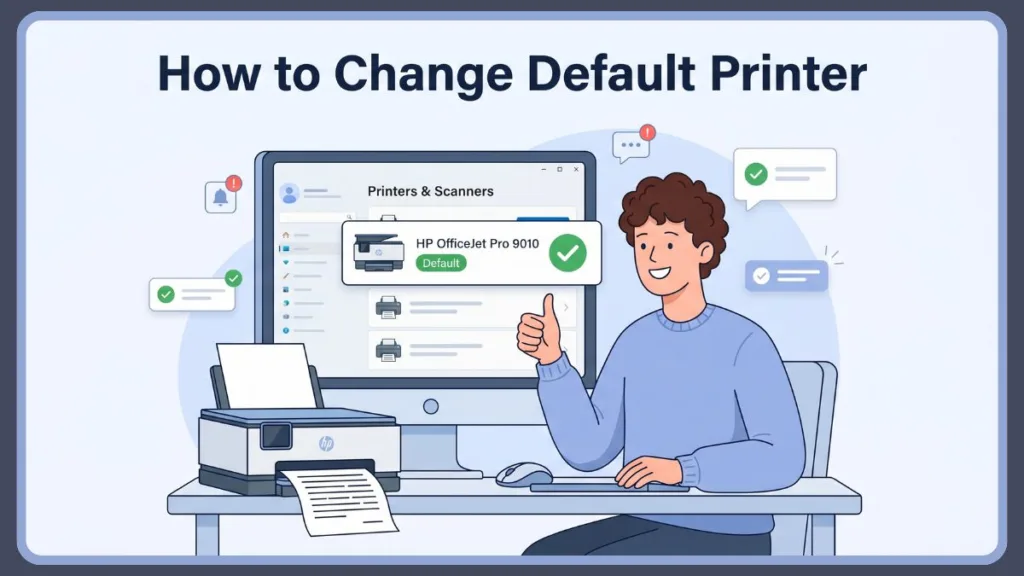
Sending a document to the wrong printer illustrates exactly why this setting matters. Windows includes a feature that automatically changes the default printer based on usage or location, which frequently creates workflow confusion. Learning how to change the default printer, control printer settings, and fix common issues is critical for a smooth computing experience.
This detailed guide covers everything needed to configure these settings, including step-by-step instructions for Windows 11 and Windows 10, advanced methods, troubleshooting, and optimization tips.
What Is a Default Printer in Windows?
A default printer is the printer your computer automatically uses for all print jobs unless another printer is selected.
This feature simplifies default printing by removing the need to manually select a printer every time a document is printed.
Key Benefits of Setting a Default Printer:
- Saves time when printing frequently.
- Reduces errors (printing to the wrong device).
- Improves workflow efficiency.
- Streamlines managing multiple printers.
Default Printer vs. Preferred Printer
- Default printer: Automatically selected by the operating system for all general tasks.
- Preferred printer: A printer manually chosen from a dropdown menu for a specific, one-off job.
Understanding this difference is the first step in managing default printing preferences effectively.
Why You May Need to Change Default Printer
There are many real-world situations that require adjustments to printer settings:
- Switching Work Locations: Moving between home and the office causes systems to connect to different printers.
- Installing a New Printer: After setting up a new device, it must be designated as the primary printer.
- Using Multiple Printers: Environments often utilize one printer for standard documents, one for high-quality photos, and one shared across a network.
- Network Printer Setup: In offices, printers are often shared, requiring users to select a specific network printer as the default.
- Windows Auto-Changing Printer: Windows automatically switches the default printer based on recent usage, which must be manually overridden.
How to Change Default Printer in Windows 11 (Step-by-Step)
To change the default printer in Windows 11, open Settings → Printers & scanners, turn off “Let Windows manage my default printer,” select a printer, and click “Set as default.”
Windows 11 provides a modern interface for managing printer configurations.
Method 1 – Using Printers & Scanners Settings (Recommended)
This is the most reliable and commonly used method for configuring print settings.
Step-by-Step Instructions: Click the Start Menu and open Settings. Next, go to Bluetooth & Devices and click Printers & scanners. Once there, scroll down to find the option: Let Windows manage my default printer and turn this setting OFF. Finally, scroll back up, click on the desired printer, and click the Set as default button.
Expert Tip: Turning off Windows auto-management is what actually works here—it grants you full manual control over the default printer selection so it stops switching behind the scenes.
Method 2 – Using Control Panel
The Control Panel offers a classic method, especially useful when the modern Settings app is unresponsive.
Steps: Begin by opening the Control Panel. From there, click Hardware and Sound, then select Devices and Printers. Next, locate the preferred printer, right-click on it, and select Set as default printer.
Method 3 – Using Command Line / PowerShell
This method is designed for advanced users, IT professionals, and automation scripting and PowerShell.
Steps: First, click the Start Menu and type cmd. Right-click Command Prompt and select Run as administrator. Next, paste the following command, replacing “Printer name” with the exact name of the device: rundll32 printui.dll,PrintUIEntry /y /q /n "Printer name". Once pasted, press Enter.
Pro Tip for IT: Use this command line method for bulk configuration, remote system management, scripting printer settings, and managing enterprise environments across multiple machines.
How to Change Default Printer in Windows 10 (Step-by-Step)
The configuration process in Windows 10 shares similarities with Windows 11, featuring slight interface variations.
Using Settings: Start by opening Settings (Win + I). Go to Devices → Printers & scanners. Next, uncheck the box that says: Let Windows manage my default printer. Finally, click on the desired printer in the list, click Manage, and then click Set as default.
Using Control Panel: Open the Control Panel and navigate to Devices and Printers. Then, right-click the designated printer and select Set as default printer.
Important Tip: If the default printer cannot be changed or the button is missing, verify that the auto-management setting is turned OFF first.
How to Stop Windows from Changing Default Printer
To stop Windows from automatically changing the default printer, the auto-manage feature must be disabled. Open Settings, navigate to Printers & scanners, and toggle off “Let Windows manage my default printer.”
Disabling this feature is the most critical step in maintaining a stable printer setup. Once turned off, Windows will permanently lock in the manually selected device until a user explicitly changes it again.
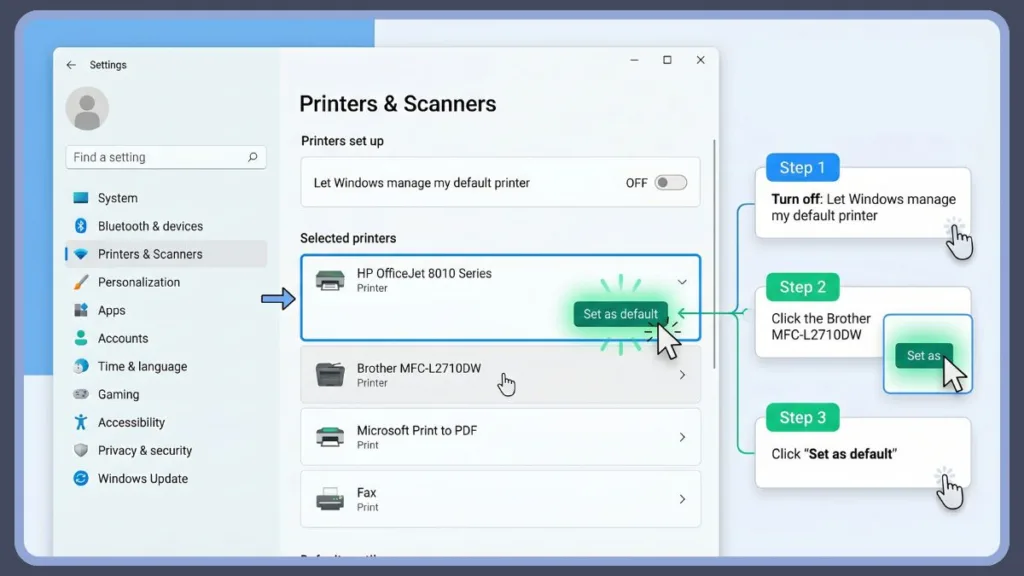
Let Windows Manage My Default Printer (Explained)
This built-in setting dictates how the operating system handles default printing preferences.
How Windows Chooses Default Printer
When enabled, Windows dynamically selects the most recently used printer as the default device. The system tracks print history and location data, automatically shifting the default status to the last active queue.
What Happens When It Is ON
- Windows automatically selects the last used printer.
- The default printer changes based on location (e.g., automatically switching to a Home printer on home Wi-Fi, and an Office printer at work).
- Best for: Laptops, mobile users, and frequent travelers between locations.
What Happens When It Is OFF
- The user manually controls the default printer.
- Windows will not change settings automatically in the background.
- Best for: Desktop computers, stable setups, and users requiring consistent printing.
How to Set Default Network Printer (Advanced)
Office environments rely heavily on shared network printers.
For Individual Users: Select the network printer directly from the Printers & Scanners list and set it as default manually using the steps outlined above.
For Multiple Users (Group Policy): IT administrators utilize Group Policy or configure Windows Server printer settings to roll out default printers to all users automatically. This is essential for managed print services, deploying enterprise print management solutions, and automated printer assignments.
Fix: Default Printer Not Changing or Missing
When a default printer refuses to lock in, specific system settings and services must be troubleshooted.
Fix 1 – Turn Off Auto-Manage
Verify that “Let Windows manage my default printer” is toggled OFF in system settings.
Fix 2 – Restart Print Spooler Services
The print spooler is the core background service managing all print jobs. When it crashes, printer settings freeze.
Troubleshooting Tip: To restart it, open the Run dialog (Win + R), type
services.msc, and press Enter. Next, scroll down the services list to find Print Spooler, right-click it, and select Restart.
Fix 3 – Reinstall Printer Drivers
Corrupted or outdated system drivers are primary culprits for hardware errors. Resolving this requires downloading the exact printer driver directly from the manufacturer and executing a clean installation of the latest version.
Fix 4 – Check Permissions
Shared network systems often restrict standard user accounts. Modifying core printer settings in these environments strictly requires administrator rights.
Why “Set as Default” Button Is Missing
If the “Set as Default” button is completely absent from the settings menu, Windows auto-manage is currently turned ON. The toggle must be switched OFF for the button to appear.
Fix 6 – Remove and Re-add Printer
Printers stuck in an unresponsive error state require a hard reset.
Setup Tip: To clear the device, go to printer settings and click Remove device. Then, disconnect the printer cable (or disconnect from Wi-Fi). Finally, reconnect the printer, let Windows add it back to the hardware list, and attempt to set it as default again.
How to Identify Your Default Printer
The active default printer is easily identifiable within system settings or the Control Panel:
- A green checkmark icon appears next to the printer icon.
- The printer status text explicitly displays “Default.”
This visual indicator confirms the active print queue.
How to Change Default Printer on Other Devices
Mixed-device environments require configuring default settings across different operating systems.
Mac (Monterey / macOS Sonoma)
First, open System Settings (or System Preferences) and go to Printers & Scanners. Next, locate the “Default printer” dropdown menu at the bottom and select the preferred printer from the list to set it as default.
Linux / Chromebook
Open the system’s printer settings menu and select the default printer manually. The specific interface varies slightly depending on the exact Linux distribution in use.
Best Tools & Services for Printer Setup
Complex network environments or persistent hardware issues often require commercial solutions. When standard troubleshooting fails, upgrading the infrastructure eliminates setup complexities. Investing in the best printers for office default printing ensures reliable, fast access to documents without constant network dropouts. For smaller setups lacking dedicated IT support, finding a printer with easiest setup for Windows 11 avoids common driver conflicts entirely.
For advanced network routing, consulting automatic printer switcher tool reviews highlights software that flawlessly automates print jobs based on physical location. Corporations handling hundreds of devices depend on comprehensive enterprise print management solutions to maintain absolute security and administrative oversight across all network print queues.
Downloads & Setup Resources
Resolving persistent printer errors often requires fresh software installations. If a system continuously fails to recognize a device, administrators must manually download the HP printer driver for Windows 11 or download Canon printer software directly from the manufacturer’s official support page. Advanced document routing or PDF creation in professional environments may also require organizations to purchase printer software licenses.
When hardware configurations become too complex to manage internally, securing professional IT assistance is recommended. Searching for a printer setup service near me connects networks with local professionals capable of handling difficult integrations. Many managed service providers allow users to schedule a printer installation service directly to an office or home to guarantee a secure and functional configuration.
FAQ
How do I change my default printer in Windows 11?
Open Settings > Bluetooth & Devices > Printers & scanners, disable the auto-manage feature, click on the desired printer, and click “Set as default.”
How do I set the default printer in Windows 10?
Turn off the auto-manage option in the Printer & scanner settings, manually choose the preferred printer, and click “Set as default.”
Why does Windows keep changing my default printer?
The feature “Let Windows manage my default printer” is enabled, forcing the operating system to dynamically swap the default device based on recent usage.
What does “Let Windows manage my default printer” mean?
It is an automated background setting that allows Windows to dynamically select the most recently used printer as the system’s default device.
How to stop my default printer from changing?
Turn off the “Let Windows manage my default printer” toggle inside the Windows Printers & scanners settings menu.
Who can change the default printer on a shared PC?
Standard users can change their local default printer, but altering system-wide network printer settings typically requires administrator credentials.
How to set default printer for all users?
IT administrators use Windows Group Policy or enterprise printer management tools to push a locked default printer to all users on a network.
Conclusion
Setting and managing a default printer is a simple but highly effective way to improve daily workflows. Understanding how to control printer settings, disable automatic switching, and troubleshoot common driver or spooler issues ensures a smooth and efficient experience across both Windows 11 and Windows 10.
Following precise configuration steps guarantees full control over printing preferences, eliminates misprinted documents, and ensures all print jobs route to the correct device seamlessly.
Visit Our Post Page: Blog Page
Discover more from Izoate
Subscribe to get the latest posts sent to your email.