
You selected Ghost when starting MW4 DMZ, unlocked another outfit for Reece, or want Price to wear his mask—but the game does not make it obvious how to change your Operator’s appearance.
The confusion comes from three separate options: changing an Operator’s full skin, switching to an in-game appearance variant, and replacing the Operator itself. Each works differently, and choosing the wrong menu can make it seem like a skin you own is unavailable.
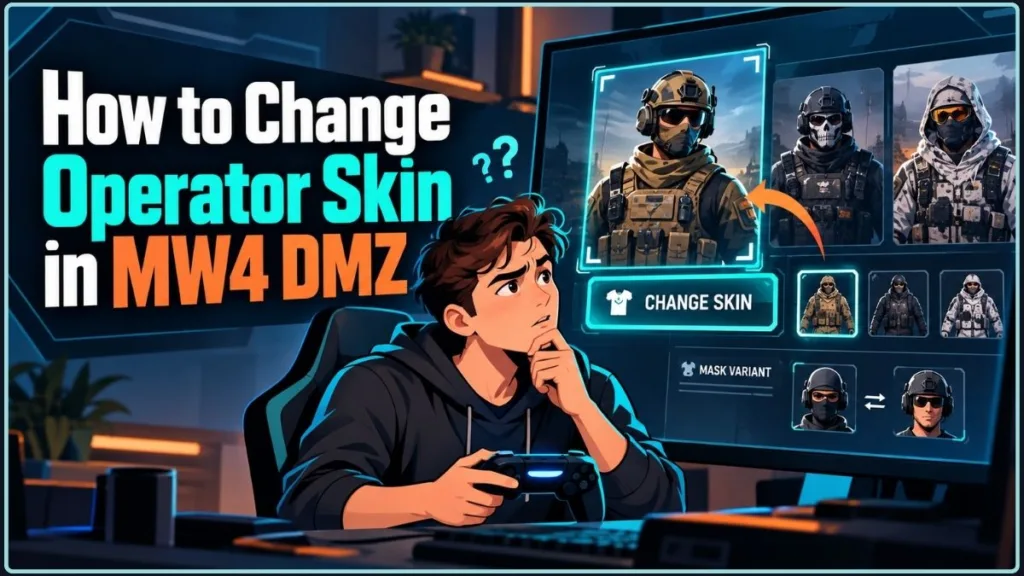
The good news is that you usually do not need to dismiss your Operator just to change an available skin.
MW4 DMZ Operator Skin Changes: The Quickest Way to Get Started
To change an Operator’s full skin, open the Operators Station at your Forward Operating Base (FOB). Select or manage your active Operator, then choose Change Skin if the option is available.
For certain appearance variants, such as Price’s mask, you must change the appearance during a match using the in-game wheel rather than the FOB menu.
Remember these three differences:
- Change Skin: Switch to another available outfit for the same Operator.
- Change Variant: Activate an alternate appearance, such as putting on or removing a mask, where supported.
- Change Operator: Replace your current character with a different Operator, which may affect that Operator’s gear and progression.
The important detail is that not every Operator has an alternate skin or an in-match variant.
Before dismissing anyone: Check whether the appearance you want is available under Change Skin or through the in-match wheel. Dismissing an Operator is a separate roster-management action and is unnecessary when you only want to change an outfit.
How to Change an Operator’s Full Skin at the MW4 DMZ FOB
The standard way to change an Operator’s skin is through the Operators Station at your FOB. Activision’s official DMZ guide confirms that you can manage Active Duty Operators and change Reece’s Operator skin from this menu.
Follow these steps:
- Return to the FOB. If you are currently deployed, complete your deployment and return to the FOB before changing your Operator’s full skin.
- Open the Operators Station. You can access it inside the FOB or through the left-side blade menu.
- Select your active Operator. Choose the character whose appearance you want to change.
- Open the Operator management menu. Look for an option such as Manage Operator or the relevant on-screen control prompt.
- Choose Change Skin. If the option appears, select the available outfit you want to equip and confirm your choice if prompted.
Once the change is applied, your selected Operator should use the new skin when you deploy.
Practical check: If you’re unsure whether the problem is the menu or the selected Operator, try opening the skin options for a character you know has multiple available outfits. If Change Skin appears for one Operator but not another, the difference may be the available content rather than a broken menu.
The Change Skin option may be missing when an Operator has no additional outfits available. Owning a different appearance variant does not necessarily mean it can be selected through this menu.
How to Change an Operator Skin on PC Using the Management Menu
PC players have reported that they can change an active Operator’s skin by opening the Operator selection screen and right-clicking the selected Operator. If another skin is available, the resulting menu may include Change Skin.
Try this method:
- Open the Operators menu at the FOB.
- Find the Operator you want to customize.
- Make sure the Operator is already assigned to an Active Duty slot.
- Right-click the Operator to open the context menu.
- Select Change Skin, if available, and choose your preferred outfit.
If the option does not appear, do not assume your game is broken. The Operator might not have another selectable outfit, or you may be trying to customize a character before assigning it to an active slot.
This right-click method is based on player reports, so use the game’s visible prompts if your interface behaves differently.
How to Change an Operator Skin on PS5 Without Guessing the Buttons
On PS5, open the Operators Station at the FOB and select the Operator you want to customize.
Then:
- Choose the active Operator you want to manage.
- Check the available menu options and on-screen control prompts.
- Look for Change Skin.
- Select the alternate outfit if the option is available.
Some players have reported using a controller shortcut to open the skin or management menu, but the reports are not consistent enough to treat one button as a universal solution. Follow the prompt displayed by your current menu, especially if pressing a button selects a different Operator instead.
If you can see your unlocked skin but cannot equip it here, check whether it is a full skin or an in-match appearance variant. Those are not necessarily controlled by the same menu.
How to Change an Operator Skin on Xbox and Check the Available Options
On Xbox, start at the FOB Operators Station and select the Operator whose appearance you want to change.
Some players report that pressing Y on the Operator selection screen opens the skin-changing option. However, this shortcut does not work consistently for every player or menu state.
Use these steps instead of relying on the shortcut alone:
- Open the Operators Station.
- Select your active Operator.
- Check the available management options.
- Choose Change Skin if it appears.
- If it is missing, check whether the selected Operator actually has an additional outfit.
Do not dismiss your Operator just to test a skin-changing shortcut. Dismissing an Operator is a different action and may affect its gear or other progression-related items.
How to Change Operator Variants and Masks During a MW4 DMZ Match
Changing a full Operator skin is not the same as activating an in-game appearance variant.
Some Operators have variants that alter a specific part of their appearance, such as putting on or removing a mask. These variants may need to be activated after you deploy, using the game’s in-match wheel.
This distinction is especially important if you are trying to use a Price mask variant on PS5.
How to Equip Price’s Mask Variant on PS5 Using the D-Pad Wheel
Players have reported that Price’s mask variant can be activated in a match through the directional-pad wheel.
Try the following:
- Deploy into a match with the Operator that supports the variant.
- Hold Up on the D-pad to open the in-game wheel.
- Look for the bottom option associated with the appearance variant.
- Select that option to activate the mask variant.
The action works more like an in-game emote or appearance toggle than choosing a completely different Operator skin from the FOB.
According to player reports, the mask is removed when your Operator dies. You need to use the wheel action again whenever you want to equip the mask.
Tip: If the mask is missing, check the in-match wheel before returning to the FOB to change your full skin. The two appearance controls serve different purposes.
Why Some MW4 DMZ Operators Have No Alternate Variant Option
Not every Operator supports alternate appearance variants. Some characters have multiple full outfits, some have a special in-match appearance toggle, and others may not offer an additional appearance option at all.
For example, players have reported that certain Operators, including Price and Valeria, have mask-related variants, while other Operators may not have the same feature. Availability depends on the specific Operator and the content you own.
If you cannot find a variant option, check the following:
- The selected Operator: Confirm that the character supports the appearance you want.
- The type of customization: Determine whether you are changing a full skin or toggling an in-match variant.
- The menu you’re using: A variant may be accessible during a match instead of through the FOB.
- The unlocked content: Confirm that the relevant skin or variant is available to your account.
How to Fix the Missing Change Skin Option in MW4 DMZ
If Change Skin does not appear in the Operator menu, the problem may be related to the selected character or the type of appearance you want to equip.
Before replacing your Operator or assuming your unlock is missing, check these common situations.
1. Why Your MW4 DMZ Operator Has No Change Skin Option
The Change Skin option is not guaranteed to appear for every Operator.
Some characters have only one available outfit, while others have multiple skins or variants. Players have reported that the menu displays Change Skin only when the selected Operator has another outfit available.
What to do: Select a different Operator that you know has multiple available outfits. If the option appears there, the problem may be the original Operator’s available content rather than the menu itself.
2. How to Change a Skin After Assigning an Operator to an Active Duty Slot
Community reports indicate that the skin-changing option may be unavailable while you are choosing an Operator to fill an empty slot. The option may appear only after the Operator has been assigned and becomes active.
What to do:
- Assign the Operator to an Active Duty slot.
- Return to the Operators Station.
- Open the assigned Operator’s management menu.
- Check for Change Skin.
If you were trying to customize a character directly from the recruitment screen, managing an already active Operator may resolve the issue.
3. Why Your Unlocked Variant Doesn’t Appear Under Change Skin
An unlocked appearance does not always work like a traditional selectable skin.
For certain content, the alternative appearance is an in-match variant activated through the wheel. If you are trying to equip or remove a mask, the standard FOB skin menu may not contain the control you need.
What to do: Deploy with the correct Operator, open the in-game wheel, and check whether the variant appears there.
4. How to Troubleshoot Operator Skin Controls on PC, PS5, and Xbox
Controller shortcuts reported by other players can help, but they are not a substitute for checking the active menu’s controls. A button might select another character or perform a different action depending on the screen.
What to do: Read the on-screen prompts, open the Operator management menu, and select the relevant option directly. On PC, try right-clicking an already assigned Operator if the context menu is supported.
5. When You Need to Replace an Operator Instead of Changing Its Skin
This is the most important distinction.
Changing a skin keeps the same Operator. Replacing an Operator means dismissing the current character and recruiting a different one into an available Active Duty slot.
If you selected Ghost by mistake and actually want to use Reece, changing Ghost’s skin will not accomplish that. You need to manage your Active Duty Operators and follow the replacement process instead.
Before dismissing anyone, review the potential impact on gear and progression in the next section.
How to Switch Active Duty Operators or Recruit a Replacement in MW4 DMZ
If you selected the wrong character at the beginning of DMZ, you may need to recruit another Operator rather than change the skin.
Activision’s official guide explains that Operators are assigned to Active Duty slots and remain attached to their slots until dismissed in favor of a replacement.
How Many Active Duty Operator Slots Do You Have in MW4 DMZ?
Your available Operator slots determine how many characters you can maintain in your roster.
- Standard players: Start with two Active Duty Operator slots.
- Vault Edition players: Start with three Active Duty slots.
- Additional slots: Another slot can be unlocked through DMZ progression.
These details are described in Activision’s official Forward Operating Base guide.
Having more than one Active Duty Operator gives you more options without immediately needing to dismiss the character you already use.
Already have another Operator? If you maintain multiple Active Duty Operators and only want to deploy as a different one, use Edit Active Duty in the Ready Up menu to select the Operator for your next deployment. You do not need to dismiss a character just to switch between Operators already in your roster.
How to Recruit a New Operator When Your Active Duty Slots Are Full
If you want to use a different character instead of your current Operator, follow these steps:
- Open the Operators Station at the FOB.
- Review your available Active Duty slots.
- If you have an empty slot, recruit the Operator you want to use into it.
- If every slot is occupied, decide which existing Operator you want to replace.
- Use the dismiss or replacement option shown in the Operator management menu, then recruit the replacement as directed by the game.
Do not confuse dismissing an Operator with changing its skin. Dismissal is a roster-management action, not an appearance setting.
What Happens to Operator Gear and Prestige Traits After Dismissal?
Dismissing an Operator may cost you more than changing an outfit. Players have reported losing the dismissed Operator’s associated gear and other items, and recommend moving transferable inventory to the Stash before dismissing the character.
The official DMZ guide also explains that permanent Prestige Traits are tied to an individual Operator and remain associated with that character even if it is dismissed or its skin is changed. MIA recovery is a separate process: an Operator recovered from MIA status can return with Traits but without their gear.
Before you replace an Operator:
- Move transferable inventory to the Stash if you want to keep it.
- Check the Operator’s gear, loadout, and progression.
- Confirm you are choosing Dismiss or Replace, not Change Skin.
- Keep in mind that permanent Operator progression and carried equipment do not necessarily follow the same rules.
Stash reminder: The Stash is shared by your Active Duty Operators. Move transferable items there before dismissing a character, and do not assume equipment currently carried by or equipped to that Operator will automatically transfer to the replacement.
MIA or dismissed? These are different situations. If you want to recover the same Operator after they go MIA, check the recovery option before dismissing them. Activision says recovery preserves Traits but returns the Operator without gear, so equip a new Loadout before deploying again.
MW4 DMZ Operator Skin and Variant FAQs
Can You Change Ghost’s Skin in MW4 DMZ?
You can change Ghost’s skin only if another selectable outfit is available for that Operator. Open the Operators Station and check the Change Skin option. If it is missing, Ghost may not have another available outfit in your current content.
Can You Change Your Operator Without Losing Progression?
Changing an available skin does not require replacing the Operator. However, dismissing an Operator is a separate action and can affect its gear or other associated items. Permanent Prestige Traits remain tied to the individual Operator, according to Activision’s guide.
Why Does an Operator Skin or Variant Change Only Work After Deploying?
You may be trying to change an in-match appearance variant, rather than a full Operator skin. Some variants, including certain mask-related appearances, are activated with the in-game wheel instead of the FOB menu.
How Do You Put Price’s Mask on in MW4 DMZ?
On PS5, players have reported holding Up on the D-pad during a match and selecting the bottom option on the wheel. This activates the mask variant for supported Operators. The exact behavior may vary, so check the displayed prompt if the option does not appear.
Can You Change Operator Skins on PC, PS5, and Xbox?
Yes, when the selected Operator has another available skin. The general method is to use the Operators Station and look for Change Skin. PC players have reported right-clicking the active Operator, while Xbox players have reported using Y in some menus. These shortcuts are community reports, not universal controls. On PS5, follow the on-screen prompt in the current menu.
Why Can’t You Equip an Operator Skin You Already Own?
First, verify that the skin is available for the Operator you selected. Then check whether it is a full skin or an in-match variant. You may need to manage the active Operator at the FOB or activate the appearance during a match instead.
Final Takeaway: Choose the Right Operator Skin or Variant Menu
Changing an Operator’s appearance in MW4 DMZ becomes easier once you understand how the game separates full skins, in-match variants, and Operator replacement.
Start at the FOB Operators Station when you want to change a full skin. If you’re trying to equip a mask or another supported appearance variant, deploy and check the in-game wheel. If the option is missing, verify that the selected Operator supports the appearance before assuming it is a bug.
Most importantly, do not dismiss an Operator just to change its outfit. Check the available skin and variant options first, and review the consequences before replacing a character with valuable gear or progression.
Official MW4 DMZ Guides and Operator Skin Resources
Official Call of Duty DMZ Documentation
- Call of Duty: MW4 DMZ Forward Operating Base Guide — Activision’s guide to the FOB, Operators Station, Active Duty slots, and Operator management.
- Call of Duty: MW4 DMZ Overview — The official DMZ overview for broader game information.
Community Guides to Operator Skins and Variants
- How to Change Operator Skin in New DMZ — Modern Warfare 4 Reddit — Player reports about missing skin options and changing an Operator’s full outfit.
- How to Choose Operator Variants — Modern Warfare 4 Reddit — Community discussion about switching in-game appearance variants, including mask options on PS5.
- How to Change Operator Variant — DMZ Reddit — Additional player tips about Operator skins, variants, and where to find the relevant controls.
Visit Our Post Page: Blog Page
Discover more from Izoate
Subscribe to get the latest posts sent to your email.