
Seeing SOS Only on your iPhone? Check Airplane Mode, SIM/eSIM, carrier settings, iOS updates, and network outages to troubleshoot missing cellular service.
Your iPhone has signal bars one moment, then suddenly displays SOS or SOS Only. Calls fail, mobile data stops working, and restarting the phone doesn’t seem to help. If you rely on your iPhone for navigation, work, or staying in touch with family, losing cellular service can quickly become a problem.
The important thing to understand is that SOS Only isn’t a setting you can simply switch off. It means your iPhone isn’t connected to your regular cellular network. To remove the indicator, you need to restore that connection or resolve the issue preventing your phone from connecting.
Start with this quick fix:
- Open Settings and turn on Airplane Mode.
- Leave it on for at least 15 seconds.
- Turn Airplane Mode off and wait for your iPhone to reconnect.
- If SOS Only remains, restart your iPhone and check whether your carrier is experiencing an outage.
- If the problem continues, check your cellular line, SIM or eSIM, and carrier settings.
These steps follow Apple’s official SOS, No Service, and Searching troubleshooting instructions.
If the message still appears, don’t immediately erase your iPhone or delete your eSIM. The right fix depends on whether you’re dealing with weak coverage, a carrier outage, an activation problem, or an issue specific to your device.
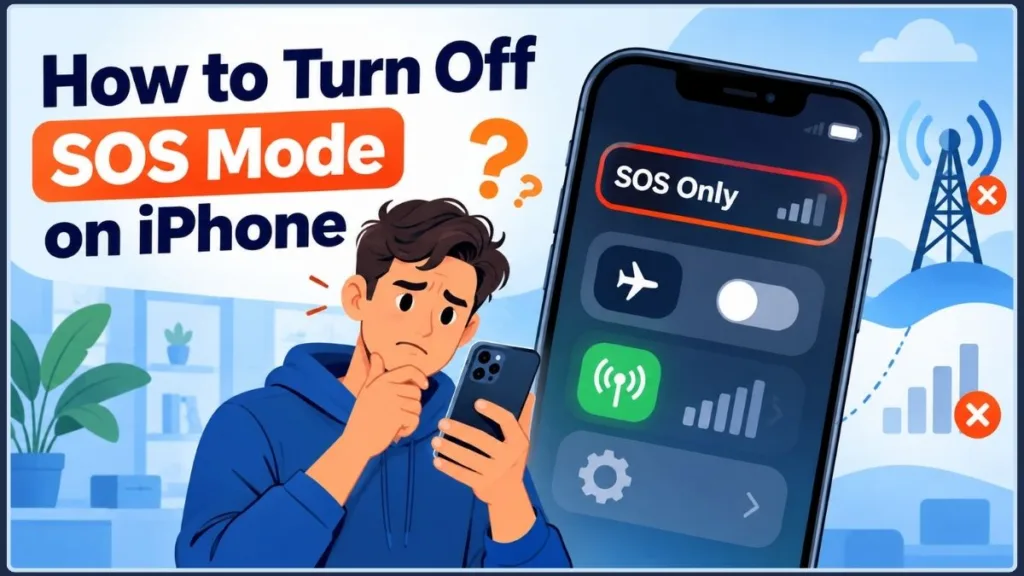
This guide explains how to get your iPhone out of SOS mode, identify the likely cause, and restore normal cellular service without making unnecessary changes.
Quick Tip: If SOS Only appears in the status bar, troubleshoot your cellular connection. If your iPhone starts an Emergency SOS countdown unexpectedly, the problem involves your emergency-call settings instead. The two require different solutions.
What Does SOS or SOS Only Mean on iPhone?
When your iPhone displays SOS or SOS Only, your regular cellular provider isn’t available to the device. Your iPhone may be unable to register with its normal network, even if other networks are available nearby.
This can affect everyday functions such as:
- Regular phone calls: Calls may fail because your usual cellular connection is unavailable.
- SMS messages: Text messages that require cellular service may not send.
- Mobile data: Websites and apps may stop loading when Wi-Fi isn’t available.
- Incoming calls: You may be unable to receive ordinary cellular calls.
- Internet access over Wi-Fi: This may continue working because Wi-Fi and cellular service are separate connections.
For example, your iPhone might connect to your home Wi-Fi network while displaying SOS Only. You could still browse websites or use internet-based messaging apps, but your normal cellular service might remain unavailable.
That distinction matters because working Wi-Fi doesn’t mean your cellular connection has recovered.
Apple explains the meaning of this indicator in its official guide to iPhone status icons.
SOS Only vs. No Service vs. Emergency SOS
These indicators and features are related, but they don’t describe the same problem.
| Indicator or feature | What it means | What to do |
|---|---|---|
| SOS or SOS Only | Your regular cellular provider isn’t available to your iPhone. | Troubleshoot cellular connectivity. |
| No Service or Searching | Your iPhone isn’t connected to a cellular network. | Check coverage, carrier status, and SIM/eSIM activation. |
| Emergency SOS countdown | An emergency-call shortcut has been activated. | Follow the on-screen instructions to cancel an accidental activation. |
| Emergency SOS via satellite | A supported satellite feature may be available when cellular and Wi-Fi connections aren’t available. | Follow the instructions displayed on your iPhone if you need emergency assistance. |
In supported regions, including the United States, Canada, and Australia, an iPhone displaying SOS may still be able to make emergency calls through other cellular networks. Availability depends on the location and available networks, so an emergency call isn’t guaranteed to connect.
Apple provides further details in its SOS and emergency-calling documentation.
Can You Turn Off SOS Only Without Fixing the Connection?
No. There isn’t a dedicated switch that hides SOS Only while your regular cellular connection remains unavailable.
Disabling an Emergency SOS shortcut changes how an emergency call can be initiated. It doesn’t reconnect your iPhone to your carrier.
Key Takeaway: If SOS Only appears in the status bar, your goal is to restore cellular service—not disable an emergency feature or hide the indicator.
Why Does Your iPhone Say SOS Only?
The SOS indicator doesn’t identify the exact cause. Several problems can prevent an iPhone from connecting to its regular carrier.
Understanding when the message appears can help you choose the right troubleshooting step.
1. Weak or Unavailable Cellular Coverage
Your iPhone may lose its regular network connection when you’re outside your carrier’s effective coverage area or inside a building where signals are difficult to receive.
Common examples include:
- Underground parking garages and basements.
- Remote highways and rural areas.
- Buildings with thick walls or metal structures.
- Elevators and other enclosed spaces.
- Locations where your carrier has limited coverage.
If SOS Only appears inside a building but disappears when you go outside, coverage is a more likely explanation than a persistent fault with your iPhone.
What to do: Move to a location where your carrier normally works, wait for the phone to reconnect, and check the status bar again.
2. A Carrier Outage or Account Restriction
Your mobile provider may be experiencing a local outage, performing maintenance, or dealing with a network disruption.
An account problem can also prevent cellular service. This might happen after changing plans, transferring a number, activating a new SIM, or encountering an account restriction.
If several phones using the same carrier lose service in the same area, investigate the provider before resetting your iPhone.
For U.S. readers, check the official AT&T outage page, Verizon network status, or T-Mobile network disruptions.
If your provider confirms an outage, changing iPhone settings repeatedly is unlikely to restore service until the network problem is resolved.
3. A SIM Card or eSIM Activation Problem
Your iPhone needs an active, correctly provisioned cellular line to connect to your carrier.
SOS Only may appear when:
- A physical SIM card is damaged or improperly seated.
- An eSIM hasn’t been activated successfully.
- You recently transferred your number to another iPhone.
- Your cellular line is switched off.
- Your carrier hasn’t completed the activation process.
This cause deserves particular attention if the problem started immediately after switching phones or changing mobile plans.
What to do: Check whether your cellular line is present and enabled. If activation is incomplete or the line is missing, ask your carrier to verify its status before deleting or reinstalling an eSIM.
Apple’s Dual SIM and eSIM guide explains how to manage cellular lines on supported devices.
4. Carrier Settings or iOS Software Problems
Your iPhone uses carrier settings to communicate with your provider’s network. An available update may improve compatibility or address a known connection problem.
An iOS update may also fix certain software-related problems, although not every SOS Only issue is caused by software.
If the indicator appeared shortly after an update, don’t automatically assume the update caused it. First check your carrier’s status, verify that your cellular line is active, and look for an available carrier settings update.
5. International Roaming or Network Compatibility
If SOS Only appears while travelling internationally, your regular provider may depend on partner networks to provide service.
Your plan might not include the necessary roaming access, or your iPhone may be unable to connect to a supported network at your destination.
Data Roaming is relevant when travelling and using supported roaming services, but enabling it doesn’t guarantee that cellular service will return. Your carrier must support the network, and your plan must allow the connection.
6. A Device-Specific Cellular Fault
If your carrier confirms that your account and network are working normally, but your iPhone remains on SOS Only across several locations, a device-specific problem may need investigation.
A hardware fault is one possibility, but the indicator alone doesn’t prove that your antenna, modem, or SIM slot is damaged.
Before arranging a repair, complete the basic checks and ask your carrier or Apple Support to investigate.
How to Diagnose SOS Only Before Resetting Your iPhone
Use the symptoms to narrow down the cause before moving to more disruptive fixes.
| What you notice | Possible explanation | Best next step |
|---|---|---|
| SOS Only appears in one building or remote location. | Weak or unavailable coverage. | Move to a location with better reception. |
| Several phones on the same carrier lose service. | A carrier outage or local network problem. | Check the provider’s service status. |
| SOS Only starts after transferring an eSIM. | Activation or provisioning problem. | Contact your carrier and verify the active line. |
| Other phones on the same carrier work, but your iPhone doesn’t. | An issue specific to your line, SIM/eSIM, or device. | Check cellular settings and carrier configuration. |
| SOS Only appears after a software update. | A possible software or compatibility issue. | Check for newer iOS and carrier settings updates. |
| Your carrier confirms service should be available, but the iPhone still cannot connect. | A device-specific fault may need investigation. | Contact Apple Support. |
These observations are clues rather than definitive tests. For example, another phone may work because it uses a different carrier, or an outage may affect only part of a network.
Pro Tip: When comparing devices, check phones using the same carrier in the same location. This makes the comparison more useful than testing an iPhone against a phone on a different network.
How to Turn Off SOS Mode on iPhone: Step-by-Step Fixes
Work through the following fixes in order. Check whether service returns after each step, and stop once the problem is resolved.
1. Turn Airplane Mode On and Off
Airplane Mode is the best first step because it gives your iPhone another opportunity to reconnect to the cellular network.
- Open Settings.
- Turn Airplane Mode on.
- Wait at least 15 seconds.
- Turn Airplane Mode off.
- Wait for your iPhone to reconnect.
You can also access Airplane Mode through Control Center.
If the carrier name or signal bars return, make a regular call or temporarily turn off Wi-Fi and load a website to verify that cellular service is working.
If SOS Only remains, don’t keep toggling Airplane Mode. Continue with the coverage and carrier checks.
2. Restart Your iPhone
Restarting can help resolve temporary software problems that interfere with cellular connectivity.
On an iPhone with Face ID that uses the standard side-button controls:
- Press and hold the side button and either volume button until the power-off sliders appear.
- Drag the power-off slider.
- Wait approximately 30 seconds.
- Press and hold the side button until the Apple logo appears.
- Unlock the iPhone and check the status bar.
Button arrangements vary by model. If these instructions don’t match your device, follow Apple’s official iPhone restart instructions.
A restart won’t resolve every network problem, but it’s worth trying before changing cellular settings.
3. Check Whether Your Cellular Line Is Enabled
This step is particularly important if you use Dual SIM, recently transferred your number, or changed carriers.
- Open Settings.
- Tap Cellular or Mobile Service, depending on your iOS version and region.
- Select the cellular line you normally use.
- Look for Turn On This Line.
- If the line is disabled, enable it and wait for service.
If you use multiple lines, check each relevant line separately. Make sure the number you expect to use is associated with an active plan.
The cellular line and Cellular Data are different settings. Turning mobile data on won’t fix every network-registration problem if the line itself is inactive.
If your expected line is missing, contact your carrier to confirm whether the SIM or eSIM has been activated correctly.
4. Check Your Physical SIM Card or eSIM
A physical SIM or eSIM connects your iPhone to your mobile subscription. If the SIM is damaged or the eSIM is inactive, normal service may not return.
If You Use a Physical SIM Card
If your iPhone has a physical SIM tray:
- Turn off the iPhone.
- Eject the SIM tray using the appropriate tool.
- Check that the card is seated correctly and doesn’t appear damaged.
- Reinsert it securely.
- Turn the iPhone back on and check for service.
If the SIM is damaged or remains unrecognized, ask your carrier about a replacement.
Some iPhone models sold in the United States use eSIM without a physical SIM tray, so these instructions won’t apply to every device.
If You Use an eSIM
- Open Settings → Cellular or Mobile Service.
- Select the affected line.
- Check that the line is enabled and associated with your mobile plan.
- If the line is missing or inactive, contact your carrier to confirm activation.
Important: Don’t delete your eSIM just to see whether SOS Only disappears. Removing the profile can leave you without a working cellular plan until your carrier helps you reactivate or replace it.
For more information, see Apple’s Dual SIM and eSIM support documentation.
5. Check for a Carrier Settings Update
Carrier settings updates help your iPhone communicate with your provider’s network. Apple recommends checking for these updates when investigating SOS, No Service, or Searching messages.
- Connect your iPhone to Wi-Fi.
- Open Settings.
- Tap General → About.
- Stay on the About screen briefly.
- If an update prompt appears, follow the instructions.
If no update appears, your carrier settings may already be current.
This check is particularly useful after switching providers, inserting a new SIM, activating an eSIM, or experiencing a persistent connection problem.
See Apple’s official SOS and cellular troubleshooting instructions for the current procedure.
6. Update iOS
An available iOS update may contain a fix for a software or cellular compatibility issue.
Before updating, connect your iPhone to Wi-Fi and make sure the battery has sufficient charge or the device is connected to power.
- Open Settings.
- Tap General → Software Update.
- Wait for the iPhone to check for available updates.
- Install an offered update if appropriate.
- Check whether cellular service returns.
If your iPhone is already up to date, don’t repeatedly reinstall software in the hope of fixing a carrier outage or inactive SIM.
A problem that starts after an update doesn’t automatically mean the update caused it. Your carrier, cellular plan, or device configuration may also be responsible.
7. Check Data Roaming if You’re Travelling Internationally
If SOS Only appeared after arriving in another country, verify that your carrier supports roaming at your destination and that your plan includes the necessary access.
- Open Settings → Cellular or Mobile Service.
- Select your roaming line if you use Dual SIM.
- Tap Cellular Data Options or the equivalent setting.
- Enable Data Roaming if your carrier requires it.
Roaming can incur additional charges, depending on your plan.
Important: Data Roaming isn’t a universal fix for SOS Only. It is relevant when travelling and using supported roaming services. It won’t resolve an unrelated hardware fault, account restriction, or network outage.
If your plan is active but your iPhone cannot connect to a supported local network, ask your carrier to check roaming access and network compatibility.
8. Reset Network Settings as a Last Resort
If simpler fixes haven’t helped, resetting network settings may resolve a persistent configuration problem. However, this step removes saved network information, so don’t use it as your first response.
Before proceeding, understand what changes:
- Saved Wi-Fi networks and passwords are removed.
- Cellular network settings are reset.
- VPN and APN configurations may need to be configured again.
To reset the settings:
- Open Settings.
- Tap General.
- Select Transfer or Reset iPhone.
- Tap Reset.
- Choose Reset Network Settings.
- Confirm the action if prompted.
After your iPhone restarts, reconnect to Wi-Fi if necessary and check whether cellular service returns.
This is different from Erase All Content and Settings. A network reset doesn’t erase your photos, messages, or apps, but you may need to configure network connections again.
Apple explains the effects of network resets in its iPhone network troubleshooting documentation.
Important: Choose Reset Network Settings, not Erase All Content and Settings. The latter can remove your personal data. A network reset also won’t fix a confirmed carrier outage or reactivate an inactive SIM/eSIM.
If SOS Only remains after the reset, contact your carrier instead of repeating the procedure.
9. Contact Your Carrier Before Arranging a Repair
If the previous steps haven’t restored service, contact your carrier first. It can check information that isn’t available through iPhone settings.
Ask the provider to verify:
- Whether your account and mobile plan are active.
- Whether an outage affects your location.
- Whether your SIM or eSIM is properly provisioned.
- Whether your device is blocked or restricted from cellular service.
- Whether your plan supports the device and available network.
Apple recommends contacting your provider to confirm account status, coverage, outages, and any cellular-service restrictions.
If your carrier confirms that the account and network are working normally but your iPhone still cannot connect, contact Apple Support for further diagnostics. On iPhone models running iOS 18 or later, the Apple Support app can also provide additional diagnostics that may help identify the problem.
Key Takeaway: When contacting support, explain where SOS Only appears, when it started, whether other phones on the same carrier work, and which fixes you’ve already tried. These details help narrow down the cause.
A Specific Exception: iPhone 18 Pro Max Cellular Issues on AT&T
As of October 24, 2026, owners of certain U.S. iPhone 18 Pro Max devices using AT&T should be aware of a specific reported cellular issue.
On October 2, 2026, 9to5Mac reported that Apple had confirmed an issue affecting a small number of iPhone 18 Pro Max users on AT&T. The problem could cause cellular service to disappear and prevent calls from connecting.
Apple said iOS 27.0.1 and an AT&T carrier settings update were intended to help prevent additional devices from being affected. However, devices already affected by the failure would require hardware replacement, according to 9to5Mac’s report on Apple’s statement.
If you use this specific model and carrier combination and have persistent cellular failure, check for available software and carrier settings updates, then contact Apple Support or AT&T to determine whether your device is affected.
This is a device-specific reported issue, not a general explanation for SOS Only on every iPhone.
How to Turn Off Automatic Emergency SOS Calls on iPhone
If your problem is an emergency-call countdown that starts accidentally, rather than SOS Only in the status bar, review the automatic-call options under Settings → Emergency SOS.
Depending on your iPhone, software version, and region, you may see options such as:
- Call with Hold and Release: Controls the countdown associated with holding and releasing the side and volume buttons.
- Call with 5 Presses: Controls the countdown associated with quickly pressing the side button five times.
Turn off the shortcut that causes accidental calls, if the option is available on your device. The exact controls vary by model and region.
You can also review your emergency contacts through Health → profile picture → Medical ID → Emergency Contacts.
If an Emergency SOS countdown starts accidentally, follow the on-screen instructions to cancel it before the call connects. If the call connects, don’t simply hang up. Wait for the responder to answer and explain that it was accidental.
Apple’s Emergency SOS instructions explain the available shortcuts and how emergency calls work.
Important: Disabling an automatic-call shortcut changes how Emergency SOS is triggered; it doesn’t disable every way to access emergency services. It also won’t restore cellular service when SOS Only appears.
Common Mistakes to Avoid When Fixing SOS Only
Some troubleshooting steps can create additional problems if they’re used before the cause is understood.
- Repeatedly toggling Airplane Mode: Try it, allow the phone to reconnect, and move to the next diagnostic step if service doesn’t return.
- Deleting your eSIM: This can make recovery harder if your carrier needs to reactivate the line.
- Resetting network settings too early: This removes saved network information and may require you to reconnect to Wi-Fi.
- Assuming Wi-Fi means cellular service is working: Wi-Fi can remain available while the cellular connection is down.
- Disabling Emergency SOS to remove the status icon: These are separate features, and changing an emergency-call shortcut won’t restore your network.
- Assuming your iPhone is broken: Check coverage, outages, account status, and SIM/eSIM activation before arranging a repair.
Quick Tip: Stop troubleshooting once normal cellular service returns. Make a regular call and test mobile data with Wi-Fi turned off. If both work, you don’t need to continue with more disruptive fixes.
Frequently Asked Questions About iPhone SOS Mode
How do I get my iPhone out of SOS mode quickly?
Turn on Airplane Mode for at least 15 seconds, then turn it off and wait for your iPhone to reconnect. If SOS Only remains, restart the phone and check for a carrier outage. Next, verify that your cellular line and SIM/eSIM are active.
Can I turn off SOS mode without resetting my iPhone?
Yes. Start with Airplane Mode, a restart, coverage checks, and carrier settings. Many connection problems can be investigated without resetting network settings. Use a network reset only after simpler steps fail.
Why does my iPhone say SOS Only when I have a SIM card?
A SIM card alone doesn’t guarantee a working connection. The carrier could be experiencing an outage, your account may have a restriction, or the SIM may not be provisioned correctly. Check your cellular line and contact your provider if the basic fixes don’t help.
Why is my iPhone stuck in SOS mode even after restarting?
A restart won’t fix every cellular problem. Check for a carrier settings update, verify that your line is enabled, and ask your provider to investigate account status and network outages. If the carrier rules out those issues, Apple Support can investigate the device.
Can I still make emergency calls when my iPhone says SOS Only?
Emergency calls may be possible through other carrier networks in supported regions, including the United States, Canada, and Australia. Availability isn’t guaranteed everywhere, so don’t assume an emergency call will connect simply because SOS is displayed.
Why does my iPhone show SOS Only even though Wi-Fi works?
Wi-Fi and cellular service are separate connections. Your iPhone may have internet access over Wi-Fi even when it cannot register with your regular carrier. You still need to troubleshoot the cellular connection to restore normal mobile service.
Should I delete my eSIM to fix SOS Only?
No. Deleting an eSIM may make it harder to restore your mobile plan. Check whether the line is enabled and ask your carrier to confirm activation before removing the profile.
Should I reset network settings if SOS Only won’t disappear?
Only after simpler fixes fail. A network reset removes saved Wi-Fi networks and passwords and resets relevant network settings, including VPN and APN configurations. It won’t necessarily resolve a carrier outage or hardware fault.
Why does my iPhone keep switching between SOS and normal signal?
Intermittent SOS can occur when coverage changes or your iPhone has difficulty maintaining a connection. If the problem happens in several locations where your carrier normally works, check the SIM/eSIM and carrier settings, then ask your provider to investigate.
How do I stop my iPhone from accidentally calling Emergency SOS?
Open Settings → Emergency SOS and review the automatic-call shortcuts available on your device. Disable the relevant shortcut if appropriate. This changes how emergency calls are triggered; it doesn’t fix cellular service.
Conclusion: Restore Cellular Service Without Unnecessary Resets
When SOS Only appears on your iPhone, the most useful question isn’t how to hide the indicator. It’s why your normal cellular connection has disappeared.
Start with Airplane Mode and a restart. Then check whether your carrier is working, make sure your cellular line is active, and review your SIM/eSIM and carrier settings. Install available software updates before considering a network reset.
If your carrier confirms that the account and network are working normally but your iPhone still cannot connect, contact Apple Support for further diagnostics.
If your actual concern is accidental emergency calls, adjust the Emergency SOS shortcuts separately.
SOS Only is a signal to investigate your cellular connection, not proof that your iPhone is broken. Match the fix to the symptoms, avoid unnecessary resets, and involve your carrier or Apple when the basic troubleshooting steps don’t restore service.
Visit Our Post Page: Blog Page
Discover more from Izoate
Subscribe to get the latest posts sent to your email.