
Stuck in the Amazon digital orders address error loop? Learn how to change your digital and 1-Click billing address to fix region blocks in two minutes.
Few things are more frustrating than Amazon telling you that you can’t edit your own address.
Maybe you’ve moved, you’re trying to buy a Kindle book, or you’re cleaning up an old address you no longer use. You open Your Addresses, click Edit or Remove, and suddenly Amazon throws a red warning in your face:
“This address is used as your residential address for digital purchases. To delete this address, first set a different residential address for your digital purchases.”
Okay, no problem. Amazon even gives you a link to fix it. You click it, only to land on an empty Content page, stare at a “No results found” message, or watch a loading spinner go nowhere.
Yeah, that’s annoying.
The good news? This warning doesn’t automatically mean your account is broken or restricted. Amazon has a separate setting for the residential address associated with digital purchases. You need to update that setting before you can remove the old address.
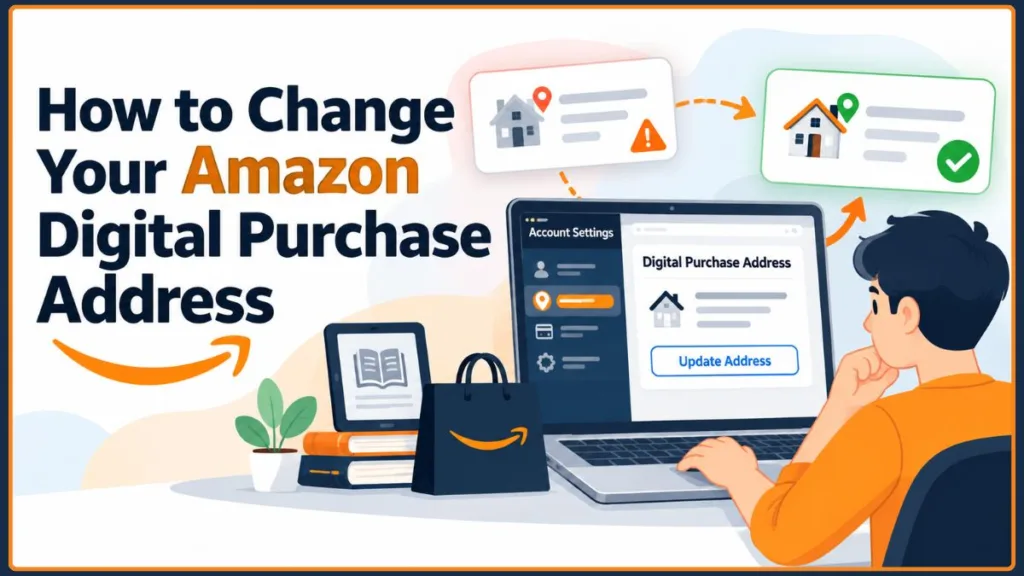
Here’s how to change your Amazon digital purchase address, fix the address-removal error, and get out of the loop without making the problem worse.
Quick Fix: How to Change Your Amazon Digital Purchase Address
Start with Amazon’s digital content settings rather than repeatedly trying to edit the same address.
- Open Manage Your Content and Devices and sign in.
- Select Preferences.
- Find Country/Region Settings (sometimes labelled Country Settings) and select Change.
- Select or enter your correct residential address.
- Click Update to save your changes.
- Return to Your Addresses and try editing or removing the old address again.
If Amazon displays a prompt about transferring your account to another country, don’t automatically accept it. A country transfer is different from changing an address within your existing country.
Still seeing the red warning? Try the Choose New Address option in the warning itself, if it appears. Select a valid replacement address, save the change, and then try removing the old address again.
Why Amazon Won’t Let You Change Your Digital Purchase Address
The confusing part is that Amazon doesn’t treat every address in your account the same way.
Your shipping address, digital purchase address, and payment billing address serve different purposes. Changing one doesn’t automatically update the others.
Here’s what you need to know.
- Shipping address: This is where Amazon delivers your physical orders. You can generally add, edit, and remove saved addresses, although certain restrictions may apply to particular addresses or orders.
- Residential address for digital purchases: This address is associated with your digital purchasing region. Amazon uses your country and region settings to determine which digital content and services are available to your account. If an address is currently associated with digital purchases, Amazon may prevent you from removing or editing it until you select a replacement.
- Billing address: This is the address associated with your payment method. You manage it separately through Your Payments.
The important distinction: Changing your shipping address won’t necessarily change your Amazon digital purchase address. You need to update the digital purchase settings first.
There is another detail worth checking: your Amazon marketplace and country settings.
If you’ve moved to another country or are using a different regional Amazon website, your account’s country or region may need attention. However, simply editing a street address and transferring your Amazon account to another country are two different processes.
Let’s start with the standard method.
Method 1: How to Change Your Amazon Digital Purchase Address Through Preferences
This is the first method to try because it takes you directly to the account settings Amazon provides for managing your digital purchasing region.
Step 1: Open Amazon Manage Your Content and Devices
Sign in to the Amazon account associated with the digital purchases you’re trying to manage.
Open Manage Your Content and Devices.
You can also look under Account & Lists for the Content & Devices option. The exact menu labels may vary depending on your marketplace and account interface.
Step 2: Select Preferences in Amazon Account Settings
Once the page loads, look for Preferences in the menu near the top.
Select it.
Don’t worry if the page initially opens on Content and displays your Kindle books, apps, or other digital items. You’re looking for account preferences, not an individual item in your library.
Step 3: Find Amazon Country/Region Settings
Scroll through the Preferences page until you find Country/Region Settings. Amazon may display this as Country Settings.
Select Change.
This is the setting you need to check before repeatedly trying to edit the same address in Your Addresses.
Step 4: Select or Enter Your Correct Digital Purchase Residential Address
Amazon will let you select an existing address or enter a new one.
Choose your actual residential address and make sure the details are correct.
Select Update to save your changes.
If Amazon prompts you to transfer your account to another country, stop and read the information on the screen before proceeding. You shouldn’t initiate a country transfer just to get past an address-editing error.
For more information, read Amazon’s official guide: Change Your Amazon Account Country.
Step 5: Return to Amazon Your Addresses and Retry
Now go back to Your Addresses.
Find the old address you wanted to edit or delete and try again.
If the digital purchase address was the reason Amazon blocked the action, replacing it should allow you to proceed. If the same warning appears, move on to Method 2 rather than repeatedly clicking the same link.
Quick tip: Amazon’s normal address book and digital purchase settings are separate. If changing an address in Your Addresses doesn’t work, check Country/Region Settings before assuming there’s a technical problem.
Method 2: How to Fix the Amazon “Address Is Used for Digital Purchases” Error
What if you already tried editing your address and Amazon displayed the warning?
You may be able to select a replacement address directly from the warning’s workflow. This is a useful alternative when the normal link is available but the standard navigation is confusing.
Step 1: Open Your Amazon Addresses
Go to Your Addresses and locate the address you want to change or remove.
Select Edit or Remove, depending on the action you want to perform.
Step 2: Look for the Amazon Digital Purchase Address Replacement Option
If Amazon displays the digital purchase address warning, look for a link or button that allows you to set a different residential address for digital purchases.
In some versions of the interface, you may see Choose New Address.
Select it.
If clicking the link sends you to an empty page or a loading spinner, don’t keep repeating the same action. Return to Method 1 and open Preferences manually.
Step 3: Select a Different Residential Address for Digital Purchases
If Amazon displays an address selector, choose the correct replacement residential address.
If the address you need isn’t available, add your accurate residential details through Your Addresses first, then return to the replacement-address workflow.
Select Update when prompted.
Step 4: Remove the Old Amazon Address After Updating It
Return to Your Addresses and retry the original action.
Some users have reported that signing out of Amazon and signing back in after updating the digital purchase address helps the new setting take effect. If the warning persists, verify that the change was saved before trying again.
You can also review the Amazon Community discussion about changing a residential address for digital purchases for the community-reported workaround.
Avoid using a fake or random placeholder address. It might appear to be a quick workaround, but inaccurate residential details can create additional account, region, or payment problems. Use an address that correctly reflects your circumstances.
Method 3: How to Change Your Amazon Digital Purchase Address on a Phone
You can start the process on your phone, although the Amazon app and mobile website don’t always display the same options.
For a more reliable route, open your phone’s browser and visit Manage Your Content and Devices.
- Sign in to your Amazon account.
- Open the Content & Devices page.
- Select Preferences.
- Find Country/Region Settings.
- Select Change.
- Choose or enter your correct residential address and select Update.
- Return to Your Addresses and check whether you can now edit or remove the old address.
If the setting doesn’t appear in your browser, try opening Amazon’s desktop site or use a computer if one is available.
You can also open Your Addresses in the Amazon app and follow the residential-address link if the warning appears, but the menu layout may differ by device and region.
What to Do If Amazon’s Digital Address Settings Won’t Load on Mobile
Before trying more complicated fixes, open Amazon in a desktop browser if possible.
If the setting still won’t load, try these steps:
- Refresh the page and sign in again.
- Open Manage Your Content and Devices directly instead of following the warning link.
- Try another browser or a private browsing window.
- If you’re using the Amazon app, update it and try the mobile website.
These steps can help when the page itself isn’t loading correctly. They won’t, however, fix an incorrectly configured country or region setting on their own.
How to Fix Amazon Digital Purchase Payment Problems by Checking Your Billing Address
You’ve updated the digital purchase address, but your Kindle purchase still won’t go through?
The next step is to check your payment details.
Amazon manages saved payment methods and billing information separately from the residential address used for digital purchases.
Step 1: Open Amazon Your Payments
Go to Amazon Your Payments.
Select the payment method you’re using for the purchase.
Step 2: Verify Your Amazon Billing Address and Payment Details
Check the billing address associated with your card.
Make sure your name and address match the information held by your card provider, and confirm that your payment method is supported in your country.
Amazon’s payment guidance states that the billing address must match your country of residence.
Step 3: Check Your Amazon Default Purchase Preference
In Your Payments, select Settings and review Default Purchase Preference, if the option appears.
Choose the appropriate payment method and verify the details before saving your changes.
If your billing address is outdated, correct it using the details associated with your payment method.
For more detailed instructions, see our guide on how to change your billing address on Amazon.
Keep in mind: Your billing address and digital purchase address are different settings. Don’t assume that every field must be identical. Make sure your residential information is accurate and your payment details match your payment provider’s records.
If the digital address is correct but the transaction is still declined, check the payment method and any error message shown during checkout. Updating an address won’t necessarily resolve a separate payment problem. See our related guide on how to fix Amazon payments when your card works but the payment is declined.
Amazon Digital Purchase Address Not Updating? Troubleshooting Fixes
Sometimes the first fix doesn’t work. Before starting from scratch, check these common problems.
Country/Region Settings Missing in Your Amazon Account
First, make sure you’re on Manage Your Content and Devices rather than the general Content page.
Open Preferences and look for Country/Region Settings or Country Settings.
If the option still isn’t visible, try the desktop website and make sure you’re signed into the intended Amazon account.
Amazon Redirects You to the Wrong Marketplace
If the page redirects you to another regional Amazon website, check which marketplace you’re using and review your account’s country settings.
Different regional websites may display different settings or prompts. Don’t assume you need to create a new account or transfer countries just because the page looks different.
Start with Amazon’s official account-country instructions if you’ve genuinely moved to another country.
Amazon Digital Purchase Address Page Is Stuck Loading
If clicking the link produces a blank page or endless spinner, try these steps in order:
- Refresh the page and sign in again.
- Open Manage Your Content and Devices directly instead of following the warning link.
- Try a different browser or a private browsing window.
- If you’re using the Amazon app, update it and try the mobile website.
- If the problem continues, contact Amazon Customer Service and explain that the digital purchase address setting won’t load.
Clearing your browser cache may help with persistent page-loading issues, but it isn’t a substitute for changing the address in the correct account setting.
Amazon Says Digital Content Isn’t Available in Your Country
This is a different problem from the address-removal warning.
Digital books, games, movies, and subscriptions can have country-specific availability. Updating your address does not guarantee that every title will become available in your region.
If you’ve moved countries, review Amazon’s account-country transfer process and its implications for your digital content before making changes. If you haven’t moved, check whether the title or service is available in your current marketplace.
Don’t assume that changing your address or payment details will remove every regional restriction.
How to Change an Amazon Shipping Address After Placing an Order
If your actual problem is that a package is going to the wrong location, you need to manage the delivery address for that order rather than the digital purchase address.
Read our guide on how to change your Amazon address after shipping for the options available once an order has been placed.
Amazon Digital Purchase Address: Frequently Asked Questions
Where Can I Find Manage Your Content and Devices on Amazon?
Sign in and open Manage Your Content and Devices. Select Preferences, then look for Country/Region Settings.
If the page opens on Content, select Preferences rather than searching through your library.
Can I Use Different Addresses for Amazon Shipping and Digital Purchases?
Yes, Amazon manages shipping addresses separately from the residential address associated with digital purchases.
However, an address currently linked to digital purchases may be blocked from deletion until you select a replacement. Your saved card’s billing address is another separate setting.
Will Changing My Amazon Digital Purchase Address Delete Kindle Books?
Changing an address within the same country is different from transferring your account to another country.
Amazon’s country-transfer guidance explains that qualifying Kindle content and certain other digital purchases can remain available after a transfer. However, not every service, subscription, or type of content transfers in the same way.
Before changing your account country, review Amazon’s guide to what transfers when you change your Amazon account country.
For example, Amazon says gift card balances and promotional credits remain in the original marketplace, and pending digital orders may be cancelled during the transfer process.
Don’t assume that every subscription, borrowed title, promotional balance, or digital purchase will be unaffected.
Why Can’t I Delete an Old Address on Amazon?
One possible reason is that the address is currently associated with digital purchases.
Open Manage Your Content and Devices, select Preferences, and review Country/Region Settings. Choose the correct replacement address before returning to Your Addresses to try deleting the old one again.
Other restrictions may apply to particular addresses or orders.
Do I Need to Change My Amazon Billing Address for Digital Purchases?
Only if your saved billing information is incorrect or needs updating for your payment method.
You can manage it through Your Payments. Make sure the details match your payment provider’s records and satisfy Amazon’s country requirements.
Changing the billing address does not automatically change the residential address associated with digital purchases.
What Should I Do If I Still Can’t Change My Amazon Digital Purchase Address?
If Amazon continues to block the change after you’ve checked Country/Region Settings, selected the correct address, and verified your marketplace, contact Amazon Customer Service.
Tell them the exact warning you’re seeing and that you cannot access or save the digital purchase residential address setting. This helps distinguish an account-setting problem from a payment issue or a page-loading error.
Final Tips for Changing Your Amazon Digital Purchase Address
Amazon’s digital purchase address warning is frustrating because it sends you back and forth between settings that look related but do different jobs.
The key is to change the address associated with digital purchases before trying to remove the old one again.
Start with Manage Your Content and Devices → Preferences → Country/Region Settings → Change. Select your correct address, save the update, and return to Your Addresses.
If the setting won’t load, try the direct page and a desktop browser. If a payment still fails afterward, check Your Payments separately.
And if you’re genuinely moving to another country, review Amazon’s country-transfer guidance before confirming any transfer.
Once the correct address is saved, you should be able to move past this particular error without resorting to fake addresses or unnecessary account changes.
Visit Our Post Page: Blog Page
Discover more from Izoate
Subscribe to get the latest posts sent to your email.