
Wondering how to change your default browser on Mac? Learn how to switch browsers in macOS, make Chrome or Firefox your default browser, and fix Safari opening links instead.
Safari is the default browser on every Mac, but it isn’t your only option. If you prefer Chrome, Firefox, Edge, Brave, or another browser, you can change your default browser in just a few clicks. Once updated, every web link you open from Mail, Messages, Notes, Slack, and other apps will automatically launch in your preferred browser.
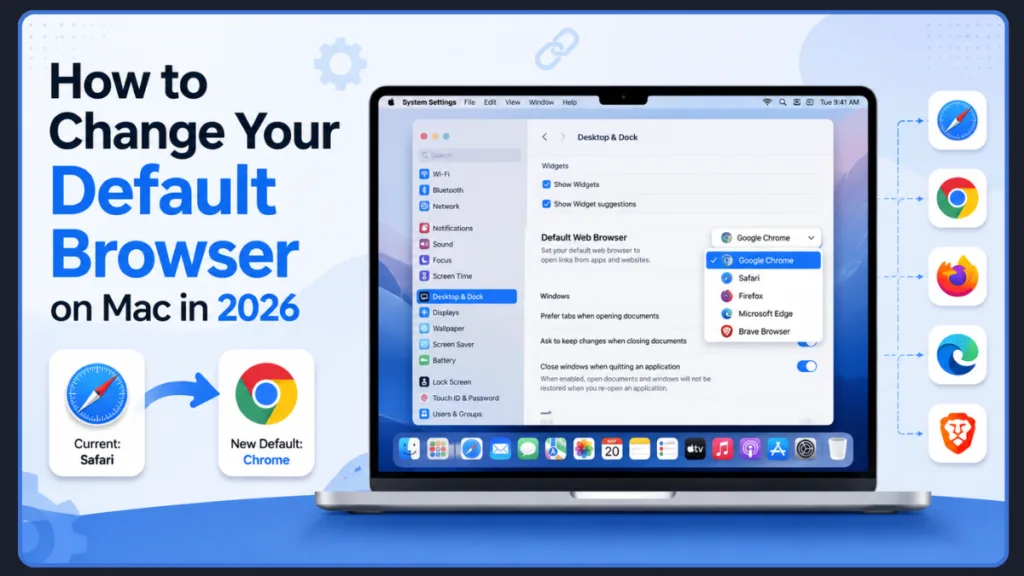
In this guide, you will learn exactly how to change your default browser settings on Mac. The entire process takes less than a minute, and you will have complete control over how your web links open.
Quick Answer: The Fastest Way to Change Your Default Browser on Mac
If you’re in a hurry to set your default web browser on a modern Mac, use these quick steps:
- Click the Apple menu in the top-left corner.
- Open System Settings.
- Select Desktop & Dock from the left-hand sidebar.
- Scroll down until you find the Default web browser section.
- Select your preferred browser from the dropdown menu.
- The system applies the change immediately.
Tip: Your new browser will not appear in this dropdown list unless you have installed it and opened it at least once.
What Exactly Is a Default Browser on Mac?
A default browser is the application macOS automatically uses whenever you click a web link from apps like Mail, Messages, Notes, Slack, or other software. By default, Macs use Safari, but you can switch to another browser at any time. Changing your default browser affects how links behave system-wide.
When you click a website link in apps such as Mail, Messages, Notes, Calendar, Slack, Microsoft Teams, or Discord, macOS automatically sends that link to your default browser. If Safari is your default browser, every link opens in Safari. If Chrome is your default browser, those same links open in Chrome instead.
| Setting | Controls |
| Default Browser | Which app opens web links |
| Default Search Engine | Which search service the browser uses |
4 Smart Reasons to Change Your Default Browser on Mac
While Safari is a highly optimized browser for Mac users, it may not be the best fit for your specific daily workflow. People often change their default browser on Mac for the following reasons:
Better Sync Across Devices
If you use an Android smartphone or a Windows PC, using Chrome or Edge allows you to seamlessly share passwords, bookmarks, and histories across all your screens. Firefox also offers excellent cross-platform syncing through your Firefox account.
Stronger Privacy Controls
You might prefer the Enhanced Tracking Protection built into Mozilla Firefox or the automatic ad and tracker blocking provided by Brave Browser. Alternatively, keeping Safari might be best for its advanced anti-fingerprinting privacy reports.
More Browser Extensions
Moving away from Safari gives you access to massive libraries of productivity extensions. The Chrome Web Store and Firefox’s extensive add-on ecosystem provide tools that might be essential for your daily workflow.
Better Support for Work Applications
Specific web applications, business tools, and developer platforms are often built specifically with Chromium-based browser support in mind. If you heavily use Google Workspace, Microsoft 365, or video conferencing platforms like Zoom, you may find better reliability outside of Safari.
(Related reading: If you are still deciding which application fits your needs, check out our guide on the Best Browser for Mac.)
Which Alternative Web Browser Should You Use on Mac?
| Browser | Best For |
| Safari | Battery life and Apple ecosystem |
| Chrome | Google services and syncing |
| Firefox | Privacy-conscious users |
| Edge | Microsoft ecosystem |
| Brave | Built-in ad and tracker blocking |
Method 1: Change Your Default Browser Through Mac System Settings
This is the most reliable way to make the switch because it forces the operating system to apply your choice universally.
How to Change Default Browser on macOS Tahoe, Sequoia, Sonoma, and Ventura
Apple updated its system menu layout starting with macOS Ventura. If you are running Tahoe, Sequoia, Sonoma, or Ventura, follow these steps:
- Open System Settings: Click the Apple Menu and choose System Settings.
- Select Desktop & Dock: Look at the left sidebar and click on Desktop & Dock.
- Find Default Web Browser: Scroll down the right-side panel until you see the Default web browser option.
- Choose Your Preferred Browser: Click the dropdown menu to select Google Chrome, Mozilla Firefox, Microsoft Edge, Brave, or Safari.
- Test the Change: Try opening a link from your Messages or Mail app to verify that it works properly.
Note: You usually do not need to restart your Mac for these changes to take effect.
Can You Route Different Websites to Different Browsers?
By default, macOS supports only one default browser for the entire system. However, if you frequently use multiple browsers for work and personal tasks, tools like OpenIn can automatically route specific websites to different browsers based on custom rules. For example, you can set a rule so all Zoom links open in Chrome, your work sites open in Edge, and your personal sites open in Safari.
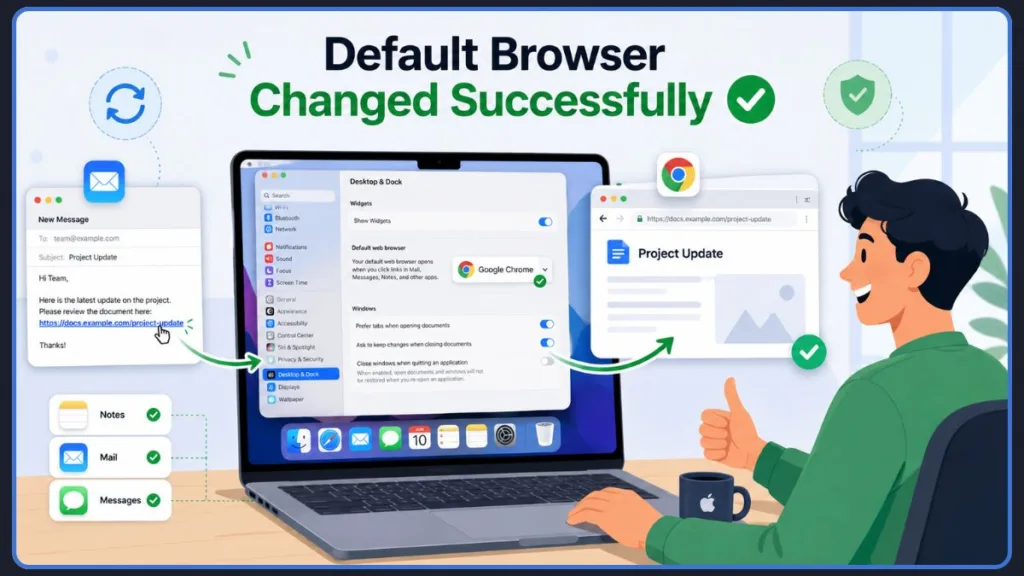
Method 2: Set the Default Browser Directly From Your App’s Settings
If you are already browsing the internet, you don’t even need to open your Mac’s system menus. Most modern web browsers provide a simple shortcut in their internal settings to make themselves the default.
How to Make Google Chrome the Default Browser on Mac
Why Choose Chrome on Mac? Google Chrome is ideal for its seamless Google account syncing, integrated password manager, and excellent cross-platform support.
- Open Google Chrome.
- Click Chrome in your top menu bar, then choose Settings.
- Click on Default browser in the left sidebar.
- Click the Make default button. Chrome will redirect you to macOS settings if additional confirmation is required. Once approved, Chrome becomes the browser used for all web links opened outside your browser.
How to Make Firefox the Default Browser on Mac
Why Choose Firefox on Mac? Mozilla Firefox is a top choice for privacy-conscious users, offering robust tracking protection out of the box and reliable sync capabilities.
- Open Mozilla Firefox.
- Click Firefox in the top menu bar, then choose Settings.
- Stay on the General tab.
- Under the Startup section, click the Make Default button. Firefox will prompt your Mac to open the relevant system settings so you can confirm the switch. Once completed, your preference syncs with your Firefox account across all your devices.
How to Make Microsoft Edge the Default Browser on Mac
Why Choose Edge on Mac? Microsoft Edge offers deep Microsoft ecosystem integration, Copilot features, and perfect syncing for users who also work on Windows PCs.
- Open Microsoft Edge.
- Click Edge in the top menu bar, then choose Settings.
- Select Default browser from the left panel.
- Click the Make default button. Edge will direct you to complete the change in System Settings. After confirming the change, Edge becomes the browser macOS uses for web links opened outside a browser.
How to Make Brave the Default Browser on Mac
Why Choose Brave on Mac? Brave Browser is perfect if your priority is blocking trackers and ads by default for a cleaner, faster browsing experience.
- Open Brave Browser.
- Click Brave in your menu bar and select Preferences.
- Scroll to the Get Started section.
- Click the Make default button. You will see a macOS confirmation dialog asking you to verify the change. Click to confirm, and Brave will immediately begin blocking ads and trackers on all links you open.
How to Change the Default Browser on Older macOS Versions
If your MacBook is running an older operating system like macOS Monterey, Big Sur, or Catalina, the settings menu looks a bit different. You will use System Preferences instead of System Settings.
- Click the Apple Menu in the top left.
- Select System Preferences.
- Click the General icon.
- Near the bottom of the window, locate the Default web browser menu.
- Select your preferred browser from the dropdown list.
Where Is the Default Browser Setting on Different macOS Versions?
macOS Tahoe and Sequoia
On the latest versions, you will find this under System Settings → Desktop & Dock.
macOS Sonoma and Ventura
You will find the setting in the exact same location: System Settings → Desktop & Dock. Apple completely redesigned System Preferences into System Settings starting with macOS Ventura, which is why many long-time Mac users get confused trying to find it.
Monterey and Earlier
On older systems, the setting lives under System Preferences → General.
| macOS Version | Settings Path | Status |
| Tahoe | System Settings > Desktop & Dock | Current |
| Sequoia | System Settings > Desktop & Dock | Supported |
| Sonoma | System Settings > Desktop & Dock | Supported |
| Ventura | System Settings > Desktop & Dock | Supported |
| Monterey | System Preferences > General | Legacy |
| Big Sur | System Preferences > General | Legacy |
What to Do When Your Default Browser Is Not Changing on Mac
Sometimes, technology gets stubborn. If your default browser setting is not changing or linking properly, check out these actionable fixes:
Links Still Open in Safari
If you have recently changed your default browser but links in Mail, Messages, or other apps keep opening in Safari, you are likely dealing with a known macOS caching issue.
The simplest and most effective solution is to close your browsers and restart your Mac. macOS sometimes needs a full reboot to register the system-wide change and clear temporary glitches.
If a reboot doesn’t work, try the toggle trick: go back into System Settings, set the default browser back to Safari temporarily, click a link to verify it opens in Safari, and then switch back to your preferred browser. This process resets the internal link handler and often resolves the bug.
Browser Missing From the List
You might open your Mac’s Desktop & Dock settings only to find that your newly downloaded browser is completely missing from the Default web browser dropdown.
To fix this, first ensure you have launched the new browser at least once—macOS requires the app to fully load before it recognizes it as a system option. Second, verify that the browser is stored in your official Applications folder, not still sitting in your Downloads folder.
If it is in the wrong folder, drag it to Applications, restart your Mac to refresh browser detection, and check the settings list again.
Default Browser Setting Won’t Save
Sometimes, macOS refuses to save your new browser preference, reverting immediately or acting unresponsive. This typically happens when you are trying to set an outdated browser version as the default. Older, unpatched browsers may not register properly with newer macOS updates like Sonoma or Tahoe.
To fix this, open the browser you want to use, check for updates in its settings menu, and install the latest version. If it still won’t save, delete the app entirely and download a fresh copy from the developer’s official website.
Browser Keeps Switching Back
If your Mac keeps reverting your default browser back to Safari days or weeks after you changed it, you might be dealing with app-specific overrides or corrupted .webloc files. Some older third-party applications force their own browser choice and ignore your system default.
If specific .webloc bookmark files on your desktop keep launching Safari, right-click the file, select “Get Info,” change the “Open With” dropdown to your preferred browser, and click “Change All” to apply the fix globally.
Browser Opens But Links Don’t
Sometimes your preferred browser launches when you click a link, but the webpage itself fails to load. This usually points to a stalled update or a corrupted cache. Clear your browser’s cache, ensure it is fully updated, and try clicking the link again.
Default Browser Option Is Greyed Out
If the Default web browser dropdown menu is greyed out and unclickable in System Settings, your macOS user account might lack administrative privileges.
You will need to log in with an administrator account to make system-wide changes.
Company-Managed Mac Restrictions
If you are using a work MacBook and cannot change your default browser, your IT department may have enforced a mobile device management (MDM) profile. These profiles often lock the default browser to Safari or Chrome for security and compliance reasons.
You will need to contact your IT administrator to request a change.
Browser Crashes When Opening Links
If clicking a link causes your newly selected browser to crash immediately, an outdated or corrupted extension is likely the culprit. Open the browser manually, disable all of your extensions, and click a link to see if it resolves the issue.
If it does, re-enable your extensions one by one to find the problem.
Browser Opens the Wrong Profile
If you use multiple profiles in Chrome or Edge (e.g., Work and Personal), you might find that web links always open in the wrong profile. To fix this, you need to adjust the specific profile settings within the browser itself.
Look for the profile handling or “default profile for external links” option in your browser’s internal settings menu to ensure links route correctly.
How to Switch Back to Safari as Your Default Browser: Reversing Course
If you try Chrome or Firefox and realize you miss the Apple ecosystem, reversing the process is effortless.
- Open System Settings (or System Preferences).
- Navigate to Desktop & Dock (or General).
- Click the Default web browser dropdown and select Safari.
You don’t need to worry about deleting your other browsers; Safari always remains available in this menu, even if you haven’t opened it in months.
Frequently Asked Questions About Mac Browser Settings
What browser is best for Mac?
Safari offers the best battery efficiency and Apple integration, while Chrome, Firefox, Edge, and Brave provide different advantages such as syncing, privacy, extensions, and compatibility.
How do I change my default browser on a Mac?
You can change your default web browser Mac settings by clicking the Apple menu, opening System Settings, clicking on Desktop & Dock, and choosing your new browser from the Default web browser menu.
How do I make Chrome my default browser on Mac?
To open links in Chrome on Mac automatically, you can either select Chrome from the Desktop & Dock settings in your Mac’s system preferences, or open Chrome itself, go to Settings, and click “Make default” in the Default browser section.
How do I make Firefox my default browser on Mac?
Launch Firefox, navigate to your Settings menu, click the General tab, and click the “Make Default” button under the startup options.
Why does Safari keep opening instead of Chrome?
If Safari keeps opening instead of Chrome, it usually means your Mac needs a quick restart to apply the changes, or that you are clicking on specific .webloc bookmark files that are hard-coded to Safari. Certain older apps also occasionally force links to open in Safari regardless of your system default.
Why won’t my Mac let me change the default browser?
If your Mac is stuck, try quitting all your applications and restarting your computer. Make sure the browser you want to use is fully updated and properly installed inside your Applications folder.
Does changing the default browser affect all apps?
Yes, changing this setting affects how web links operate system-wide across the vast majority of applications.
Can I open links in another browser without changing the default browser?
Yes. You can right-click (or Control-click) any link and choose “Open With” to select a different browser for that specific link. You can also manually copy the link and paste it into any browser’s address bar.
Can I have multiple default browsers on Mac?
macOS only allows one system-wide default browser at a time. However, you can use third-party tools (such as OpenIn) to create custom rules that route specific links to different browsers automatically.
Expert Tip: If you frequently use multiple browsers for work and personal tasks, tools like OpenIn can automatically route specific websites to different browsers based on custom rules.
Final Thoughts on Customizing Your Mac Web Experience
Changing the default browser on Mac takes less than a minute, whether you’re switching to Chrome for syncing, Firefox for privacy, Edge for Microsoft integration, or Brave for built-in ad blocking. Once you’ve updated the setting, every web link you open from Mail, Messages, Notes, and other apps will automatically launch in your preferred browser.
Visit Our Post Page: Blog Page
Discover more from Izoate
Subscribe to get the latest posts sent to your email.