
Need to install Windows on a brand-new computer? Learn how to download Windows 11 to a USB, create a bootable drive, and safely install it on your SSD in 5 easy steps.
Upgrading to a new SSD is one of the best ways to breathe fresh life into your computer, but it can also leave you staring at a completely blank screen with no operating system. If you’re wondering how to download Windows 11 onto a USB drive—or simply asking yourself, “Can I put Windows 11 on a flash drive?“—you are exactly in the right place.
Many people want to know the safest way to get this done and often wonder, “Can I install Windows 11 on a new PC using a USB?” The answer is absolutely yes. In fact, figuring out how to install Windows 11 on a brand-new computer using a flash drive is the most reliable method out there.
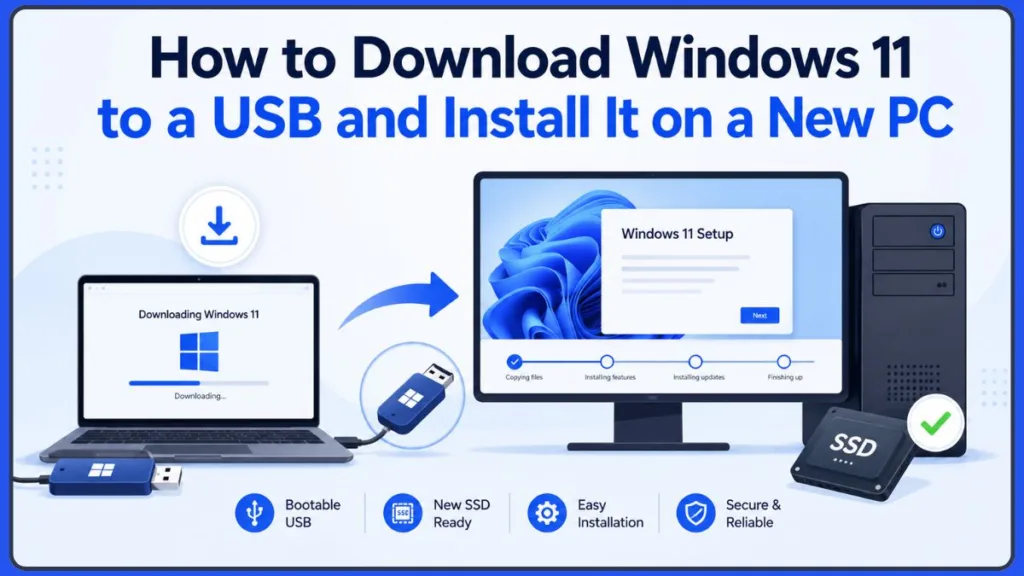
Here is the problem: a lot of users successfully create their installation drive, but they run into confusing issues the moment Windows restarts during the setup. Instead of continuing the installation smoothly, the computer might boot right back into the installer screen, making it feel like you are trapped in an endless loop.
Don’t worry—the fix is actually incredibly simple. In this guide, we’re going to walk through this together, step by step. From preparing your flash drive to completing a clean install on your new SSD without getting stuck, we will get your new system up and running.
What You’ll Need Before You Begin
Before we dive into the technical steps, let’s gather a few essentials. Having these ready will save you a headache later:
- A USB flash drive.
- A stable internet connection.
- Access to a working Windows computer (to create your installer).
- Your new SSD or PC, fully built and ready to go.
- A Windows 11 product key (don’t worry, you can skip this during setup and activate it later).
Update for 2026: Please note that the latest Windows 11 builds, such as version 24H2 and newer, enforce stricter CPU and TPM 2.0 checks. Ensure your motherboard’s BIOS is updated to the latest version so these security modules are recognized right out of the box!
How Large Does a USB Need to Be for Windows 11?
If you’re wondering what size USB for Windows 11 installation is going to work best, 8GB is your minimum. When figuring out how much storage is required for Windows 11 installation media, an 8GB flash drive will technically hold everything you need. However, if you have a 16GB or 32GB USB 3.0 drive laying around, use that—it will make the installation process noticeably faster!
What Format Should a Windows 11 USB Drive Use?
A lot of folks ask what format should a Windows 11 USB drive use before they start. If you are formatting it yourself, the debate between FAT32 vs NTFS for Windows 11 USB drives usually pops up. You’ll want to use FAT32. This format plays perfectly with modern motherboards, which is a strict requirement for Windows 11. But here is a tip: if you use Microsoft’s official tool (which we’ll do in the next step), it handles all the formatting for you automatically!
Advanced Tip: If you are manually downloading the ISO file and it happens to be larger than 4GB, you might run into FAT32 file size limits. In these specific edge cases, tools like Rufus will automatically format the drive to exFAT or NTFS and create a special UEFI bootloader to make it work seamlessly.
Why This Matters: Turning your flash drive into a bootable Windows 11 installer will completely wipe everything currently saved on it. Take a quick second to back up any family photos or important documents from that USB drive before moving forward!
Step 1: Download Windows 11 Installation Media
The safest and easiest way to get your new operating system is directly from Microsoft. No shady third-party sites—just the official files.
Is Windows 11 Free to Download?
It’s a common question: “Is Windows 11 free to download on USB?” The great news is yes! You can download Windows 11 installation media free directly from Microsoft’s website. Keep in mind that while the download itself costs nothing, you will eventually need a valid product key to activate Windows and unlock all of its personalization features.
Option 1: Use the Windows 11 Media Creation Tool (Recommended)
This is the route I highly recommend. The Windows 11 Media Creation Tool does all the heavy lifting for you. It downloads the right files, formats your flash drive, and puts everything exactly where it needs to be. It’s virtually foolproof.
Option 2: Download the Windows 11 ISO File
If you’re wondering, “How do I download the Windows 11 ISO file?“, you can find it on the exact same Microsoft page. A Windows 11 ISO download gives you a single, massive file containing the entire operating system.
You might choose to download Windows 11 ISO files if you are an advanced user who wants to use alternative software like Rufus to build the drive, or if you’re forced to create your USB on a Mac. But for most of us, Option 1 is much smoother.
Step 2: Create a Bootable Windows 11 USB Drive
Now that we know the plan, let’s turn that empty flash drive into a powerful Windows 11 installer.
Can I Use Media Creation Tool to Create a Windows 11 USB?
Yes, and it’s by far the friendliest method. Using the Windows 11 Media Creation Tool lets you easily create Windows 11 installation USB drives without needing to be a computer whiz. When you create Windows 11 installation media this way, Microsoft handles the complicated file copying behind the scenes.
How Do I Make a Windows 11 USB Bootable?
If you’re not sure how to make Windows 11 USB bootable, don’t stress—the tool automates it. To create bootable Windows 11 USB drives, just follow these simple actions to set up your Windows 11 bootable flash drive:
- Plug your 8GB (or larger) flash drive into your working computer.
- Download and open the Media Creation Tool from Microsoft’s site.
- Accept the license terms to move forward.
- Select Create installation media for another PC.
- Confirm your language and edition (leave it on Windows 11).
- Select USB flash drive as your preferred media.
- Click on your flash drive from the list and hit Next.
Result: The tool will now download Windows 11 and build your installer. Grab a coffee, as this can take a few minutes. Once it says it’s finished, you’ve successfully created your installation USB and can safely unplug it.
Can Rufus Create a Windows 11 Bootable USB?
If you decided to go the advanced route and downloaded the ISO file, you might ask, “Can Rufus create a Windows 11 bootable USB?” Yes, a Rufus Windows 11 USB works perfectly. You can create Windows 11 bootable USB with Rufus to bypass certain hardware restrictions, but again, the official Microsoft tool is usually less headache for a standard PC build.
Troubleshooting Tip: If your older PC doesn’t meet Microsoft’s strict hardware requirements, newer versions of Rufus—specifically Rufus 4.x and above—include a built-in checkbox to automatically bypass TPM 2.0, Secure Boot, and RAM requirements when creating your bootable USB! This is a lifesaver for breathing life into older hardware.
Step 3: Boot Your New PC From the USB Drive
Here is where the magic happens. We are going to move over to your new PC and tell it to load Windows from your flash drive.
How Do I Boot a New PC From a USB Drive?
To boot Windows 11 from USB, we have to give your motherboard some quick directions. Since your new SSD is blank, when you boot computer from USB drive, it launches the setup screen. Here is how to trigger a USB boot Windows 11 sequence without getting frustrated:
- Insert your bootable USB Windows 11 drive into your new computer (use a port directly on the motherboard if it’s a desktop).
- Turn the computer on.
- Immediately start tapping your motherboard’s boot menu key (this is usually F8, F12, F11, or Esc). Alternatively, tap Del or F2 to enter your BIOS settings.
- Once the menu pops up, use your arrow keys to select your USB drive as the temporary boot device.
- Hit Enter to save and continue.
Common Mistake: A lot of people forget to tap the boot key, and the PC just shows a scary black screen that says “No bootable device found.” That just means your new SSD is empty! Telling the computer to boot from the USB fixes this instantly.
Does Windows 11 Require UEFI Boot Mode?
Before you leave the BIOS, you might wonder about system requirements. Yes, meeting Windows 11 UEFI requirements is mandatory. You must use UEFI boot mode for Windows 11; the older “Legacy” mode won’t work anymore. Also, checking that Secure Boot and Windows 11 compatibility are enabled in your BIOS right now will save you from getting error messages in the next step.
Step 4: Install Windows 11 on a New SSD
When the PC boots from your flash drive, you’ll be greeted by a friendly purple Windows Setup screen. You are on the home stretch!
Can I Install Windows 11 on a New PC Using a USB?
Yes! This is exactly how you install Windows 11 on new PC hardware. When you install Windows 11 from USB, you are performing what tech folks call a clean install. Getting a fresh install Windows 11 means your computer will run incredibly fast without any pre-installed junk software slowing it down.
Do I Need a Product Key to Install Windows 11?
If you’re worried about licensing, you can absolutely install Windows 11 without product key codes right now. You can handle your Windows 11 activation later once you are on your desktop and connected to Wi-Fi.
Here is how to navigate the setup screen:
- Confirm your language and keyboard, then click Next.
- Click the big Install Now button.
- When it asks for a key, just click I don’t have a product key to skip it for now.
- Pick the version of Windows you plan to use (like Home or Pro).
- Accept the terms, and choose Custom: Install Windows only (advanced).
Getting Your Brand-New SSD Ready
You will now see a screen asking where to install Windows. If you are trying to install Windows 11 on a new SSD, it should look like a single drive labeled “Unallocated Space.”
- Click on that “Unallocated Space” to highlight it.
- If you see multiple partitions from an older computer, click each one and hit Delete until all you have left is one unallocated drive.
- Click Next.
Result: Windows Setup will now automatically format the drive correctly, copy all the operating system files over, and start the actual installation.
Troubleshooting Update: The “Let’s connect you to a network” Screen Modern Windows 11 builds require an active internet connection to complete the final stages of setup. However, brand-new motherboards often lack the built-in Wi-Fi drivers needed to connect to your router out of the box! If you get stuck on the network screen with no Wi-Fi networks showing up:
- Press Shift + F10 on your keyboard to open the Command Prompt.
- Type
OOBE\BYPASSNROand press Enter. - Your computer will restart. When it loads back into the setup screen, you will now have a helpful “I don’t have internet” option so you can finish setting up Windows offline!
Step 5: Complete Installation and Avoid the Restart Loop
If there is one place people get stuck, it’s right here. After Windows finishes copying files, it will restart your computer. But sometimes, instead of moving forward, the PC boots right back into the purple installer screen!
The Problem: Your computer is stuck in a loop, repeatedly loading the USB drive setup instead of moving on to the files it just installed on your SSD. The Explanation: Your motherboard’s boot priority is still telling it to look at the USB drive first. The Solution: You just need to remove the USB drive at the right moment. The Next Step: Follow the actions below to break the loop safely.
How to Fix the Loop
- Let the computer finish the “copying files” phase on the purple screen. It will give you a 10-second countdown to restart.
- The exact second the screen goes black for the restart, pull your USB drive out of the computer.
- Let the system power back up naturally.
Why This Matters: Pulling the USB out forces your computer to say, “Well, the flash drive is gone, let’s look at the SSD!” It will then seamlessly boot from your newly installed files and finish setting up Windows.
If you miss the timing and end up back at the installer screen, don’t panic. Just close the installer window, click Yes to cancel, let the PC restart, and pull the USB out while it reboots.
What to Do If Windows 11 Won’t Install
Sometimes, hardware can be a little stubborn. If you’re having trouble getting past the setup, try these friendly troubleshooting tips:
Why Won’t My Windows 11 USB Boot?
If you are dealing with a Windows 11 USB not booting at all, it’s usually a simple BIOS setting or a hiccup with the flash drive itself. Common Windows 11 USB boot issues can often be solved just by plugging the drive into a different USB port. Good Windows installation USB troubleshooting always starts with making sure your flash drive was created properly using the Media Creation Tool.
GPT or MBR: Which Partition Style Should You Use?
If you are formatting things manually, you might wonder, “Should I use GPT or MBR for Windows 11 USB setups?” Always use the GPT partition scheme for Windows 11. Older MBR styles simply won’t work because Windows 11 GPT requirements are tied directly to modern security features. But again, if you let Windows click “Next” on the unallocated space, it handles this for you!
Double-Check Your Connections If your SSD isn’t showing up on the installation screen, take a peek inside your PC. Make sure your NVMe M.2 drive is clicked firmly into place, or that a standard SSD has both its data and power cables plugged in snugly.
Install Drivers After Windows 11 Setup
Congratulations, you made it to the desktop! Your new PC is almost ready for daily use. Just a few final housekeeping steps:
- Connect your PC to Wi-Fi or plug in an Ethernet cable.
- Click the Start button, open Settings, and go to Windows Update.
- Click “Check for updates.” Let Windows pull down all your basic audio, display, and motherboard drivers. If you want more control over the process, you can also learn how to update all drivers in Windows 11 using CMD automatically.(Note: If you used the offline bypass trick mentioned earlier, this step will also download all your missing Wi-Fi and Bluetooth drivers automatically!)
- If you bought a dedicated graphics card (like an NVIDIA RTX or AMD Radeon), head to their respective websites to download their official software.
Frequently Asked Questions
Can I Put Windows 11 on a Flash Drive?
You sure can! Using Microsoft’s free Media Creation Tool, you can easily turn any standard flash drive into a fully bootable Windows 11 installer in just a few clicks.
How Long Does It Take to Create a Windows 11 Installation USB?
Depending on how fast your internet connection is and the speed of your flash drive, you can expect the process to take anywhere from 15 to 45 minutes. Grab a snack while it works!
Can I Use a Mac to Create a Windows 11 Bootable USB for a PC?
Yes, but it takes a bit more effort. Because the official Media Creation Tool only runs on Windows, Mac users have to download the Windows 11 ISO file and use Terminal commands or third-party software to get the USB formatted correctly.
Do I Need a Product Key to Install Windows 11?
Nope, not right away. During the setup, you can just click “I don’t have a product key” to bypass that screen. You can always activate Windows safely from your settings menu later on.
How Large Does a USB Need to Be for Windows 11?
You will need a flash drive that has at least 8GB of space. I highly recommend using a 16GB or 32GB USB 3.0 drive if you have one, because the faster read speeds make the installation fly by.
Can I Install Windows 11 on a New PC Using a USB?
Yes! In fact, it’s the best way to do it. When you boot your new PC from the USB, the setup wizard will detect your blank hard drive and automatically organize it to hold your new operating system.
What Format Should a Windows 11 USB Drive Use?
To ensure it talks properly with modern PC motherboards, your USB should be formatted as FAT32. The good news is the Media Creation Tool does this formatting for you automatically.
Why Won’t My Windows 11 USB Boot?
If your computer refuses to boot from the flash drive, hop into your BIOS settings. Double-check that your USB is selected as the number one boot priority. If that fails, the files might have corrupted during download, so try recreating the USB drive from scratch.
Does Windows 11 Require UEFI Boot Mode?
Yes, it does. Windows 11 is built around modern security, which means it strictly requires your motherboard to be running in UEFI boot mode with Secure Boot enabled.
Can Rufus Create a Windows 11 Bootable USB?
It absolutely can. Rufus is an awesome tool if you are an advanced user who needs to bypass certain hardware checks. But for a standard, straightforward PC build, sticking with Microsoft’s official tool is much simpler.
Conclusion
Installing a brand-new operating system can feel a little intimidating at first, especially when you are navigating BIOS menus and trying to figure out how to download Windows 11 to a USB drive. But as you can see, once you break it down into simple steps, it is surprisingly straightforward!
By taking a few minutes to properly create a bootable Windows 11 USB using the official tools, you have already conquered the hardest part. Whether you are fixing up an old laptop or getting ready to install Windows 11 on a new PC, having this trusty flash drive in your toolkit is incredibly handy.
Remember, when you go to install Windows 11 on a new SSD, let the software do the heavy formatting for you, and keep an eye out for that first reboot. Pulling out your Windows 11 installation media right as the screen goes black will save you from the dreaded installation loop.
If you hit a bump in the road, just take a breath, revisit the troubleshooting tips above, and check your BIOS settings. You’ve got this—you’ll be enjoying your lightning-fast, newly built computer before you know it!
Visit Our Post Page: Blog Page
Discover more from Izoate
Subscribe to get the latest posts sent to your email.