
Learn how to change your voicemail greeting on iPhone running iOS 26, whether you’re using the new Unified or Classic Phone app layout. Record a custom greeting, switch back to the default message, and fix common issues like the Greeting option missing or your voicemail not saving.
Introduction
If you’re looking to change your voicemail greeting on the latest version of iOS 26, you’ve come to the right place. Whether you want to record a professional message, update an outdated greeting, or simply switch back to the default voicemail, this guide walks you through every step.
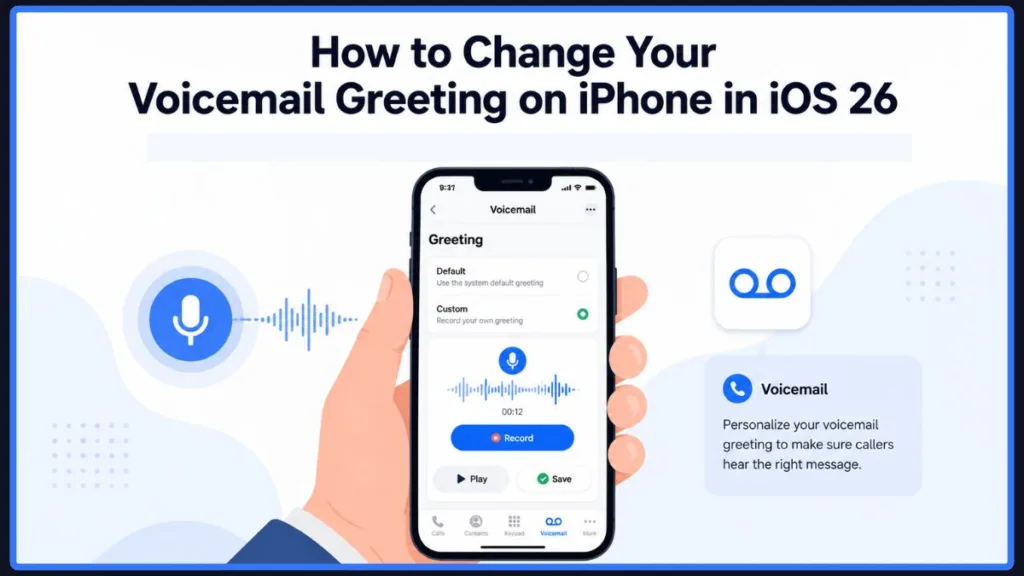
Here’s the part that catches people off guard: iOS 26 also reshuffled the Phone app itself, so the button you used to tap without thinking might not even be on your screen anymore. Maybe you just got a new number and want to record something that actually sounds like you. Maybe your old greeting mentions a job you’ve left, or you’re simply tired of the flat, generic default message every caller hears. Whatever brought you here, we’ll cover finding the Greeting option in the redesigned Phone app, recording a custom message, switching back to default, and fixing the greeting-won’t-save problem that’s frustrated a lot of iPhone 16 and iPhone 17 owners since the update.
Quick Answer: How to Change Voicemail Greeting on iPhone iOS 26
If you just want the fastest route, here it is.
- Open the Phone app.
- Unified layout: Tap Calls, tap Edit, then tap Edit Voicemail Greeting. Classic layout: Tap Voicemail, then tap Greeting.
- Choose Custom.
- Tap Record, speak your greeting, then tap Stop.
- Tap Play to review it.
- Tap Save.
Tip: Not sure which layout you’re on? If you see a bottom tab labeled Voicemail, you’re using Classic. If your bottom tabs read Calls, Contacts, Keypad, and Search, you’re on Unified.
That’s the short version. Now let’s go section by section, because the details — especially around iOS 26’s new layout and Live Voicemail — are exactly where most people get stuck.
Before You Start: Set Up Voicemail Before Changing Your Voicemail Greeting on iPhone iOS 26
Here’s something that trips up a surprising number of people: you can’t change a voicemail greeting that doesn’t exist yet. If you’ve never set up Visual Voicemail on this SIM or eSIM, the Greeting option won’t appear at all, no matter which layout you’re using.
Before attempting to record a custom greeting, confirm you’ve completed initial voicemail setup — which means creating a voicemail password and choosing your first greeting. If you skipped this step when you got your iPhone or switched carriers, do that first.
Note: If you’re not sure whether voicemail is set up, open the Phone app and look for a Set Up Now button. If you see it, tap it and follow the prompts before continuing.
This step matters even more if you recently switched carriers or moved your number to a new iPhone. Voicemail is a carrier-provisioned service, not something stored purely on your device, so a fresh SIM often means starting the setup from scratch.
What Changed in iOS 26? Find the Voicemail Button in the New Phone App Layout
This is the part that’s confused the most people since the update, so it’s worth slowing down on.
Starting with iOS 26, Apple gave the Phone app a redesign and introduced two layout options:
- Unified layout — Favorites, Recents, and Voicemail are merged into a single scrollable Calls tab. There’s no separate Voicemail tab at the bottom anymore; instead, your voicemails appear mixed in with your call history, each one showing a short transcript preview so you can spot it at a glance.
- Classic layout — the familiar design most iPhone users have used for years, with five tabs along the bottom: Favorites, Recents, Contacts, Keypad, and Voicemail.
When you first update to iOS 26, your iPhone may ask which layout you’d prefer — and either way, you can switch at any time:
- Open the Phone app.
- Tap the Calls tab (Unified) or Recents tab (Classic).
- Tap the Filter button in the top-right corner.
- Tap Classic or Unified at the top of the menu.
Why this matters: If you’ve been searching for “where is voicemail greeting in iOS 26” and coming up empty, it’s almost always because you’re on the Unified layout and looking for a tab that no longer exists in that view. Switching to Classic instantly brings the Voicemail tab back if you’d rather not hunt through menus.
Neither layout removes or disables voicemail — it’s simply relocated. Once you know where to look, changing your greeting takes the same amount of time either way.
How to Change Voicemail Greeting on iPhone iOS 26 Step by Step
Here’s the complete walkthrough for both layouts.
If you’re using the Unified layout:
- Open the Phone app and tap the Calls tab.
- Tap Edit in the top corner.
- Tap Edit Voicemail Greeting.
- If you use more than one line or an eSIM, select the correct number first.
- Choose Default or Custom.
- If you choose Custom, tap Record, speak your greeting, then tap Stop.
- Tap Play to listen back.
- Tap Save once you’re happy with it.
If you’re using the Classic layout:
- Open the Phone app.
- Tap Voicemail in the bottom-right corner.
- Tap Greeting in the upper-left corner.
- Choose Default or Custom.
- Tap Record, then Stop when you’re finished.
- Tap Play to review your greeting.
- Tap Save in the upper-right corner.
Important: After saving, give it a moment — then call your own number from another phone to confirm the new greeting is actually live. This is the only reliable way to know the change took effect, since the in-app checkmark next to “Custom” doesn’t always update instantly.
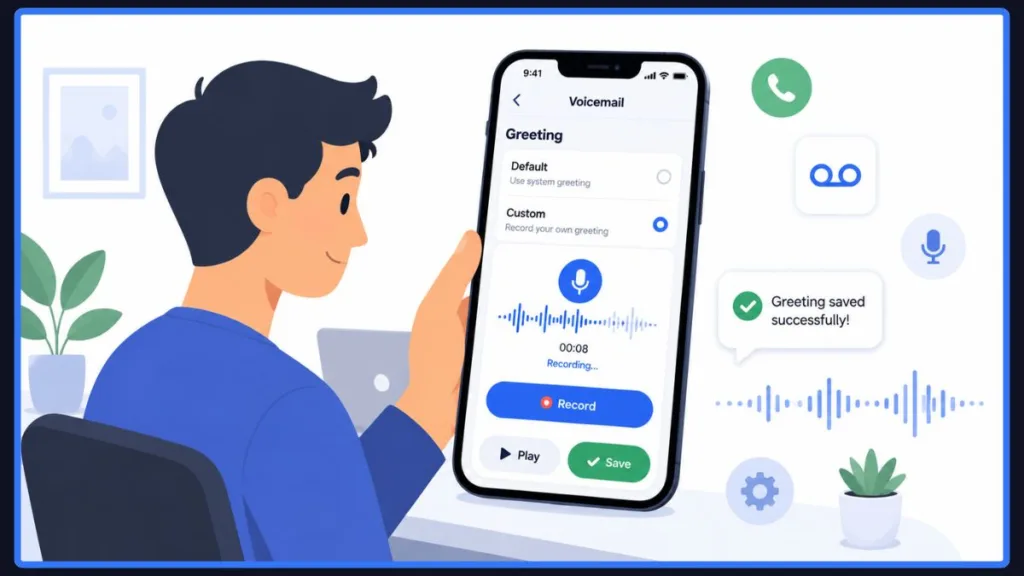
How to Record a Professional Custom Voicemail Greeting on iPhone iOS 26
Recording the greeting is easy. Recording one that actually sounds good takes a little more thought. A few practical guidelines:
- Keep it short. Somewhere between 10–20 seconds is plenty. Long greetings make callers hang up before they leave a message.
- State your name (or business name). It confirms the caller reached the right number.
- Mention you’re unavailable and invite a message. Simple and clear beats clever every time.
- Offer an alternative if relevant — an email address or a second number, if that’s useful to callers.
- Record somewhere quiet. Background noise is the single biggest reason a greeting sounds unprofessional.
A simple script that works well for most people:
“Hi, you’ve reached [Your Name]. I can’t take your call right now, but please leave your name, number, and a short message, and I’ll get back to you as soon as I can.”
For a business line, you might add hours of operation or a website. Whatever you write, read it aloud once or twice before you hit Record — it helps you sound natural instead of stiff.
Default vs Custom Voicemail Greeting on iPhone: Which Should You Use?
Not everyone needs a custom recording, and that’s fine. Here’s how the two compare:
| Feature | Default Greeting | Custom Greeting |
|---|---|---|
| Personalization | Generic, carrier-generated message | Your own voice and message |
| Setup effort | None required | Requires recording and saving |
| Professional impression | Neutral, sometimes impersonal | Stronger first impression |
| Extra information | Minimal | Can include contact alternatives |
If you’re setting up a line quickly — a temporary number, a work phone you’re still onboarding with — the default greeting is a fine placeholder. For a primary personal or business number, a custom greeting is generally worth the two minutes it takes.
How to Switch Back to the Default Voicemail Greeting on iPhone iOS 26
Changed your mind, or handing the phone off to someone else? Reverting is just as simple as recording a custom message.
- Open the Phone app.
- Unified layout: Tap Calls, tap Edit, then Edit Voicemail Greeting. Classic layout: Tap Voicemail, then Greeting.
- Select Default.
- Tap Save (or Done, depending on your carrier).
There’s no option to permanently delete a custom greeting recording — selecting Default simply stops it from playing, and recording a new custom greeting overwrites the old one.
Why Can’t I Change My Voicemail Greeting on iPhone iOS 26?
If the Greeting option is missing, grayed out, or won’t let you save, a handful of causes explain most cases:
- Voicemail was never set up on this SIM or eSIM — go back and complete initial setup first.
- Live Voicemail is interfering. Some users find that with Live Voicemail turned on, the Greeting screen won’t let them select any option. Turning it off, saving the greeting, then turning Live Voicemail back on has worked for a number of iPhone 16 and iPhone 17 owners.
- Your carrier hasn’t provisioned Visual Voicemail on your current plan — this is especially common right after switching carriers or activating a new SIM.
- A weak or inconsistent connection at the exact moment you tap Save.
Tip: Voicemail greetings are stored and managed by your carrier, not entirely on your iPhone. That’s why the same steps that work perfectly for one person can fail for another — it often comes down to how your specific carrier has your line configured.
Fix iPhone Voicemail Greeting Not Saving on iOS 26
If your custom greeting records and plays back fine but won’t actually save — or reverts to the default the moment someone calls you — work through these fixes in order.
- Switch your connection. If you’re on Wi-Fi, turn it off and try over cellular data, or vice versa. Voicemail saves depend on a stable connection to your carrier’s server.
- Turn off Live Voicemail, attempt the save again, then re-enable it afterward if you’d like to keep using it.
- Delete old voicemails. A full or cluttered voicemail inbox has been known to interfere with saving a new greeting.
- Open the Phone app and go to your voicemail list.
- Tap Edit.
- Select the messages (or Select All), then tap Delete.
- Update iOS and carrier settings. Go to Settings > General > Software Update for iOS, and Settings > General > About to check for a pending carrier settings update.
- Reset network settings. Go to Settings > General > Transfer or Reset iPhone > Reset > Reset Network Settings. This clears Wi-Fi passwords, Bluetooth pairings, and VPN configurations, but won’t touch your photos, messages, or apps.
- Contact your carrier. If none of the above works, the issue is very likely on the carrier’s side — voicemail provisioning problems aren’t something Apple can fix remotely.
Why this works: Most of these steps address the same root cause — a broken handshake between your iPhone and your carrier’s voicemail server. Restarting the connection (via network reset, a data-source switch, or a fresh carrier update) is usually enough to reestablish it.
Can’t Find the Voicemail or Greeting Option in iOS 26?
If Voicemail seems to have vanished entirely after updating, it almost always comes down to layout, not a missing feature.
- On the Unified layout, your voicemails live inside the Calls tab, mixed in with your call history — look for entries showing a transcript preview.
- Switch to Classic if you’d rather have a dedicated Voicemail tab: Filter button (top-right) > Classic.
- Still nothing? Confirm voicemail is actually set up on this line, and that your carrier supports Visual Voicemail in your current country or region — it isn’t available everywhere.
Live Voicemail vs Visual Voicemail on iPhone iOS 26: What’s the Difference?
These two get mixed up constantly, so here’s the plain difference:
- Visual Voicemail is the list-based way of viewing your messages — instead of dialing in and listening through menus, you see each voicemail as an entry with the caller’s name, the time, and often a text transcript. You choose what to play and what to skip.
- Live Voicemail is a real-time feature: when a call goes to voicemail, your iPhone shows you a live transcript as the person is speaking, so you can read what they’re saying and choose to pick up before they finish leaving the message.
You can turn Live Voicemail on or off at Settings > Apps > Phone > Live Voicemail. It’s a separate setting from your greeting — turning it off won’t erase your custom recording — though as covered above, it can occasionally interfere with the Greeting screen for some users. Note that Live Voicemail isn’t available in every country, region, or language.
Carrier-Specific Voicemail Greeting Instructions for AT&T, Verizon, T-Mobile, and More
The steps in this guide cover Apple’s standard iOS 26 process, and they work for the large majority of carriers. A few networks offer their own dial-in method as a backup, which is worth knowing if the in-app Greeting screen gives you trouble.
Verizon: Dial *86 from the Keypad, then follow the voice prompts to set your password, record your name, and record your greeting. This same method is often the fix when the in-app greeting won’t save — calling in directly re-provisions your voicemail box.
AT&T: The in-app steps above work for most AT&T plans. If they don’t, press and hold 1 on the Keypad to dial into voicemail directly, then follow the prompts.
T-Mobile: Press and hold 1 to connect to voicemail, then follow the automated menu to reach the greeting options. Note that Sprint’s network was merged into T-Mobile, so legacy Sprint numbers now generally follow T-Mobile’s voicemail system.
Tip: If the Phone app’s Greeting screen refuses to cooperate, calling directly into your carrier’s voicemail system is often the more reliable route — it bypasses whatever glitch is affecting the visual interface.
Additional iPhone Voicemail Settings You May Want to Change in iOS 26
While you’re in there, a few related settings are worth knowing about:
- Change your voicemail password: Go to Settings > Apps > Phone > Change Voicemail Password.
- Change your voicemail alert sound: Go to Settings > Sounds & Haptics > New Voicemail, and pick a tone or browse the Tone Store.
- Sync voicemail across devices: Go to Settings > [your name] > iCloud > See All > Phone & FaceTime, and turn it on to keep Live Voicemail and carrier voicemail synced through iCloud.
- Struggling with Visual Voicemail not loading messages at all? That’s usually a separate, carrier-side issue.
- Want quieter voicemail notifications? You can adjust how and when you’re alerted.
Frequently Asked Questions About Changing Voicemail Greeting on iPhone iOS 26
How do I change my voicemail message on iOS 26? Open the Phone app, go to Calls > Edit > Edit Voicemail Greeting (Unified) or Voicemail > Greeting (Classic), choose Custom, record, and save.
Can I change my voicemail greeting on my iPhone? Yes — every iPhone with Visual Voicemail set up lets you choose between a default greeting or a custom recording.
How do I switch off voicemail on iOS 26? Voicemail itself can’t be fully disabled from the Phone app since it’s a carrier service, but you can turn off Live Voicemail specifically at Settings > Apps > Phone > Live Voicemail.
Where is the voicemail button in iOS 26? On Classic layout, it’s a bottom tab labeled Voicemail. On Unified layout, your voicemails appear inside the Calls tab alongside your call history.
Does iOS 26 support voicemail? Yes. Voicemail hasn’t been removed — it’s simply reorganized under the new Unified layout.
How do I set up my voicemail greeting? Tap Voicemail (or Calls, on Unified) for the first time, and you’ll be prompted to create a password and record or choose a greeting.
Why can’t I find Voicemail on my iPhone after the iOS 26 update? You’re most likely on the Unified layout, where the dedicated tab has been merged into Calls. Switch to Classic if you’d prefer the old layout back.
Does Live Voicemail stop me from saving a new greeting? Not by design, but a number of users have reported the Greeting screen misbehaving while Live Voicemail is active — turning it off temporarily is a common workaround.
How do I record a custom voicemail greeting on iPhone? Go to Greeting, select Custom, tap Record, speak your message, tap Stop, then Save.
What if my carrier doesn’t support custom voicemail greetings? Some prepaid or regional plans don’t provision Visual Voicemail. Contact your carrier to confirm your plan supports it.
How do I navigate the Unified layout in the iOS 26 Phone app? Your Calls tab shows favorites and a combined list of recent calls and voicemails. Tap Edit to access voicemail-specific options like the greeting.
Why is my custom voicemail greeting not saving on my iPhone? Usually a connectivity hiccup, a full voicemail inbox, or a carrier-provisioning issue. Work through the troubleshooting steps above in order.
How do I enable or disable Live Voicemail in iOS 26? Settings > Apps > Phone > Live Voicemail, then toggle it on or off.
Conclusion: Successfully Change Your Voicemail Greeting on Your iPhone Running iOS 26
The process hasn’t really gotten harder in iOS 26 — it’s just moved. Once you know whether you’re on the Unified or Classic layout, changing your voicemail greeting takes less than a minute: pick Custom, record, and save. And if saving doesn’t stick the first time, the fix is almost always a connection hiccup, Live Voicemail interference, or something on your carrier’s end rather than anything wrong with your iPhone itself.
Got stuck on a step, or found a fix that isn’t listed here? Drop it in the comments — it genuinely helps the next person searching for the same answer.
Visit Our Post Page: Blog Page
Discover more from Izoate
Subscribe to get the latest posts sent to your email.