
Getting the pro club avatar save failed error in EA FC 26? Discover community-tested fix to bypass the glitched blue arm sleeve and save your Clubs player.
We have all been there: you finally get your squad together on PlayStation, Xbox, or PC, ready to dominate the pitch. But right when you try to save a fresh haircut, update your kit number, or tweak your archetype levels, you are hit with a frustrating roadblock—the PRO_CLUB_AVATAR_SAVE_FAILED_ERROR.
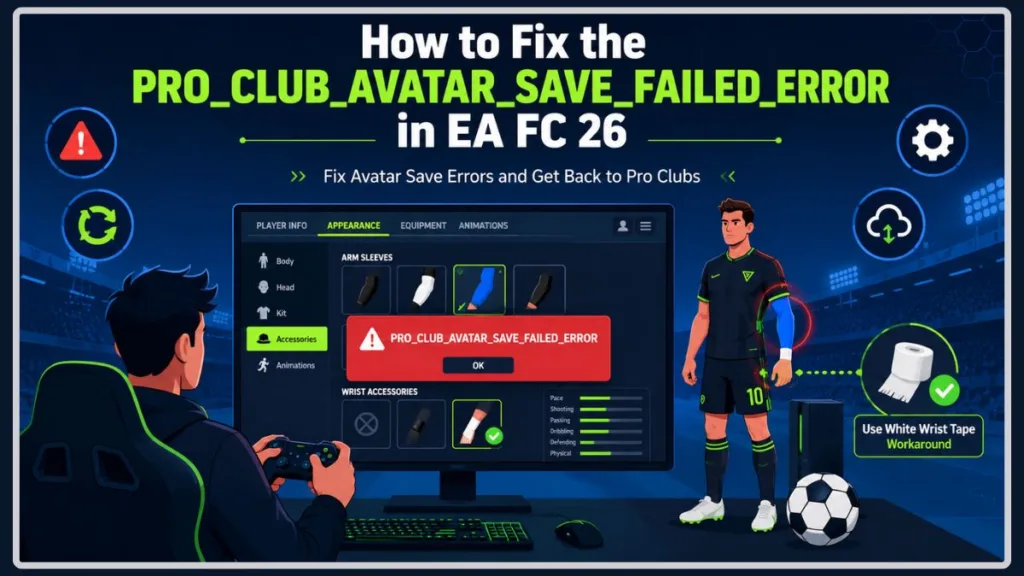
This glitch essentially locks your player’s appearance and settings, preventing you from making any changes to your Pro Clubs avatar. It can feel like your save file is permanently broken, but do not panic! You do not need to delete your entire Clubs save just yet.
If you’re dealing with this issue, you can try the following community-tested workarounds to clear the glitch and get back to playing. Many of these exact solutions come straight from the dedicated players over on this EA Sports FC Reddit thread, who banded together to figure out exactly what was causing the bug and how to bypass it.
What Causes the FC 26 Clubs Save Error?
You might be wondering why this is suddenly happening to your perfectly fine avatar. This issue is almost entirely tied to corrupted cosmetic items.
Specifically, players are experiencing this error after equipping a glitched blue arm sleeve (or sometimes specific wrist cuffs) that EA recently introduced to the game. When you try to save your Pro’s appearance with this invalid or bugged item equipped, the EA servers reject the save. This creates a desync between your local save file and the servers, trapping your avatar in an endless error loop where no changes—not even your dominant foot or running animation—will save.
How to Fix Pro Club Avatar Save Failed (Step-by-Step Solutions)
You should try these fixes in order, starting from the easiest in-game menu tweaks before moving on to console-level troubleshooting.
Method 1: Remove the Glitched Arm Sleeve
Stripping your avatar down to the basics usually forces the game to accept the save file. This is the quickest and most common fix.
- Navigate to the Customise Pro menu in your Clubs hub.
- Go to the Accessories tab and select your arm sleeves.
- Unequip all arm sleeves completely so your Pro has bare arms.
- Save your changes and back out to the main menu.
Method 2: The “Double Removal” Trick
Sometimes, the game fights back. You might notice that when you try to remove the sleeve, it stubbornly equips itself again automatically. If you’re experiencing this secondary bug, try this trick:
- Attempt to remove the arm sleeve once.
- If it immediately pops back onto your Pro’s arm, select remove a second time.
- Quickly press the button to save and exit the menu before the game has a chance to re-equip the item.
Method 3: The Left Wrist Tape Override
If your arm sleeve menu is completely unresponsive, or the double removal trick isn’t working, the community has found a clever workaround that forces the sleeve off.
- Open your Pro’s appearance settings and navigate to Wrist Accessories instead of arm sleeves.
- Equip the white tape on your left wrist.
- Save your loadout.
Note: Equipping the wrist tape automatically overrides the arm slot, forcing the glitched blue sleeve off your character model. Once you successfully save, do not try to put a new arm sleeve back on until EA officially patches the bug!
Method 4: Clear Your Console Cache (PlayStation & Xbox)
If the in-game menus fail entirely, you can try clearing your local data to refresh your connection with the EA App and servers.
For PlayStation 5:
- Turn off your console completely (do not put it in Rest Mode).
- Press and hold the power button until you hear a second beep to boot into Safe Mode.
- Connect your controller via USB and select Clear System Software Cache.
For Xbox:
- Go to My games & apps on your dashboard.
- Highlight EA FC 26, press the Menu button, and select Manage game and add-ons.
- Go to Saved data and delete the “Reserved space” file.
Crucial Warning: Clearing your cache or reserved space is perfectly safe. It will not delete your Ultimate Team progress or your Career Mode saves. It simply clears out temporary files that might be causing the desync.
Still Getting the EA FC 26 Avatar Save Failed Error? The Last Resort
If you have tried all the steps above and your character is still locked, a cosmetic item may have become permanently corrupted on the server side. In rare cases, a save file might be beyond an easy local fix.
Your best bet as a last resort is to contact EA Help (via their support website or X/Twitter). When you reach out, explain the troubleshooting steps you have already taken and ask for a “server-side avatar reset.” Be sure to specify that you want to keep your Pro Clubs progression and levels intact.
Conclusion
Getting hit with the PRO_CLUB_AVATAR_SAVE_FAILED_ERROR is incredibly annoying, but the blue arm sleeve glitch is the primary culprit. For 99% of players, removing the bugged accessories via the menus or using the white wrist-tape trick works perfectly.
Did the white tape trick work for you? Have you discovered any other glitched items—like specific boots or arm cuffs—causing the EA FC 26 avatar save failed bug? Let us know in the comments below!
Visit Our Post Page: Blog Page
Discover more from Izoate
Subscribe to get the latest posts sent to your email.