
Frustrated by a blurry or cropped YouTube banner? Learn how to change your YouTube channel background image using the Studio dashboard or mobile app. Get step-by-step guides and size templates in 2026.
Picture this: You’ve just spent hours recording, editing, and perfecting your latest video. You finally hit publish, feeling incredibly proud of your hard work. You know the content is excellent, the audio is crisp, and the thumbnail is highly clickable. But when you click over to your main channel page to admire your growing library of content, your excitement suddenly drops.
Staring back at you is a default gray header—or worse, an old, blurry photo where half of your logo gets completely chopped off when viewed on your smartphone.
It’s a frustrating moment that almost every creator experiences at some point. You already know that first impressions matter immensely in the digital world. When a new viewer lands on your page—whether they are swiping through the YouTube app on their morning commute, browsing from their desktop at home, or casting to a large smart TV in their living room—you want them to instantly recognize your brand. You want them to feel your channel’s unique vibe, understand your niche, and eagerly hit that subscribe button. A pixelated, poorly cropped, or generic background image doesn’t exactly scream “professional,” and it can actually cause potential subscribers to click away before watching a single video.
If you are dealing with a banner that just won’t fit the safe zones, or if you’re finally ready to swap out that old placeholder for a stunning, high-resolution design you just whipped up, you are in the right place. You do not need to be a tech wizard or a professional graphic designer to fix this issue.
This comprehensive guide will show you exactly how to change youtube channel background image, provide expert fixes if your banner looks blurry or gets cut off, and share the absolute best strategies to make your channel branding look flawless across every single device.
The Power of Channel Customization: Why Your Banner Matters
In 2026, viewer expectations for quality are higher than ever before. A customized YouTube background, also known as channel art, acts as the ultimate digital storefront of your brand. It is the very first thing people see when they land on your page, and it plays a massive role in whether they decide to invest their time in your content.
Key Insight: When you change youtube channel art, you aren’t just uploading a pretty picture to fill an empty space. A well-designed background establishes your brand consistency, signals a high level of professionalism, and instantly communicates what your content is about to a new audience.
Think about your favorite creators. When you visit their pages, their banners likely tell a complete story. They might feature their upload schedule, their social media handles, or high-quality photography that sets a specific mood. Whether you are aiming for a sleek corporate look for a finance channel, a vibrant and chaotic aesthetic for gaming, or a calming, minimalist vibe for lifestyle vlogs, a fresh youtube channel background image update can drastically enhance user engagement.
When your channel looks cohesive, it builds trust. Viewers are far more likely to believe your videos are high-quality if the packaging around them is visually stunning. Furthermore, maintaining a consistent visual identity across all your social media platforms—like Facebook, Instagram, Meta Threads, or X (Twitter)—helps establish your brand’s credibility. When a follower from Instagram finds you on YouTube, your banner should make them feel right at home.
Understanding YouTube Background Options and Formats
Before you jump into uploading your new masterpiece, you need to understand the canvas you are working with. YouTube allows for several styles of channel art, and knowing which one fits your brand is the first step to success:
- Image Backgrounds: This is the standard and most reliable option. You can use a single high-quality photograph, a repeating graphic pattern, or even a compelling screenshot from one of your most popular videos. Image backgrounds are ideal for creating a direct, consistent visual identity.
- Gradient Backgrounds: If you want a clean, distraction-free look, a gradient background features a smooth transition between two or more of your brand colors. This minimalist, modern feel is highly popular in tech, business, and educational niches where clarity is prioritized over flashy graphics.
- Animated and Video Backgrounds: While static images are standard for the banner itself, pairing your banner with dynamic video backgrounds on your specific video uploads or live streams can tie your whole aesthetic together. (Note: The main channel banner must remain a static image file, but your overall background branding can incorporate motion in your video edits).
To ensure your branding looks crisp and professional, you must follow the strict sizing rules set by the platform. If you ignore these numbers, you run the risk of vital text being completely hidden from mobile users.
The Golden Dimensions Fact: To ensure your branding looks flawless, you must adhere to the exact measurements required by YouTube.
- Ideal youtube banner size: 2560 x 1440 pixels. You should always create your main canvas at this exact size to ensure it looks spectacular on large television screens.
- The Safe Zone Dimensions: 1546 x 423 pixels. This is the absolute most critical measurement. Any text, logos, or crucial branding elements MUST fit within this center rectangle. If they fall outside of this zone, they will be cut off when viewed on smartphones or standard desktop windows.
- Minimum dimensions: 2048 x 1152 pixels. (However, sticking to the ideal size above is highly recommended).
- File formats: JPEG, PNG, GIF, or BMP. JPEG is usually the best option for faster loading times and keeping the file size down, while PNG is fantastic if your design relies heavily on crisp text graphics and vector illustrations.
- Maximum File Size: Your image file must be 6MB or smaller.
How to Change Your YouTube Channel Background Image (Step-by-Step)
Are you ready to give your channel a massive visual glow-up? The process is incredibly straightforward once you know where to look. Here is exactly how to add a banner to a youtube channel using both your computer and your smartphone.
Method 1: Using Desktop (YouTube Studio)
This is the most precise method, and it is highly recommended if this is your first time updating your banner. Using a desktop monitor allows you to clearly see how your image will crop across different screens using YouTube’s built-in preview tool.
- Sign in to your account: Open your preferred web browser and head over to YouTube. Log in using your Google credentials associated with your creator account.
- Access your channel menu: Click on your profile picture located in the top right corner of the screen.
- Enter the creator dashboard: Select YouTube Studio from the dropdown menu. This is your backend dashboard where you control all aspects of your channel.
- Find the customization area: Look at the left-hand navigation menu. Scroll down slightly if necessary and click on the Customization tab (it looks like a magic wand icon).
- Open the Branding tab: At the top of the Customization page, you will see three tabs: Layout, Branding, and Basic info. Click on the Branding tab.
- Locate the Banner Image section: Scroll down to the second section titled “Banner image.” Here, you will click the Upload button (or Change if you are replacing an existing banner).
- Select your file: Choose your high-resolution image (remember, ideally 2560 x 1440 pixels) from your computer’s files.
- Check the Safe Zones: Once you select the image, a cropping window will appear. This tool is a lifesaver. It will show you exactly how your banner will look in desktop and mobile view, as well as on a TV. Drag the crop box or adjust your image until your logo and text are safely inside the central “Viewable on all devices” zone.
- Save and Publish: Click Done in the cropping window.
Crucial Tip: Your new banner is not live yet! You must look to the top right corner of the YouTube Studio screen and click the blue Publish button to save your changes to the live servers.
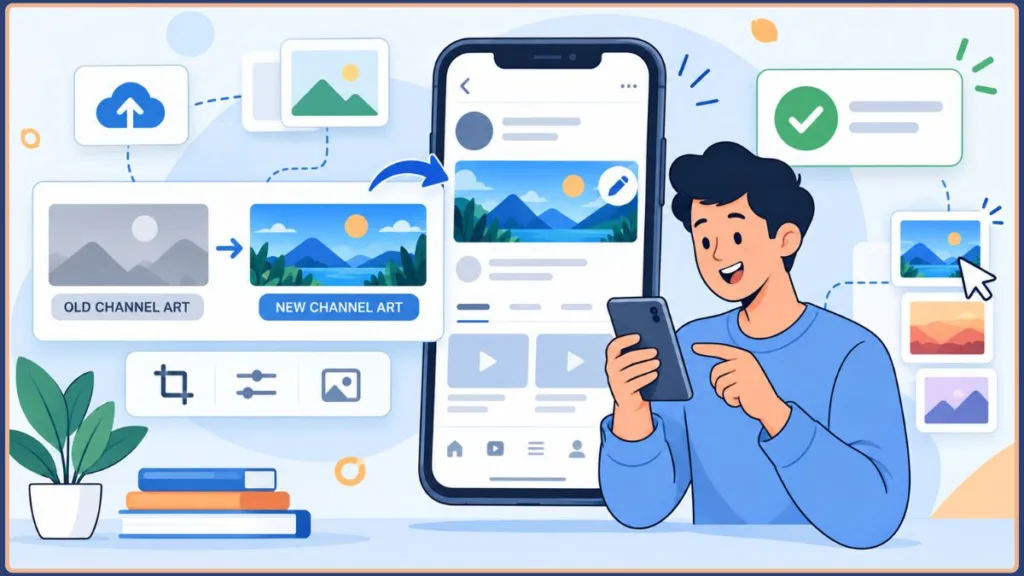
Method 2: How to Change YouTube Banner on Mobile (Android or iPhone)
If you are on the go, traveling, or just prefer doing everything from your phone, you can easily handle a youtube channel background image update right from your smartphone. The mobile app has become incredibly robust for creators in 2026.
- Launch the application: Open the YouTube app on your Android or iOS mobile device. Make sure you are logged into the correct channel account.
- Go to your profile: Tap your profile picture in the top right corner of the app interface.
- Navigate to your page: Tap on the Your channel option to view your public-facing page.
- Enter edit mode: Tap the Edit Channel button. This is usually represented by a pencil icon located right below your channel description and subscriber count.
- Tap the banner icon: Look at the top of your screen where your current banner is displayed. You will see a small camera icon situated on the right side of the banner area. Tap that camera icon.
- Choose your image: You will be prompted to either “Take a photo” or “Choose from your photos.” Tap to upload image from your device’s photo gallery.
- Adjust for mobile: The app will bring up a cropping screen. Use two fingers to pinch, zoom, and drag your image. You must ensure your core design fits within the highlighted safe zone dimensions box shown on your screen.
- Finalize: Tap Save in the upper right corner to instantly update your channel art. You should see a confirmation message pop up at the bottom of your screen once the upload is successful.
Fix: YouTube Banner Not Changing or Uploading Correctly
Sometimes, despite following every step perfectly, things do not go smoothly. Technology can be stubborn. If you run into issues during the upload process, do not panic. Try these common, highly effective fixes:
- YouTube banner not changing or updating after you click publish: This is incredibly common. It can sometimes take a few minutes for YouTube’s global servers to push the new image to all devices and clear their internal cache. First, simply wait five minutes and refresh the page. If it still shows the old banner, try clearing your web browser’s cache and cookies. If you are on a phone, force-close the YouTube app and reopen it.
- YouTube banner cut off on mobile / looks blurry: If your image looks heavily cropped or your text is cut in half on your phone, it means you ignored the safe area! The aspect ratio of a smart TV is absolutely huge, but mobile phone screens are tiny by comparison. You must go back to your design software and move all your important text and logos strictly into the center 1546 x 423 pixel “safe zone.” If the image looks blurry, you likely uploaded an image that was too small (e.g., 800×600) and YouTube was forced to stretch it to fit the 2560 x 1440 canvas. Always start with a high-resolution canvas.
- Can’t change YouTube banner / upload error: If you get a red error message when you try to upload, double-check your file size. If your image file is over 6MB in size, the platform will automatically reject it. To fix this, you can compress your file using a free online image compressor, or export the image from your design software as a highly compressed JPEG rather than a heavy PNG file.
Advanced Tools for 2026: Designing the Perfect Banner
You absolutely do not need expensive software or a degree in graphic design to create a beautiful, professional background. If you are searching for a youtube banner maker free, these platforms are the industry standards and are incredibly user-friendly:
- Canva: This is the undisputed king of accessible design. If you are wondering how to make a youtube banner in Canva, it is incredibly simple. Just log in, search for a “youtube channel background image template” within the main search bar, and you will be presented with thousands of professionally designed options. Drop in your brand colors, change the text, and export. Canva automatically provides the correct youtube banner size template 2026, complete with guides to help you stay within the safe zones.
- Adobe Spark (Adobe Express): Perfect for creators looking for slightly more advanced text layouts. It allows you to easily remove backgrounds from your personal photos with one click, layer elements flawlessly, and achieve that high-end professional look without the steep learning curve of traditional Photoshop.
- Fotor: A fantastic alternative if you want to create photo collages or apply quick, aesthetic, vintage, or cinematic filters to your background images. It has excellent built-in templates specifically tailored for social media dimensions.
Best Practices for Channel Branding
To make your channel truly stand out in a sea of millions of creators, keep these golden rules of design in mind before you finalize your export:
- Center your focal points: We cannot stress this enough—always place your channel name, your weekly upload schedule, or your core mission statement dead center. This is the only way to guarantee it survives the extreme cropping that happens on mobile screens.
- Match your profile picture: Ensure the colors in your banner seamlessly complement your avatar (profile picture). If your profile picture is a bright red logo, your banner shouldn’t clash with neon green unless that is a specific stylistic choice. Cohesion is key.
- Stay incredibly consistent: If you also use Facebook, TikTok, Instagram, or X (Twitter) to promote your content, try to maintain the exact same visual aesthetic across all platforms. Use the same fonts, the same color palettes, and similar imagery. This builds massive brand recognition over time.
- Keep it readable and scannable: Do not clutter the background with paragraphs of text, too many social media handles, or overly complex graphics. On a mobile phone, a cluttered banner just looks like a messy blur. Less is always more. A clean logo and a short, three-word tagline are highly effective.
- Consider seasonal updates: Don’t be afraid to change your background a few times a year! Adding a snowy aesthetic in December or a spooky vibe in October shows your audience that your channel is active, current, and highly engaging.
FAQs About YouTube Backgrounds
Why can’t I change my YouTube channel background? If the upload button is grayed out or throwing an error, you might be trying to upload a file that is too large (it must be under 6MB) or the wrong dimensions (it must be at least 2048 x 1152 pixels). Ensure your web browser is fully updated, turn off any overly aggressive ad-blockers that might be breaking the page script, and clear your cache if the “Upload” button remains unresponsive.
What size should a YouTube channel banner be? The absolute optimal size you should use when creating your file is 2560 x 1440 pixels. However, the critical “safe zone” for text and logos is the dead center 1546 x 423 pixels. Everything outside that center box is at risk of being cropped on smaller screens.
Where is the branding tab in YouTube Studio? Log into YouTube Studio on your desktop computer, look at the left-hand vertical navigation menu, scroll down and click “Customization” (the wand icon), and you will see “Branding” right at the top of the main screen, sandwiched between the “Layout” and “Basic info” tabs.
How do I change my YouTube banner on Android or iPhone? It is incredibly easy on the modern app. Navigate to your channel on the mobile app, tap the pencil (Edit) icon near the top of the page, and tap the small camera icon overlaying your current banner image. From there, you can choose a new photo directly from your phone’s camera roll or gallery.
How do I make my YouTube banner fit on all devices? You must design strictly with the “safe zone” in mind. Place all your vital information (logos, text, upload schedules, calls to action) in the absolute center of a 2560 x 1440 pixel canvas. The outer edges of that massive canvas will only be seen by viewers watching your channel on a large smart TV. Mobile users will only see the very center strip. If you use a tool like Canva, you can easily find safe-zone overlay templates to help guide your placement.
Conclusion: Capturing Your Channel’s Vibe
Learning how to edit youtube channel art and keeping it properly updated is one of the quickest, most effective ways to legitimize your content and build a loyal community. When viewers see that you care about the presentation of your channel, they instantly assume you put that same level of care and high quality into the videos you produce.
Whether you decide to use a free template, rely on a simple photograph, or design something totally custom from scratch, the secret is ensuring your visuals accurately and beautifully represent the amazing content you are working so hard to create.
Final Tip: Take a few minutes today to grab a free YouTube background template, double-check your safe zones, upload your new design, and give your channel the polished, highly professional look it deserves!
If you run into any issues during the process, refer back to the troubleshooting steps above, and you will have your new branding live in no time. Happy creating!
Visit Our Post Page: Blog Page
Discover more from Izoate
Subscribe to get the latest posts sent to your email.