
Wondering where your LinkedIn URL is? Learn how to obtain your LinkedIn URL on the Android app and quickly view, copy, or share your LinkedIn profile link.
You are right in the middle of updating your resume on your phone, or maybe you are sitting on the train trying to fire off a quick job application before the deadline. You reach the form field that asks for your professional profile, so you confidently open the app. Then, you hit a frustrating wall.
Unlike a traditional desktop web browser, the mobile app doesn’t feature an address bar at the top of the screen. If you are tapping around your screen trying to figure out where your LinkedIn URL is located, please know you are not alone.
You might need your link right this second to:
- Complete a mobile job application on portals like Workday or Greenhouse.
- Add your professional details to a digital resume you are editing on your phone.
- Quickly send your profile to a new contact through WhatsApp, Gmail, or a standard text message.
- Update your email signature or paste your link into another social media bio, like Instagram or X (Twitter).
This confusion is common because mobile apps are designed for swiping and tapping, not for reading raw web addresses. Figuring out exactly how to obtain your LinkedIn URL directly from your Android device really just comes down to knowing which menu to look for.
On the Android app, you can retrieve your profile URL through your profile’s Contact info section when you need to actually read the text, or you can look for a Copy link option when you simply need to paste it elsewhere. Grab your phone, and let’s walk through exactly how to do both.
What Is a LinkedIn Profile URL?
Your LinkedIn profile URL is the unique web address that leads people directly to your professional profile. Instead of telling someone to just search your name, you hand them this link, and they land right on your page.
Whether you hear recruiters call it a LinkedIn URL, a profile link, or a profile address, do not let the terminology trip you up—they all refer to the exact same destination.
What Does a LinkedIn URL Look Like?
Your URL will always start with the same recognizable foundation, but the ending depends entirely on whether you have taken the time to personalize it.
- Custom example:
[linkedin.com/in/johnsmith](https://linkedin.com/in/johnsmith) - Default-style example:
[linkedin.com/in/john-smith-7a83b4291](https://linkedin.com/in/john-smith-7a83b4291)
If you are reading this, you probably don’t need a deep dive into web terminology—you just need to grab your specific link and get back to work. Let’s look at exactly how to pull yours from the app.
How to Obtain Your LinkedIn URL on the Android App
This is the fastest, most reliable way to grab your information directly from your Android smartphone. Depending on what you are trying to accomplish, you will want to use one of the two straightforward methods below.
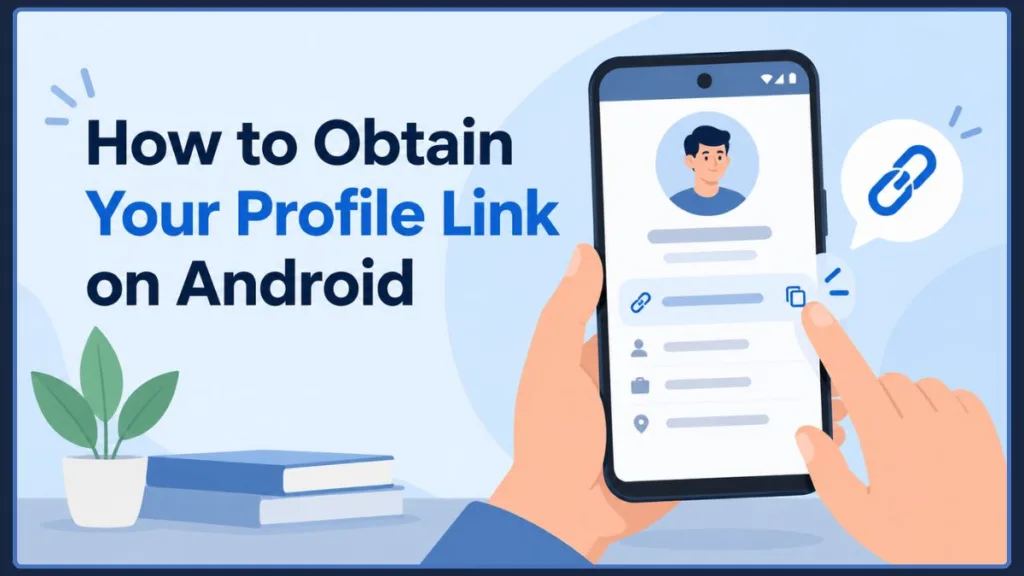
Method 1: Find and View Your URL via Contact Info
Use this method when you actually want to see what your LinkedIn URL is before you use it, rather than just blindly copying an unseen link to your clipboard. This is great for peace of mind!
- Open the LinkedIn app on your Android phone.
- Tap your profile picture located in the top left corner of your home feed.
- Tap View Profile directly beneath your name to open your main page.
- Depending on your app version, tap the More option (often located near the Add section button) or the three-dot menu (⋮), then tap Contact info.
- Find your profile address listed clearly under the Your Profile section.
- Tap and hold the URL text to securely copy it to your Android device’s clipboard.
Method 2: Copy Your LinkedIn Profile Link
Use this method when you are in a rush and simply want to obtain and paste the URL without needing to read it first.
- Open your LinkedIn profile using the first three steps from above.
- Tap the More option or the three-dot menu (⋮) located near the top of your profile page.
- Look for the Copy link option (some app versions may display Copy link to profile, or this function may be nested within your sharing options).
- Select it to save the link instantly to your Android clipboard, ready to be pasted.
Important Android Tip: To ensure you don’t accidentally overwrite the link by copying something else, paste it immediately into a Google Keep note, an email draft, or your application form so you do not lose it.
How to Share Your LinkedIn Profile on Android
Finding your URL and sharing your profile are often two entirely different tasks. If your primary goal is simply to share your LinkedIn profile, Android features have you covered without you ever needing to manually copy and paste a thing.
How to Share Your Profile With Other Android Apps
Instead of copying the link, you can push your profile directly into another app on your phone.
- Navigate to your profile and tap the More option or three dots (⋮).
- Select Share profile via.
- Android’s sharing interface will open. From here, you can tap to send your profile directly to WhatsApp, Gmail, Google Messages, Slack, or any other communication app you have installed.
When to Copy Your Link Instead of Sharing
While the share button is convenient for texting friends, you should absolutely stick to the manual Copy link method when you are dealing with professional submissions like:
- Online job applications and Applicant Tracking Systems (ATS).
- Digital resumes and PDF CVs.
- Personal portfolio websites.
- Social media bios.
- Professional email signatures.
Share Your Profile Directly in LinkedIn Messages
If you are messaging someone who is already a connection on the platform, you don’t need to mess with raw web links at all. Inside a direct message, simply tap the + icon next to the text typing box and select Share a profile. This sends a neat, interactive, clickable profile card that looks highly professional.
Why You Cannot Immediately See Your LinkedIn URL on Android
The main source of confusion for mobile users is a deliberate design choice: the LinkedIn Android app doesn’t have a browser-style address bar.
Because it is a native app, you generally won’t see [https://www.linkedin.com/in/](https://www.linkedin.com/in/)... sitting at the top of your screen like you would if you were browsing the web on Google Chrome. As a quick rule: use the Contact info section to read your link, or look for the Copy link option to grab it instantly.
How to Verify and Clean Your Copied LinkedIn URL
It is always a smart move to verify your link before you paste it into an important document. When you share a profile from a mobile app, depending on the method you use, the system may occasionally attach analytics tracking codes to the end of your address (they usually look like ?utm_source=share).
Removing Tracking Codes for Job Applications
Some Applicant Tracking Systems (ATS) may struggle with long tracking codes. If a job application form asks for your “LinkedIn profile URL,” it is best to provide a clean link. Paste your link into a blank space first, and if you see extra text or question marks at the very end of the link, it is often best practice to delete them before hitting submit.
Verifying Your Link for Resumes
Before you export your updated resume as a PDF from your phone, ensure the pasted link actually points to your profile and doesn’t accidentally include a typo that might break the hyperlink for the hiring manager.
Testing Your URL in a Browser
If you want to be 100% sure your link works, open Google Chrome on your Android phone, tap the menu to open a new Incognito tab, and paste the URL. If it successfully loads your public profile while you are completely logged out, you know the link works perfectly for anyone who clicks it.
What Is the Correct LinkedIn URL Format?
A standard, clean, professional profile format looks exactly like this: [https://www.linkedin.com/in/your-name](https://www.linkedin.com/in/your-name)
Custom LinkedIn URL vs. Default URL
A custom URL ([linkedin.com/in/johnsmith](https://linkedin.com/in/johnsmith)) looks highly professional. It fits easily on a physical business card and shows recruiters that you pay attention to the details of your personal brand.
A default URL ([linkedin.com/in/john-smith-7a83b4291](https://linkedin.com/in/john-smith-7a83b4291)) is the web address assigned to you automatically the day you create your account. It works just fine technically, but that random string of numbers at the end looks a bit cluttered.
Can You Customize Your LinkedIn URL on the App?
You generally cannot change your custom URL directly inside the Android app. URL customization requires the full desktop experience. You will need to log into LinkedIn on a laptop, or open Google Chrome on your Android device, tap the three-dot browser menu, and check the Desktop site box to force your phone to load the full website where those specific settings live.
Why Do People Need Their LinkedIn URL?
If you are wondering why so many people are searching for where their LinkedIn URL is hidden, it is usually because they are trying to accomplish a highly specific, time-sensitive task.
Job Applications
Almost every modern career portal, freelance platform, and application form requires a professional online presence to verify your work history and see your mutual connections.
Resumes and CVs
A clean, clickable link in the header of your digital resume allows recruiters to instantly view your professional endorsements, recommendations, and portfolio pieces that wouldn’t fit on a single page.
Networking
When you meet a great contact at a bustling conference or a local meetup, sending your profile link via a quick SMS text message guarantees you stay connected long after the event ends.
Email and Messaging
Pasting your clean URL into your professional Gmail or Outlook signature adds instant credibility and context to your daily communications.
Social Media and Websites
Adding your professional link to your Instagram bio, X (Twitter) profile, or personal WordPress site safely drives traffic back to your professional career hub.
How to Share Someone Else’s LinkedIn Profile on Android
If you want to recommend a former colleague to a recruiter you know, grabbing their URL is just as easy as grabbing your own.
- Open the person’s LinkedIn profile in your Android app.
- Tap the More option or three-dot menu (⋮) located right next to their “Message” button.
- Choose an available Copy link option to grab the web address, or Share profile via to send it through an app.
- Paste or send the profile to your desired destination to make the introduction!
What to Do If You Can’t Find Your LinkedIn URL
Technology isn’t perfect, and sometimes things don’t go exactly as planned. If you are stuck searching for your link, here is how you can troubleshoot common app issues quickly to get back on track.
The Copy Link Option Is Missing
If you tap the menu and you don’t see the copy option anywhere, your app might be running on an older version. Head over to the Google Play Store, search for LinkedIn, tap the “Update” button, and try again. Sometimes, an app glitch just requires a hard restart. Force close the LinkedIn app completely by swiping it away from your recent apps view, then reopen it. Alternatively, you can always bypass this menu and use the Contact info route.
The URL Isn’t Showing in Contact Info
If your URL is missing from your Contact info section, your account’s public visibility settings might be restricted. Go to your app Settings, navigate to the Visibility section, and ensure your public profile is enabled. If your public profile visibility is turned off, the app may not display a public link in your Contact info, meaning anyone who tries to view it while logged out will hit a dead end.
LinkedIn App Interface Looks Different
App developers constantly update features and shift menus around. If the wording on your screen doesn’t match our guide perfectly, don’t panic. Look for equivalent options like More, Share, or a slightly different gear icon to find your settings. The core functions are always there, even if they get a fresh coat of paint.
The Link Opens the Wrong Profile
If you paste your link into a text message and realize it goes to a company page or a newsfeed post you looked at recently, just delete it. Go back to your profile and carefully try the copy step one more time.
How to Obtain Your LinkedIn URL From a Mobile Browser
You can bypass the app entirely by using your phone’s native web browser.
- Open Google Chrome (or your preferred browser) on your Android device.
- Type in LinkedIn.com and log into your account.
- Tap your small profile icon at the top of the feed and select View Profile.
- Tap the address bar at the top of the Chrome browser window to highlight and copy the URL.
The Big Advantage: Unlike the mobile app, a mobile browser actually has an address bar, so you can see the URL written out directly at the top of your screen without digging through any menus!
How to Find Your LinkedIn URL From a Desktop Browser
If you happen to have a laptop or desktop computer nearby, this is often the easiest, most stress-free method of all.
Log in at LinkedIn.com, click the Me icon in the top navigation bar, select View Profile, and simply highlight and copy the text directly from the browser’s address bar.
Can You Find a LinkedIn URL Without the App?
Yes, absolutely. You do not strictly need the mobile app installed on your phone to find your URL. You can easily use Google Chrome on your phone or a desktop web browser to access your account.
Keep in mind, however, that you do need to be logged into an active account to access your own specific profile settings, view your hidden Contact info, and manage your privacy visibility controls. If you are just trying to find someone else’s public profile, you can often find their URL without the app simply by searching their full name and “LinkedIn” on Google, provided their privacy settings allow search engine indexing.
LinkedIn URL vs. LinkedIn Profile Link: Is There a Difference?
When dealing with a personal professional profile, there is no practical difference.
While professionals might argue that a “URL” is the literal text string (the https://...) and a “link” is the clickable text on a website, in the real world of job hunting and networking, they are completely interchangeable.
Whether your goal was learning how to obtain a LinkedIn URL so you could submit a job application from your Android phone, or you simply needed to know how to get your LinkedIn profile link to text a new connection, you are looking for the exact same destination. Both phrases represent retrieving the unique web address that acts as the digital doorway to your professional history. The internet just likes to use a lot of different words for the same tool!
Frequently Asked Questions
How do I find my LinkedIn profile URL?
You can easily find it by navigating to your profile on a desktop computer and copying it from the top address bar. If you are on your phone, open the mobile app, tap your profile picture, select the More option or three-dot menu on your profile page, and look for a “Copy link” option.
How do I find my LinkedIn URL on the mobile app?
On your Android device, tap your Profile Picture, select View Profile, tap the More option or Three-dot menu (⋮) located near the top of the screen, and tap Copy link (where available).
How do I access my LinkedIn URL? How do I find my LinkedIn URL?
To physically see and access the text of your link on mobile, open your profile, tap the More option, and select Contact info. Your full URL will be listed there under Your Profile for you to read and copy.
How do I get my LinkedIn profile link?
You can get it by copying it directly to your phone’s clipboard (Profile > More / Three dots > Copy link) so you can paste it manually into a document, or you can use the “Share profile via” option to send it directly to another communication app like WhatsApp or your email client.
Where should a LinkedIn profile URL be located?
On a computer, it is always located at the very top of your screen in the web browser’s address bar. On the mobile app, because there is no address bar, it is safely stored inside the Contact info panel on your profile page.
What is a LinkedIn profile URL? How do I find my LinkedIn URL?
It is the permanent, unique web address (always starting with [linkedin.com/in/](https://linkedin.com/in/)) that acts as a direct link to your digital resume and career history. You find it via your Contact info on your mobile app or the address bar on your desktop browser.
Can I find a LinkedIn URL without signing up?
You cannot obtain your own specific profile URL or customize it without actually creating an account. However, if you are looking for someone else, you can often find their public profile URL by searching their name plus “LinkedIn” on Google without being signed in, provided their privacy settings allow public viewing.
How do I find my LinkedIn profile URL from a desktop browser?
Simply log in to your account, click the small “Me” profile icon at the top of the homepage, select “View Profile,” and then highlight and copy the web address directly from your browser’s top URL address bar.
Final Takeaway — Where’s My LinkedIn URL?
The reason so many users find themselves searching for where their LinkedIn URL is hiding is simple: the mobile app’s design doesn’t present the profile address clearly like a traditional desktop browser does. But once you know exactly where the app hides the link, obtaining or sharing your professional profile takes only a few seconds.
- Need to see your URL? Go to your LinkedIn profile → More → Contact info.
- Need to copy it quickly? Go to your profile → More / Three dots (⋮) → Copy link (where available).
- Need to share your profile? Use Share profile via to push it straight to a messaging or email app.
- Need it for a formal job application? Copy it, check for any extra tracking codes at the end, and verify it in a private browser before submitting your application.
We highly recommend saving your clean, customized URL into a Google Keep note on your phone today. That way, the next time someone asks for it, you won’t even have to open the app to send it their way.
Visit Our Post Page: Blog Page
Discover more from Izoate
Subscribe to get the latest posts sent to your email.