
Is your Facebook lagging or eating up your disk space? Learn how to clear Facebook cache on Windows 11 with this ultimate guide to freeing up storage and fixing performance glitches.
In the modern digital landscape, Facebook is more than just a website; it is an extensive, data-rich platform that operates like an application even within your browser. If you are experiencing sluggish feed loading, broken images, or an unexpectedly full hard drive, you likely need to clear your cache. How to clear Facebook Cache Windows 11?
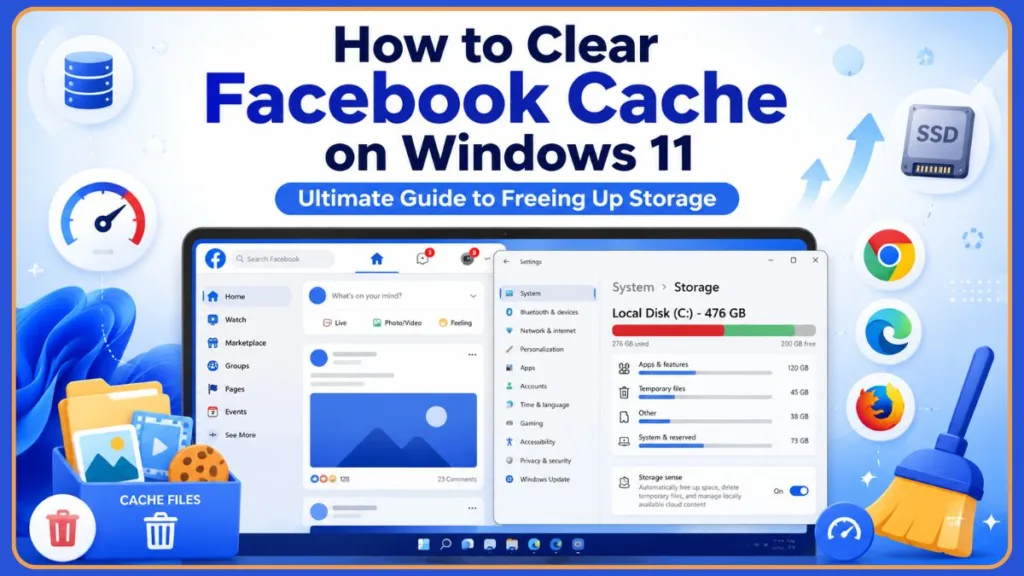
This guide provides a breakdown of how to clear Facebook’s cache and site data across all major browsers to restore your platform’s performance.
Quick Answer
To clear Facebook cache on Windows 11, open Chrome, Edge, or Firefox settings, remove Facebook site data and cached files, then restart the browser. This clears stored images, cookies, and temporary files that may be causing Facebook to load slowly or display errors.
Understanding What Is Facebook Cache on Windows 11
When you visit Facebook, your browser downloads various elements to your local storage to improve loading speeds. Instead of redownloading the same logo or font every time you refresh the page, your browser fetches these from a local “cache.” On Windows 11, Facebook cache is stored within your browser profile, whether you use Chrome, Edge, or Firefox.
Think of the cache as a digital “waiting room” for your computer. When you visit a website, your browser saves parts of the site so it doesn’t have to request everything from Facebook’s servers every single time you navigate to a new page. This is the difference between a website loading in a fraction of a second versus several seconds. However, this convenience comes at a cost: over time, this cache can become cluttered, outdated, or corrupted, leading to the exact performance problems it was designed to prevent. Because web browsers are designed to store as much data as possible to reduce bandwidth usage, they rarely “clean up after themselves” without user intervention.
How Facebook Stores Cached Data Locally
Your browser creates a local mirror of Facebook by storing:
- Images & Videos: High-resolution media files stored locally so your feed doesn’t have to download them every time you scroll past. This is the primary reason for high storage usage.
- Cookies: Small text files that track your session, keeping you logged in and remembering your interface preferences. These cookies identify you as a unique user and track which settings (like volume level for videos or feed sorting preferences) you prefer.
- Site Data: General preferences regarding your theme, language, and display settings. This can include specific configurations like whether you have enabled “Dark Mode” or specific notification filters.
Why You Should Clear Facebook Cache for Better Performance
If you notice that Facebook is behaving erratically, the cache is often the culprit. When these files become corrupted or outdated following site updates, they cause friction in the user experience. Common symptoms include:
- Performance Drag: Facebook takes longer than usual to load the newsfeed. You might notice that the page hangs for a moment when scrolling through posts.
- Visual Glitches: Images appear as broken placeholders or the layout looks “scrambled.” Sometimes, you might see text overlapping or elements of the page (like icons or sidebars) failing to appear entirely.
- Connectivity Errors: The feed fails to refresh or you are stuck on a loading spinner. This usually happens when the browser tries to fetch a piece of content that the server has already updated, but your browser is insisting on showing you the outdated, incompatible local version.
- Login Loops: The browser repeatedly asks you to sign in or shows authentication errors. This happens when the session cookie stored in your cache no longer matches the security token Facebook expects.
Can Facebook Use Gigabytes of Storage?
Yes. Facebook uses persistent storage technologies like IndexedDB to ensure the site remains “snappy” even with a weak internet connection. Community reports from users on platforms like Reddit have shown that after months of use, Facebook’s locally stored data—including these database entries—can exceed 2GB to 5GB in a single browser profile, resulting in disk bloat and high storage usage that can degrade overall system speed.
Expert Advice: Consider that Facebook constantly updates its code. Every time a new feature is rolled out, your browser may still be holding onto remnants of the old code. This creates a conflict between what is on the server and what is in your local “cache,” causing the site to “choke” on these inconsistencies. If you are using a drive with limited space, accumulating several gigabytes of unused temporary web data can impact your operating system’s ability to swap files and maintain overall speed. If you need a more thorough guide, you can check out this best way to clear Facebook cache in 2026 to fix lag and free up storage.
What Happens When You Clear Facebook Cache?
What happens when you clear facebook cache? It is a safe, non-destructive maintenance task that essentially hits the “reset” button on your browser’s local view of Facebook. What happens if you clear Facebook app cache? Simply put, the temporary files are removed and the bloated storage footprint is cleared.
When you perform this action:
- Temporary files are removed: The storage space previously taken up by media is reclaimed.
- Fresh content: The next time you visit Facebook, the browser will be forced to fetch the latest versions of media and site data directly from the servers. This often results in a “cleaner” experience where everything loads exactly as Facebook intended.
- Account security: You will likely be signed out of your session, requiring you to log in again. This is a deliberate security measure; by clearing the cookies, you are effectively ending your current authenticated session.
- Data integrity: Your photos, posts, messages, and personal account data reside on Facebook’s secure cloud servers; none of this is deleted when you clear local browser cache. You are not deleting your social media existence; you are merely clearing the temporary “scratchpad” your browser uses to display it.
How to Clear Facebook Cache in Google Chrome Browser
Google Chrome dominates the browser market, and because of this, many users have accumulated massive amounts of data in its profile folders.
Clear Facebook Site Data Only via Settings
- Open Chrome and navigate to Settings by clicking the three dots in the top-right corner.
- Go to the Privacy and security tab in the left-hand menu.
- Click Site settings.
- Scroll down to the Content section and click View permissions and data stored across sites.
- Type
facebook.cominto the search bar at the top right. - Click the Delete icon (trash can) next to the Facebook entry and confirm the removal. This targets only Facebook data, leaving your other websites untouched. This is the most surgical way to clean your browser without being forced to log back into every other site you frequent.
Clear Facebook Through Comprehensive Browsing Data
If site-specific clearing doesn’t resolve your issue, you may need a broader sweep:
- Press Ctrl + Shift + Delete on your keyboard. This is a universal shortcut in Chromium-based browsers.
- Select the Advanced tab.
- Set the Time range to All time. This ensures that even the oldest cached files—which are often the most problematic—are caught in the sweep.
- Check Cached images and files and Cookies and other site data.
- Click Clear data. After this, your browser will behave as if it has just been freshly installed for these specific sites.
How to Clear Facebook Cache in Microsoft Edge
Microsoft Edge is highly integrated with Windows 11 and often uses the same caching mechanisms as Chrome, but with slightly different labeling. If you are specifically looking for comprehensive instructions, you can follow these best methods to delete Edge cache in 2026.
Remove Facebook Site Data via Cookies Menu
- Navigate to Settings and select Cookies and site permissions.
- Click Manage and delete cookies and site data.
- Click See all cookies and site data.
- Search for “facebook” in the filter box. Select Remove all shown. This will clear all cookies, local storage, and database files linked to that domain.
Clear Cached Images and Files
- Go to Settings > Privacy, search, and services.
- Under the Clear browsing data section, click Choose what to clear.
- Ensure Cached images and files is selected, then click Clear now.
Troubleshooting Tip: Restart Edge and sign back into Facebook to confirm the issue is resolved. The benefit of clearing “Cached Images and Files” is that it targets the large binary files (the pictures) rather than the text-based cookies, which is often more effective for solving the “broken image” issue.
How to Clear Facebook Cache in Mozilla Firefox
Firefox manages data differently, using a “profile” system that creates a sandbox for each user and each site.
Open Firefox Settings Menu
Click the menu button (three horizontal lines) and select Settings.
Manage Cookies and Site Data Settings
Go to Privacy & Security and scroll down to the Cookies and Site Data section. Click the Manage Data button. This window is unique because it displays the exact file size of the data being stored, allowing you to see exactly how much space Facebook is occupying.
Remove Facebook Storage Data
- Type
facebook.comin the search field to filter results. - Select the entry from the list and click Remove Selected.
- Click Save Changes.
Maintenance Suggestion: Refresh Facebook and allow Firefox to download fresh site data. When you do this, you might notice the site takes a split second longer to load the first time; this is normal, as it is building a new, healthy cache.
How to Clear Facebook Cookies Without Removing Other Websites
Many users fear that clearing cache will log them out of their banking or email accounts. You can avoid this by targeting only Facebook:
- Chrome/Edge: Access the “Site settings” menu described in the previous sections. By searching specifically for
facebook.com, you delete cookies only for that domain. Your other sites remain untouched, and you remain logged into them. - Firefox: The “Manage Data” menu explicitly allows you to search for and delete only the data associated with Facebook. This is the safest way to reset your Facebook experience without impacting your browsing convenience elsewhere. By being selective, you protect your “Session State” on other websites, ensuring you don’t lose progress in an unfinished draft or a logged-in dashboard elsewhere.
How to Clear Temporary Files in Windows 11 Settings
How to clear Cache Windows 11? It’s a fundamental part of system maintenance that keeps your OS running smoothly. To simplify this task in the future, you may want to learn about the 9 best ways to automatically clear cache in Windows 11.
Using Windows Storage Settings
- Press Win + I to open Settings.
- Go to System > Storage.
- Click on Temporary files. Windows will automatically categorize these files for you.
- Wait for the scan to finish, ensure Temporary Internet Files is checked (this is the key category for cached web content), and click Remove files.
Using Disk Cleanup Tool
- Search for Disk Cleanup in the Start Menu and run it.
- Select your system drive (usually C:).
- Check Temporary Internet Files and click OK.
Expert Advice: This is particularly helpful if you use the Facebook “App” (the web-wrapper found in the Microsoft Store), as it relies on the Windows temporary file system to manage its cache containers. Because the Windows Store version of Facebook isn’t a standalone software, it relies on the same underlying architecture that Edge uses, making Disk Cleanup a surprisingly effective way to reset it.
How to Reduce Facebook Storage Usage in the Future
To prevent your browser from becoming bogged down again, follow these simple maintenance habits:
- Clear Cache Periodically: Make it a monthly habit. If you are a heavy user, your cache grows exponentially faster. A clean cache isn’t just about disk space; it’s about performance.
- Remove Unused Site Data: Every few weeks, check your browser’s “Site Settings” to remove data for sites you no longer visit. This keeps your browser’s database small and fast.
- Keep Browsers Updated: Newer browser versions are optimized to handle large amounts of site data more efficiently, reducing the chance of corruption. Browser developers frequently patch bugs in their caching engine to ensure that old data doesn’t conflict with newer web technologies.
Facebook Cache Not Clearing? Try These Fixes
If you’ve cleared the cache and Facebook still isn’t working, the problem may be deeper:
- Close All Browser Tabs: Sometimes a hidden tab is keeping a session active, preventing the cache from fully clearing. Closing everything is a “hard reset” for the browser’s memory.
- Restart Your Browser: Force a total memory flush by quitting the app entirely. This clears the RAM used by the browser’s engine.
- Sign Out and Sign Back In: This refreshes your authentication tokens.
- Disable Browser Extensions: Ad-blockers or privacy extensions can sometimes interfere with Facebook’s dynamic scripts, causing them to “get stuck.” If a script fails to execute because an ad-blocker modified the page, your browser might cache that “failed” state.
- Update Your Browser: Use the “About” menu in your browser to check for patches.
- Try Incognito or Private Mode: If Facebook works perfectly in Incognito, an extension or a corrupted setting in your main profile is likely the cause. This confirms the issue is definitely within your browser’s local data storage rather than an issue with your internet connection or your Facebook account settings.
Frequently Asked Questions
How do I clear Facebook cache on Windows 11? Use your browser’s site-specific data management settings to remove Facebook-only data, or use Windows Storage Settings for a system-wide sweep.
Will clearing Facebook cache delete my account? No. Your account, posts, photos, and settings are stored on Meta’s servers, not your PC. Clearing cache only affects local temporary files.
Does clearing cache log me out of Facebook? Yes, because cookies are part of the cached data, clearing it will reset your login session.
Why is Facebook using so much storage? It uses modern database technologies (IndexedDB) to store media and scripts locally to speed up navigation.
How often should I clear Facebook cache? Whenever you notice performance degradation, or as a general system maintenance task once a month.
Can clearing cache fix Facebook loading issues? Absolutely. It is the most common fix for broken layouts and non-loading content.
Does Facebook have a cache on PC? Not as a native app-specific “cache folder” you can easily find, but your browser manages it as “Site Data.”
Conclusion
Facebook’s tendency to grow in size on your local disk is a side effect of its effort to provide a seamless user experience. By understanding that this “cache” is managed by your browser, you gain the power to keep your digital environment lean and fast. Clearing this data is a completely safe, highly effective troubleshooting step. The next time you find yourself staring at a lagging feed, follow these steps to restore your Facebook experience to its optimal state.
A clean browser is a happy browser, and keeping your cache managed ensures your social media experience remains smooth, fast, and glitch-free. By treating your browser’s cache as a temporary resource rather than a permanent storage locker, you maintain better control over your PC’s health and your browsing speed.
Visit Our Post Page: Blog Page
Discover more from Izoate
Subscribe to get the latest posts sent to your email.