
Want to automatically close all background apps on your iPhone? Let’s learn how to close all open apps on iPhone in 2026.
If you have ever felt like your iPhone was running a bit sluggish or noticed the battery percentage dropping faster than expected, your first instinct was likely to open the App Switcher and clear out every single app currently running. It is a common ritual for many of us: swiping through a long carousel of app previews and flicking them upward one by one in hopes of “cleaning” your device’s memory and reclaiming some lost speed.
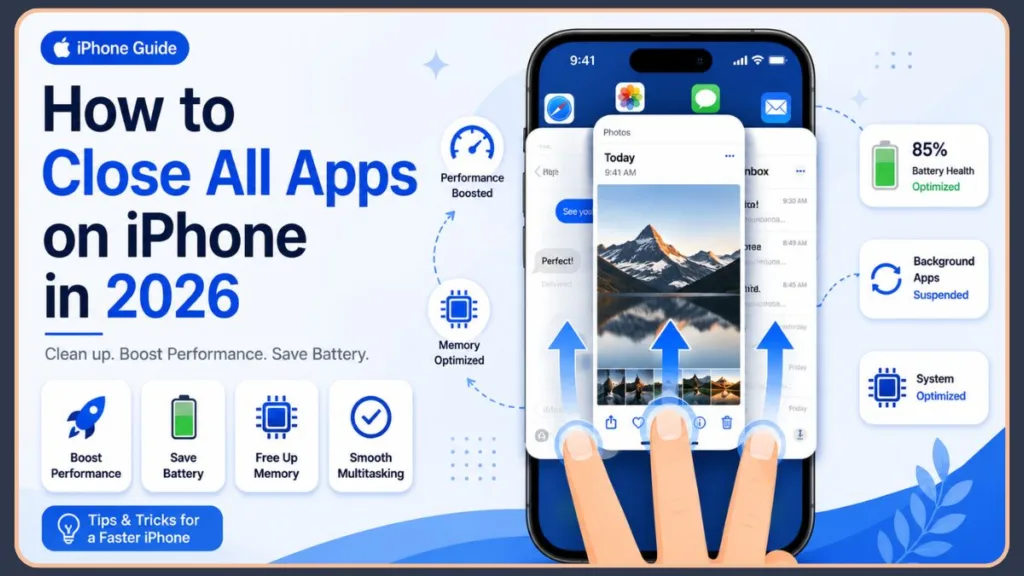
But here is an important truth that many iPhone users never realize: Apple does not include a native “Close All Apps” button.
While this might feel like a missing feature at first, it is actually a testament to how the iOS ecosystem is built to keep things running smoothly for you. In this guide, we will walk you through the correct way to manage your apps, explain why your iPhone doesn’t need a “Close All” button, and provide you with practical, actionable steps to troubleshoot performance and battery issues effectively so you can get back to what matters most.
Can You Close All Apps on iPhone at Once?
The short answer is no; there is no official “Close All” button in iOS. Apple has intentionally designed the operating system this way because, under normal operation, you should almost never need to manually close your apps.
The Science of “Suspended” Apps
Many of us operate under the misconception that every app in the App Switcher is actively “running” in the background, consuming CPU cycles and draining your battery. In reality, when you leave an app, iOS places it into a suspended state. Once an app is suspended, it is essentially “frozen” in the device’s memory. It occupies space, but it consumes virtually zero processor power and minimal battery.
Because iOS is so efficient at managing these suspended states, force-closing them is generally counterproductive. However, for those who prefer to keep their App Switcher tidy, you can use a handy gesture: the multi-finger swipe. By placing two or three fingers on different app cards in the App Switcher, you can swipe them up simultaneously, allowing you to clear your view much faster than using a single finger.
Additionally, if your iPhone is behaving erratically, a full device restart acts as an indirect “close all,” flushing the system cache and resetting all background processes to give you a fresh start. Apple’s decision not to include a “Close All” button is rooted in their tight control of the multitasking ecosystem; when everything is working correctly, those background apps aren’t taking up significant memory or battery, meaning a “Close All” function would be redundant.
Unfortunately, Apple does not provide a Close All Apps button on iPhone. You must manually swipe apps away from the App Switcher.
How to Close All Open Apps on iPhone
How to Open the App Switcher
The method to view your active apps depends on your specific iPhone model, but it is simple once you know the trick.
- iPhone Without a Home Button (iPhone X and Later): Simply swipe up from the bottom edge of your screen and pause your finger gently in the center. The App Switcher will appear, showing a grid or carousel of your recent apps.
- iPhone With a Home Button (iPhone 8, SE, and Earlier): Quickly double-press the physical Home button.
How to Close Apps on iPhone
Once you are in the App Switcher, you can navigate left or right to browse through the preview cards of your recently used apps. When you find one you want to terminate, simply swipe the app preview card upward and off the top of the screen. This action tells the system to stop the app’s background process entirely.
It is important to remember that any work or progress you have within an app is saved automatically when you leave it, so you don’t have to worry about data loss when you close an app this way.
How to Close Multiple Apps at Once on iPhone
To speed up the process, you can use multiple fingers to clear the list. By placing two or three fingers on different preview cards simultaneously, you can swipe them all upward in one smooth motion. Keep in mind that you can only close the apps that are currently visible on your screen. While you might need to repeat this gesture if you have dozens of apps open, it is the most efficient manual way to tidy up.
How to Automatically Close Apps on iPhone
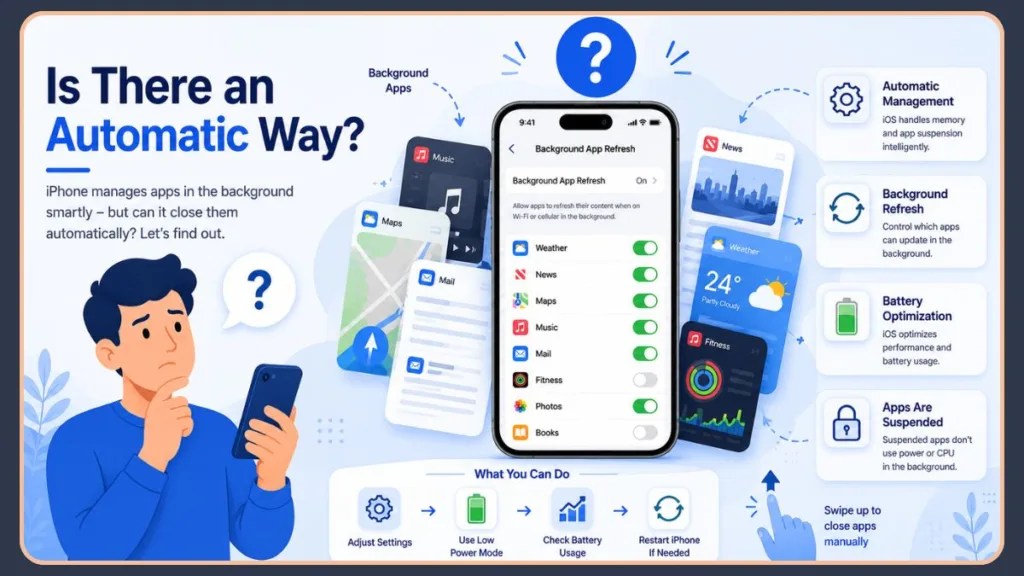
It is a common question, but iPhone does not support an automatic “force-close” setting for apps after a period of non-usage. Apple prioritizes a smooth, responsive user experience. Because the system is designed to handle memory management automatically, it assumes responsibility for suspending apps to keep the system lean without you having to lift a finger.
Why Apple Does Not Recommend Closing Apps Frequently
- Battery Efficiency: Every time you force-close an app, you are essentially deleting its state from memory. When you reopen that app, your iPhone must draw extra power to load the data from storage back into the RAM. Keeping a frequently used app in a suspended state is actually more energy-efficient than restarting it from scratch.
- RAM Management: iOS is programmed to handle RAM like an expert. It knows exactly when to clear data to make room for new processes. Manually clearing RAM often prevents the system from doing its job, which can lead to longer load times for your favorite apps. Neither you nor any “cleanup” app can outthink the operating system’s internal management, known as Automatic Reference Counting (ARC) and system-level memory pressure handling.
How to Reduce Background App Activity on iPhone
If you are worried about apps using data or battery in the background, don’t force-close them—use the system settings instead, as this is much more effective:
- Disable Background App Refresh: Go to Settings > General > Background App Refresh and turn it off for apps that do not need to update while you aren’t using them.
- Enable Low Power Mode: When your battery is low, this setting automatically restricts unnecessary background activity and mail fetching.
- Check Battery Usage settings: Go to Settings > Battery to see if a specific app is a “power hog.” If one is, you can prioritize closing only that specific app.
- Restart iPhone periodically: A weekly restart is a healthy habit for any device to clear temporary processes and maintain optimal performance.
Does Closing Apps on iPhone Save Battery Life?
Myth vs. Reality Section
| Myth | Reality |
| Closing all apps improves battery | Usually False: It often forces the phone to use more energy to reload apps. |
| Apps constantly run in the background | Mostly False: Most apps are merely “suspended” and inactive. |
| Closing apps speeds up iPhone | Only Sometimes: Only helpful if the specific app is glitching. |
| Force-closing helps performance | Mostly False: Only truly beneficial if an app is frozen or unresponsive. |
Note: Some apps, such as music players, navigation tools, and email clients, do continue to perform tasks in the background through limited permissions. These apps are in a suspended state but may continue to update using background refresh. If you are concerned about these specific power-hungry apps, managing their permissions is a better solution than closing them entirely.
When Should You Force Close Apps on iPhone?
While you shouldn’t make a habit of it, there are specific scenarios where force-closing is the correct tool to get things working right again:
- The App is Frozen: The interface is stuck, or buttons are unresponsive.
- The App is Crashing: The app immediately closes or behaves erratically upon opening.
- Touchscreen Issues: The UI is not registering your touches properly, which sometimes happens when an app glitches.
- Overheating: The device feels unusually warm, and you suspect an app is stuck in a loop.
- Excessive Battery Drain: You have verified through Settings > Battery that a specific app is consuming a disproportionate amount of power.
- App stuck loading: When the progress wheel just won’t stop spinning.
How to Restart iPhone to Clear All Apps
If your device is sluggish, a restart is the most effective way to clear the entire memory cache and reset temporary system processes without needing to manually close a single app. Restarting indirectly closes all apps and stops all background processes, which effectively clears out any memory leaks.
Restart iPhone With Face ID
Press and hold the side button and either volume button until the power-off slider appears. Slide to power off, wait 30 seconds, and then press and hold the side button until the Apple logo appears to turn it back on.
Restart iPhone With Home Button
Press and hold the side or top button until the power-off slider appears. Slide to power off, wait 30 seconds, and then press and hold the button again until the Apple logo appears to restart the device.
iPhone vs. Android App Management
| Feature | iPhone | Android |
| Close All Button | Not available | Often available |
| Background Apps | Automatically suspended | More aggressive manual control |
| RAM Management | Highly optimized by Apple | More user-controlled/customizable |
Android users are often accustomed to closing apps because those devices are manufactured by several different brands, each with different software implementations. Some Android devices have a “Close All” button or “Developer Options” that allow users to check “Don’t Keep Activities” to force-close apps automatically. In contrast, iOS relies on a more unified, highly optimized approach where apps are suspended to ensure system stability.
Troubleshooting: Apps Won’t Close on iPhone
If you find that an app refuses to close or keeps “reappearing” in your switcher, don’t worry—here are some simple steps to help:
- Restart the Device: This is the most reliable way to kill unresponsive background tasks.
- Swipe gestures not working: Sometimes an app is truly frozen. If the standard swipe isn’t working, try to press and hold on the app preview until a red “close” button or icon appears.
- App immediately reopening: This is often a sign that the app needs an update or a fresh install. You can also try to “offload” the app in Settings > General > iPhone Storage to clear cache without losing your data.
- iOS update check: Ensure your phone is running the latest software to keep everything optimized and compatible with the latest app frameworks.
- Free up Storage: If your iPhone is nearly out of space, the OS will struggle to manage memory. Deleting unnecessary files or photos often solves mysterious performance issues.
Frequently Asked Questions
1. Can you close all apps at once on iPhone?
No, there is no native “Close All” button, though the multi-finger swipe is a great manual alternative.
2. Why doesn’t iPhone have a Close All button?
Apple believes it is unnecessary because iOS handles app suspension and memory management automatically.
3. Should I close apps every day?
No, there is no need to make this a daily habit. Only force-close apps when they are acting buggy or unresponsive.
4. Does closing apps improve battery life?
No, it often worsens it by requiring the processor to work harder to reload the apps you use frequently.
5. How do I close apps on iPhone 15?
The method is the same as any iPhone with Face ID: swipe up from the bottom and pause to enter the App Switcher.
6. How do I close frozen apps?
Use the App Switcher to find the frozen card and swipe it upward to force quit. If that fails, restart the device.
7. Can I automatically close apps after non-usage?
No, iOS doesn’t offer a setting for this because it handles background suspension automatically.
8. Is force-closing apps bad for battery life?
Yes, doing it constantly is generally not recommended because it forces the phone to work harder to restart apps.
Final Thoughts
Managing your iPhone does not require you to act as a system administrator. The beauty of iOS lies in its ability to handle your apps behind the scenes, leaving your processor and memory free for what you are doing right now. While it might feel productive to swipe away your app history, trust that your device is smarter than that. Use your App Switcher for what it was meant for: switching between your apps and “force-closing” only those that are truly misbehaving. Enjoy your smoother, more efficient iPhone experience!
Visit Our Post Page: Blog Page
Discover more from Izoate
Subscribe to get the latest posts sent to your email.