
Want to make Windows Update download faster in 2026? Learn the best ways to speed up Windows 10 and Windows 11 updates using simple fixes. From reducing CPU usage and clearing update cache to optimizing bandwidth, SSD performance, and Delivery Optimization settings. Fix slow updates and long install times today.
We have all been there. You are ready to log off for the night, or you just sat down to optimize PC performance for gaming, and you are hit with the dreaded screen: “Getting Windows ready. Don’t turn off your computer.” If your Windows update is taking forever, you are not alone. Windows updates are notorious for getting stuck for hours, making laptops completely unusable, and triggering seemingly endless restarts. Across tech forums and Reddit, the complaints are identical: massive CPU spikes, severe system lag, drained system resources, and progress bars that refuse to move.
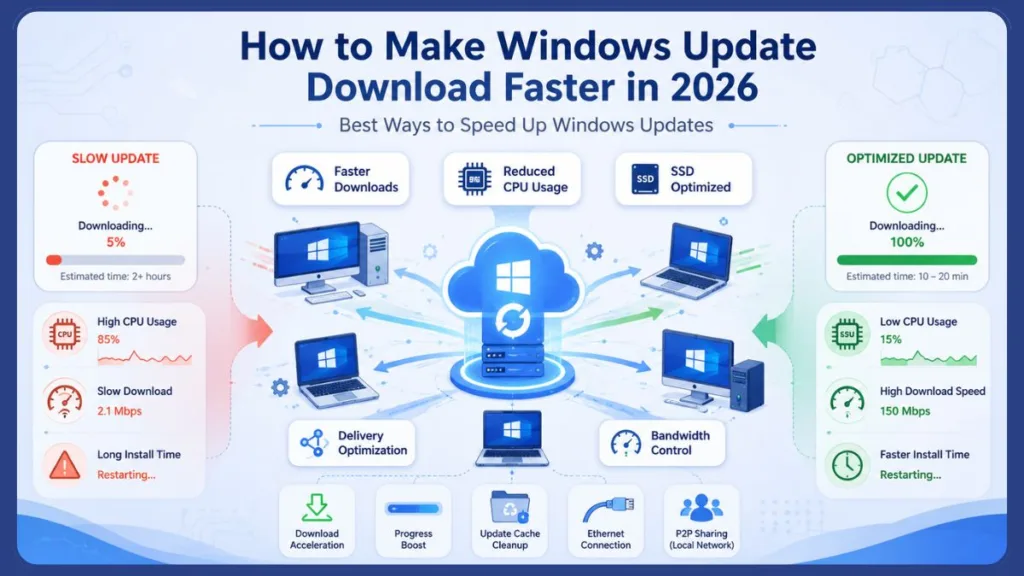
The truth is, as Microsoft adds more features, cumulative updates are only getting larger. While there is no magic button to make an update finish instantly, there are proven, practical fixes you can use right now. Whether you need a quick trick to reduce CPU load, want to force a Windows update to download faster, or are seeking advanced optimization tips for older PCs, this guide will show you how to speed up the process from start to finish.
Why Are Windows Updates Taking So Long?
If you are wondering why your PC is crawling, it comes down to the underlying architecture of how Windows delivers updates. Microsoft uses Component-Based Servicing (CBS), which packages features as small, independent modules. Over time, these modules are bundled into “Cumulative Updates.” Because these contain every past fix and new feature required for a given version, the overall size of the Latest Cumulative Update (LCU) grows massively over time.
Beyond the sheer size of the files, several other hardware and software factors throttle your update speed:
- A nearly full or fragmented hard drive: A fragmented drive forces the mechanical read/write head to work overtime to piece together the newly uncompressed update files.
- A weak or older CPU: The uncompressing and staging phases rely heavily on processor clock speed.
- Active antivirus software: Filter drivers scan every incoming file in real-time, creating a bottleneck.
- Network congestion and slow Wi-Fi: Low Mbps throughput directly extends the initial download phase.
- Background apps: Non-essential applications eat up valuable RAM and network bandwidth.
- The MoUSO Core Worker Process: This background command drains CPU power to constantly wire the underlying installation progress to the Settings UI menu.
How Long Should Windows Updates Take?
The duration of an update depends heavily on whether your PC uses an older mechanical hard drive (HDD) or a fast Solid State Drive (SSD), as well as your internet connection speed. However, here is a baseline of what you should generally expect:
| Update Type | Average Time (SSD) | Average Time (HDD) | Impact Level |
| Small Security Updates | 5 – 10 minutes | 10 – 20 minutes | Low (Background) |
| Cumulative Updates (Patch Tuesday) | 15 – 30 minutes | 45 – 60+ minutes | Medium (Requires Reboot) |
| Major Feature Updates (e.g., 23H2) | 30 – 45 minutes | 1.5 – 2+ hours | High (Full OS Upgrade) |
How Can I Make Windows Update Faster?
To significantly speed up Windows 10 updates and speed up Windows 11 updates, you have to tackle both the download phase (where network connection matters) and the installation phase (where your hardware is pushed to its limits).
Quick Summary of Best Methods:
- Close the Settings app immediately after the download starts to kill the MoUSO process.
- Switch to a wired Ethernet connection to maximize your Mbps throughput.
- Clear temporary files to free up hard drive space for uncompressed modules.
- Disable third-party startup apps and antivirus tools to free up system resources.
- Upgrade your storage from an HDD to an SSD for a permanent speed boost.
Close the Windows Update Settings Page to Reduce CPU Usage
If your update is currently installing and your computer feels like it is freezing, this is the quickest fix you can implement right now.
When you leave the Settings window open to watch the progress bar, a background task called the MoUSO Core Worker Process works in overdrive. Its entire job is to wire up what is happening under the hood to the visual UI you are looking at. This heavily hammers your CPU—especially on low-end machines. The old adage “a watched pot never boils” applies literally here.
Important Tip: If you want your computer to update faster, don’t stare at the progress bar. Let the system allocate that CPU power to the actual installation rather than rendering the UI.
Steps to Implement the UI Trick
- Go to Settings > Windows Update and click Check for updates.
- Wait until the status changes to Downloading or Installing.
- Close the Settings window completely.
- Walk away or let it run in the background. Your PC will immediately allocate that saved CPU power directly to the installation process instead of rendering the progress bar.
Can Low Disk Space Slow Down Windows Updates?
Yes, absolutely. During an update, the Windows quality update installation process goes through three major phases. During the “online stage,” Windows has to download compressed files, uncompress them, and stage them on your hard drive before rebooting.
If your system drive (usually C:) is nearly full, the system struggles to find contiguous blocks of space, causing the update to stall, take significantly longer, or fail entirely with an out-of-memory error.
How to Free Up Space for Windows Updates
- Open the Start Menu and go to Settings > System > Storage.
- Click on Temporary files to let Windows scan your drive.
- Check the boxes for unnecessary files (focusing on the Recycle Bin, old Windows update logs, and old Downloads).
- Click Remove files to instantly regain gigabytes of necessary staging space.
How Do I Fix Windows Update Download Speed?
If the progress bar is stuck on the downloading phase, your system hardware is fine—your network connection is the bottleneck. Here is how to optimize Windows update delivery.
Remove the Absolute Bandwidth Limit
Sometimes Windows secretly throttles your downloads. You can force Windows update to download faster by checking your bandwidth limits. Go to Settings > Windows Update > Advanced options > Delivery Optimization > Advanced options. Ensure that “Absolute bandwidth limit” is not artificially capping your Mbps.
Use Ethernet Instead of Wi-Fi
Wi-Fi is highly prone to packet loss, physical interference, and signal drops. Plugging your laptop or PC directly into your router with an Ethernet cable provides the absolute maximum bandwidth stability for pulling large cumulative payloads from Microsoft’s servers.
Restart Your Router and PC
Before initiating a massive update, give your hardware a fresh slate. Rebooting your modem clears ISP routing tables, and restarting your PC kills hidden background apps draining your bandwidth.
Can Internet Speed Affect Windows Updates?
Yes, but only for the initial download phase. If your baseline internet is struggling, you can optimize your connection by opening Command Prompt as Administrator and running these network flush commands to clear your DNS servers and reset your sockets:
ipconfig /flushdns(Clears the DNS cache)netsh winsock reset(Resets network sockets)netsh int tcp set global autotuninglevel=normal(Enables TCP tuning for better internet routing)netsh int tcp set global congestionprovider=ctcp(Improves network congestion handling)
What Is Delivery Optimization in Windows?
Microsoft knows that millions of people downloading massive files simultaneously strains their content delivery networks. Delivery Optimization is a built-in Windows feature that allows your PC to download update files from other PCs on your local network rather than pulling everything strictly from Microsoft.
Best Delivery Optimization Settings for Faster Updates
If you have multiple Windows PCs in your house (e.g., a desktop and a laptop), turning this on is a massive time-saver.
- Go to Settings > Windows Update > Advanced options.
- Click on Delivery Optimization.
- Turn it On, but strictly select Devices on my local network. This allows your laptop to pull the update files directly from your already-updated desktop PC over your fast home Wi-Fi router, bypassing the internet entirely.
Does SSD Improve Windows Update Speed?
Yes. In fact, hardware optimization is the single most important factor for overall update speed.
Why HDDs Make Windows Updates Feel Slower
During the Shutdown and Reboot phases, Windows is actively writing hundreds of thousands of tiny component files to your drive. A traditional mechanical hard drive (HDD) relies on a physical spinning disk and a moving arm that simply cannot write files fast enough. Internal research testing by Microsoft has shown that upgrading your main Windows drive from an HDD to a fast Solid State Drive (SSD) reduces Windows installation time by up to 6x. If your laptop still uses an HDD, upgrading to an SSD will permanently solve your slow update issues.
The Best SSDs in 2026 to Speed Up Your PC
If you want to drastically cut down your update times and completely eliminate mechanical bottlenecks, upgrading your drive is the ultimate solution. For 2026, the shift to blazing-fast PCIe Gen 5 and highly optimized Gen 4 SSDs makes a massive difference:
- Best Overall for 2026: WD_Black SN8100 NVMe SSD – The current speed champion of 2026. This PCIe 5.0 drive delivers an absolutely mind-blowing sequential read speed of up to 14,900 MB/s, uncompressing huge cumulative updates in a fraction of the usual time.
- Best High-End Alternative: Samsung 9100 PRO – Launched in early 2025/2026, this flagship PCIe Gen 5 SSD pushes read speeds to 14,800 MB/s and runs remarkably cool, making it a favorite for heavy workflows and gaming.
- Best Value Upgrade (Gen 4): WD_Black SN7100 – If your motherboard doesn’t support Gen 5, this 2026 refresh of the classic Gen 4 lineup is incredibly power-efficient and perfect for giving older laptops a massive speed boost on a budget.
Can Antivirus Software Slow Windows Updates?
Yes. Antivirus programs utilize “file system filter drivers” to intercept and scan every single file that is written to your hard drive.
When Windows is trying to install thousands of small, safe component modules during an update, a third-party antivirus will attempt to scan each one in real-time. Simultaneously running a 3rd party antivirus alongside Microsoft Defender creates a massive traffic jam that spikes disk usage and CPU load, drastically prolonging the update time.
Should You Disable Antivirus During Updates?
Windows Defender is built to handle Windows Updates natively and safely. However, if you run an aggressive third-party antivirus suite, temporarily disabling its real-time protection shield during a major feature update can drastically reduce installation times.
Important Tip: If you disable your third-party antivirus to speed up an update, remember to turn it back on immediately after your PC reboots to stay protected.
Should I Disable Startup Apps Before Updating Windows?
Yes. Applications like Spotify, Discord, Steam, and Adobe Creative Cloud often launch silently in the background as soon as you boot up. These apps consume valuable RAM, CPU cycles, and network bandwidth that the Windows Update engine desperately needs to unpack files.
How to Disable Startup Apps in Windows
- Right-click the Taskbar (or press Ctrl+Shift+Esc) and select Task Manager.
- Navigate to the Startup apps tab (the speedometer icon on the left sidebar).
- Right-click any heavy, non-essential applications and select Disable. This prevents them from fighting Windows Update for system resources on your next reboot.
How Do I Clear Windows Update Cache?
If an update is downloading at a snail’s pace, stuck at a specific percentage, or constantly throwing error codes, the downloaded files might be corrupted. Clearing the update cache forces Windows to delete the bad files and start fresh.
Stop the Windows Update Service
Open the Start menu, type Services, and hit Enter. Scroll down to Windows Update, right-click it, and select Stop. This is required to unlock the files.
Delete the Cache Files
Open File Explorer and navigate to C:\Windows\SoftwareDistribution\Download. Highlight everything inside this folder and delete it.
Restart the Service
Go back to the Services window, right-click Windows Update, and select Start so your PC can check for fresh updates.
How Do I Reset Windows Update Components?
If clearing the cache does not work, the update engine itself—including the Background Intelligent Transfer Service (BITS)—might be glitched. You can completely reset these components using Command Prompt.
Stop Background Services
Open Command Prompt as Administrator. Run these commands one by one, pressing Enter after each:
net stop wuauserv(Stops the main update service)net stop cryptSvc(Stops cryptographic services used for file verification)net stop bits(Stops Background Intelligent Transfer Service)net stop msiserver(Stops the Windows installer)
Restart the Services
Wait a moment for the services to fully shut down, then restart them by running:
net start wuauservnet start cryptSvcnet start bitsnet start msiserver
How Do I Stop Windows Update From Slowing My PC?
The most common frustration is Windows deciding to download and install updates in the background while you are actively trying to work or game, causing massive FPS drops and system lag.
Schedule Updates During Low-Traffic Hours
Take control of when updates happen so they never disrupt your workflow. Installing updates during peak hours takes a long time and ruins performance.
- Go to Settings > Windows Update > Advanced options.
- Look for Active hours and set it to the times you normally use your PC (e.g., 8 AM to 10 PM). Windows will now only attempt to perform heavy background downloads, staging, and reboots outside of your scheduled working or gaming times.
If you absolutely cannot have your PC update right now, you can temporarily stop automatic Windows updates by clicking Pause updates in the main Windows Update menu.
Why Does Windows Update Restart Take So Long?
The restart process is known as the “Offline Phase.” During this time, your PC goes through a highly sensitive Shutdown phase where the updated plan is created and validated, followed by a Reboot phase where the system is rebooted, components are installed, and the changes are permanently committed to the registry.
Ways to Speed Up Windows Restart After Updates
Because the OS is locked down during an offline reboot, there are no software commands or interface tricks you can run to speed this up. The speed of the restart phase is entirely dictated by your CPU clock speed (which is the primary bottleneck here) and your storage drive’s write speeds. Ensure you have removed any external USB flash drives, as the motherboard BIOS sometimes wastes time checking them during reboot cycles.
How to Fix a Stuck Windows Update
Sometimes the update isn’t just slow—it is completely frozen. Here is how to diagnose the stall.
Why is Windows Update stuck at 100%?
If your screen says “Downloading – 100%”, do not panic and do not hard-reset your PC. This usually means the network download is finished, and the Servicing Stack is quietly unpacking the files and validating the component packages in the background before it triggers the installation UI. Give it at least 30 to 45 minutes before assuming it is broken.
How do I fix Windows Update stuck on checking for updates?
If the engine just spins endlessly on “Checking for updates,” restart your PC, ensure your internet connection is stable, and run the built-in troubleshooter. Go to Settings > System > Troubleshoot > Other troubleshooters, and click Run next to Windows Update.
Advanced Tip: If your system is hopelessly stuck, you can bypass the built-in engine entirely by using the offline Windows updater tool (the Microsoft Update Catalog website) to manually download and install the exact patch you need. Just note that offline scans via the Windows Update Agent (WUA) require your system memory to be 8GB or higher to parse metadata without crashing.
Is It Safe to Pause Windows Updates?
Yes, it is entirely safe to pause updates temporarily. If you are on a slow, metered Wi-Fi network, traveling, or just need your PC to perform flawlessly for a major work project, you can go to Settings > Windows Update and select Pause updates for 1 week (you can extend this up to 35 days).
However, do not ignore them forever. Delaying cumulative updates and security patches for months at a time leaves your PC highly vulnerable to zero-day security exploits, malware, and bugs that have already been publicly documented.
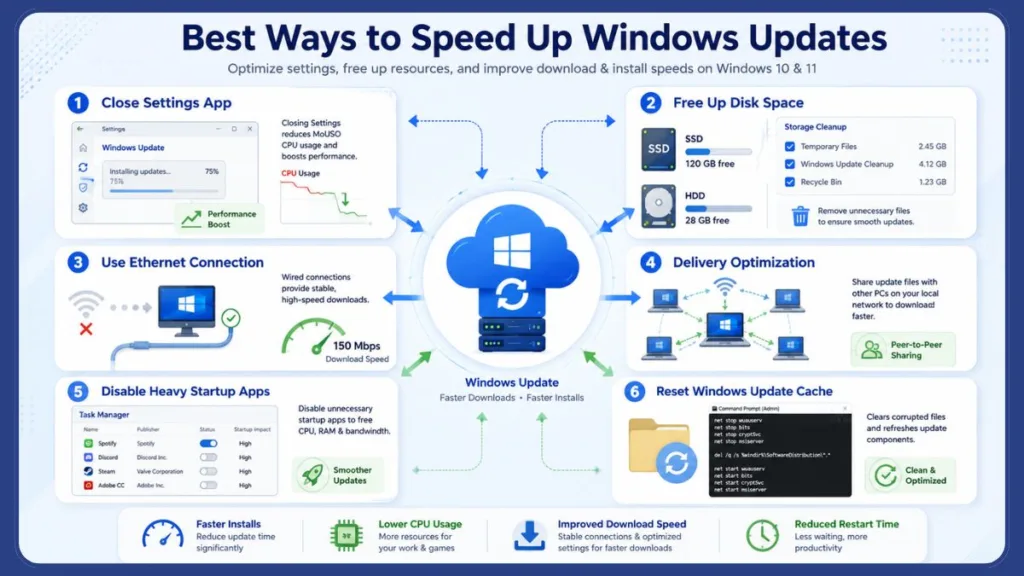
Best Ways to Speed Up Windows Updates on Low-End PCs
If you are running an older laptop or a budget PC, you do not have the luxury of excess CPU power. Prioritize these three things to keep your machine alive during patch days:
- Never watch the screen: Close the Settings app immediately to kill the MoUSO process and save vital CPU cycles.
- Keep your drive clean: Low-end PCs usually have smaller drives. Keep at least 20GB of space totally free so Windows has the contiguous room it needs to breathe and unpack modules.
- Upgrade to an SSD: If your old laptop still relies on a mechanical hard drive, swapping it for a cheap SSD is the most impactful hardware optimization you can make. It will make the entire computer, including monthly updates, feel brand new.
Final Thoughts
At the end of the day, Windows updates are a heavy, resource-intensive task necessary for the security and stability of your system. Most users do not need to run advanced command-line tweaks or manually adjust their CPU clock speeds.
By simply cleaning up your storage, closing the Settings UI, leveraging local Delivery Optimization, and ensuring you are running Windows on an SSD, you can drastically reduce the time you spend staring at a spinning loading wheel. Windows updates will never be “instant,” but with these optimizations, they don’t have to ruin your night.
FAQ
Why are Windows updates taking so long?
Updates take a long time because they contain massive, uncompressed cumulative files. Speed is often bottlenecked by older CPUs, slow mechanical hard drives (HDDs), or congested internet connections.
How can I make Windows Update faster?
Switch to a wired Ethernet connection to boost Mbps, clear temporary storage files, disable third-party antivirus software during the update, and close the Settings app to save CPU power.
How do I fix a slow Windows Update?
Run the Windows Update Troubleshooter, clear the SoftwareDistribution cache folder, and ensure your C: drive has at least 20GB of free space to unpack the files.
Why is Windows 11 update so slow?
Windows 11 updates are large, feature-heavy packages. They require significant processor power to unpack and install, which can overwhelm older hardware or PCs with less than 8GB of RAM.
How long should Windows updates take?
Minor security patches take 5–15 minutes. Monthly cumulative updates take 15–30 minutes on an SSD. Major feature overhauls can take over an hour.
Can low disk space slow down Windows updates?
Yes. Windows needs ample free space to download, uncompress, and stage the files. If your drive is nearly full, the update will stall or fail completely.
Does SSD improve Windows Update speed?
Yes, massively. Upgrading from a mechanical hard drive (HDD) to a Solid State Drive (SSD) can reduce update installation times by up to 6x.
How do I clear Windows Update cache?
Stop the Windows Update service via the Services app, navigate to C:\Windows\SoftwareDistribution\Download, delete all contents, and restart the service.
Why is Windows Update stuck at 100%?
This usually means the initial download has finished, but Windows is aggressively unpacking and staging the files in the background before updating the UI. Give it 30 to 45 minutes.
How do I reset Windows Update components?
Open Command Prompt as Administrator and run commands to stop the wuauserv, cryptSvc, bits, and msiserver services, then restart them sequentially.
Can internet speed affect Windows updates?
Yes, but only during the initial download phase. Once the files are successfully downloaded to your drive, internet speed has no impact on how fast the update installs.
How do I stop Windows Update from slowing my PC?
Go to Settings and set your “Active hours.” Windows will only perform heavy background downloads, staging, and restarts outside of your scheduled working or gaming times.
What is Delivery Optimization in Windows?
It is a built-in feature that allows your PC to download update files much faster by pulling them from other updated computers on your local home network instead of the internet.
Why does Windows Update restart take so long?
During an offline restart, the OS is locked down while the CPU and hard drive write hundreds of core system files. This phase relies entirely on hardware processing speed.
How do I fix Windows Update download speed?
Use an Ethernet cable, restart your router, turn on Delivery Optimization for local networks, verify you have no absolute bandwidth limit set, and flush your DNS via Command Prompt.
Should I disable startup apps before updating Windows?
Yes. Heavy background apps consume RAM and CPU cycles that the Component-Based Servicing engine desperately needs to unpack and install files quickly.
How do I free up space for Windows updates?
Navigate to Settings > System > Storage, click on Temporary Files, and safely delete old Windows logs, the Recycle Bin, and unnecessary downloads.
Can antivirus software slow Windows updates?
Yes. Third-party antivirus programs often attempt to scan every individual update file as it is being written, creating massive CPU and disk bottlenecks.
How do I fix Windows Update stuck on checking for updates?
Restart your PC, ensure your internet connection is stable, and run the built-in Windows Update Troubleshooter from the Settings menu to resolve the loop.
Is it safe to pause Windows updates?
Yes, you can safely pause updates for up to 35 days if you need system stability for a major project. However, delaying indefinitely leaves your PC open to documented security threats.
Useful Official Resources for Speeding Up Windows Updates
If you want reliable, Microsoft-backed information about troubleshooting and optimizing Windows Update, the following official resources are worth reviewing. They cover how to free up space, manually download patches, configure delivery settings, and diagnose complex update errors safely.
Free Up Drive Space in Windows – Official Support Guide: Microsoft’s general cleanup guide that covers how to safely remove temporary files, use Storage Sense, and clear old system files to ensure you have enough contiguous staging room for massive cumulative updates.
Windows Update Delivery Optimization and Privacy – Official Overview: An official explanation of how peer-to-peer downloading works on local networks. Microsoft clearly details how to configure this feature to save bandwidth and explains how these file transfers are kept secure and authenticated.
The Microsoft Update Catalog – Direct Download Portal: Microsoft’s official database where you can completely bypass a broken or frozen built-in downloader. It allows you to search for your specific patch number (like KB5083769) and manually download and install the standalone update file.
Guidance for Troubleshooting Windows Update Issues – Advanced IT Documentation: Technical documentation outlining advanced command-line fixes. It covers how to properly reset the BITS and Cryptographic services, as well as how to use DISM tools to repair corrupted component stores if clearing the cache fails.
Windows Update Troubleshooter – Diagnostic Tool Guide: A user-friendly guide covering how to deploy the built-in diagnostic tool when your system endlessly says ‘Checking for updates,’ helping you automatically detect and resolve common update loop errors.
Visit Our Post Page: Blog Page
Discover more from Izoate
Subscribe to get the latest posts sent to your email.