
Stop uploading private photos to shady servers! Learn how to batch convert HEIC to JPG locally in your browser. Fast, free, and secure with no quality loss.
You just transferred a batch of photos from your iPhone to your Windows PC. You open the folder, ready to edit or share them, and instead of thumbnails, you’re greeted by a sea of blank white icons ending in .heic. Nothing opens them natively.
Apple’s High-Efficiency Image Container (HEIC) format is brilliant for saving storage space on your phone, but it is notoriously frustrating for compatibility outside the Apple ecosystem.
If you’re like most people, your first instinct is to Google “HEIC to JPG converter” and click the first result. But hold on—do you really want to upload your personal, family, or sensitive photos to a random third-party server?
Luckily, you don’t have to. You can convert HEIC to JPG locally, right inside your web browser, without ever uploading a single file to the cloud.
Why You Shouldn’t Upload Your Photos to Cloud Converters
If you browse tech forums and communities, you’ll quickly notice a massive shift away from traditional cloud-based file converters. Users are fed up with them for three main reasons:
- Massive Privacy Risks: When you use a standard cloud converter, you are actively uploading your images to a remote server. You have zero guarantee that those photos are actually deleted after conversion. For sensitive documents or personal photos, this is a major security risk.
- Brutal Wait Times: Uploading 50 high-resolution iPhone photos to a server, waiting for the site to process them, and then downloading the whole batch back to your hard drive takes forever.
- Hidden Paywalls & Limits: Most “free” online converters will throttle your speed, hit you with a ton of ads, or cap you at 5 to 10 images before demanding a premium subscription.
How “Local” In-Browser Conversion Works
The safest HEIC to JPEG converters don’t actually function as traditional websites. Instead, they operate entirely on your machine.
Modern web browsers (like Chrome, Edge, or Firefox) are incredibly powerful. Using WebAssembly and JavaScript, developers have created websites that load a conversion tool directly into your browser tab.
When you drag and drop your photos onto these specific sites, the files never leave your computer. Your browser’s own computing power does the heavy lifting locally. It’s instant, 100% private, and once the webpage is loaded, it can even work if you disconnect from the internet.
The Best Tools to Convert HEIC to JPG Locally
If you want a secure HEIC to JPG converter, you need to look for sites specifically built for client-side (local) processing.
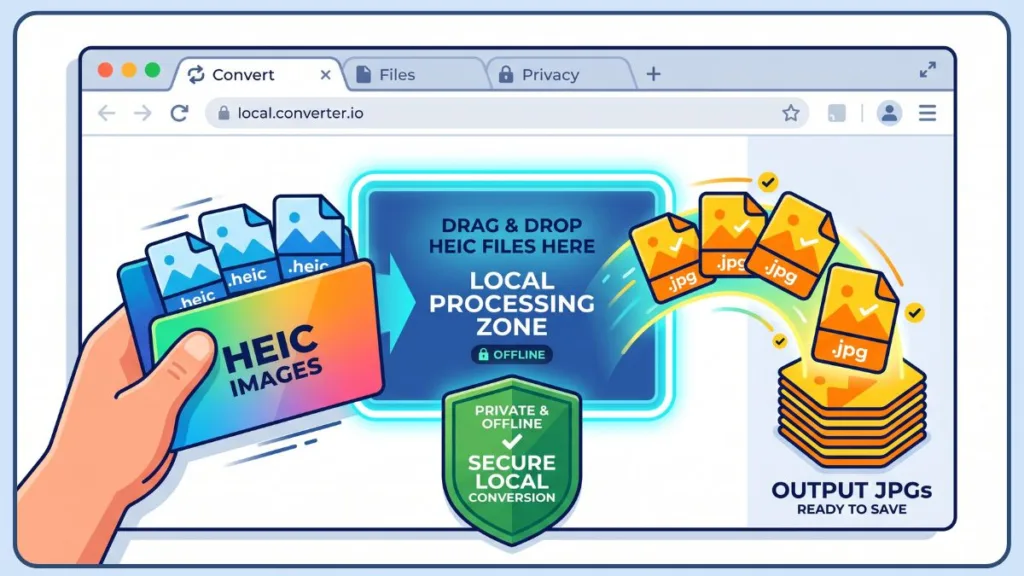
Community favorites that process files locally include tools like Warpbin, SafeHEICtoJPEG, and Inchtool.
Here is the standard workflow for these privacy-first tools:
- Open the tool(Warpbin) in your browser.
- Drag and drop your
.heicfiles directly onto the page. - Watch as the browser instantly processes them (usually in milliseconds per photo).
- Save the new
.jpgfiles straight to your hard drive.
The Biggest Headache: How to Batch Convert Without Going Crazy
If there is one thing that infuriates users more than the HEIC format itself, it’s bad batch processing.
Nobody wants to click “Accept” or “Download” 100 individual times to process 100 photos. When choosing a local browser tool, look for the ones that offer a “Download All as ZIP” button. This takes all your newly converted local files, packages them into a single, neat folder, and saves them to your PC in one click.
Alternative Secure Methods (No Browser Needed)
If you have hundreds of gigabytes of photos to process and don’t want to use a web browser at all, tech-savvy users recommend a few offline desktop alternatives:
- The Windows Native Fix: You can purchase the official HEVC Video Extensions (around $0.99) and download the free HEIF Image Extensions from the Microsoft Store. This allows the native Windows Photos app to finally view HEIC files and export them.
- Open Source Software: For developers or power users, there are open-source tools on GitHub (like
OpenSource-HEICtoJPEG) that allow for heavy-duty, offline batching without any bloatware. - Dedicated Lightweight Software: Programs like CopyTrans HEIC for Windows allow you to right-click an image on your desktop and convert it instantly without opening an app.
Bonus Tip: Stop the Madness (Fix Your iPhone Settings)
Why constantly look for ways to batch convert HEIC to JPG in your browser when you can just stop the problem at the source?
If you are tired of dealing with compatibility issues and don’t mind your photos taking up slightly more storage space, you can force your iPhone to shoot in JPG natively.
How to change the default setting:
- Open your iPhone Settings.
- Scroll down and tap on Camera.
- Tap Formats.
- Change the selection from High Efficiency to Most Compatible.
From now on, every photo you take will automatically save as a universally accepted JPG.
FAQ
What is a HEIC file and why does iPhone use it?
HEIC stands for High Efficiency Image Container. Apple adopted it with iOS 11 because it uses advanced compression to keep file sizes about 50% smaller than JPEGs without sacrificing image quality. It’s the reason you can store thousands of photos on your phone without running out of space instantly.
Is HEIC better than JPG?
Technically, yes. HEIC supports 16-bit color (compared to JPG’s 8-bit) and handles transparency and image sequences (like Live Photos) much better. However, in terms of compatibility, JPG wins every time. If you aren’t worried about storage space, JPG is often easier to live with.
Why can’t Windows open my HEIC photos?
Windows lacks a native HEIC decoder. Microsoft treats it as an “optional” feature. Unless you have specific codecs installed from the Microsoft Store, Windows simply doesn’t know how to read the data inside the container.
How do I convert HEIC to JPG on Windows 10 or 11?
You have two main options:
- The Browser Method: Use a local-processing tool (like Warpbin or SafeHEICtoJPEG) as described above.
- The Native Method: Download the “HEIF Image Extensions” from the Microsoft Store. Once installed, the Windows Photos app can open and “Save As” JPEG.
How do I convert HEIC to JPG on a Mac for free?
Mac users have it easiest. Open your images in the Preview app, go to File > Export, and select JPEG from the format dropdown. You can even do this for multiple images at once by selecting them all in Finder first.
How do I batch convert multiple HEIC files to JPG at once?
For the browser method, look for tools that offer a “Download All as ZIP” button. For desktop users, Adobe Photoshop has an “Image Processor” script that can turn an entire folder of HEIC files into JPEGs in seconds.
How do I convert HEIC to JPG on Android?
Most modern Android phones can open HEIC files automatically. To convert them, you can use the Google Photos app—just open the photo, hit the three-dot menu, and select “Download” or “Save as copy,” which usually defaults to JPG.
Can I convert HEIC to JPG on iPhone without a computer?
Yes! Open the Files app, copy your HEIC photos, and paste them into a new folder. iOS often converts them to JPG automatically during the “Paste” process. Alternatively, use a “Shortcuts” automation to batch-convert images directly in your photo library.
Can I convert HEIC to JPG without losing quality?
Technically, no. JPG is a “lossy” format, meaning some data is discarded to save space. However, if you set the quality slider to 95% or higher, the difference is invisible to the human eye.
Does converting HEIC to JPG reduce image quality?
In a side-by-side comparison at 100% zoom, you might notice very slight artifacts in the JPG version, especially in high-contrast areas. For 99% of users (printing, social media, or viewing on a screen), the quality loss is negligible.
What is the best free HEIC to JPG converter online?
The “best” one is any tool that processes files locally. Avoid sites that show an “Uploading…” progress bar. Look for tools recommended in tech communities (like Warpbin or heictojpg.com) that prioritize privacy and local processing.
How do I change my iPhone camera to stop saving in HEIC format?
To avoid this headache entirely:
- Go to Settings > Camera.
- Tap Formats.
- Select Most Compatible. Now, your iPhone will save every new photo as a JPEG natively.
Visit Our Post Page: Blog Page
Discover more from Izoate
Subscribe to get the latest posts sent to your email.