
iPhone photo rejected for size or format? Convert HEIC to JPG under 1 MB with HeicShift, adjust quality, and resize only if needed.
Trying to upload an iPhone photo, only to see a “file too large” or “unsupported format” error? Converting your HEIC photo to JPG can solve the format problem, but your new JPG might still exceed the website’s 1 MB upload limit.
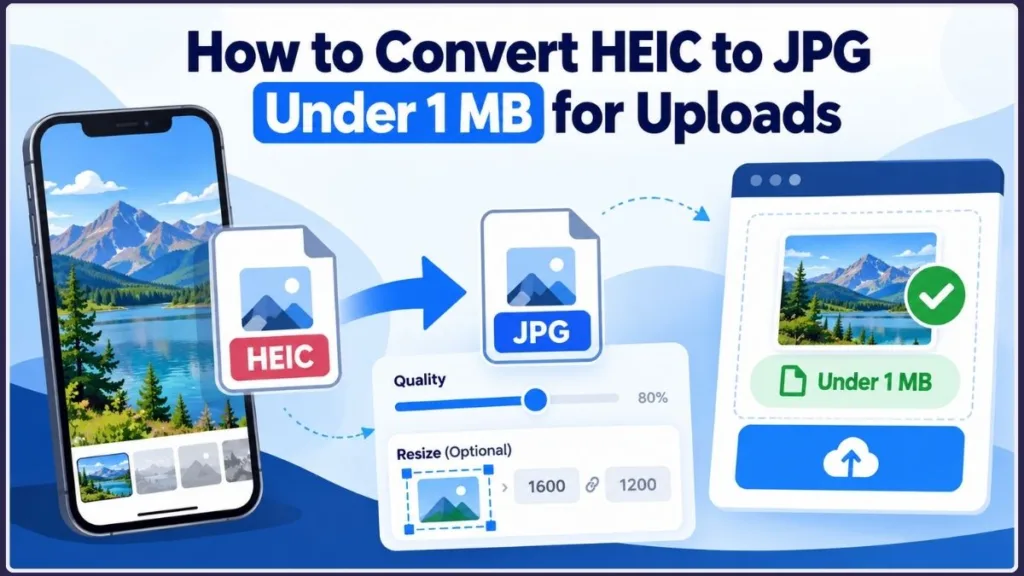
The key is to fix the specific restriction without making your photo unnecessarily blurry. You may need to change the format, reduce JPEG quality, resize the image, or combine these steps.
With HeicShift’s HEIC to JPG converter, you can convert photos in your browser, set a target file size, adjust image quality, and optionally reduce dimensions.
Quick answer: Open HeicShift, add your HEIC photo, select JPG, and choose a 1 MB target file size. Convert the image, then check the actual output size. If it remains too large, adjust the compression settings or enable resizing. Before uploading, confirm that the file meets the destination’s format, size, and dimension requirements.
Tip: For a strict 1 MB upload limit, consider targeting around 900 KB to leave a small margin. This is a practical precaution, not a guarantee of acceptance; the receiving website’s requirements always take precedence.
How to Convert HEIC to JPG Under 1 MB Using HeicShift
Follow these steps to create an upload-ready JPG without sacrificing more image quality than necessary.
Step 1: Open the HEIC to JPG Converter
Visit HeicShift in a modern, compatible browser.
The tool supports HEIC/HEIF images and lets you choose JPG, JPEG, PNG, or WebP output. For this task, select JPG because the goal is to prepare a conventional photograph for an upload form that accepts that format.
You do not need to install a separate desktop conversion application or create an account.
Step 2: Add Your HEIC Photo
Drag your HEIC image into the upload area or select it using your device’s file picker.
Before converting, note the original file size and keep the original image available. This gives you a reference for checking the result and lets you try different settings without repeatedly compressing the same JPG.
If you are preparing a passport photo, profile picture, application image, or product photograph, start with one file so you can inspect its output before processing more images.
Step 3: Select JPG as the Output Format
Choose JPG from the output-format selector.
JPG and JPEG are two filename extensions for the same image format. Choosing .jpeg instead of .jpg does not reduce file size or improve image quality.
If the receiving website specifically requires JPG, do not choose PNG or WebP simply because another format produces a smaller file.
Step 4: Set the Target File Size to 1 MB
Open the Target file size setting and select 1 MB or enter a custom target where available.
HeicShift attempts to approach the requested size by adjusting compression quality. Its current converter does not reduce quality below a 45% quality floor.
If compression alone cannot reach the target, enable the option to reduce the image dimensions as well.
Remember that the target is an optimization goal, not a guarantee. Some images cannot reach the requested size within the available quality range.
Step 5: Convert the Photo and Check the Result
Start the conversion and wait for the image to finish processing. Download the resulting JPG.
Before uploading it, verify four things:
- File format: The downloaded image is JPG/JPEG.
- File size: The actual output is below the receiving website’s limit.
- Image dimensions: The width and height satisfy any pixel requirements.
- Visual quality: Faces, text, logos, and other important details remain clear.
If all four checks pass, your file is ready to upload.
If the image still exceeds the limit, do not immediately select the lowest quality setting. Follow the troubleshooting steps below to determine whether compression or resizing is the better solution.
Why Your Converted JPG Is Still Larger Than 1 MB
Converting a photo changes its format, but it does not automatically guarantee a smaller file. Understanding why the image remains too large helps you choose the right fix.
1. HEIC Can Be Smaller Than JPG
HEIC is designed to store photographs efficiently. At comparable visual quality, it can use less storage than JPEG.
Suppose your original HEIC file is 1.2 MB, but the converted JPG is 1.5 MB. This hypothetical result does not necessarily indicate a failed conversion. The JPG may need more data to represent the image at the selected quality.
How to fix it: Use HeicShift’s target-size setting to adjust compression. If the image cannot reach 1 MB without unacceptable quality loss, consider resizing it.
If the upload destination already accepts HEIC and has no other restrictions, you may not need to convert it at all.
2. The JPEG Quality Is Too High for the Required Size
Higher JPEG quality usually means retaining more image detail, which can produce a larger file. Reducing quality can help, but excessive compression may make an image look blurry or introduce visible artifacts.
HeicShift provides three quality presets:
- Smaller File: Prioritizes a lower output size.
- Balanced: Offers a compromise between size and appearance.
- High Quality: Prioritizes retaining more visual detail.
The Balanced preset uses a 92% quality setting in the converter’s current configuration. This is a useful starting point for ordinary photographs, but it does not guarantee a particular file size.
How to fix it: Start with Balanced quality and inspect the result. If the JPG is too large, lower the quality gradually or use the target-size control.
Best practice: Compare the converted image with the original at the same zoom level. Check fine details such as hair, foliage, patterned clothing, and small text. If compression makes these details difficult to see, try resizing moderately instead of lowering quality further.
3. The Image Dimensions Are Too Large
File size and pixel dimensions are different measurements. Compression reduces the data used to store an image, while resizing reduces the number of pixels.
For example, an iPhone photograph measuring 4032 × 3024 pixels contains approximately 12.2 million pixels. If an upload form accepts images no wider than 1600 pixels, reducing JPEG quality will not solve the dimension problem.
How to fix it: Enable resizing and choose suitable dimensions. HeicShift provides maximum-dimension presets of 2560 px, 1920 px, and 1280 px, as well as custom width and height settings.
If your destination allows a maximum width of 1600 pixels, you could resize the example photograph proportionally to 1600 × 1200 pixels. This reduces its pixel count by approximately 84%.
That does not mean the file size will fall by 84%. The final size still depends on the photograph’s detail and compression settings.
Keep the aspect ratio enabled to avoid stretching the image, and do not reduce dimensions more than necessary.
How to Reduce HEIC to JPG File Size Without Making It Blurry
The best setting depends on the photograph and what you need it for. A profile picture, a document photograph, and an e-commerce product image do not necessarily need the same compression settings.
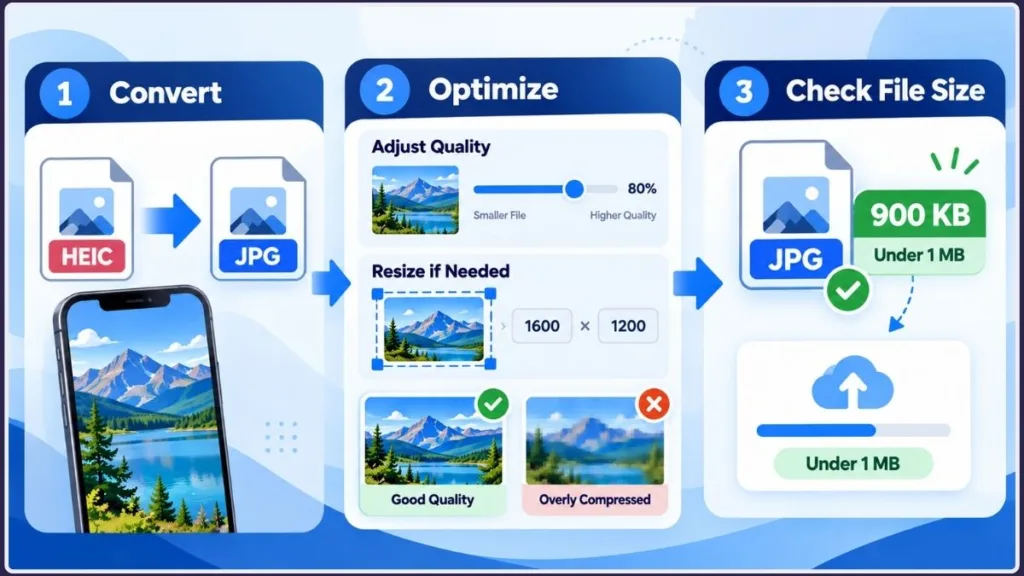
Use the following decision sequence:
- Start with Balanced quality. Check whether the JPG meets the upload requirement.
- Reduce quality gradually if the file remains too large and the image still looks good.
- Enable resizing if compression is insufficient or the website specifies maximum dimensions.
- Return to the original HEIC if the result becomes visibly blurry.
- Check the final JPG again before submitting it.
Do not repeatedly compress an already compressed JPG. JPEG compression is lossy, and repeated saving can introduce additional quality degradation.
Practical Example: An Online Application Rejects Your Photo
Suppose you need to upload a photograph to an application website with a maximum file size of 1 MB.
Your original HEIC image is accepted by your phone but rejected by the website. You convert it to JPG, only to find that the new file is still too large.
Here is the practical approach:
- Convert the original HEIC to JPG.
- Set a target file size of 1 MB.
- If the result remains too large, reduce quality modestly.
- If the image is still oversized, enable resizing and choose dimensions that meet the application’s requirements.
- Open the final image and confirm that it is clear enough for the application.
If the image becomes too blurry before reaching the limit, return to the original HEIC and try a different combination of quality and dimensions.
This is an illustrative workflow, not a measured conversion benchmark. The actual result depends on the photograph and the destination’s restrictions.
What If the JPG Still Cannot Reach 1 MB?
HeicShift stops lowering compression quality at its configured 45% floor. If the file remains too large at that point, repeatedly retrying the same settings will not solve the problem.
Instead, choose the next step based on the restriction:
| Situation | What to do |
|---|---|
| The file is slightly too large | Adjust quality or use a custom target. |
| The file is significantly too large | Enable resizing and select appropriate dimensions. |
| The website also limits pixel dimensions | Follow those requirements when resizing. |
| The image becomes blurry before reaching the target | Return to the original HEIC and try a different combination. |
| Neither compression nor reasonable resizing works | Check whether the website permits a different format, larger file, or alternative submission method. |
Do not assume every photograph can be reduced below 1 MB at an acceptable quality. The result depends on the source image, and the destination may impose additional restrictions.
How to Meet a Strict 1 MB Upload Limit
There is another detail worth checking: what does the receiving website mean by “1 MB”?
A decimal megabyte is 1,000,000 bytes, while a mebibyte is 1,048,576 bytes. Some systems also round the displayed file size.
As a result, a file that appears to be 1 MB may still exceed a strict upload threshold.
To reduce the chance of rejection:
- Check the website’s exact size limit and accepted formats.
- Set a target below the maximum when practical.
- Convert the image and inspect the actual output size.
- Check the image dimensions if the site specifies them.
- Upload the verified JPG rather than the original HEIC.
A target of around 900 KB offers a useful margin for a nominal 1 MB limit, but the receiving service’s precise requirements should always guide your final choice.
Why Is My JPG Rejected Even Though It Is Under 1 MB?
If the converted image meets the size limit but the website still rejects it, file size may not be the actual problem.
| Problem | Likely reason | Solution |
|---|---|---|
| The website says the format is unsupported | The output format does not match its requirements | Confirm the accepted file extensions and convert again if necessary. |
| The JPG exceeds the size limit | Compression was insufficient | Adjust quality or enable resizing. |
| The image is small enough but still rejected | The dimensions or another upload requirement is not satisfied | Check the maximum width, height, and other form instructions. |
| The image looks blurry | Compression or resizing removed too much detail | Increase quality or retain more pixels. |
| The converter cannot read the file | The source might be damaged, incomplete, or incorrectly identified | Open the original in a compatible viewer and re-download or transfer it if necessary. |
| Conversion fails on a phone | Browser support or available memory may be limited | Update the browser, close unnecessary tabs, or try a smaller batch. |
| The wrong image was uploaded | The original and converted versions were confused | Check the downloaded file’s name, extension, size, and preview before submitting it. |
What If HeicShift Does Not Work in Your Browser?
HeicShift requires browser support for Web Workers and WebAssembly. If the tool reports that these features are unavailable, try a recent version of Chrome, Edge, Firefox, or Safari.
Large, high-resolution photos may also use considerable memory. If the browser slows down or becomes unresponsive, close unnecessary tabs and process fewer images at a time.
The converter supports files up to 50 MB each. Its stated desktop batch limit is up to 300 files or 3 GB, while the mobile limit is 100 files. These are tool limits, not a guarantee that every device can process the maximum batch size safely.
Can You Convert HEIC to JPG Without Installing an App?
Yes. HeicShift runs in a compatible browser and does not require a separate desktop conversion application or an account.
The tool states that photos are processed in your browser and are not uploaded to its conversion server. This can be useful when preparing personal photographs, application images, or files that you would prefer to process locally.
Browser-based conversion is not the same as a blanket guarantee about every aspect of website security: your browser still loads the webpage and its resources.
For a photo you plan to share publicly, consider whether you need to retain location metadata. HeicShift lets you control whether supported date and camera details are preserved in JPG/JPEG output, while GPS information is removed unless you enable the location option.
If you need to preserve every original detail, keep the source HEIC file. A converted JPG may not retain all the original image data or metadata.
How to Prevent Future HEIC Upload Problems on iPhone
If you frequently encounter websites that do not accept HEIC, you can change how your iPhone saves future photos.
- Open Settings.
- Tap Camera.
- Select Formats.
- Choose Most Compatible.
Apple explains that, on supported devices, this setting makes new photos use JPEG and videos use H.264. See Apple’s official guidance on HEIF and HEVC media.
This setting prevents some future compatibility issues, but it does not convert existing HEIC images or guarantee that a photograph will be under 1 MB.
JPEG files may also use more storage than HEIC at comparable visual quality. Choose Most Compatible if file compatibility matters more than maximizing storage efficiency.
Frequently Asked Questions About Converting HEIC to JPG Under 1 MB
Can I convert HEIC to JPG under 1 MB for free?
Yes. You can use HeicShift to convert HEIC photos to JPG in your browser without creating an account. Select a target file size and check the actual output before uploading it.
Does converting HEIC to JPG automatically reduce file size?
No. HEIC can compress photographs more efficiently than JPEG, so the resulting JPG may be larger than the original. Adjusting compression quality or resizing the image may be necessary.
What JPG quality is best for online uploads?
Start with Balanced quality and inspect the result. Lower quality gradually if the file is too large. If important details become blurry, try resizing the image instead. No single quality setting guarantees the same file size for every photograph.
Can I make a photo smaller than 1 MB without resizing it?
Sometimes. Adjusting JPEG quality may be sufficient. If the file remains too large at the converter’s quality floor, you may need to reduce its dimensions or check whether the destination accepts a larger file.
Is JPG the same as JPEG?
Yes. JPG and JPEG are two filename extensions for the same image format. Changing the extension alone does not convert the image or reduce its size.
Can I convert multiple HEIC photos to JPG at once?
Yes. HeicShift supports batch conversion, and compatible desktop browsers can import folders. You can download converted images individually or collect them in a ZIP archive.
For a large collection, test a few representative images first and verify the output before processing the remaining files.
Can I convert HEIC to JPG on Windows, Mac, Android, and iPhone?
Yes, provided you use a compatible modern browser that supports the features required by HeicShift, including Web Workers and WebAssembly. Performance depends on the device, browser, image dimensions, and number of files being processed.
Will my JPG keep the date and GPS location?
HeicShift provides controls for supported metadata in JPG/JPEG output. Date and camera details can be retained, while GPS information is removed unless you enable the location option. Metadata retention does not guarantee that every original field survives conversion.
Can I convert an iPhone Live Photo to JPG and keep its motion?
No. A standard JPG contains the main still image, not the associated Live Photo video. Keep the original Live Photo if you need to preserve its motion content.
Convert HEIC to JPG and Get Your Photo Ready to Upload
When an upload form rejects an iPhone photo, the most effective solution is to identify the restriction, convert the format, optimize the image only as much as necessary, and verify the final file.
Start with JPG conversion and a target file size of 1 MB. If the output remains too large, adjust quality or resize the image while respecting the destination’s requirements. If the photo becomes blurry, return to the original HEIC and try a different combination of settings.
Ready to prepare your photo? Open HeicShift’s HEIC to JPG converter, select your output settings, and check the final JPG’s format, file size, dimensions, and appearance before uploading it.
Visit Our Post Page: Blog Page
Discover more from Izoate
Subscribe to get the latest posts sent to your email.