
Looking to secure your Facebook account? Learn how to add Google or Microsoft Authenticator, enable two-factor authentication, and set up recovery options in 2026.
You’re scrolling through your phone when a notification stops you cold: “Someone tried to log in to your Facebook account.” Your heart skips a beat. Was it you? Who was it? And how close did they get?
That’s when many people realize that a password alone isn’t much of a lock. It’s more like a latch. Adding Facebook to an authenticator app gives your account a stronger second layer of protection, and the initial setup usually takes only a few minutes.
This guide explains how to enable two-factor authentication (2FA) on Facebook, connect your account to Google Authenticator or Microsoft Authenticator on iPhone and Android, move your codes to a new phone without getting locked out, and fix common authentication problems.
Why this matters: In April 2026, the U.S. Federal Trade Commission reported that nearly 30% of people who said they lost money to a scam in 2025 said the scam started on social media. Those reports represented $2.1 billion in reported losses, about eight times the 2020 amount. The FTC also said Facebook was the social platform associated with the largest reported scam losses in 2025. These figures describe reported social-media scams and losses—not a Facebook account-takeover rate, and not losses that all resulted from hacked accounts. They do, however, show why it is worth protecting the account scammers may use to contact you, impersonate you, or target people you know. For the underlying figures and caveats, see the FTC’s 2026 analysis of reported social-media scam losses and methodology.
Quick Answer: How to Add Facebook to an Authenticator App
To add Facebook to an authenticator app, open Facebook and go to Settings & privacy → Settings → Accounts Center or Meta Account → Password and security → Two-factor authentication. Select the Facebook account or Meta Account shown on your screen, choose Authentication app when that option is available, and follow the setup instructions. Scan Facebook’s QR code with your authenticator app or enter the setup key if Facebook provides one. Finally, enter the six-digit code generated by the app to confirm the connection. Meta announced on April 23, 2026, that Accounts Center would gradually update to Meta Account over the following year, so either name may still appear depending on the rollout. The same announcement says centralized account settings can include password and two-factor authentication.
Before you finish, save any recovery codes Facebook offers and make sure you can access your backup method. Menu labels can vary by app version or account, so look for Password and security and Two-factor authentication if your screen looks different.
Before you begin — quick checklist: Make sure you can still sign in to Facebook, you have your chosen authenticator app installed, and you can keep the setup page open while entering the first code. Do not sign out of your only active Facebook session until the new code has been accepted and you know how you would recover the account.
Why Your Facebook Password Isn’t Enough in 2026
Your Facebook account is no longer just a place to post photos. It may be connected to Marketplace listings, business Pages, advertising accounts, Messenger conversations, and the “Log in with Facebook” option on other apps. That makes it a valuable target for anyone trying to break into accounts.
Practical example: If a scammer gains control of your profile, they may not stop at changing your password. They could message friends asking for money, post fake offers, or use the account’s apparent credibility to make a scam look legitimate. If a friend unexpectedly asks for money through Messenger, verify the request through a separate channel before acting.
Fake login pages, messages claiming that your account will be disabled, and reused passwords are common ways accounts can be compromised. In each case, an attacker may start by trying to obtain your password. The FTC’s social-media scam findings add useful context: scammers may hack an account to contact its owner’s friends, create a fake profile, or use profile information to tailor a scam. This is an example of why account protection matters, but it should not be confused with proof that every social-media scam involves a stolen login.
The wider sign-in industry is also moving beyond passwords. In 2025, Meta began rolling out passkeys for Facebook on mobile devices. Passkeys let people sign in using a fingerprint, face scan, or device PIN on a compatible device. Availability can vary by account and device, so an authenticator app remains a useful option when you specifically want an app-generated second factor. A passkey is a different sign-in method, not simply another code generator. Meta says passkeys are designed to resist phishing by malicious websites and scam links.
A recent industry benchmark also illustrates the shift. In its October 15, 2026 Passkey Index, the FIDO Alliance reported that passkeys accounted for 36% of successful sign-ins in the participating services’ dataset, up from 26% in 2025. The index reported a 93% success rate for passkey sign-ins versus 78% for traditional multi-factor authentication sign-ins, and an average saving of 27 seconds per sign-in compared with sign-in without a passkey. These are aggregate results from participating providers, not Facebook-specific measurements or a guarantee for every site.
Key insight: Two-factor authentication changes the equation. Even if someone obtains your password, they still need the second factor to complete a login that requires it. An authenticator app generates codes on your device instead of sending them through the phone network as SMS messages do. This avoids risks associated with text-message delivery, including some SIM-swap attacks. However, never share an authenticator code: a scammer may still try to trick you into revealing it. The U.S. National Institute of Standards and Technology (NIST) makes an important distinction: manually entered one-time passcodes are not phishing-resistant, because a fake login page can relay a code to a real service while the code is still valid. Authenticator apps are a useful improvement over relying on a password alone, but passkeys and supported security keys provide stronger protection against phishing when available.
What Does “Adding Facebook to an Authenticator App” Mean?
When you add Facebook to an authenticator app, you connect your Facebook account to an app on your phone that generates a fresh six-digit verification code, usually every 30 seconds. Google’s and Microsoft’s support documentation describes third-party authenticator entries as one-time password codes that refresh every 30 seconds. When Facebook asks you to verify a login, open the authenticator app, find the Facebook entry, and enter the current code. The code is short-lived, so make sure the device’s date and time are accurate.
You can usually connect the account in one of two ways:
- Scan a QR code: Facebook displays a QR code during setup, and your authenticator app scans it.
- Enter a setup key: If Facebook offers a text-based setup key, you can enter or paste it into the authenticator app instead of scanning the QR code.
Security warning — protect the QR code and setup key: Treat either as a secret, not as ordinary setup information. Someone who copies the setup details may be able to generate matching codes. Do not share them in a message, upload a screenshot, or scan a QR code sent to you by someone else; use only the setup flow you opened yourself in Facebook.
A common misconception: If you have searched for “how to generate a Microsoft Authenticator QR code,” remember that the QR code used to connect Facebook comes from Facebook, not from Microsoft Authenticator. The authenticator app scans Facebook’s code to create the matching entry.
Facebook also offers other two-factor authentication methods. The right choice depends on your security needs and the options available in your account.
Choose based on your likely failure mode: If your main concern is SMS interception, an authenticator app avoids sending codes over the phone network. If your concern is a convincing fake login page, remember that manually entered authenticator codes can still be phished; consider a passkey or supported security key when available. If your concern is losing your phone, prioritize a tested recovery route and securely stored recovery codes.
Authenticator App vs. SMS vs. Security Key: Which Should You Choose?
Facebook offers several ways to add a second layer of login protection. Three common options are an authenticator app, SMS text messages, and a physical security key.
- Authenticator app (a practical choice for many users): The app generates codes on your device, typically refreshing every 30 seconds. It offers a useful balance of security and convenience compared with password-only access. Remember, though, that manually entered one-time codes can still be phished.
- SMS text message: This method is simple to set up, but messages travel through the phone network and can be exposed to risks such as number hijacking or SIM-swap attacks. NIST treats phone-network-based verification as a restricted method and advises services to consider signals such as SIM changes and number porting.
- Security key: A physical security key can provide phishing-resistant authentication when supported by the service. It may be a good choice for people protecting high-value accounts, although it is another item to buy, carry, and keep safe.
NIST’s guidance is useful when comparing the options: a six-digit authenticator code adds a second layer, but typing a code into a website does not by itself stop a convincing real-time phishing attack. Passkeys and properly supported security keys are designed to bind the authentication to the legitimate site or service, which makes them more resistant to this type of attack.
Why an authenticator app helps: The code is generated on your device using the current time, so you do not have to wait for a text message or depend on mobile reception. Keep your device’s date and time accurate, and remember that a code should never be shared with someone who contacts you unexpectedly. An app-generated code does not require internet service at the moment it is generated, but you still need internet access to complete a Facebook login. Google confirms that Google Authenticator can generate codes without an internet connection or mobile service.
Izoate 2026 update: Meta announced on April 23, 2026, that Accounts Center would gradually update to Meta Account over the following year. Meta says the day-to-day experience should stay the same, while more settings—including passwords and two-factor authentication—can be managed centrally. Depending on your app version and account, you may see Accounts Center or Meta Account, and menu wording can vary. If a step below does not match your screen, look for Password and security and Two-factor authentication. Check which account or profile the screen refers to before making changes.
How to Enable Two-Factor Authentication on Facebook
Before starting, update the Facebook app if an update is available and make sure you can log in to your account normally. If you manage a business Page, confirm that you are signed in to the personal Facebook profile that administers it.
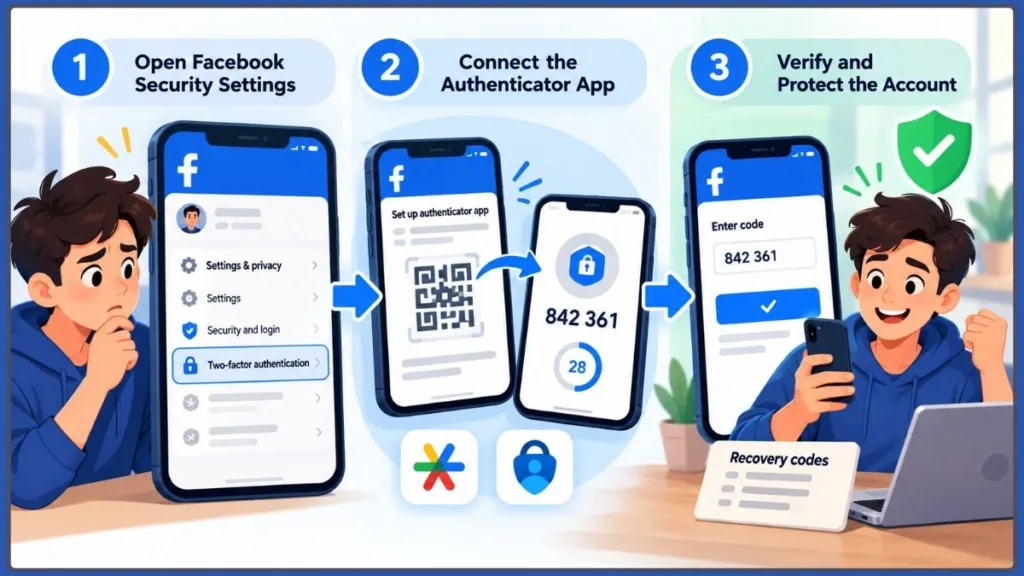
Preflight check: Before enabling 2FA, verify that you know your current password, can access the email address or phone number associated with the account, and have another logged-in device or recovery route if available. Do not start the process while already locked out; enabling a new factor is different from recovering an account that you cannot access.
Method 1: Set Up 2FA in the Facebook App on Mobile
This method works on both Android and iPhone. Menu labels can differ slightly between versions of the app.
- Open the Facebook app on your Android phone or iPhone.
- Tap Menu. Depending on your version, this may appear as your profile picture or a three-line menu icon.
- Open Settings & privacy, then select Settings.
- Open Accounts Center or Meta Account, depending on the interface shown to you.
- Select Password and security.
- Tap Two-factor authentication.
- Choose your Facebook account.
- Select Authentication app as the security method.
- Follow the on-screen prompts to connect your authenticator app. The app-specific steps appear in the sections below.
- Enter the six-digit code generated by the authenticator app to confirm the setup.
Quick tip: Accounts Center may list more than one account, such as Facebook and Instagram. If the screen asks you to choose an account, select your Facebook account before choosing an authentication method. The newer Meta Account rollout can centralize some settings across linked Meta apps, so review the account details shown and follow the interface’s own prompts rather than assuming every account uses a completely separate settings page.
Quick tip: Menu names can change after Facebook app updates. If you cannot find the exact wording above, look in Settings for Password and security or Two-factor authentication.
Method 2: Enable 2FA on Facebook Using a Desktop Browser
Setting up Facebook on a computer can make QR-code pairing easier because your phone can scan the code displayed on your computer screen.
- Open Facebook in your desktop browser and sign in.
- Click your profile picture, then select Settings & privacy and Settings.
- Open Accounts Center or Meta Account, then select Password and security.
- Select Two-factor authentication and choose your Facebook account.
- Choose Authentication app.
- When Facebook displays a QR code, scan it using your phone’s authenticator app.
- Enter the six-digit code generated by the app to finish the setup.
Quick tip: When setup is complete, save the recovery codes Facebook provides. Keep them somewhere secure, such as a password manager or a safe printed copy—not only in the photo gallery on the phone that holds your authenticator. See the recovery-code section below for more details.
What to Expect After Adding Facebook to Your Authenticator
After you enter the confirmation code, check that the setup has completed successfully. You should see the following:
- Facebook confirms that two-factor authentication is enabled for the account you selected.
- Your authenticator app displays a Facebook entry with a six-digit code that refreshes periodically.
- Facebook may offer recovery codes. Save them as soon as they are shown or make sure you can return to the recovery-code settings.
- Future logins may require an additional check. When you sign in from a browser or device Facebook does not recognize, it may ask for a login code or another confirmation in addition to your password.
Devices you have marked as trusted may not ask for a code every time. You can review trusted devices from the relevant security settings when that option is available.
What successful setup does—and does not—prove: Seeing the Facebook entry in your authenticator confirms that a code generator exists; Facebook accepting a code confirms the pairing step. Neither check proves that every active session is legitimate. Review recent sessions separately and sign out of unfamiliar devices if Facebook provides that control.
Quick tip: Do not assume the setup worked just because the Facebook entry appears in your authenticator app. Complete Facebook’s confirmation step. If you want to test your setup, use a private browser window only when you know your password and backup method are available, and do not sign out of your only accessible device until you have confirmed you can get back in.
Facebook Recovery Codes: Your Emergency Exit
Recovery codes are easy to overlook during setup, but they can be vital if your phone is lost, replaced, damaged, or unavailable.
Make recovery operational, not theoretical: Store the codes somewhere you can reach without the phone that generates your authenticator codes—for example, in a password manager you can access through a separate recovery method or in a secure printed copy. Avoid keeping the only copy as a screenshot on the same phone. Treat each code as a one-time credential, and never send a code to someone who contacts you claiming to be support.
- How many codes you get: Facebook’s Help Center says that people who have turned on two-factor authentication can get 10 recovery login codes. The exact menu or availability may vary with the interface shown to your account.
- How the codes work: Each recovery code can be used once. At the login verification screen, choose the recovery-code option if available and enter one unused code instead of an authenticator code.
- Where to find them: Open Accounts Center or Meta Account → Password and security → Two-factor authentication, then select the relevant Facebook account if prompted. Look for Additional methods → Recovery codes or a similarly named recovery-code option. Menu wording may vary. Facebook’s Help Center says that users who have enabled two-factor authentication can get 10 recovery codes, and each code can be used once.
- How to generate a fresh set: Choose Get new codes from the recovery-code screen if that option appears. Generating a new set replaces the previous set, so the older unused codes will no longer work.
- Where to store them: Use a password manager or keep a printed copy in a secure location. Do not store your only copy on the same phone that contains your authenticator app.
Why this matters: If you lose your phone and have no recovery codes, backup method, or other device that is still signed in, you may have to use Facebook’s account-recovery process, which can take longer.
Best Authenticator Apps for Facebook
Facebook does not require you to use a Facebook-branded authenticator app. It can work with compatible third-party authenticator apps, so you can choose the one that suits you. Download an app only from the official Apple App Store or Google Play Store because fake apps may attempt to collect sensitive information.
1. Google Authenticator: A Simple Starting Point
Google Authenticator is a straightforward choice for people who want a simple interface. It supports optional synchronization through a Google Account, allowing supported codes to appear on a new device after you sign in. Google says the codes are encrypted in transit and at rest when synchronization is used. You can also use Google Authenticator without a Google Account, but then you need to transfer codes manually if you change phones. Google also says that codes can be generated without internet access or mobile service. Download it from the Apple App Store or Google Play. For setup, synchronization, and transfer instructions, see Google Authenticator Help.
2. Microsoft Authenticator: An Option for Microsoft Users
Microsoft Authenticator can be a good fit if you already use Microsoft services. Microsoft’s current backup help explicitly lists third-party one-time-password accounts such as Facebook, Amazon, and Gmail among the account types whose codes can be restored. Backup requirements differ by platform: the current Android flow uses Cloud Backup with a personal Microsoft account, while iOS backup requires iCloud settings and the Authenticator backup to be enabled. Microsoft says the Android backup process is scheduled to change in January 2027 to use Google One backup. Check the live instructions before switching phones. Download it from the Apple App Store or Google Play, and consult Microsoft’s Authenticator backup instructions before transferring devices.
3. Other Third-Party Apps, Such as Authy
Facebook can also work with other compatible authenticator apps, so you can choose the one that suits you.
A useful app-selection test: Before moving all your accounts into an authenticator, check three things in the app’s current documentation: whether sync or export is supported, what account is needed to restore a backup, and whether recovery works when switching operating systems. Test the recovery plan before retiring the old phone; do not assume that installing the same app automatically restores every code.
| App | Best for | Key feature |
|---|---|---|
| Google Authenticator | Simple, beginner-friendly setup | Clean interface with optional Google Account synchronization |
| Microsoft Authenticator | People who already use Microsoft services | Backup and recovery for supported account entries; requirements vary by platform |
| Other third-party apps, such as Authy | People who prefer a different interface | Features vary, so check backup and synchronization support |
Quick tip: Choose an authenticator app you understand and can recover if you change phones. Using one app for multiple accounts can make routine sign-ins easier, but protect the app itself and make sure you have a recovery plan.
Choose your authenticator based on recovery, not just convenience: Before committing to an app, check whether codes sync, how you would restore them after losing a phone, and whether recovery works when switching between iPhone and Android. Checking those limits in advance can help prevent an account-access problem later.
How to Add Facebook to Google Authenticator
The process is similar on iPhone and Android: start authentication-app setup in Facebook, add the Facebook entry in Google Authenticator, then enter the code to confirm the connection.
Add Facebook to Google Authenticator on iPhone
- Install Google Authenticator from the Apple App Store.
- In Facebook, follow Method 1 or Method 2 above until you reach the authentication-app setup screen.
- Open Google Authenticator and tap the + button or the option to add a code.
- Select Scan a QR code and point your camera at the QR code displayed by Facebook.
- If the QR code is on the same phone, or scanning is otherwise unavailable, choose Enter a setup key if that option is offered. Enter or paste the setup key Facebook displays.
- Google Authenticator should add a Facebook entry with a six-digit code.
- Enter that code into Facebook to confirm the setup.
Using only one phone? You cannot point your phone’s camera at a QR code displayed on that same phone. If Facebook provides a setup key and Google Authenticator offers manual entry, copy the key, switch to the authenticator app, and enter it manually. Keep the setup key private because someone who obtains it may be able to generate matching codes.
Add Facebook to Google Authenticator on Android
The Android process is almost identical:
- Install Google Authenticator from Google Play.
- Start Facebook’s two-factor authentication setup and select Authentication app.
- Open Google Authenticator, tap +, and select Scan a QR code. Allow camera access if the app requests it.
- If you cannot scan the code, choose Enter a setup key if available and enter the key shown by Facebook.
- Enter the six-digit code into Facebook to finish setup.
Quick tip: If the camera will not open, check your phone’s settings and make sure Google Authenticator has permission to use the camera. If you are setting up Facebook on the same phone, manual entry may be more practical than scanning.
How to Verify Your Facebook Account Using Google Authenticator
Verification is the final step. After Google Authenticator displays a six-digit code for Facebook, enter it into Facebook’s confirmation field before the code expires. If Facebook accepts it and confirms that two-factor authentication is active, the connection is complete.
Can You Use Two-Factor Authentication to Access Facebook on an iPhone?
Yes. Facebook’s two-factor authentication works on iPhone when the account supports the selected method. Facebook does not necessarily ask for a code at every login; it may request one when you sign in from a browser or device it does not recognize. When prompted, open your authenticator app, find the Facebook entry, and enter the current six-digit code.
How to Add Facebook to Microsoft Authenticator
Microsoft Authenticator can generate codes for Facebook even though Facebook is not a Microsoft product. For this type of account, choose the option for a third-party or other account rather than a Microsoft work, school, or personal sign-in.
How to Add a Facebook Account to Microsoft Authenticator
- Install Microsoft Authenticator from the Apple App Store or Google Play.
- Start two-factor authentication setup in Facebook and choose Authentication app.
- Open Microsoft Authenticator and tap + to add an account.
- Choose Other account. Depending on the app version, it may be labelled Other (Google, Facebook, etc.).
- Scan the QR code displayed by Facebook.
- Enter the six-digit code from Microsoft Authenticator into Facebook to confirm the connection.
Why this matters: Choosing Personal account or Work or school account instead of Other account can take you into a Microsoft-specific sign-in flow that is not the right one for Facebook’s time-based verification codes.
Microsoft Authenticator QR Code: What to Do If You Cannot Scan It
If the QR code will not scan, try these fixes:
- Increase your screen brightness and hold the phone steady while scanning.
- Choose manual entry in Microsoft Authenticator if the app offers it, then enter the setup key supplied by Facebook.
- If setup was interrupted or the displayed details no longer work, return to Facebook’s authentication-app setup and start again with the currently displayed QR code or setup key. Do not assume an old setup code is still valid.
How to Add Facebook to an Authenticator App on a New Phone
A new phone is when people often discover that their authenticator codes were never transferred. Plan the move before wiping, trading in, or resetting your old device.
Real-world failure point: A cloud backup may restore the authenticator app but not necessarily every third-party account in the exact state you expect. The decisive check is not whether the app opens; it is whether the Facebook entry appears, generates a current code, and Facebook accepts it. Keep the old phone until all three checks pass.
Before You Switch: Do Not Wipe Your Old Phone Yet
Authenticator codes do not automatically appear on a new phone unless synchronization, backup, or a transfer process is enabled and supported. Keep your old phone working until you have confirmed that Facebook’s authenticator entry works on the new device and that you can sign in successfully.
Transferring Codes vs. Re-Linking Facebook
You have two main options when moving to a new phone:
- Option A: Use the authenticator app’s synchronization, transfer, or backup feature.
- Google Authenticator: If code synchronization is enabled, sign in to the same Google Account in Google Authenticator on the new phone and let the codes sync. If you use Google Authenticator without a Google Account, you can transfer codes manually by exporting accounts as a QR code from the old phone and scanning that code on the new phone. You need access to the old phone for this manual transfer.
- Microsoft Authenticator: Use the app’s supported cloud-backup and restore process. Requirements depend on the operating system and Microsoft’s current backup instructions.
- Option B: Re-link Facebook from scratch. If you can still access Facebook, open its security settings on the new phone, go to Password and security, and set up the authentication app again. Confirm that the new entry works before removing the old entry.
Safe phone-transfer sequence: While the old phone still works, enable the app’s supported backup or transfer method, restore or transfer the entries, confirm Facebook accepts the code on the new device, and test your sign-in. Only then erase, trade in, or reset the old phone.
Microsoft Authenticator: Set Up a New Device
- Before switching phones, check that backup is enabled in Microsoft Authenticator on the old device. On Android, open the app’s Settings, turn on Cloud Backup, and select the personal Microsoft account used as the recovery account under the current process. Microsoft says that starting in January 2027, Android users will instead need to enable Microsoft Authenticator backup through Google One. On iPhone, enable iCloud Drive, iCloud Keychain, and iCloud Backup, then check the Saved to iCloud list and turn on Authenticator. Microsoft also recommends opening Authenticator on the old phone at least once before switching. Follow Microsoft’s live instructions for your platform.
- Install Microsoft Authenticator on the new device.
- Sign in with the recovery account associated with the backup and choose the restore or recovery option when prompted.
- Open the Facebook entry and check that it generates codes.
- Test the Facebook login before wiping or trading in the old phone.
Under Microsoft’s currently documented Android backup flow, a personal Microsoft account is used as the recovery account. On iOS, backup depends on the required iCloud settings being enabled. Microsoft’s support documentation says backup and restore are limited to the same device type: an iPhone backup cannot be restored directly to Android, and an Android backup cannot be restored directly to iPhone. If you are switching between iPhone and Android, use Option B and re-link Facebook, or follow Microsoft’s latest cross-platform instructions if they change. Microsoft specifically lists third-party accounts such as Facebook among the supported one-time-password entries for backup and restoration.
Upcoming backup change: Microsoft currently says that, starting in January 2027, its Android backup process will change so users will no longer use a Microsoft personal account to enable backup and will instead need to enable Microsoft Authenticator through Google One backup. Check Microsoft’s latest instructions when setting up or restoring a device, especially as that date approaches. This change may affect the steps shown in older guides.
Important: Keep your old phone until you confirm you can sign in from the new one. Restoring an authenticator entry does not always mean every sign-in method is immediately ready to use.
Reinstall Microsoft Authenticator Without Losing Access
Uninstalling an authenticator app can remove codes if you do not have a usable backup. Before reinstalling:
- Confirm that backup is active, or make sure you have Facebook recovery codes or another way to access your account.
- Reinstall the app and restore from backup if the option is available. Microsoft recommends using the restore or recovery process at the appropriate point in setup; you may need to sign out or remove restored account entries before the restore option appears.
- If the Facebook entry does not return, use a recovery code or another available login method to access Facebook, then set up the authenticator again.
How to Change or Remove Your Facebook Authenticator
If you are replacing your phone or switching authenticator apps, you do not have to start from zero. You can manage the authentication method from the same Facebook security area where you enabled it.
- Go to Accounts Center or Meta Account → Password and security → Two-factor authentication.
- Select your Facebook account.
- Choose Authentication app to set up a new app or phone, or select another available method.
- Confirm that the new entry generates working codes and that Facebook accepts them. Only then remove the old entry from your previous authenticator app.
You may also be able to turn two-factor authentication off from this screen. We do not recommend turning it off simply because you are changing phones or apps. Replace the method instead, so your account is not left without the additional protection.
Do not delete the old entry first: Complete setup in the new app or phone, confirm Facebook accepts the new code, and verify that your recovery options are available. Removing the old entry from the authenticator before you have a working replacement can leave you without the code Facebook expects.
Beyond an Authenticator App: Security Keys, SMS Backup, and Passkeys
Once your authenticator is working, a few additional steps can make your Facebook account harder to compromise and reduce the chance of locking yourself out.
Add a Second Method
You may be able to add another authentication method from the same Two-factor authentication screen. A backup such as SMS can be convenient, but it has different risks from an authenticator app. Decide whether that trade-off suits you, and keep recovery codes in a separate secure location.
Security Keys
A physical security key is a strong option for people who protect high-value accounts. It costs extra and is another item to carry and store safely, but it may be worth considering for business Pages, advertising accounts, or other important accounts.
Passkeys: A Newer Way to Sign In
Passkeys let you sign in using a fingerprint, face scan, or device PIN instead of typing a password. Meta began rolling out passkeys for Facebook on mobile in 2025, and they can be created and managed through the account settings when available. Meta says passkeys are designed to resist guessing and phishing by malicious websites or scam links, and the fingerprint, face scan, or PIN used to unlock the device is not sent to Meta as the passkey itself. Availability can vary by account and device.
The trend is no longer only about availability: FIDO Alliance’s 2026 Passkey Index says passkeys accounted for 36% of successful sign-ins in its participating-services dataset, compared with 26% in 2025. It reported a 93% success rate for passkey sign-ins versus 78% for traditional MFA sign-ins, and an average 27-second saving per sign-in compared with signing in without a passkey. These are the benchmark’s aggregate results across participating providers, not a measurement of Facebook’s own sign-in performance.
Quick tip: Treat a passkey as another sign-in option, not as a reason to discard your authenticator setup immediately. Keep your authenticator and recovery codes in place until you have confirmed that the passkey works on the devices you use. For accounts that offer passkeys, it is worth considering them because security guidance from NIST distinguishes a manually entered one-time code—which can be relayed by a phishing site—from phishing-resistant cryptographic sign-in methods. This does not mean you should remove existing recovery options before testing the passkey.
iPhone vs. Android: Key Differences at a Glance
The Facebook setup path is broadly similar on both platforms, but the available app options and backup steps can differ.
| Topic | iPhone | Android |
|---|---|---|
| Facebook setup steps | Use Accounts Center or Meta Account, depending on the rollout | Use Accounts Center or Meta Account, depending on the rollout |
| Google Authenticator time fix | Turn on automatic date and time in iPhone settings | Turn on automatic date, time, and time zone. The old Google Authenticator “Time correction for codes” option is no longer available in version 7.0; use the operating system’s time settings instead. |
| Microsoft Authenticator backup | Follow current iCloud and Microsoft Authenticator backup instructions | Follow the app’s current Cloud Backup or Google One instructions, depending on when you set it up |
| Restoring a Microsoft Authenticator backup | Restore to another iPhone; cross-platform restore is not supported by the documented flow | Restore to another Android phone; cross-platform restore is not supported by the documented flow |
| Passkeys | Available through Facebook’s mobile sign-in features when supported | Available through Facebook’s mobile sign-in features when supported |
| Desktop browser setup | Available | Available |
How to Fix Facebook Authenticator Problems
If the setup or login code is not working, do not panic. Check the simple causes first, and avoid uninstalling or resetting your authenticator until you know how you will access your account again.
Troubleshooting order: (1) Confirm you selected the correct Facebook entry; (2) turn on automatic date, time, and time zone; (3) request or reopen a fresh setup flow if the pairing was never completed; (4) use a recovery code or backup method only when needed. Do not share your current code with anyone offering to “fix” the problem, and do not remove the old entry until a replacement is confirmed. If Facebook instead says your account is temporarily unavailable, that is a different problem; see Izoate’s guide to fixing the Facebook account temporarily unavailable error in 2026.
Why Is My Facebook Account Not Showing in Authenticator?
A Facebook entry may be missing for several reasons:
- You did not finish setup because the final six-digit confirmation code was never entered.
- You scanned the QR code using the wrong account type or flow.
- You reinstalled the app or switched phones without transferring or restoring the codes.
- You are checking the wrong authenticator app or the wrong account within it.
What to do: If you can still sign in to Facebook using a recovery code, backup method, or trusted session, open the security settings and complete the setup again. If you cannot access the account, follow Facebook’s account-recovery process rather than repeatedly trying random codes.
Facebook Authenticator Code Not Working
Authenticator codes are time-based. An incorrect device clock, an expired code, or selecting the wrong entry can cause Facebook to reject a code.
- Set your phone’s date, time, and time zone to update automatically.
- In current versions of Google Authenticator, including version 7.0, the old Settings → Time correction for codes → Sync now menu is no longer available. Google says the app now relies on the operating system’s time settings. If you are using an older version that still shows the option, it may be available there, but automatic device time should be your first check.
- Enter the code before it expires and refreshes.
- Make sure you are using the correct Facebook entry, particularly if you have multiple Facebook accounts in your authenticator app.
Why does this happen? Authenticator codes use the current time to generate a matching verification number. If the device’s clock or time zone is wrong, the app and Facebook may calculate different codes.
Troubleshoot in this order: Check automatic date, time, and time zone; confirm you selected the correct Facebook entry; enter the current code before it refreshes; and avoid reinstalling the app or disabling 2FA until backup or recovery options are ready. If you no longer have access to the codes, use a legitimate recovery method rather than repeatedly guessing.
Lost Phone or Cannot Access Your Authenticator
If your phone is lost, damaged, or unavailable, try these options in order:
- Use one of your saved Facebook recovery codes to sign in.
- If you are still logged in to Facebook on another device, open Password and security → Two-factor authentication there and set up an authenticator on your new phone.
- Use a backup method if you added one.
- If none of these options works, visit Facebook’s account-recovery page at facebook.com/login/identify and follow the identity-confirmation steps provided. If you believe someone has taken over your profile, also use Facebook’s official hacked-account recovery tool. For a more detailed walkthrough of a compromised account after the email and password have changed, read Izoate’s guide to recovering a hacked Facebook account.
Facebook Is Not Showing the Authentication App Option
If you cannot find Authentication app in Facebook’s two-factor settings, try the following:
- Update the Facebook app.
- Check that you selected the relevant Facebook account in Accounts Center or Meta Account, if the interface asks you to choose one.
- On Android, clear the Facebook app cache and reopen the app.
- Try completing the setup in a desktop browser.
- Log out and back in only if you know your password and have a safe way to complete verification. Avoid signing out of your only working session if you might be unable to get back in.
The Business Side: Protecting Pages, Ad Accounts, and Teams
Two-factor authentication is important for personal profiles, but it also helps protect Facebook Pages, advertising accounts, and business portfolios. One compromised login can put business assets and team access at risk.
Operational recommendation for teams: Require each person to secure their own individual login rather than sharing one Facebook password or authenticator code. Keep at least two authorized people able to administer critical business assets where the platform’s controls allow it, and remove access promptly when a team member leaves. Verify the current Meta Business Help instructions before changing portfolio-wide requirements.
Meta’s business-security settings let people with full control of a business portfolio require two-factor authentication for admins only or for everyone, depending on the portfolio and the options available. Meta’s business-portfolio help documentation says some portfolios older than 90 days may have a two-factor-authentication requirement already in place. Only people with full control can turn the requirement on or off; the available options can vary depending on the portfolio. Each person needs to enable 2FA on their own Facebook account before they can satisfy a portfolio-wide requirement. See Meta’s business-portfolio 2FA instructions.
Business administrators may also be able to check which team members have not enabled two-step authentication, making it easier to identify accounts that need attention. As an operational resilience practice, consider having at least two trusted people who can maintain business access when appropriate, so that one person losing access to a phone or account does not leave the business without an available administrator. Treat this as a business-continuity safeguard, not as a universal Meta requirement, and give full control only to people who genuinely need it. Meta’s Page-access documentation explains that people with full control can add or remove access, change settings, and even remove other people who have full control.
Marketing strategy: Treat 2FA as a standard part of business onboarding. When a new person receives access to a Page or advertising account, ask them to enable two-factor authentication and make sure they have a recovery plan before they begin working.
Business continuity tip: Keep access recovery in the team’s operating checklist: confirm that more than one trusted person has the necessary business access, require each person to protect their own Facebook login, and remove former team members’ access promptly during offboarding. Do not share authenticator codes between colleagues.
Setting Up Facebook Without Scanning a QR Code
Not everyone can scan a QR code with a camera, and some people simply prefer not to. If Facebook offers a text-based setup key, you can copy it and enter it into the authenticator app instead of scanning the QR code.
Manual setup is also useful when you are configuring Facebook and the authenticator app on the same phone, because the phone cannot scan a QR code displayed on its own screen. Choose the manual-entry option in your authenticator app, enter the key supplied by Facebook, and then confirm the setup with the generated six-digit code.
Treat the setup key like a password: anyone who obtains it may be able to create the same time-based codes. Do not share it or save it in an unsecured location.
Privacy and Security Tips After Setup
Enabling 2FA is an important step, but good account habits help make it more effective.
- Save your recovery codes: Keep them in a password manager or secure physical location.
- Add a backup method: A second option can help prevent account lockout if your primary phone is unavailable.
- Use a strong, unique password: Two-factor authentication works best alongside a password that you do not reuse elsewhere.
- Review where you are logged in: Sign out of devices or sessions you do not recognize.
- Never share authentication codes: Do not give a login code to anyone, including someone claiming to be Facebook support.
- Turn on login alerts: Enable notifications for login attempts or unfamiliar devices when the option is available. Facebook’s Account Security Help Center explains its login alerts and other security tools.
- Watch out for fake login pages: If a link in a message sends you to a login form, open Facebook directly instead of trusting the link.
Use this rule for urgent alerts: A message saying your account will be disabled, that copyright complaints require immediate action, or that support needs your login code is not proof that the message is genuine. Do not follow the message’s sign-in link. Open Facebook through the app or by typing the known address yourself, then check account notifications and security settings there. A six-digit authenticator code can still be relayed by a scammer in real time. This matters because scammers can use a compromised social account to message friends, or impersonate someone with a fake profile. FTC data shows that social-media scams caused $2.1 billion in reported U.S. consumer losses in 2025, although that total covers a range of scams and should not be interpreted as the amount caused by hacked Facebook accounts.
- Protect your setup key: The key behind your QR code can generate your authenticator codes, so treat it as confidential information.
Common Mistakes to Avoid
Avoid these common mistakes when setting up or managing Facebook two-factor authentication:
- Scanning the QR code under the wrong account type in your authenticator app.
- Wiping or replacing your old phone before transferring your authenticator codes.
- Skipping the final confirmation code during setup.
- Failing to save recovery codes, or using them without generating a fresh set when needed.
- Keeping screenshots of QR codes or setup keys in an unsecured photo gallery.
- Switching from iPhone to Android—or the other way around—and assuming a Microsoft Authenticator backup will restore across platforms.
- Turning 2FA off instead of replacing the authenticator method when you change phones.
Pro Tips for Managing Your Authenticator Long-Term
Once Facebook is connected, these habits can help keep your setup reliable over time:
- Label accounts clearly: Use helpful labels such as “Facebook – Personal” and “Facebook – Business Page” if you manage multiple accounts.
- Turn on backup where appropriate: If your authenticator app offers a backup or synchronization feature, understand how it works and enable it if it suits your security needs.
- Consider a second device: Time-based authenticator setups can often be added to a second phone during setup by scanning the same QR code or entering the same setup key on both devices. Confirm that both phones generate matching codes before relying on the arrangement. Facebook does not document this specific approach as a standard procedure, so treat it as an optional workaround and test it carefully.
- Protect your other accounts too: Consider enabling two-factor authentication for your email and other social accounts, especially those used to recover Facebook.
- Refresh recovery codes after using them: Recovery codes are single-use, so generate a new set after using codes or when you believe the remaining set may have been exposed.
- Review your settings periodically: A quick security check every few months can help you notice unfamiliar sessions or outdated recovery options.
- Test your login safely: After setup, you can use a private browser window to verify that the codes work, but keep your current logged-in session open until you have confirmed that you can sign back in.
FAQs About Adding Facebook to an Authenticator App
How Do I Enable Two-Factor Authentication on Facebook?
Go to Settings & privacy → Settings → Accounts Center or Meta Account → Password and security → Two-factor authentication. Choose the relevant Facebook account if prompted, select Authentication app, and follow the prompts. Menu wording may vary slightly.
How Do I Add Facebook to Google Authenticator?
Start the authentication-app setup in Facebook. Then open Google Authenticator, tap +, scan Facebook’s QR code or enter the setup key if available, and type the six-digit code into Facebook to confirm the connection.
Can I Add Facebook to Microsoft Authenticator?
Yes. Open Microsoft Authenticator, tap +, choose Other account or the equivalent option for third-party accounts, and scan the QR code displayed by Facebook. Enter the generated code into Facebook to complete setup.
How Do I Add Facebook to an Authenticator App on iPhone or Android?
The main steps are nearly identical on both platforms. Install the authenticator app, start Facebook’s authentication-app setup, scan the QR code or enter the setup key, and confirm the connection with the six-digit code. If both screens are on the same phone, manual entry may be the easier option when supported.
How Do I Add Facebook to My Authenticator App on a New Phone?
Use the authenticator app’s sync or transfer feature if available, restore from a compatible backup, or set up Facebook again through Password and security. Microsoft Authenticator’s documented backup flow does not restore directly between iPhone and Android. Keep your old phone until the new setup works.
Why Is My Facebook Account Not Showing in My Authenticator?
Setup may not have been completed, the code may have been added under a different account type, or you may be using a new phone or a reinstalled app without a backup. Check that you are using the correct authenticator app and account entry, then repeat setup if you can still access Facebook.
Is Google Authenticator or Microsoft Authenticator Better for Facebook?
Both can work with Facebook’s authenticator-app method. Google Authenticator is a simple option with optional Google Account synchronization; Google says synchronized codes are encrypted in transit and at rest. Microsoft Authenticator can suit people already using Microsoft services and offers backup and recovery features for supported third-party one-time-password entries, including Facebook, subject to current platform requirements. The important point is to choose an app you can maintain and recover safely.
What If I Lose My Phone?
Use a saved Facebook recovery code or another backup method to sign in. If you are still signed in on another device, use Facebook’s security settings to set up the authenticator again. If none of those options is available, follow Facebook’s account-recovery process. If you are blocked at a different step because Facebook keeps asking for WhatsApp verification while you reset your password, Izoate’s guide to changing a Facebook password without WhatsApp covers that separate recovery scenario.
Where Do I Find My Facebook Recovery Codes?
Open Accounts Center or Meta Account → Password and security → Two-factor authentication, select the relevant Facebook account if prompted, and look for Additional methods → Recovery codes or the current equivalent. Menu names may vary. Facebook says users can get 10 recovery codes, each code can be used once, and a fresh set can be generated from the same area when the option is available.
How Do I Change or Turn Off My Facebook Authenticator?
Open the same Two-factor authentication screen, select your Facebook account, and choose a new authentication app or another available method. If you are changing phones, confirm the new method works before removing the old entry. Replace your authenticator instead of turning off 2FA where possible.
Do I Still Need Two-Factor Authentication If I Use a Passkey?
Passkeys offer another sign-in option and have been rolling out for Facebook on mobile, but availability can vary by account and device. Keep your authenticator and recovery codes until you have confirmed that the passkey works on the devices you use and you understand your backup options.
Can I Use the Same Authenticator Setup on Two Phones?
Many time-based authenticator setups can be added to two devices during setup by scanning the same QR code or entering the same setup key on both. Check that both phones generate matching codes before relying on this. Facebook does not document this as a standard procedure, so treat it as an optional approach and test it carefully.
Can I Use Two-Factor Authentication on Facebook Without a Phone Number?
You can use an authenticator app or a security key instead of SMS when those options are available for your account, so verification does not have to depend on a phone number. Keep recovery codes or another suitable backup method available in case you lose access to the device.
Do I Need to Reinstall the Authenticator App to Fix Errors?
Usually not. First check your phone’s automatic date, time, and time zone settings, make sure you are using the right account entry, and enter the code before it expires. Reinstall the app only when necessary and only after you have confirmed that a backup, transfer method, recovery code, or alternative login method is available.
Conclusion: Lock Down Your Facebook Account Before You Need To
Adding Facebook to an authenticator app is more than a technical checkbox. It adds a second layer of protection to an account that may be connected to your conversations, Marketplace activity, Pages, ad accounts, and other services. Setup usually takes only a few minutes and does not require you to pay for an authenticator app. The FTC’s 2026 analysis of 2025 reports found that nearly 30% of people who reported losing money to a scam said it started on social media, with $2.1 billion in reported losses. This is not a measure of Facebook account hacks, but it underlines the broader importance of protecting the social accounts that scammers may use to impersonate people or reach their contacts.
Connect Facebook to your chosen authenticator, enter the confirmation code, save your recovery codes, and review the backup options.
Final verification checklist: Confirm that Facebook says 2FA is enabled; confirm the Facebook entry is present in the authenticator; confirm the code is accepted by Facebook; save recovery codes away from the phone; and review active sessions. Complete these checks before erasing an old device or removing the previous authenticator entry. Plan ahead before changing phones, keep a backup method available, and do not remove your old authenticator until the new setup works.
Final tip: After setup, test your code in a private browser window if you can do so safely. Keep your current session open until you have confirmed that you can sign back in. That small check can prevent a much bigger headache later.
Visit Our Post Page: Blog Page
Discover more from Izoate
Subscribe to get the latest posts sent to your email.