
Tired of free QR codes expiring? Learn how to create a QR code using Canva’s free QR generator. Get step-by-step instructions for permanent, custom codes.
We’ve all heard the ultimate marketing horror story: You spend hours designing the perfect business card, event flyer, or restaurant menu. You use a “free” website to generate a QR code, send 500 copies to the printer, and start handing them out. Two weeks later, a customer tells you the link is broken.
According to printing industry surveys, up to 15% of first-time QR code users have experienced this exact print disaster, resulting in hundreds of dollars in wasted physical materials. You check the website you used, and there it is—a paywall demanding $15 a month to keep your QR code active because your “14-day free trial” has ended. Some aggressive platforms even charge upward of $35 to $40 a month just to reactivate a single campaign link, holding your marketing collateral completely hostage.
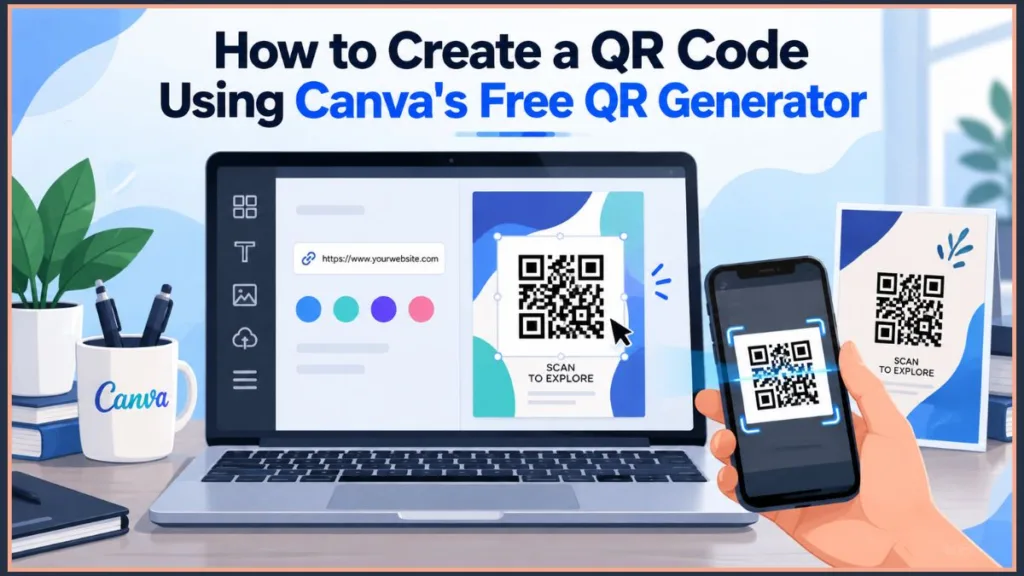
With QR code usage surging 323% between 2021 and 2024, businesses are increasingly reliant on these digital bridges. But if you want to avoid the expiring-link nightmare, you need a reliable tool. Introduce Canva’s built-in QR code generator. Backed by a platform that reached 265 million monthly active users and 31 million paying subscribers by the end of 2025, this tool lives directly inside your design canvas, requires no separate subscription, and generates codes that last forever.
In this guide, we will answer whether Canva is truly the best tool for the job, compare it to AI alternatives, and show you exactly how to generate your own permanent QR code in under two minutes.
Is There a 100% Free QR Code Generator?
If you have been searching for this, you already know about the “bait-and-switch” tactics used by many QR code websites. These platforms let you create a code for free, but what they don’t tell you is that they are giving you a dynamic code tied to a temporary trial. Often, these trials last exactly 7 to 14 days, perfectly timed to expire right after your flyers or business cards are delivered from the print shop. When scanned, customers are met with an embarrassing 404 error or a “This QR code is deactivated” landing page.
So, is there a 100% free QR code generator? Yes, and Canva is one of the safest and most reliable ones available. Because it is an integrated app within a massive graphic design ecosystem, Canva doesn’t rely on holding your QR codes hostage to make a profit.
The Solution: Is the Canva QR Code Free and Permanent?
The short answer is yes, the Canva QR code is completely free and permanent.
The reason it is permanent is that Canva generates static QR codes. When a code is static, your exact website URL is hard-coded directly into the visual black-and-white pattern of the square. This means the actual pixels—or “data modules”—change physically based on every letter in your URL. A 20-character URL generates a clean, simple square, while a 150-character URL generates a dense, highly complex grid.
There is no middle-man server redirecting the traffic. Because of this, Canva cannot (and will not) turn the link off or charge you to keep it active.
Industry data from Wave Connect (2025) shows that while dynamic QR codes hold roughly 65% of the market share (with 79% of businesses choosing them for large campaigns), static codes remain the absolute best choice for permanent, one-destination printed materials.
Because static codes are permanent, you cannot edit the destination link after you create it. Always double-check your URL for typos before you hit print!
How Can I Create My Own QR Code in Canva? (Step-by-Step Guide)
Adding a QR code to print ads increases engagement rates by 30% compared to ads without codes (barkoder, 2025). You don’t need to create a special blank document to capitalize on this; you can generate a QR code directly onto your existing flyer, business card, or presentation.
- Open the Apps Panel: In the Canva editor, look at the dark left-hand sidebar. Click on the “Apps” tab.
- Search for the App: Type “QR Code” into the search bar inside the Apps panel and click on the native Canva QR Code app to open it.
- Paste Your Link: Enter the full destination URL into the box (e.g., https://www.yourwebsite.com). Canva only supports URL encoding, meaning it does not support vCard, Wi-Fi, SMS, or email QR code types.
- Data Hack: Savvy marketers get around Canva’s lack of native tracking by pasting a URL equipped with UTM parameters. By appending UTM tracking codes (like
?utm_source=canva_flyer) to your URL before pasting it into Canva, you can track exactly how many people scanned the code using your free Google Analytics dashboard.
- Data Hack: Savvy marketers get around Canva’s lack of native tracking by pasting a URL equipped with UTM parameters. By appending UTM tracking codes (like
- Customize & Generate: You can adjust the foreground and background colors using exact hex codes to match your brand guidelines. Click “Generate” and the code will drop directly onto your canvas. Hold the
Shiftkey when resizing to maintain the perfect square aspect ratio.
Pro-Tip: According to Bitly (2025), 49% of marketers say that adding a business logo to their QR code design is the most valuable aspect of customization. Canva’s native tool does not have a “logo overlay” button, but you can use a manual layering hack.
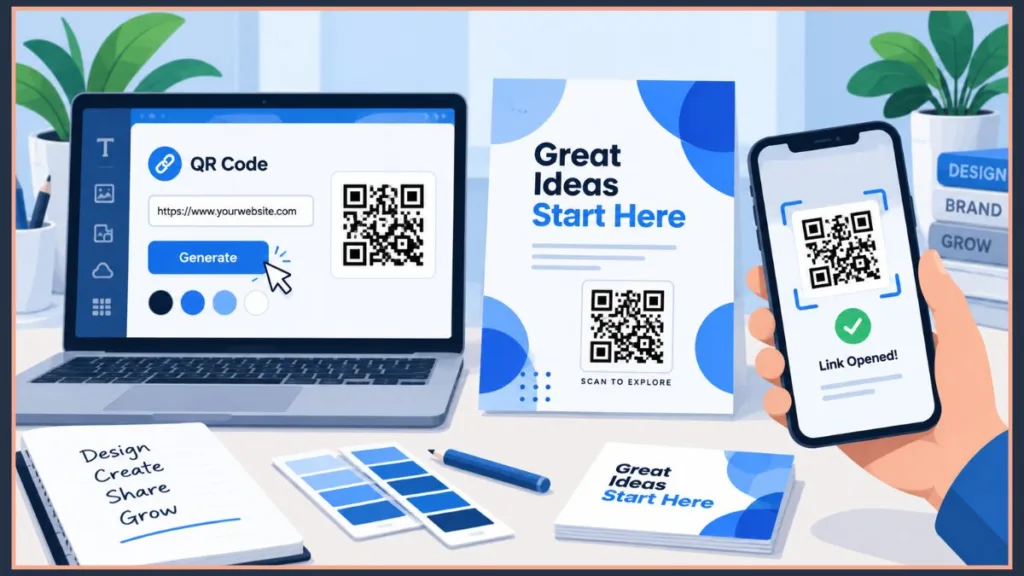
Upload your logo, drag it onto the canvas, and center it perfectly over your QR code using the Position panel. You must keep the logo below 30% of the total QR code area. QR codes have four built-in error correction levels: L (7%), M (15%), Q (25%), and H (30%). Canva’s generator uses a fixed correction level that maxes out at 30%, so if your logo covers more space than that, the scanner won’t be able to read the data beneath it.
Evaluating the Tool: Is Canva a Good QR Code Generator?
Canva is an incredibly good QR code generator, but it’s important to know its strengths and limitations. Data shows that for over 85% of small business print collateral (table tents, stickers, basic menus), Canva offers exactly what is needed without unnecessary bloat.
The Pros: It’s seamlessly integrated into your design workflow. You can customize the colors, it scales beautifully for print, and the codes are entirely free and permanent.
The Cons: It lacks native tracking analytics. You cannot see how many times your code was scanned, what devices were used, or where users were located natively within the app. Furthermore, because it only generates static URL codes, you cannot update the link later if your website changes.
Canva vs. Dedicated Tools: What is the Best QR Code Generator?
The “best” generator depends heavily on your specific data needs.
- If you prioritize design and print: Canva is the absolute best. It is unbeatable for quickly adding a permanent link to a physical design without jumping between tabs.
- If you prioritize data and analytics: If you are running a massive marketing campaign where you need to track scan locations, or if you need a dynamic code to change the destination link later, a dedicated, paid tool like Bitly or QR Tiger handles that routing and data collection much better. These dedicated enterprise platforms typically start at $10 to $35 per month, which makes sense for Fortune 500 campaigns but is often an unnecessary overhead for a local bakery or real estate agent just needing a simple menu or property link.
The AI Question: Can ChatGPT Generate QR Codes Faster?
With the rise of artificial intelligence, many tech-curious users are asking: Can ChatGPT generate QR codes?
Yes. If you use ChatGPT Plus with specific plugins or the Advanced Data Analysis feature, you can prompt the AI to write a Python script that outputs a QR code image. Specifically, the AI utilizes backend Python libraries like qrcode or segno to generate the matrix.
However, just because AI can do it doesn’t mean it’s the most efficient route. Generating a code in ChatGPT yields a plain, black-and-white image file that you then have to download, save, and manually upload into your design software. Canva is vastly superior because it removes those friction points, allows for immediate color customization via hex codes, and places the code directly onto your design canvas instantly.
Crucial Design and Print Tips for Your Canva QR Code
Before you send your design to the printers, keep these technical best practices in mind so your code actually works in the real world:
- The Contrast Rule (3:1 Ratio): Your QR code must always be significantly darker than its background. Reversing this (light modules on a dark background) causes scan failures on most devices. Ensure you have a minimum color contrast ratio of 3:1.
- Resolution Settings: For any print material, the file must be a minimum of 300 DPI (Dots Per Inch). Exporting a QR code at standard screen resolution will result in blurry, un-scannable edges on paper.
- Physical Size & Color Profiles: The universally accepted minimum size for a printed QR code is 0.8 x 0.8 inches (2 x 2 cm); anything smaller risks being unreadable by standard smartphone cameras. Furthermore, while the free version of Canva exports in the RGB color profile (best for screens), Canva Pro allows you to export your final design in CMYK, which is the precise color data required by professional commercial printers to ensure your dark QR code modules don’t print faded or muddy.
- Choose the Right File Format: If you are using the code digitally, download your design as a PNG. If you are printing it—especially on large formats like banners or signs—and you have a Canva Pro account, download it as an SVG. SVGs are vector files, meaning they will never lose quality or become pixelated, no matter how large you stretch them. Avoid JPGs entirely, as JPEG compression degrades the sharp edges of the QR modules.
The Golden Rule: Always pull out your smartphone and scan the code on your computer screen with at least two different devices before you hit print!
Conclusion: Streamline Your Design Workflow
Don’t let third-party websites hold your marketing materials hostage with hidden fees and expiring links. By using Canva’s built-in QR Code app, you guarantee that your links are permanent, your designs stay on-brand, and your workflow remains seamless. Open up your next flyer or business card design in Canva and give the QR code tool a try today!
Visit Our Post Page: Blog Page
Discover more from Izoate
Subscribe to get the latest posts sent to your email.