
Getting Diablo 4 Error Code 397000 while logging in? Discover 5 quick fixes for the “Lobby Server Not Available” error and get back into Sanctuary today.
There are few things more frustrating than staring at a queue timer, watching the minutes tick down, only to be booted right as the game loads. You’ve prepared your build, gathered your party, and are ready to grind for loot, but the servers have other plans. Unlike classic titles like Diablo 2, Diablo 4’s always-online live-service requirement means your ability to play is entirely dependent on the lobby servers communicating perfectly with your hardware.
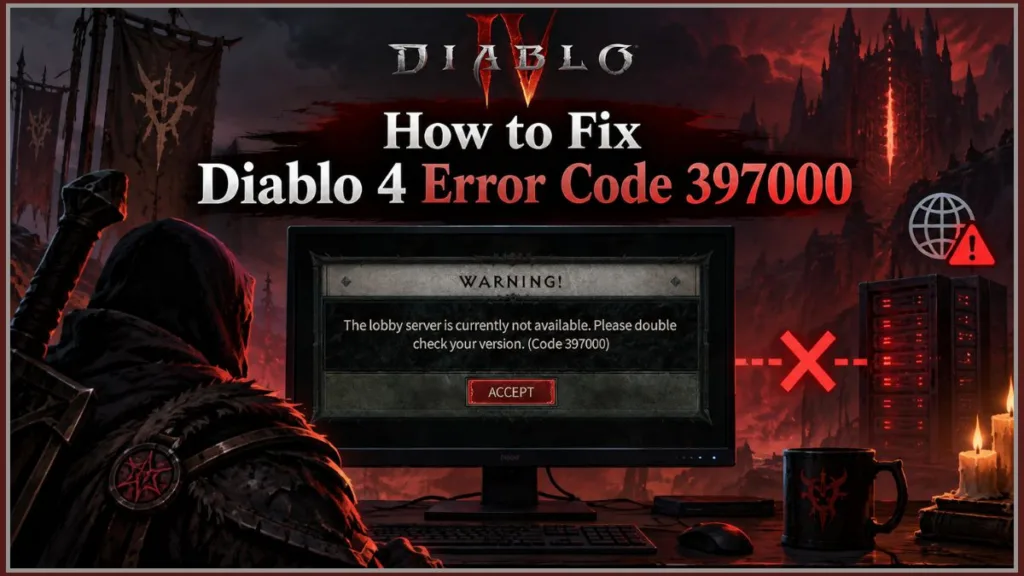
When that connection fails, you are often hit with a specific roadblock that stops your gaming session in its tracks: Error Code 397000. This error essentially means there is a version mismatch or a connection failure between your local game client and Blizzard’s servers. It frequently spikes during the launch of a new season, a major expansion, or during peak weekend hours.
If you are stuck at the title screen listening to the menu music on a loop, here are the quickest ways to troubleshoot the problem locally and how to know if the issue is entirely out of your hands.
What Does Error Code 397000 Mean in Diablo 4?
When this error triggers, it typically comes with the following message:
“The lobby server is currently not available. Please double check your version.”
This prompt tells you exactly what the game’s authentication system is struggling with. Your client is trying to communicate with the lobby server to verify your account and load your characters, but the server is rejecting the connection because it believes you are running an incompatible version of the game. Live-service games require exact parity between the player’s files and the server’s files to prevent exploits and ensure stability.
This usually happens for one of three reasons:
- Server Maintenance or Outages: Blizzard’s servers are down, under heavy load, or they are actively deploying a background hotfix that temporarily disrupts the login gateway.
- Corrupted Local Game Files: Your game client failed to properly download a recent micro-patch, leaving you with outdated or missing assets.
- Network or Firewall Blocks: Your local security settings, antivirus, or router configurations are preventing the Battle.net launcher from establishing a secure handshake with the lobby.
Step-by-Step Fixes for Diablo 4 Error Code 397000
Before you completely uninstall and reinstall a massive game file—which could take hours depending on your internet speed—run through these sequential fixes, starting with the easiest and most likely culprits.
1. Check Blizzard Server Status First
Never start deleting files or altering your network settings until you confirm the servers are actually online. If the entire network is down, local troubleshooting is a waste of time.
- Check the Launcher: Look at the “Breaking News” banner at the top of your Battle.net launcher. Blizzard often posts maintenance warnings here.
- Check Social Media: Go to X (formerly Twitter) and check the @BlizzardCS (Customer Support) account. They actively tweet about regional server degradation.
- Check Third-Party Trackers: Blizzard’s official status pages can sometimes lag behind real-time outages by 15 to 30 minutes. Navigate to DownDetector.com (Diablo Status) and search for Diablo 4 or Battle.net. If you see a massive, sharp vertical spike in user reports within the last hour, the issue is on Blizzard’s end. Put the mouse down, grab a snack, and wait it out.
2. Restart and Force a Game Update
Often, the Battle.net launcher simply hangs and fails to push a background update. It might think it’s up to date, but it missed a tiny kilobyte-sized patch. This results in the exact version mismatch Error 397000 warns you about.
For PC Players:
- Close Diablo 4 completely.
- Do not just click the “X” on the Battle.net launcher. Press Ctrl + Shift + Esc to open your Task Manager.
- Under the “Processes” tab, look for Battle.net and Battle.net Update Agent (
Agent.exe). Right-click both and select End Task. This ensures the app is completely dead. - Relaunch Battle.net.
- Navigate to the Diablo 4 game page. Click on the gear icon next to the blue “Play” button, and select Check for Updates. If a patch was hanging, this will force it to download and install.
For Console Players (PlayStation/Xbox):
- Press the home button on your controller to go to the main dashboard.
- Highlight the Diablo 4 game icon, press the Options/Menu button, and explicitly select Close Game or Quit.
- Once the game is fully closed, press the Options/Menu button on the game icon again and select Check for Update.
- If it says you are up to date but the error persists, perform a hard restart: hold down the power button on the physical console until it shuts off completely, wait 30 seconds, and turn it back on.
3. Run the Battle.net “Scan and Repair” Tool
If forcing an update doesn’t work, a game file might be corrupted from an interrupted download, a sudden power flicker, or a hard drive hiccup. The Battle.net launcher has a built-in tool to replace damaged files without requiring a full reinstall.
- Open the Battle.net launcher and navigate to the Diablo 4 page.
- Click the gear icon next to the blue “Play” button.
- Select Scan and Repair from the drop-down menu.
- Click Begin Scan to confirm.
- Do not interrupt this process. A progress bar will appear. It will cross-reference your local files with the official server files and automatically redownload any missing or broken assets. Depending on whether you have an SSD or an older HDD, this process can take anywhere from 5 to 20 minutes. If the bar appears to freeze at 99%, leave it alone—it is unpacking files.
4. Clear the Battle.net Cache (Advanced Fix)
Corrupted cache data is a massive, hidden culprit for persistent connection issues across all Blizzard games. These temporary files store login data and update manifests to make the launcher load faster, but when they break, they prevent updates from registering.
Crucial Step: If you do not close background processes first, Windows will give you a “File in Use” error and prevent you from deleting the cache.
- Press Ctrl + Shift + Esc to open Task Manager. Find
Battle.net.exeandAgent.exe(Battle.net Update Agent), right-click them, and click End Task. - Press the Windows Key + R to open the Run dialogue box.
- Type
%ProgramData%into the Run field and press Enter. This will open a hidden file explorer window. Find the folder named Blizzard Entertainment and delete the Battle.net folder inside it. - Press Windows Key + R again, type
%appdata%, and press Enter. If there is a Battle.net folder here, delete it. - Press Windows Key + R one last time, type
%localappdata%, and press Enter. Delete the Battle.net folder here as well. - Empty your computer’s Recycle Bin, then relaunch Battle.net. It will take a few extra seconds to load as it rebuilds the cache.
5. Network Optimization: Firewalls, DNS, and Hardware
If your local files are perfect and the servers are universally up for everyone else, your PC or local network might be actively blocking the connection to the lobby.
- Whitelist Through Your Firewall: Type “Allow an app through Windows Firewall” into your Windows search bar and hit Enter. Click “Change settings” at the top right. Scroll down the list and ensure both Diablo IV and Battle.net have checkmarks in both the “Private” and “Public” columns. If you use third-party software like McAfee or Norton, you must manually add Diablo 4 to their specific whitelist settings.
- Flush Your DNS: This clears out outdated network routing data. Click your Windows Start button, type
cmd, right-click Command Prompt, and select Run as administrator. In the black box, type exactlyipconfig /flushdnsand press Enter. You should see a message saying “Successfully flushed the DNS Resolver Cache.” - Update Network Drivers: Outdated drivers can cause random packet loss during the login handshake. Right-click the Windows Start button, select Device Manager, expand the Network adapters section, right-click your active internet connection (Wi-Fi or Ethernet), and select Update driver.
- Power Cycle Your Router (The Right Way): Unplug your internet router’s power cable directly from the wall socket. Do not just press the power button. Wait a full 60 seconds to allow the internal capacitors to drain completely. Plug it back in, wait for all the lights on the front panel to turn solid green, and try logging in again. This clears the router’s internal cache and establishes a fresh connection to your ISP.
Still Getting Error 397000 After Trying Everything?
Community forums are filled with players experiencing a deeply annoying “false queue” phenomenon. You might successfully run the repair tool, reboot your router, get into a 5-minute queue, and look like you are about to load into Kyovashad—only to be hit with Error 397000 at the absolute last second.
If you have exhausted all local client fixes and this is still happening, the problem is a server-side desync on Blizzard’s end.
During high-traffic periods, launch days, or right after a patch rollout, Blizzard’s authentication servers can fall out of sync with their actual gameplay servers. The system might be requesting a patch version from your client that Blizzard hasn’t actually pushed to the public download servers yet. It’s a logistical traffic jam on their end. In these instances, no amount of local troubleshooting will fix the game. You simply have to wait for the server clusters to synchronize or submit a technical support ticket to the Official Battle.net Support Portal.
Frequently Asked Questions (FAQ)
Can I fix Error 397000 if the Blizzard servers are down?
No. If the servers are offline for maintenance, experiencing a DDoS attack, or buckling under launch-day server loads, local troubleshooting will not work. You must wait for Blizzard to restore server stability.
Why is Diablo 4 telling me to check my version?
The game client detected that your installed patch does not match the current patch running on the live lobby servers. This usually requires forcing an update via the Battle.net launcher or waiting for an update to be pushed to your region.
Does Error 397000 mean I was banned?
No. Error 397000 is strictly a connectivity, cache, or version alignment issue. Account bans and suspensions utilize entirely different error codes (such as Code 395002) and will clearly state that your account has been locked.
Will completely reinstalling Diablo 4 fix the error?
While a clean reinstall can fix corrupted files, it is rarely necessary for Error 397000. Running the “Scan and Repair” tool and clearing the Battle.net cache accomplishes the exact same thing in a fraction of the time. Only resort to a full reinstall if every other step has failed and Blizzard support confirms the servers are fully operational.
Visit Our Post Page: Blog Page
Discover more from Izoate
Subscribe to get the latest posts sent to your email.