
Want to keep your Netflix viewing activity private? Whether you’re sharing an account with family, watching a show ahead of someone else, or simply want to improve your recommendations, managing your Netflix viewing history gives you more control over your streaming experience.
Netflix lets you hide individual movies and episodes, remove your entire viewing history, and protect your profile with a PIN. These features can help prevent other people from seeing what you’ve watched while keeping unwanted titles out of your recommendations.
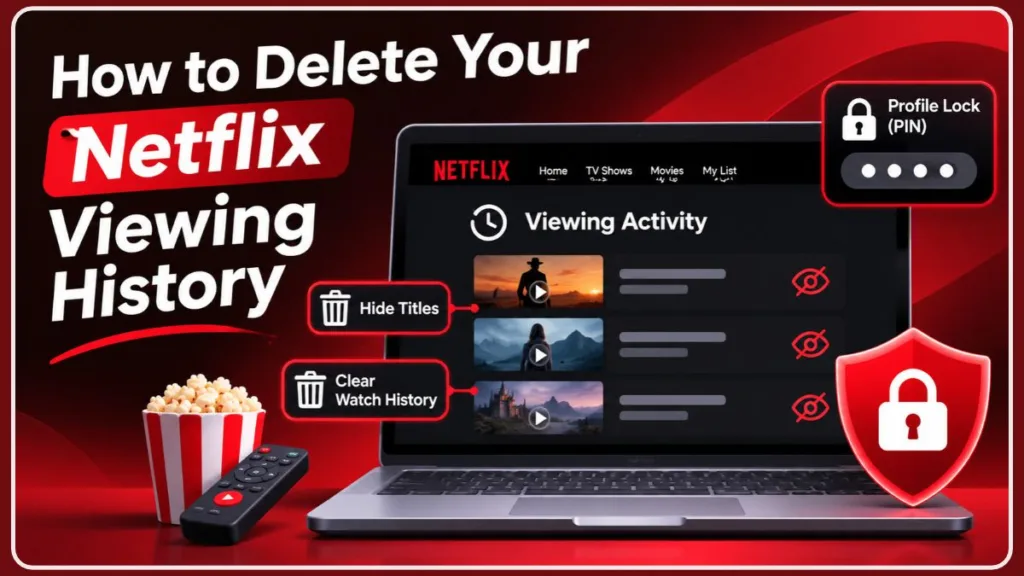
In this guide, we’ll walk you through how to delete Netflix history, hide specific titles, lock your profile, and manage other settings that can help keep your streaming activity private.
Why You Might Want to Hide or Delete Your Netflix History
Sharing a Netflix account can make streaming more convenient, but it doesn’t always mean you want everyone to see what you’re watching. Your viewing history can reveal your entertainment preferences, show which episodes you’ve already watched, and influence the recommendations displayed on your profile.
Here are a few common reasons to hide or delete your Netflix watch history:
- Protect your privacy on shared accounts: When several people use the same Netflix profile, anyone with access may be able to check its viewing activity. Hiding specific titles helps keep your watching habits less visible.
- Improve your recommendations: A movie or documentary you watched out of curiosity can influence the content Netflix recommends. Removing that title from your viewing activity prevents it from being used for future recommendations unless you watch it again.
- Keep personal entertainment private: Sometimes, you simply don’t want family members, roommates, or friends asking about a particular show or movie.
- Avoid spoilers and awkward conversations: When you share a profile with a partner or friend, hiding an episode you’ve watched ahead can help prevent your viewing activity from appearing in the profile’s history.
Whatever your reason, Netflix provides built-in viewing activity controls and Profile Lock settings that make it easier to manage your streaming privacy.
Can You Still Delete Netflix Viewing History in 2026?
Yes. Netflix still allows you to hide individual movies, TV episodes, and entire series from your viewing activity. You can also hide all your viewing history using the Hide all option.
When you hide a title from your Netflix viewing history:
- It no longer appears as a movie or show you’ve watched.
- Netflix stops using it to generate recommendations unless you watch it again.
- It is removed from your Continue Watching row.
Keep in mind that these changes may take up to 24 hours to appear across all your devices. Netflix also requires you to manage your full viewing activity through a web browser, making a desktop browser the easiest option.
How to Delete Netflix Viewing History Using a Desktop
Using a desktop or laptop browser is one of the easiest ways to manage your Netflix viewing activity. You can access your account settings, hide individual titles, and remove an entire series without navigating through your streaming devices.
Step-by-Step Guide to Hide a Netflix Title
Follow these steps to delete a specific movie or episode from your Netflix viewing history:
- Open a web browser, such as Google Chrome, Microsoft Edge, or Safari.
- Visit Netflix.com and sign in to your account.
- Open your Account page.
- Under Profiles, select the profile whose viewing history you want to manage.
- Open Viewing activity.
- Find the movie or TV episode you want to hide.
- Click the Hide icon (a circle with a diagonal line) next to the title.
Once you hide an episode, Netflix also gives you the option to Hide series. Select this option when you want to remove the entire show from your viewing history instead of hiding episodes individually.
After completing these steps, the selected title will no longer appear in your viewing activity or influence your recommendations unless you watch it again.
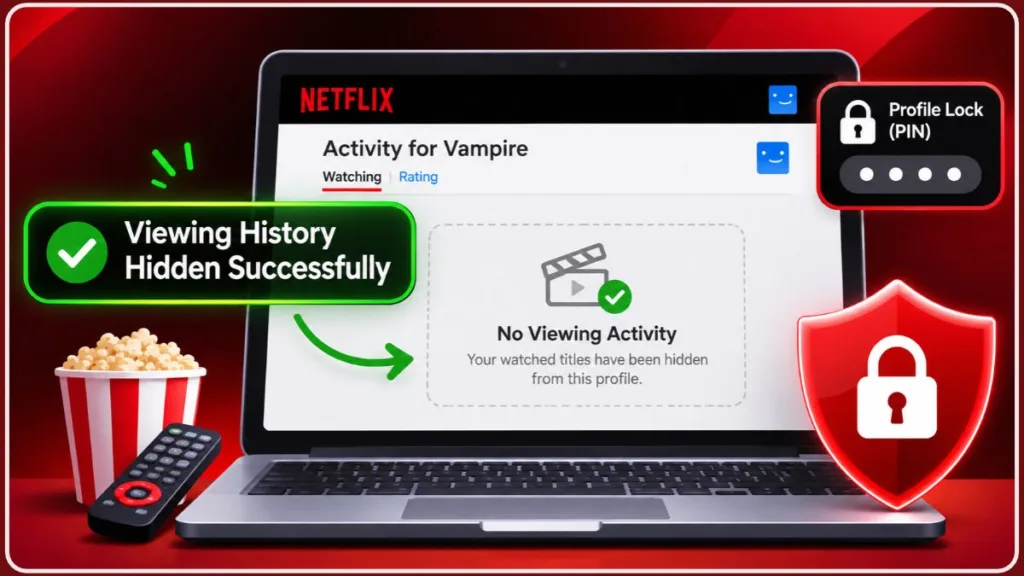
How to Clear Your Entire Netflix Viewing History
You don’t have to remove every movie and episode individually when you want a fresh start. Netflix includes a Hide all option that lets you clear your entire viewing activity for a selected profile in one go.
Here’s how to do it:
- Sign in to Netflix using a desktop browser.
- Open your Account page.
- Go to Profiles and select the profile you want to update.
- Click Viewing activity.
- Scroll to the bottom of the viewing activity page.
- Select Hide all.
- Confirm your decision when Netflix asks you to proceed.
Netflix will then hide all the titles listed in that profile’s viewing activity. This also removes those titles from the Continue Watching row and stops them from being used for future recommendations unless you watch them again.
Important: Hiding all your Netflix viewing history does not necessarily reset every part of your recommendation system. Other profile preferences and activity may still influence the suggestions you see.
How to Lock Your Netflix Profile with a PIN
Hiding your Netflix viewing history is useful when you want to remove specific titles, but it doesn’t prevent someone from opening your profile and checking your activity before you hide it.
For ongoing privacy, consider setting up a Netflix Profile Lock PIN. This feature requires a four-digit PIN before someone can open your protected profile, helping prevent other household members from casually accessing your personalized streaming experience.
How to Set Up a Netflix Profile PIN
You can create a Profile Lock PIN through Netflix’s website or supported mobile apps.
Using a web browser:
- Visit the Netflix Account page and sign in.
- Under Profiles, select the profile you want to protect.
- Open Profile Lock.
- Select the option to create a Profile Lock.
- Verify your identity using your Netflix account password or the verification method provided.
- Enter a unique four-digit PIN.
- Select Save PIN to apply the changes.
Using the Netflix mobile app:
- Open the Netflix app and tap My Netflix in the bottom-right corner.
- Tap your profile name at the top.
- Select Manage Profiles.
- Choose the profile you want to protect.
- Tap Profile Lock.
- Follow the instructions to verify your identity and create a four-digit PIN.
Your selected profile will now display a lock icon on the profile selection screen, and anyone trying to open it will need to enter the PIN.
Benefits of Using a Netflix Profile PIN
A Profile Lock PIN offers several advantages when multiple people share one Netflix account:
- More privacy: Other household members cannot casually open your protected profile without its PIN.
- Separate viewing preferences: Your recommendations, watchlist, and viewing activity remain associated with your individual profile.
- Fewer accidental changes: It helps prevent someone from opening your profile and affecting your viewing experience.
- Better account organization: It makes it easier to maintain separate streaming spaces for different family members or roommates.
Remember that a Profile Lock protects access to your profile; it is not a replacement for securing your main Netflix account password.
Additional Ways to Protect Your Netflix Streaming Privacy
Hiding titles and setting up a profile PIN are useful starting points, but you can take a few additional steps to manage your Netflix account more carefully.
1. Remove Unused or Unrecognized Devices
When you use Netflix on shared TVs, tablets, or other devices, you may leave your account signed in even after you stop using them.
To review your connected devices:
- Open your Netflix account.
- Navigate to Manage Access and Devices.
- Review the devices that have recently used your account.
- Select the device you no longer recognize or use.
- Choose Sign Out.
You can also sign out of all devices from this page if you want to remove existing sessions and start fresh.
Netflix notes that some devices may take up to 48 hours to appear, and the page may not display every device associated with your account.
2. Review Your Test Participation Settings
Netflix has a Test Participation setting associated with account preferences. It relates to participation in Netflix testing features rather than controlling who can see your viewing history.
You can check your account settings to see whether this option is available and adjust it according to your preferences.
However, turning off test participation does not hide watched titles, clear your viewing activity, or replace a Profile Lock PIN.
3. Turn Off Autoplay for the Next Episode
Netflix’s autoplay feature automatically starts the next episode of a TV series. This can sometimes lead to additional episodes appearing in your viewing activity when you leave a show playing in the background.
Turning off autoplay helps prevent another episode from starting automatically.
Here’s how to disable autoplay:
- Open Netflix and select the profile you want to update.
- Go to your Account page.
- Under Profiles, choose your profile.
- Open Playback settings.
- Find Autoplay Next Episode.
- Turn the setting off.
You can also change this preference through the Netflix mobile app by opening My Netflix, selecting your profile, tapping Manage Profiles, choosing the relevant profile, and switching off Autoplay Next Episode.
The setting updates automatically, although you may need to refresh your device by switching profiles or signing out and back in.
4. Use Separate Netflix Profiles
When several people share one Netflix account, using individual profiles is a simple way to keep viewing activity and recommendations separate.
Netflix supports up to five profiles on a single account. Each profile maintains its own viewing activity, recommendations, playback settings, and other preferences, although some features vary by profile type.
Instead of sharing one profile with everyone, create a separate profile for each household member. You can also add a Profile Lock PIN where supported to restrict access.
Limitations of Deleting Netflix Viewing History
Netflix gives you useful options for controlling your viewing activity, but there are a few limitations to understand before hiding individual titles or clearing your entire history.
1. Changes Can Take Up to 24 Hours
After hiding a movie, episode, or series, the change may not appear immediately across all your connected devices.
Netflix states that it can take up to 24 hours for hidden titles to disappear completely from devices such as smart TVs, smartphones, and tablets.
2. You Cannot Hide Titles from Netflix Kids Profiles
Netflix does not allow users to hide titles when they access the Viewing activity page through a Netflix Kids profile.
To manage viewing activity, you’ll need to switch to an eligible non-Kids profile.
3. Hidden Titles Do Not Have a One-Click Restore Option
Once you hide a title, it no longer appears in your normal viewing activity. Netflix’s current instructions do not provide a direct restore option for bringing a hidden entry back.
However, you can search for the movie or show and watch it again. Netflix may then use that viewing activity for future recommendations.
4. Profile Lock Is Not Available for Every Account Type
Netflix supports Profile Lock for eligible profiles, but extra member accounts have only one profile and cannot use a Profile Lock PIN for that profile.
Final Thoughts on Managing Your Netflix Viewing History
Keeping your Netflix viewing activity private doesn’t require complicated account changes. With a few adjustments, you can hide individual movies and episodes, clear your viewing history, and prevent other people from casually accessing your profile.
Here’s what to remember:
- Hide individual titles: Use Netflix’s Viewing activity page to remove specific episodes, movies, or entire series.
- Clear all viewing activity: Select Hide all when you want to remove every listed title from a profile’s viewing history.
- Protect your profile: Set up a four-digit Profile Lock PIN to restrict access.
- Manage connected devices: Sign out of devices you no longer use or recognize.
- Control autoplay: Turn off automatic episode playback to prevent unwanted episodes from starting.
Taking control of these settings helps you maintain a more private and organized Netflix experience while keeping your recommendations relevant to what you actually enjoy watching.
Frequently Asked Questions (FAQs)
Q1. Can I delete my Netflix viewing history from the mobile app?
Netflix’s full viewing activity management instructions use the Account page in a web browser rather than the regular mobile app interface.
To hide a movie or episode, open Chrome or Safari on your phone, visit Netflix.com, sign in, and navigate to Account → Profiles → Your Profile → Viewing activity.
You can also use the browser’s desktop-site option if the account settings are difficult to access on your phone.
Q2. Does deleting my Netflix viewing history change my recommendations?
Yes. When you hide a movie or TV show from your viewing activity, Netflix stops using that title to generate recommendations unless you watch it again.
Hiding all your viewing history can remove the influence of those watched titles, but it does not guarantee a complete reset of every recommendation preference associated with your profile.
Q3. Can I recover my Netflix viewing history after hiding it?
Netflix does not provide a direct restore option in its current viewing activity instructions. However, you can search for the hidden movie or show and watch it again to create new viewing activity.
Q4. Will hiding a show remove it from my Netflix Continue Watching list?
Yes. Hiding a title through your Viewing activity settings also removes it from the Continue Watching row.
However, the change may take up to 24 hours to appear across all your connected devices.
Q5. Can I hide an entire Netflix series instead of individual episodes?
Yes. When you hide an episode from your viewing activity, Netflix gives you the option to Hide series. Select it to remove the entire show from your viewing history without hiding every episode separately.
Q6. Does locking my Netflix profile hide my viewing history?
A Profile Lock PIN restricts other people from opening your protected profile without entering the four-digit code. It helps prevent casual access to your profile and its personalized content.
However, it does not replace account-level security or remove existing viewing activity.
Visit Our Post Page: Blog Page
Discover more from Izoate
Subscribe to get the latest posts sent to your email.