
Is your Chromebook typing in ALL CAPS, and you can’t find the Caps Lock key? Let’s learn how to turn off Caps Lock on a Chromebook without a dedicated Caps Lock key.
Having Trouble With Caps Lock on Your Chromebook?
Ever started typing on your Chromebook only to realise that EVERYTHING IS COMING OUT IN CAPITAL LETTERS? It can be frustrating, especially when you’re trying to write an email, complete an assignment, or search for something online. You might assume your keyboard is malfunctioning, but the issue could simply be related to Caps Lock.
If you’re switching from a traditional Windows laptop, you may also notice something unusual: most Chromebooks don’t have a dedicated Caps Lock key. Instead, they feature a Search or Launcher key, which can make it confusing to understand how Caps Lock works or where to find its controls.
Whether you’re using an HP, Lenovo, Acer (including the Acer Chromebook 315), Samsung, Dell, or Google Chromebook, understanding this keyboard difference can help you manage unexpected uppercase typing and avoid confusion.
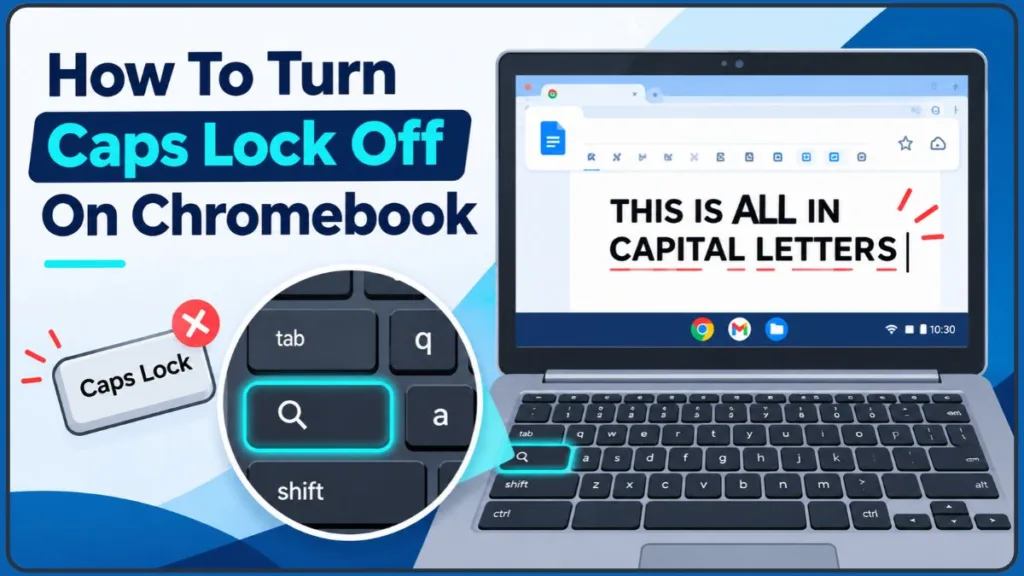
In this guide, we’ll explain how to turn off Caps Lock on Chromebook, how to enable it when needed, and how to customise your keyboard settings.
Why Doesn’t a Chromebook Have a Caps Lock Key?
If you’re used to a traditional laptop keyboard, the Chromebook layout might seem a little unusual. The familiar Caps Lock key is missing, and a Search or Launcher key, also known as the Everything Button, takes its place. This is a deliberate design choice rather than a missing keyboard feature.
Why Chromebook Keyboards Replace Caps Lock With the Search Key
Chromebooks are designed with web browsing, online searches, and everyday productivity in mind. Unlike traditional keyboards, their layout gives more importance to features that users frequently need when browsing the internet or working online.
For example, most website addresses, search queries, and everyday messages don’t require typing several words in uppercase. While Caps Lock can be useful in certain situations, it isn’t essential for most everyday typing activities. You can also use the Shift key whenever you need to type an individual capital letter.
How the Compact Chromebook Keyboard Design Affects Key Placement
Another reason is the compact keyboard layout. Chromebooks are generally designed to be lightweight and portable, which means their keyboards need to fit within a smaller space. To achieve this, the design leaves out certain dedicated keys that aren’t considered essential for everyday use.
The traditional Caps Lock key is one of the keys omitted from most Chromebook keyboards, while the Search or Launcher key provides access to ChromeOS search functionality.
Does a Chromebook Still Support Caps Lock?
Yes! Although most Chromebooks don’t have a physical Caps Lock button, the functionality is still available in ChromeOS. You can still type entire words or sentences in uppercase when needed; you just need to use the keyboard controls provided by your device.
This means you don’t need a separate Caps Lock key to get the same functionality on your Chromebook.
How to Turn Off Caps Lock on Chromebook Using a Keyboard Shortcut
You don’t need a dedicated Caps Lock button to switch between uppercase and lowercase typing on a Chromebook. ChromeOS includes built-in keyboard shortcuts that let you turn Caps Lock on or off using a combination of keys. The shortcut you need depends on your keyboard layout and the keys available on your device.
Most Chromebook keyboards support Alt + Search or Alt + Launcher, while some supported keyboards also offer Fn + Quick Insert. Let’s look at each method so you can find the right Chromebook Caps Lock shortcut for your device.
Method 1: Turn Off Caps Lock on Chromebook Using Alt + Search
The Alt + Search combination is the standard Chromebook Caps Lock shortcut. It works on most compatible Chromebook keyboards and lets you toggle Caps Lock without opening Settings or changing any keyboard assignments.
Follow these steps to turn off Caps Lock on your Chromebook:
- Locate the Alt key on your Chromebook keyboard.
- Find the Search key, which typically has a magnifying glass or search-related symbol.
- Press and hold the Alt key.
- While holding Alt, press the Search key once.
- Release both keys and try typing a few letters in a text field.
Your Chromebook should now return to normal lowercase typing if Caps Lock was previously enabled.
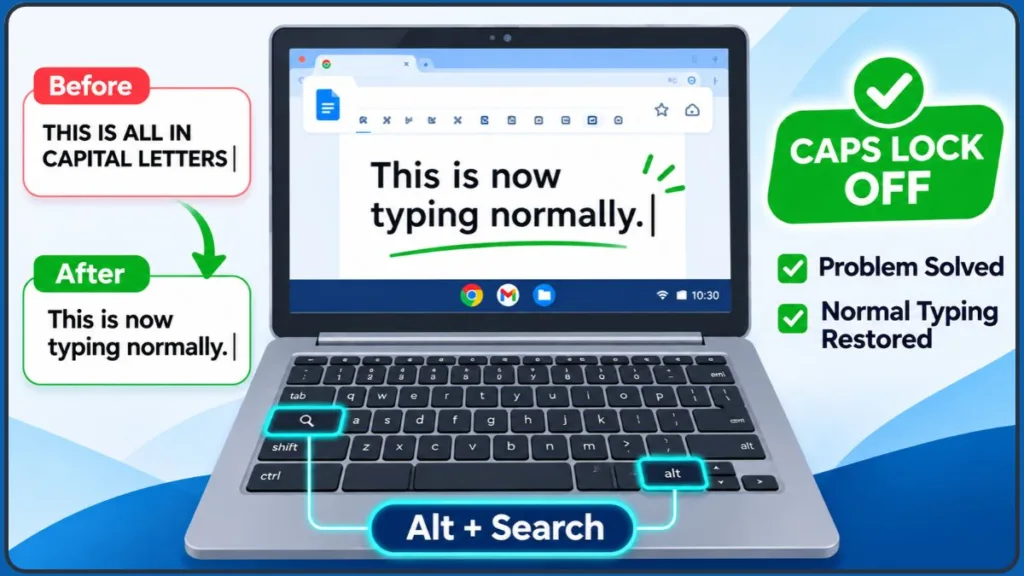
Keep in mind that Alt + Search works as a toggle, meaning the same combination can turn Caps Lock on or off. When you need to type an entire word or sentence in uppercase again, simply press both keys together once more.
Method 2: Use Alt + Launcher to Toggle Caps Lock on Chromebook
Some Chromebook keyboards display Launcher instead of Search. The Launcher key provides access to your apps and search features, but it can also be used with Alt to control Caps Lock.
If your Chromebook has a Launcher key, you can use it instead of Search to turn Caps Lock off.
Here’s what to do:
- Locate the Alt key on your Chromebook keyboard.
- Find the Launcher key.
- Press and hold Alt.
- While holding it, press Launcher once.
- Release both keys and type a few letters to check whether uppercase typing has stopped.
The Alt + Launcher combination performs the same function as Alt + Search. You can also use it to turn Caps Lock back on whenever you need to type in uppercase.
This is particularly useful when you’re using a Chromebook with a Launcher-labelled key rather than a traditional Search key. You don’t need to change its default function or remap another keyboard button to use this shortcut.
Method 3: Turn Caps Lock On or Off Using Fn + Quick Insert
Some Chromebook keyboards offer another way to control Caps Lock through the Fn + Quick Insert shortcut. This combination is available only on supported keyboards, so it may not be an option on every Chromebook.
To try this method:
- Locate the Fn (Function) key on your Chromebook keyboard.
- Find the dedicated Quick Insert key, if your keyboard includes one.
- Press and hold Fn.
- While holding Fn, press Quick Insert once.
- Release both keys and test your typing in a text field.
This combination should toggle Caps Lock on or off if your Chromebook supports it.
However, not every Chromebook has a dedicated Quick Insert key. Its availability depends on the keyboard model, so don’t worry if you cannot find it on your device. You can use Alt + Search or Alt + Launcher instead.
Which Caps Lock Shortcut Should You Use on Your Chromebook?
Choosing the right shortcut depends on the keys available on your Chromebook. Here’s a quick comparison:
| Chromebook keyboard | Caps Lock shortcut |
|---|---|
| Search key | Alt + Search |
| Launcher key | Alt + Launcher |
| Supported Quick Insert keyboard | Fn + Quick Insert |
Tip: You don’t need to restart your Chromebook or change its keyboard settings just to turn Caps Lock off. Start with the shortcut that matches your keyboard and test a few letters to confirm the change. If your Chromebook continues typing in uppercase even after trying the correct combination, you may need to check for a keyboard or software-related issue.
How to Turn On Caps Lock or Remap the Search Key on Chromebook
Now that you know how to turn Caps Lock off, you may also want to enable it whenever you need to type entire words or sentences in uppercase. Although Chromebook keyboards don’t have a traditional Caps Lock button, ChromeOS lets you activate the feature using a keyboard shortcut or customise an existing key to perform the same function.
If you frequently use uppercase typing, remapping the Search or Launcher key to Caps Lock can also make things more convenient. Here are both options.
How to Turn On Caps Lock Using a Chromebook Keyboard Shortcut
Turning Caps Lock on is just as simple as turning it off. Since the Chromebook Caps Lock shortcut works as a toggle, you can use the same key combination to switch between uppercase and lowercase typing.
To enable Caps Lock:
- Make sure Caps Lock is currently turned off.
- Press and hold the Alt key.
- While holding Alt, press the Search key or Launcher key, depending on your Chromebook keyboard.
- Release both keys and start typing.
Your Chromebook should now type letters in uppercase until you turn Caps Lock off again.
On supported keyboards, you can also use Fn + Quick Insert to toggle the feature. These shortcuts generally apply across compatible HP, Acer, Lenovo, and Samsung Chromebook keyboards, including models such as the Acer Chromebook 315.
How to Remap the Search or Launcher Key to Caps Lock on Chromebook
Using a keyboard shortcut is convenient, but pressing multiple keys together every time you need uppercase typing may not be ideal. Fortunately, Chromebook keyboard settings allow you to change the function of certain keys, including assigning Caps Lock to the Search or Launcher key on supported devices.
This can be useful if you frequently type in uppercase and prefer using a single key instead of a keyboard combination.
Follow these steps to remap the Search or Launcher key:
- Open the Settings app on your Chromebook. You can find it through the app launcher or by searching for Settings.
- Scroll down to the Device section.
- Select Keyboard to view the available keyboard customisation options.
- Find the Search or Launcher key in the list of remappable keys.
- Select its current assignment to open the available options.
- Choose Caps Lock from the drop-down menu.
Your Search or Launcher key should now function as a Caps Lock key. Pressing it once will enable uppercase typing, and pressing it again will turn Caps Lock off.
Note: Changing the Search or Launcher key’s function also affects how you access its original search functionality. You may need to assign Search to another supported key or use the Search option from your Chromebook’s Shelf. The available remapping options can vary depending on your keyboard and ChromeOS version.
Can You Still Use Alt + Search After Remapping the Search Key?
Even after changing the Search key’s default function to Caps Lock, you can still use Alt + Search to toggle Caps Lock. This gives you another way to control uppercase typing without having to undo your custom keyboard assignment.
The main difference is that the remapped key works as a dedicated Caps Lock button, while the keyboard shortcut lets you toggle the feature using a key combination.
How to Fix Chromebook Caps Lock Not Working or Stuck on All Caps
Is your Chromebook still typing in uppercase even after you’ve tried turning Caps Lock off? Or does your keyboard keep switching between uppercase and lowercase letters unexpectedly? These problems can be frustrating, especially when you’re working on an assignment, writing an email, or completing an online test.
When Chromebook Caps Lock is not working correctly, the cause isn’t always the Caps Lock key or shortcut. A remapped keyboard key, physically stuck Shift key, accessibility setting, browser extension, or connected external keyboard can also affect how your device handles keyboard input.
Before assuming that your Chromebook keyboard is damaged, try the following troubleshooting methods. They’ll help you identify whether the problem is related to ChromeOS settings, your user account, a connected keyboard, or a physical key.
1. Check Your Chromebook Caps Lock Shortcut and Keyboard Mapping
If Caps Lock isn’t turning off after you’ve tried the usual keyboard combination, start by checking whether your keyboard is using its expected key assignments.
You may have accidentally changed the function of the Search or Launcher key while customising your Chromebook keyboard settings. This can make the usual Caps Lock shortcut behave differently from what you expect.
To review your keyboard assignments:
- Open the Settings app on your Chromebook.
- Select Device from the settings menu.
- Open Keyboard.
- Look for the Remap keyboard keys option under the built-in keyboard settings.
- Review the available key assignments, particularly the Search or Launcher key and Caps Lock function.
- Check whether any key has been assigned an unexpected function.
- Restore the relevant key’s default assignment if you find an unwanted change.
The available options may vary depending on your Chromebook model and ChromeOS version.
Once you’ve reviewed the settings, return to a text field and test your keyboard again. If the problem continues, move on to the next troubleshooting step.
2. Test Caps Lock in Another App or Website
Sometimes, the problem isn’t related to your Chromebook keyboard at all. A particular website, browser tab, or application may be handling text input differently, making it appear as though Caps Lock is stuck.
For example, certain text fields automatically capitalise the first letter of a sentence, while browser extensions may interfere with keyboard input.
To check whether the problem is limited to one application:
- Open a different application or website where you can enter text.
- Click inside a text field, such as a new document or search box.
- Type a few lowercase letters.
- Try typing a capital letter using the Shift key.
- Compare the results with the application where you originally noticed the problem.
Pay attention to the results:
- If lowercase typing works in another application: The issue may be related to the original website, application, or text formatting.
- If every application types in uppercase: The problem may involve Caps Lock, a stuck modifier key, or another keyboard setting.
- If the problem occurs only in one browser tab: Refresh the page or close unnecessary extensions and check whether the behaviour changes.
Some browser extensions, particularly exam or proctoring tools, can intercept keyboard events. If the issue started after opening a particular website or enabling an extension, temporarily closing that extension may help identify the cause.
3. Check Whether Your Chromebook Shift Key Is Physically Stuck
A stuck Shift key is another possible reason your Chromebook keeps typing in uppercase. Even when Caps Lock is turned off, holding down Shift makes the letters you type appear in capital form.
If either Shift key remains pressed or doesn’t return to its normal position, it may interfere with regular typing.
Here’s how to inspect your keyboard:
- Locate both Shift keys on your Chromebook keyboard.
- Press the left Shift key several times and check whether it moves normally.
- Repeat the same test with the right Shift key.
- Check whether either key feels unusually stiff, remains pressed, or fails to return after you release it.
- Open a text field and test whether lowercase typing has returned.
If you notice dirt or debris around a Shift key, clean the area carefully using a soft, dry cloth. Avoid forcing the key out of place, as this could damage the keyboard.
You can also use an online keyboard tester to check whether Shift is registering as pressed even when you’re not touching it.
Important: If a Shift key remains active without being pressed, the problem may be physical rather than related to Caps Lock settings. In that situation, changing keyboard assignments repeatedly won’t necessarily resolve the issue.
4. Check Sticky Keys and Other Chromebook Accessibility Settings
Your Chromebook includes several keyboard accessibility features designed to make typing and keyboard shortcuts easier. However, these settings can sometimes make modifier-key behaviour confusing when you’re troubleshooting Caps Lock.
One example is Sticky Keys, which allows you to press the keys in a keyboard shortcut one after another rather than holding them down simultaneously.
For example, instead of pressing two modifier keys together, you can press the first key and then the second key to complete a shortcut.
To review these settings:
- Open Settings on your Chromebook.
- Select Accessibility.
- Find the Keyboard and text input section.
- Look for the Sticky Keys option.
- Check whether it is enabled.
- Temporarily turn it off if you don’t need the feature, then test your keyboard again.
You can also review other available keyboard accessibility features, such as Slow Keys and Bounce Keys, which may affect how your device registers key presses.
Keep in mind that these features are designed to support users with different typing needs. You don’t have to disable them permanently. The goal is to check whether an enabled setting is affecting your keyboard behaviour.
5. Disconnect External Keyboards and Test Your Chromebook Again
Are you using an external USB or Bluetooth keyboard with your Chromebook? If so, the connected keyboard may be responsible for unexpected uppercase typing.
External keyboards often have their own dedicated Caps Lock key. A physically stuck key, incorrect keyboard assignment, or connection problem could make it seem like Caps Lock isn’t turning off on your Chromebook.
To check whether an external keyboard is causing the problem:
- Disconnect your external USB keyboard from the Chromebook.
- If you’re using a Bluetooth keyboard, temporarily disconnect it through your Bluetooth settings or turn it off.
- Open a text field using your Chromebook’s built-in keyboard.
- Type a few lowercase letters and check whether the problem continues.
- If the built-in keyboard works normally, reconnect the external keyboard and test it separately.
You can also connect another USB keyboard to compare the results.
Here’s how to understand the results:
- Built-in keyboard works, external keyboard doesn’t: The external keyboard may have a stuck Caps Lock or Shift key, incorrect settings, or a connection-related issue.
- External keyboard works, built-in keyboard doesn’t: The Chromebook’s built-in keyboard may have a physical key problem.
- Both keyboards show the same problem: Check ChromeOS keyboard settings and software-related causes before assuming that both keyboards are damaged.
This comparison can help you narrow down the source of the problem without immediately replacing your Chromebook keyboard.
6. Restart Your Chromebook and Test Caps Lock in Guest Mode
If your Chromebook Caps Lock shortcut still isn’t working, restarting the device is another useful step. A temporary software issue or unexpected keyboard behaviour may sometimes continue until you restart your Chromebook.
Before restarting, save your work and close any important files or applications.
Follow these steps:
- Open the status area by selecting the time in the bottom-right corner.
- Select the Power option.
- Wait for your Chromebook to shut down.
- Turn it back on and sign in.
- Open a text field and test your keyboard again.
If restarting doesn’t help, you can also use Guest Mode, where available, to determine whether the issue is related to your regular account.
To test your keyboard in Guest Mode:
- Sign out of your Chromebook.
- Look for the Browse as Guest option on the sign-in screen.
- Select it to open a Guest session.
- Open a text field and test uppercase and lowercase typing.
- Compare the results with your regular Chromebook account.
What do the results mean?
- Caps Lock works in Guest Mode: The problem may be related to your regular account’s settings, browser extensions, or other account-specific configurations.
- Caps Lock still doesn’t work in Guest Mode: The issue may involve ChromeOS settings, the keyboard, or another device-level problem.
Guest Mode may not be available on some school-managed or organisation-managed Chromebooks. If your device is managed by an administrator, some troubleshooting and account options may be restricted.
7. Use an Online Keyboard Tester to Check for Stuck or Unresponsive Keys
If you’re still wondering why your Chromebook is stuck on all caps, an online keyboard tester can help you check whether individual keys and modifier buttons are responding correctly.
These tools display a virtual keyboard on your screen and highlight keys as you press them. You can use one to inspect the behaviour of Shift, Alt, Search, Caps Lock, and other keyboard inputs.
Here’s how to test your Chromebook keyboard:
- Open Chrome and visit a trusted online keyboard testing website.
- Follow the website’s instructions to start the keyboard test.
- Press the left and right Shift keys separately.
- Test the Alt and Search keys to check whether their inputs are registered.
- Try your Caps Lock shortcut and observe the keyboard tester’s response, where supported.
- Press different letter keys and check whether they register correctly.
- Test the number row and shifted symbols, such as exclamation marks, brackets, and other punctuation.
- Release every key and check whether the tester continues showing any modifier key as active.
Pay particular attention to the Shift key. If it remains highlighted even after you release it, your keyboard may be registering an unwanted modifier input.
You should also test actual typing in a separate text field. A keyboard tester can show whether key presses are being detected, but it doesn’t always confirm how every application handles uppercase and lowercase characters.
For a more reliable check, type a short combination of lowercase words, capitalised names, and an uppercase acronym. For example, try entering a sentence containing Chromebook, Caps Lock, and USB. This helps you check whether the keyboard is switching between cases as expected.
If the built-in keyboard continues registering unwanted key inputs while an external keyboard works normally, the internal keyboard may need professional inspection.
What If Caps Lock Still Doesn’t Work on a School Chromebook?
If you’re using a school-issued Chromebook, remember that some keyboard settings may be controlled by your school’s administrator. This means you might not be able to change certain key assignments or access every troubleshooting option.
Try the standard keyboard tests first. If the problem continues or a relevant setting is unavailable, contact your school’s IT administrator.
When reporting the issue, mention which keyboard shortcuts you’ve tried, whether an external keyboard works, and whether the problem also occurs in another application. Screenshots of your keyboard settings or online keyboard tester results can also help the support team understand what’s happening.
This is particularly useful on shared Chromebooks, where keyboard settings or device policies may differ between classroom and personal use.
Tip: If your Chromebook continues typing in uppercase after you’ve checked the keyboard settings, tested another application, disconnected external devices, and restarted it, don’t keep changing random settings. A persistent problem may require a closer hardware inspection or assistance from your Chromebook manufacturer.
How to Uncapitalize Text on Your Chromebook
Turning off Caps Lock stops your Chromebook from typing new letters in uppercase, but what happens if you’ve already typed an entire sentence or paragraph in capital letters? Unfortunately, turning Caps Lock off doesn’t automatically convert existing text to lowercase. You’ll need to change the letter case of the text you’ve already entered.
If you’re wondering how to uncapitalize text on your Chromebook, the process depends on the application you’re using. Some writing tools offer a built-in change-case option, while others may require you to edit the text manually.
How to Change Uppercase Text to Lowercase on Chromebook
If you’ve accidentally typed a message, document, or paragraph using Caps Lock, you can try the following steps to convert it to lowercase:
- Open the document or application containing the uppercase text.
- Select the text you want to change. You can highlight a single word, an entire sentence, or a complete paragraph.
- Look for a Change Case, Lowercase, or similar text-formatting option in the application’s editing or formatting tools.
- Select the lowercase option if it’s available.
- Check the selected text to confirm that the uppercase letters have been converted.
The exact steps depend on the application you’re using. For example, Google Docs and other writing tools may offer different text-formatting and change-case features, so the available options won’t necessarily be the same across every Chromebook application.
What If Your Chromebook App Doesn’t Have a Lowercase Option?
Not every website, text field, or application includes a built-in option to change uppercase text into lowercase. If you cannot find a suitable formatting tool, you can edit the text manually or copy it into a trusted text editor that supports changing letter cases.
Remember that these are two separate actions: turning off Caps Lock controls how new letters are typed, while changing the text case modifies the content you’ve already entered. So, make sure you address both if you accidentally typed an entire paragraph in uppercase.
Frequently Asked Questions About Chromebook Caps Lock
Still have questions about managing Caps Lock on your Chromebook? Here are some common questions and answers to help you understand Chromebook keyboard shortcuts, key settings, and common Caps Lock problems.
How Do I Turn Off Caps Lock on a Chromebook Using a Shortcut?
You can use the Alt + Search keyboard shortcut to toggle Caps Lock on or off on most compatible Chromebooks. If your keyboard has a Launcher key instead of Search, use Alt + Launcher. Some supported keyboards also offer Fn + Quick Insert.
Why Is My Caps Lock Not Turning Off on Chromebook?
If Caps Lock isn’t turning off, the problem may be related to an incorrect keyboard shortcut, changed key assignments, or a physically stuck Shift key. An external USB or Bluetooth keyboard may also interfere with normal typing. Check your keyboard settings and test the built-in keyboard to identify the cause.
Where Is the Caps Lock Key on a Chromebook?
Most Chromebooks don’t have a dedicated Caps Lock key. Instead, their keyboards feature a Search or Launcher key, which provides access to ChromeOS search functionality. You can use this key with Alt to control Caps Lock without a traditional Caps Lock button.
How Do I Turn Off Caps Lock on a Chromebook Without a Search Key?
If your Chromebook keyboard has a Launcher key instead of Search, use Alt + Launcher to toggle Caps Lock. If neither key is available, check your keyboard layout and device-specific instructions to find the supported shortcut.
How Do I Turn On Caps Lock on an HP Chromebook or Acer Chromebook 315?
You can generally use the standard ChromeOS Caps Lock shortcut on compatible HP and Acer Chromebooks, including the Acer Chromebook 315. Press Alt + Search or Alt + Launcher, depending on your keyboard layout. The same shortcut toggles Caps Lock off when you no longer need uppercase typing.
Can I Permanently Disable Caps Lock on a Chromebook?
You can change the behaviour of supported keyboard keys through Chromebook keyboard settings. For example, you may be able to remap the Search or Launcher key to perform a different function. However, remapping a key is different from permanently disabling Caps Lock. If you simply want to stop typing in uppercase, turn off its active state using the keyboard shortcut.
Does the Same Caps Lock Shortcut Work on HP, Lenovo, Acer, and Samsung Chromebooks?
Generally, yes. Compatible HP, Lenovo, Acer, Samsung, Dell, ASUS, and Google Chromebooks use the standard ChromeOS Caps Lock shortcut. However, the key labels and available shortcut options may vary depending on the device model and keyboard layout.
Is My Chromebook Broken If Caps Lock Won’t Turn Off?
Not necessarily. A Chromebook typing in uppercase doesn’t automatically mean its keyboard is damaged. The problem could be caused by incorrect key assignments, a stuck Shift key, accessibility settings, or an external keyboard. Try the available troubleshooting steps before considering hardware repair. If the problem continues despite these checks, have the keyboard inspected by a qualified technician.
Final Thoughts on Managing Caps Lock on Chromebook
Not having a dedicated Caps Lock key doesn’t mean you can’t use uppercase typing on your Chromebook. Whether you’re using an HP, Lenovo, Acer, Samsung, Dell, or Google Chromebook, you can manage Caps Lock through the keyboard features available in ChromeOS.
If you want to turn off Caps Lock on your Chromebook, start by using the Alt + Search or Alt + Launcher keyboard shortcut. Supported keyboards may also offer Fn + Quick Insert. You can also customise your keyboard settings to remap the Search or Launcher key to Caps Lock if you use uppercase typing frequently.
If your Chromebook keeps typing in capital letters even after trying these methods, check your keyboard assignments, accessibility settings, and Shift keys. Testing with another application or an external keyboard can also help identify what’s causing the problem.
With the right keyboard shortcut and a few simple checks, you can manage Caps Lock on your Chromebook and get back to typing normally without unnecessary changes to your device.
Visit Our Post Page: Blog Page
Discover more from Izoate
Subscribe to get the latest posts sent to your email.