
Want to permanently delete your YouTube channel without losing Gmail, Google Drive, or Google Photos? Learn how to remove the right YouTube channel while keeping your Google Account.
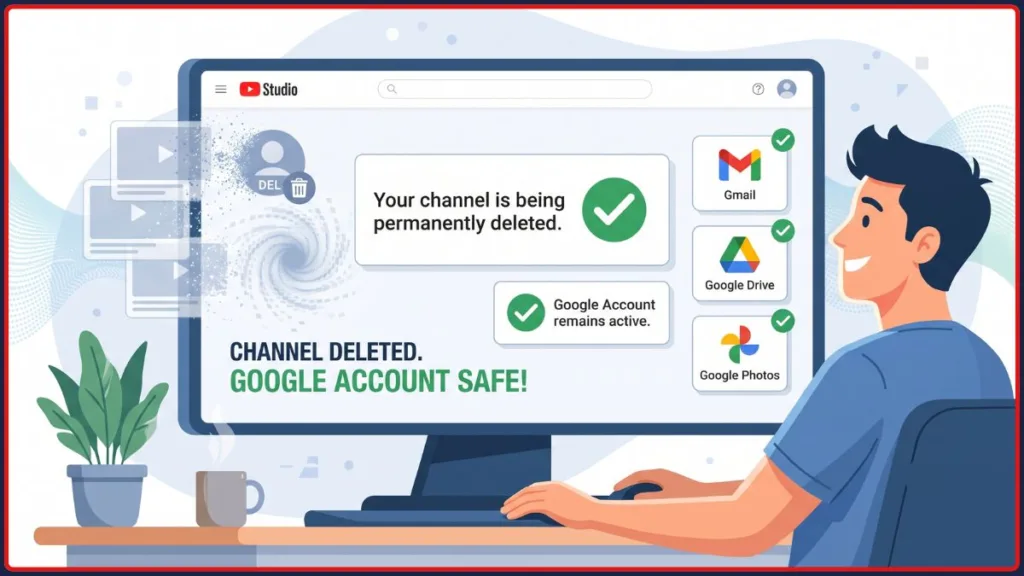
You do not have to worry about losing Gmail, Google Drive, or Google Photos just to remove a YouTube channel. Because YouTube separates a public channel from the Google Account behind it, your other Google services remain intact—as long as you use YouTube’s channel-specific removal path instead of closing your Google Account, and verify that no Brand Account or paid membership relies on the profile you are changing.
Official Google Statement: “These steps will only delete your YouTube channel, not your Google Account you use to sign in with.” — YouTube Help: Delete your YouTube channel
In practice, most channel-deletion problems come down to three avoidable mix-ups: confirming deletion while signed into the wrong profile, deleting an entire channel when you only wanted old uploads offline, or closing a personal Google Account that still owns a Brand Account channel you wanted to keep.
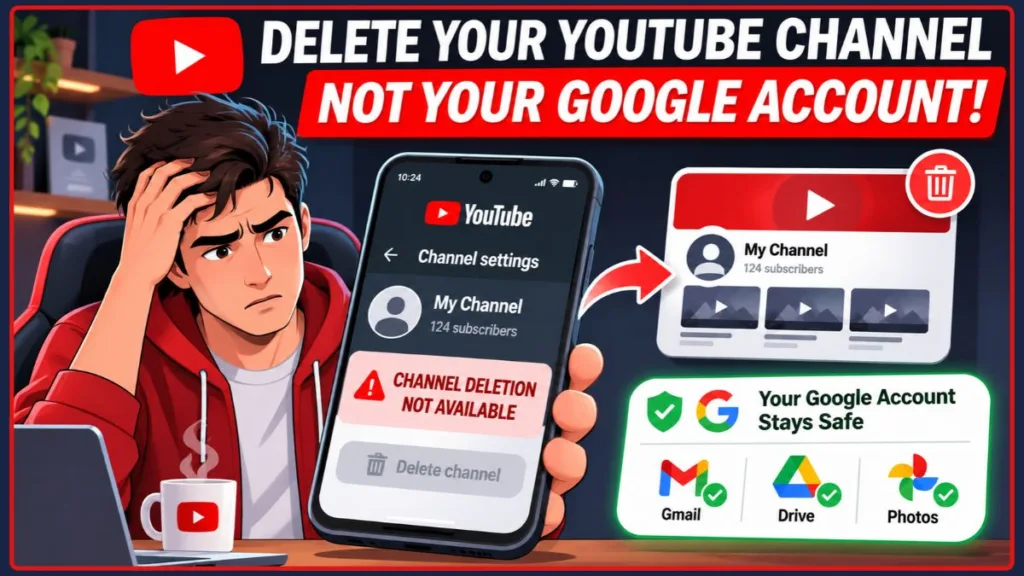
Start with the quick decision check below to make sure permanent deletion matches your goal. From there, confirm the exact channel in Step 0, follow the steps for your device, and use the account-protection sections afterward to handle Brand Accounts, backups, and billing safely.
Do You Actually Need to Delete Your YouTube Channel?
Before removing a channel permanently, check whether a reversible or safer option solves your problem without erasing data you still need:
| What You Want to Accomplish | Best Option | Why It Works Better |
| Take your public channel offline while keeping private viewing, likes, and subscriptions | Hide your channel | Removes your channel, videos, and playlists from search and other users while letting you restore it later. |
| Remove videos from your channel page without breaking existing blog or website embeds | Set videos to Unlisted | Takes videos off your channel’s Videos tab and YouTube search results while keeping direct links and embeds working. |
| Lock videos away from everyone while keeping them saved and reversible | Set videos to Private | Visible only to you and specific email addresses you invite; hidden from search and your channel homepage, and reversible anytime. |
| Move a channel off an old Google Account without losing its videos | Transfer via a Brand Account | Keeps your channel and uploads intact while shifting ownership to another Google Account. |
| Permanently remove the channel, videos, comments, and public presence | Permanently delete channel | Proceed directly to Step 0 below. |
Step 0: Confirm the Exact Channel Before Clicking Delete
Never rely on the email address shown in your browser alone. One Google Account can manage a personal viewing profile alongside one or more secondary Brand Account channels—and opening YouTube Studio under the wrong active profile is the most common reason people delete the wrong channel.
Practical Example: If alex@gmail.com manages both a personal viewing profile (Alex) and an old gaming channel (AlexPlays), switching to AlexPlays first ensures only the gaming channel gets removed.
- Open YouTube in a desktop browser and click your profile picture in the top-right corner.
- Click Switch account in the dropdown menu.
- Look for the checkmark showing which profile is currently active, then review every listed channel name, @handle, and subscriber count.
- Select the exact channel you want to remove so it becomes your active session before going any further.
Quick Check Before You Continue: Permanently deleting a channel removes its uploaded videos, Shorts, comments, replies, messages, community posts, playlists, and channel history, and cancels paid memberships tied directly to that channel. If you want offline copies first, jump down to the Google Takeout backup steps under Account Protection before confirming deletion.
How to Delete Your YouTube Channel Completely on a PC
Desktop YouTube Studio is the only officially supported permanent deletion path. It is also the safest route because it displays your active channel icon and an itemized count of everything queued for removal before asking for final confirmation.
Primary Method: Delete Your Channel via YouTube Studio
Follow the official sequence documented in YouTube Help:
- Open YouTube Studio: Go to YouTube Studio in Chrome, Edge, Firefox, or Safari. Confirm that the channel thumbnail in the upper-right corner matches the channel you selected in Step 0.
- Open Settings: Scroll down the left-hand sidebar and click Settings (the gear icon near the bottom left).
- Go to Advanced Settings: Click Channel in the settings menu, then open the Advanced settings tab at the top (between Basic info and Feature eligibility).
- Select Remove YouTube Content: Scroll to the bottom under Other settings and click Remove YouTube content.
- Verify Your Identity: Google will open a sign-in verification screen. Re-enter your Google Account password and complete any 2-Step Verification prompt on your phone or passkey. Confirm that the email address shown belongs to the account managing your target channel.
- Open the Permanent Deletion Panel: On the Remove YouTube content screen, skip the hide option and click I want to permanently delete my content to expand the list of items that will be removed.
- Review the Counts and Check Both Boxes: Check the exact numbers YouTube lists for your uploaded videos, playlists, subscriptions, and comments, then check both required boxes:
- Checkbox 1: Confirms permanent removal of all channel data (videos, playlists, likes, comments, messages, and history).
- Checkbox 2: Confirms cancellation of any paid subscriptions tied directly to that channel (such as channel memberships or YouTube TV).
- Confirm Deletion: Click Delete my content. When the confirmation box pops up, type your channel name or Google Account email address exactly as prompted, then click Delete my content one last time.
- Close the Tab: Once YouTube displays the confirmation screen stating your content is being permanently deleted, close the browser tab. Do not submit the request again.
Backup Shortcut: Direct Advanced Settings Link
If YouTube Studio menus lag or refuse to load cleanly, you can reach the exact same deletion screen without using the Studio sidebar:
- Verify that the right channel is active on YouTube using Switch account.
- Go directly to YouTube Account Advanced Settings and click Delete channel (or open Google’s direct YouTube removal page).
- Re-enter your password if prompted, expand I want to permanently delete my content, check both confirmation boxes, and click Delete my content.
Why Is the Remove YouTube Content Option Missing or Greyed Out?
If you cannot find or click Remove YouTube content, one of four account or browser restrictions is usually responsible:
- You do not hold the Owner role: Having permission to upload or edit videos does not allow you to delete a channel. Under YouTube’s channel permissions rules, only an Owner or Primary Owner can permanently delete a channel. If you are a Manager or Editor on a client, team, or family channel, the Owner has to complete the deletion:
| Channel Role | Can Edit & Upload Videos? | Can Delete Published Videos? | Can Delete the Entire Channel? |
| Owner / Primary Owner | Yes | Yes | Yes |
| Manager | Yes | Yes | No |
| Editor / Editor (Limited) | Yes | No (drafts only) | No |
| Subtitle Editor / Viewer | No | No | No |
Troubleshooting Error Messages: If Google displays “Something went wrong. Sorry, you’re not able to hide or delete your YouTube data at this time. Please try again later,” this is a known temporary session or account-sync error. Avoid clicking repeatedly—sign out, open an incognito window, wait a few hours, and retry via YouTube Account Advanced Settings.
- Supervised account limits: Teen or child accounts managed through Family Link or YouTube Supervision may have restricted channel-deletion controls.
- Browser extensions or cached sessions: Ad blockers and stale browser cookies occasionally block the YouTube Studio settings overlay. Open an Incognito / Private browser window, sign directly into YouTube Studio, and repeat the Primary Method.
Deleting a YouTube Channel on Mobile app
If you have been looking through the YouTube app on Android or iPhone for a permanent delete button, you haven’t missed it—YouTube does not support permanent channel deletion on mobile devices.
Official Google Statement: “Note that you can’t currently delete a channel on mobile devices.” — YouTube Help: Delete your YouTube channel
Keep two common mobile misunderstandings in mind before taking action:
- Uninstalling or disabling the YouTube app does not delete your channel. Removing the app only removes it from your phone; your channel, uploads, and comments stay live online.
- The mobile Privacy setting only hides your channel. Going to Settings > Privacy > Hide your channel in the app is temporary and reversible—it does not permanently delete the channel.
Unofficial Phone-Only Fallback: Desktop Mode in a Mobile Browser
Because permanent deletion is officially desktop-only, trying to run it on a phone is an unofficial workaround that often redirects into the YouTube app or fails to display the final confirmation box cleanly. If you do not have access to a computer, you can try this mobile browser path:
- Open Chrome (Android) or Safari (iPhone)—do not open the YouTube app.
- Turn on desktop mode before loading YouTube:
- Android (Chrome): Tap the three-dot menu in the top-right corner and check Desktop site.
- iPhone (Safari): Tap the page settings / AA icon in the address bar and choose Request Desktop Website.
- Go directly to YouTube Account Advanced Settings or Google Account YouTube Options.
- If your phone keeps launching the YouTube app: Open your Google Account dashboard in your mobile browser instead, go to Data & privacy > Delete a Google service, and tap the trash icon beside YouTube (avoid the separate Delete your Google Account option on that page).
- Confirm you are signed into the right profile, expand I want to permanently delete my content, check both confirmation boxes, type your channel name or email address, and tap Delete my content.
Practical Mobile Fallback: If your phone browser keeps redirecting or refuses to render the confirmation box, wait until you can borrow a laptop or desktop—and use Settings > Privacy > Hide your channel in the YouTube app right now to take your channel offline immediately in the meantime.
What Happens to Your Data When You Delete Your YouTube Channel
Before confirming deletion, it helps to know exactly where your Google Account stops and your YouTube channel begins—especially regarding analytics, external links, and viewing history.
Account Data, Analytics, and External Links
Official Google Statements on Data Removal & Analytics:
- “Closing your YouTube channel permanently deletes all your content, including videos, comments, messages, playlists, and history.” — YouTube Help Community Guide
- “After you delete a channel, the channel URL and channel name will no longer be visible or searchable in YouTube Analytics. Data associated with the channel, such as watch time, will still be part of aggregate reports, but will not be attributed to the deleted channel.” — YouTube Help: Delete your YouTube channel
| Account Asset or Data Type | Status After Channel Deletion | Practical Impact |
| Google Account, Gmail, Drive, Calendar & Photos | Remains intact | Stays active as long as you use YouTube’s channel-specific removal path rather than deleting your Google Account. |
| Uploaded Videos, Shorts & Livestreams | Permanently deleted | Removed from public search and direct links; do not expect YouTube Support to restore them. |
| Comments, Replies & Community Posts | Permanently deleted | All community posts, comments, and replies you left on your own videos and other creators’ videos are removed. |
| Playlists, Likes & Channel History | Permanently deleted | Curated playlists and channel-tied history are removed; export via Google Takeout first if you want records. |
| Subscriptions | Do not assume retention | Never assume channel-tied subscriptions or viewing preferences will carry over; export or note them before deleting. |
| Channel Name, @Handle & Custom URL | Permanently removed | No longer visible or searchable on YouTube or in YouTube Analytics; deleted custom channel URLs cannot be reused on a new channel. |
| Shared Video Links & Website Embeds | Permanently broken | Any video URL or channel link embedded on blogs, portfolios, social bios, or emails stops playing and shows an error screen. |
| Aggregate Watch-Time Metrics | Anonymized | Retained only inside anonymized platform-level aggregate reports, never attributed to your deleted channel. |
| Other Brand Accounts Under Your Login | Remains intact | Deleting one channel in YouTube Studio does not delete other Brand Account channels you manage. |
Check Your External Links First: If you shared a tutorial link in a blog post, portfolio, or client email last year, deleting the channel breaks that video player permanently. Audit and replace embedded videos beforehand—or switch those specific videos to Unlisted instead of deleting the channel if you still need the embeds to work.
How Long Does YouTube Channel Deletion Take? Temporary Thumbnails and Recovery Options
Removal starts after confirmation, though Google does not publish a fixed completion time for clearing cached files across its servers.
Official Google Statement: “It may take some time for your channel to be permanently deleted. In the short term, you may continue to view thumbnails of your videos on the site.” — YouTube Help: Delete your YouTube channel
Channels with only a few uploads usually disappear quickly, while older channels with large video and comment histories can take noticeably longer to clear from search results. If thumbnails still appear shortly afterward, check the channel URL in an incognito window after clearing your browser cache instead of submitting repeat requests.
Do not rely on recovery after confirming permanent deletion. Google offers no self-service undo button and notes plainly:
Official Google Statement: “If you choose to permanently delete your channel, we may have a harder time recovering your account.” — YouTube Help: Delete your YouTube channel
Treat permanent deletion as final.
How to Back Up Your Videos and Playlists With Google Takeout
If you might ever want your original video files, descriptions, or playlist records again, download an archive via Google Takeout before clicking delete:
- Open Google Takeout on a desktop computer (Google recommends downloading and viewing Takeout archives on a computer rather than a phone).
- Sign in to the managing Google Account. If your channel is linked to a Brand Account, switch into that Brand Account profile first.
- Under Select data to include, click Deselect all, then scroll down and check YouTube and YouTube Music.
- Click All YouTube data included to verify that videos, playlists, subscriptions, and history are selected, then click Next step.
- Pick your Delivery method (email download link, Google Drive, Dropbox, OneDrive, or Box—keeping in mind that exporting to Google Drive counts toward your Drive storage quota), choose .zip, and click Create export.
- Once the email arrives, download the archive and open the included archive_browser.html file to confirm your files opened cleanly before deleting the channel.
Google Takeout Brand Account Warning: “If you aren’t able to download some of your YouTube videos, check to find out if your YouTube channel is linked to a Brand Account.” — Google Account Help: How to download your Google data
Before You Delete a YouTube Channel: Check Your Other Channels, Brand Account Ownership, and Paid Memberships
A Brand Account is a separate channel container that lets a YouTube channel use its own name and owners without being locked to a single personal Gmail address. Most multi-channel mix-ups happen when users treat deleting a YouTube channel, deleting a Brand Account, and deleting a Google Account as the same action.
1. Deleting a Secondary Channel Without Deleting the Brand Account
If you only want to remove a secondary YouTube channel, delete it inside YouTube Studio—do not delete the parent Brand Account. A Brand Account can be linked to other Google services (and supports separate Owners, Managers, and Communications managers who cannot use YouTube), so deleting the Brand Account removes everything attached to it across Google.
Official Google Statement: “If you delete the account, all of its content will be removed across all Google services. Important: You have to be an owner of the account for 7 days before you can delete or restore accounts. If you’ve been an owner for less than 7 days, you’ll get an error message.” — Google Account Help: Manage your Brand Account
- To delete only the secondary YouTube channel: Use Switch account to select that channel, open YouTube Studio, and follow the Primary Method above. Your personal Google Account, main channel, and other Brand Accounts remain intact.
- To delete (or restore) an entire Brand Account: Open your Google Account dashboard, go to Data & privacy, scroll to Data from apps and services you use, open Content saved from Google services, and select Brand Accounts. Choose the Brand Account, click Delete account, verify your password, and confirm. (If you deleted a Brand Account by mistake, return to the Brand Accounts page, open Deleted accounts, and click Restore this Brand Account—provided you have been an Owner for at least 7 days.)
2. Closing an Old Personal Google Account Without Deleting Your Brand Channel
If you built a business channel under an old personal Gmail that you now plan to close, do not delete that personal Google Account yet. If it is still the channel’s Primary Owner, closing the Google Account deletes the Brand Account channel too.
Official Google Statement: “Important: If you delete the primary owner account linked to your channel, the channel will also be deleted.” — YouTube Help: Delete your YouTube channel & Change channel owners & managers with a Brand Account
Important Permission Systems Note: Before transferring ownership, one quick detail helps prevent confusion: YouTube has two overlapping permission systems (YouTube Studio Permissions and Brand Account roles), so you have to switch off Studio Permissions temporarily before Google allows a Brand Account ownership transfer.
Transfer Primary Owner status safely in seven steps:
- Opt out of Studio Permissions (if enabled): In YouTube Studio, open Settings > Permissions and select Opt out of permissions in YouTube Studio.
- Open Brand Account Permissions: Go to your Google Account dashboard, open Data & privacy, scroll to Data from apps and services you use, click Content saved from Google services > Brand Accounts, select the Brand Account you want to keep, and click Manage permissions.
- Add your new Google Account as an Owner: Click Invite new users, enter your new work or personal Gmail, assign the Owner role, and click Invite > Done.
- Accept the invitation: Open the email inside your new Google Account and accept the invite.
- Wait 7 full days: Google enforces two 7-day requirements before allowing a transfer: the person making the change must have been an Owner for at least 7 days, and the person becoming the new Primary Owner must have been a Manager or Owner for at least 7 days. Trying earlier produces an error message.
- Transfer Primary Owner status: After 7 days, return to Manage permissions, open the dropdown next to your new Google Account, choose Primary owner, and click Transfer.
- Verify and close: Remove the old Gmail from Manage permissions, confirm your new Google Account opens YouTube Studio normally, and only then close your old personal Google Account.
3. Preserving Videos by Moving a Personal Channel to a Brand Account
If your channel sits directly on a personal Google Account you plan to retire—and you want to keep your videos rather than delete them—move the channel onto a Brand Account first, then transfer Primary Owner access to your new Google Account.
Core Rule for Channel Transfers: Moving places your channel into the target slot and permanently deletes whatever channel was already sitting in that slot. It never merges two channels.
Before starting, check three official requirements:
- Your Google Account must be the Primary Owner.
- You must opt out of Studio Permissions (YouTube Studio > Settings > Permissions > Opt out of permissions in YouTube Studio) and remove existing Studio users first.
- Supervised accounts cannot move their channel (some school accounts may qualify separately under Google’s rules).
Follow Google’s Move channel steps carefully:
- Sign in to YouTube, click your profile picture, and use Switch account to confirm you are signed into the channel you want to keep and move (Channel A).
- Open Settings > Advanced settings.
- Next to Move channel, click Move channel to your Google Account or to a different brand account.
- Select the target Brand Account from the list. (If you do not have an empty Brand Account yet, create one first from your YouTube channel list via Create a channel.)
- If that destination account already holds an existing channel (Channel B), clicking Replace > Delete channel will permanently erase Channel B.
- Review how your channel name will appear after the move, click Move channel, and re-enter your password if prompted.
Critical Channel-Transfer Warnings from Google:
- Moving replaces—it never merges: “Warning: You can accidentally delete the wrong channel. To avoid this mistake, check that you’re in the Google Account associated with the channel you want to move… Any content associated with [the replaced] channel will be permanently deleted, including videos, comments, messages, playlists, and history.” — YouTube Help: Move your YouTube channel from one Brand Account to another
- Data removed even during a clean transfer: Moving a channel to another Brand Account removes its watch and search history, creator demographic information, and gift settings (and if replacing an existing channel, that replaced channel’s verification badge, videos, messages, playlists, and history are permanently deleted).
4. Checking YouTube Premium and Paid Memberships
Keep two billing layers separate so you are not surprised by an unexpected renewal or lost perk:
- Channel-tied paid memberships: Paid perks linked directly to the specific channel you are deleting (such as channel memberships) are canceled when you confirm deletion in YouTube Studio.
- Account-level subscriptions (YouTube Premium and YouTube TV): Deleting a secondary channel does not automatically cancel YouTube Premium, because billing is tied to your Google Account, Apple ID, or Google Play account.
- Check YouTube Paid Memberships or YouTube Purchases to confirm your membership status—or cancel it there if you want to stop future billing.
- If you subscribed through the YouTube iOS app, manage or cancel billing in your Apple account settings; if billed via Google Play, check Google Play subscriptions and Google Payments.
How to Remove Your Channel Without Losing Watch History, Playlists, or Subscriptions
If you uploaded a few school projects years ago and mostly use YouTube to watch cooking videos today, do not permanently delete the channel. Because YouTube links playlists, subscriptions, and watch history to your channel profile, permanent deletion risks wiping out that viewing setup.
Hiding your channel—or changing individual video visibility—solves the problem cleanly without resetting your viewing feed.
| Comparison Factor | Hide Your Channel (Reversible) | Permanently Delete Channel (Irreversible) |
| Public Channel, Videos, Playlists & Posts | Hidden from search and all other users (channel name, @handle, and profile picture remain visible only to you) | Permanently removed |
| Private Viewing, Liking & Subscribing | Fully functional and private | You can still watch signed in, but viewing history resets and public actions require creating a new channel |
| Available Directly in the Mobile App? | Yes (Android, iPhone & iPad) | No (desktop browser officially required) |
| Team / Delegate Access | Delegates lose access while hidden | Permanently terminated |
| Can You Undo It Later? | Yes (via Restore your channel) | No (treat as final) |
How to Hide (and Later Restore) Your Channel
Follow YouTube’s official steps:
- Open the YouTube app on Android, iPhone, or iPad.
- Tap your profile picture > Settings > Privacy.
- Tap Hide your channel, review the notice, and tap Hide to confirm.
- (On desktop, open YouTube Studio, go to Settings > Channel > Advanced settings > Remove YouTube content, and choose I want to hide my channel.)
Important Hiding & Restoration Notes from Google:
- “Anyone with delegated access (via YouTube channel permissions or brand account delegation) will lose access while the channel is hidden. For brand account delegation, you will need to re-add delegates once the channel is restored (this does not apply to channel permissions).” — YouTube Help: Hide or restore your YouTube channel
- When you restore later (Settings > Privacy > Restore your channel > Restore): Every previously public video returns set to Private—nothing goes public again until you manually change its visibility in YouTube Studio, though previously public playlists become visible to others again.
Preserving Specific Videos Without Deleting: Private vs. Unlisted
If you only want certain uploads taken off your public profile while leaving your channel, comments on other videos, and subscriptions untouched, adjust video visibility in YouTube Studio > Content > Visibility:
- Use Unlisted if a product demo is embedded on your portfolio site and you still want visitors to watch it. Unlisted videos do not show up on your channel’s Videos tab or in YouTube search results (unless someone adds the video to a public playlist), but anyone with the direct link or website embed can watch and share it without a Google Account, and comments stay active.
- Use Private if you want an old family clip visible only to you (or specific people you invite by email via YouTube Studio > Content > select video > Visibility > Share privately). Private videos are hidden from search and your channel page, and comments are disabled while the video stays private. (Note: YouTube systems and human reviewers can still review private videos for copyright, ad suitability, and abuse prevention.)
How to Delete an Old YouTube Channel Without Access to Your Google Account?
YouTube will not delete a channel just because you provide its URL or say you appear in the videos. Without verified login access, start with Google Account Recovery. If recovery fails, you can submit a targeted YouTube Privacy Complaint when specific videos expose your personal information.
- Recover a forgotten email address: Open Google’s Find Your Email recovery tool. Use an old recovery phone number or backup email along with the full name originally listed on the account.
- Recover a forgotten password (even without your old phone): Run Google Account Recovery from a familiar device, browser, and Wi-Fi network you previously used with Google. Answer every prompt as accurately as possible. Google says incorrect guesses won’t lock you out, and there is no limit on recovery attempts.
- Avoid paid channel removal services: Third-party websites claiming they can erase old YouTube channels cannot bypass Google’s ownership verification. Many are designed to collect your login credentials.
Google Account Security Warning: Google does not offer phone support for signing into your account and does not work with services claiming to provide account or password support. Never share your password or verification codes.
4. If account recovery fails, consider a YouTube Privacy Complaint: If an old video exposes personally identifiable details, check YouTube’s Protecting Your Identity policy. YouTube considers whether you are uniquely identifiable through your image, voice, full name, financial information, or contact details. Report the specific video through YouTube’s Privacy Complaint Process. This will not remove the entire channel, but YouTube may remove individual videos that violate its privacy policy.
Should You Delete Your YouTube Channel and Start Over or Rebrand It?
- Rebrand instead of deleting if your channel has a clean account standing, an established history, or an audience that still overlaps with your new topic. Update your handle, banner, and channel description in YouTube Studio. Set old uploads to Private or Unlisted if you no longer want them publicly visible. This lets you retain your existing channel rather than permanently removing it. YouTube allows you to change your handle twice within a 14-day period and holds your previous handle for 14 days in case you want to switch back.
- Delete and start fresh if you are moving into a completely unrelated niche and want a separate channel identity. You do not need a new Google Account. You can create another YouTube channel using your existing Google login after deleting the old one.
FAQ: YouTube Channel Deletion
If I delete my Google Account, will my YouTube channel be deleted too?
Yes. Closing a Google Account permanently removes Gmail, Google Drive, Google Play purchases, your personal YouTube channel, and every Brand Account channel where that account is the Primary Owner. If you only want your YouTube channel removed, delete the channel inside YouTube Studio instead.
How do I permanently get rid of YouTube on my phone?
Complete three steps so you do not leave a live channel behind: first, delete your channel on a computer (or try the unofficial mobile browser fallback via YouTube Account Advanced Settings); second, open Google My Activity to delete and pause future YouTube watch and search history; third, uninstall the YouTube app on iPhone—or go to Settings > Apps > YouTube > Disable on Android phones where YouTube comes pre-installed.
Does hiding or deleting my channel remove the comments I left on other people’s videos?
Yes, though they behave differently. Permanently deleting your channel irreversibly removes every comment, reply, and community post you left across YouTube. Hiding your channel conceals your public channel presence and content while keeping the channel recoverable later.
Can I still watch YouTube after permanently deleting my channel?
Yes. Your Google Account stays active, so you can sign in and watch videos immediately as a viewer. However, public actions—such as uploading videos, leaving comments, or maintaining public playlists—require creating a YouTube channel again. If you want to keep watching, liking, and subscribing privately without resetting your feed, use Hide your channel instead.
Do I have to delete my videos one by one before deleting my channel?
No. Selecting I want to permanently delete my content in YouTube Studio automatically queues every uploaded video, Short, livestream, playlist, comment, and channel record for complete removal in one step.
Final Pre-Deletion Checklist: Before clicking Delete my content one last time, run five quick checks: confirm the exact channel @handle under Switch account, verify your Google Takeout archive opened cleanly, check any blogs or websites embedding your video URLs, confirm any Brand Account you plan to keep has another Google Account set as Primary owner, and review active billing at YouTube Paid Memberships. With those five boxes checked, you can remove the unwanted channel cleanly while keeping Gmail, Google Drive, and the rest of your Google Account intact.
Visit Our Post Page: Blog Page
Discover more from Izoate
Subscribe to get the latest posts sent to your email.