
Getting kicked out of Roblox mid-match with Error 1025 and the “Disconnected from the experience” message? Learn how to fix Roblox Error 1025, stop repeated game disconnects.
You are mid-raid or mid-trade when your screen suddenly freezes and Roblox hits you with “Disconnected from the experience. Please reconnect. (Error code: 1025)”. You hit Reconnect, load back in, and get booted out again a minute later.
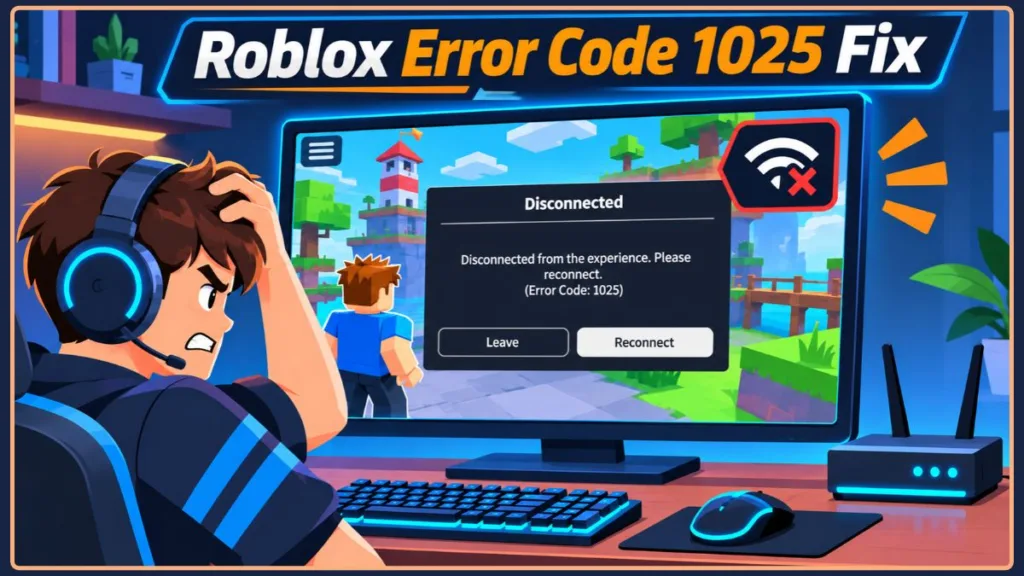
Roblox Error Code 1025 means your client lost its live session with the game server. That drop comes from one of three places: Roblox’s backend, an overloaded experience, or your local Windows network setup. Because the popup never tells you which one broke, guessing wastes your time. The fastest way back into the game is a clean process of elimination: check the server first using Roblox’s built-in telemetry, then clear local bottlenecks from the quickest fix to the heaviest.
What Is Roblox Error Code 1025?
Roblox Error Code 1025—often searched as Roblox unknown error 1025 because you will not find it listed in Roblox’s public Help Center error directory—is an active-session disconnect. In player reports, it frequently shows up alongside related 1000-series drops like Error 1022, Error 1030, and Error 1033, usually right after a sudden lag spike.
When “Disconnected from the experience” pops up, the client cuts your server instance and leaves you with two buttons: Reconnect or Leave. Unlike a hard crash that kills the entire window, Roblox stays open—it just cannot hold onto the live UDP packet stream needed to keep your gameplay synced.
Your account is safe: Error Code 1025 is strictly a session-transport drop—never an account ban, warning, or security lock. Moderation actions log you out or throw explicit restriction screens on login. Your account, Robux, and saved progress are completely intact.
Why Does Roblox Show Error Code 1025?
Looking at how Roblox handles live connections and what shows up in real player diagnostics, six culprits explain almost every Error Code 1025 kick:
- Roblox Server Outage or Maintenance: Regional game server incidents or matchmaking maintenance can knock active sessions offline across the platform with generic disconnect codes. If the break is on Roblox’s end, no tweak on your PC will hold a connection until their infrastructure recovers.
- Unstable Internet Connection: Roblox only needs 4–8 Mb/s of bandwidth, so raw download speed is rarely what kicks you—packet stability is. Once you load into an experience, Roblox opens dynamic outgoing UDP ports 49152–65535. Wi-Fi interference, router memory exhaustion, overheated mobile hotspots throttling throughput, or VPN/proxy routing (which Roblox explicitly marks as unsupported during experience launch on
assetgame.roblox.com) interrupt those UDP packets and trigger an I/O transport drop. - Problems With a Specific Roblox Experience: High-population, asset-heavy games—like Blox Fruits, Adopt Me, or RIVALS—routinely throw Error 1025 while quieter servers run without a hitch. Heavy replication queues, unoptimized server scripts, or too many active objects push your Data Ping (replication round-trip time) through the roof even while your raw Network Ping stays flat, timing out your session.
- Corrupted Roblox Cache Files: Every update and game join writes temporary assets, textures, and logs into your Windows user directory. Over time, that cache balloons or holds onto mismatched files after an interrupted update, causing your client to desync shortly after joining.
- Incorrect DNS or Network Settings: Stale local DNS entries, expired DHCP IP leases, or a damaged Windows Winsock catalog can misroute your traffic to endpoints like
assetgame.roblox.comandclientsettings.api.roblox.com. Normal TCP web browsing can look completely fine while your real-time UDP game sessions drop immediately. - Firewall or Antivirus Blocking Roblox: Because Roblox dynamically binds across UDP 49152–65535—and drops fresh builds into brand-new version folders during updates (commonly on Thursdays)—Windows Defender Firewall or third-party antivirus suites often flag the updated
RobloxPlayerBeta.exefile and silently block your outbound packets.
How to Fix Roblox Error Code 1025
Run through these six fixes in order and test an experience after every single step. The moment you stay in-game for five minutes with zero kicks, stop troubleshooting and get back to playing.
Method 1: Check Roblox Server Status
Why you should start here: Never tear apart your Windows settings before confirming the problem is actually on your PC. Checking platform health against a lightweight server separates outages and broken games from local issues in under two minutes.
- Open
status.roblox.comand check the User, Player, and Game Join components for active incidents or maintenance. - If everything reads green, load into a lightweight, low-population experience (or a private server/empty baseplate) instead of a crowded public lobby.
- Hit Shift + F3 to open Roblox’s network debug overlay (or Ctrl + Alt + F7 for the Performance Stats bar) and watch your connection for 30 seconds.
How to read what you see: If your Network Ping holds steady under 100 ms in a lightweight experience with zero kicks, Error 1025 in your main game is coming from that experience’s server load or scripts—not your PC.
Move to Method 2 if: status.roblox.com is green and even a lightweight experience boots you with spiking ping or sudden freezes.
Method 2: Restart Your Router and Turn Off VPN
Why you should try this: Consumer routers quietly build up stale NAT tables and packet-queue congestion after weeks of uptime, while VPNs, proxies, and crowded wireless bands chew up Roblox’s dynamic UDP stream.
- Unplug the power cable from your router (and standalone modem, if you have one). Wait 30 to 60 seconds so internal memory clears completely, plug both back in, and give the status lights two minutes to stabilize.
- Disconnect and completely exit any VPN or proxy client sitting in your Windows system tray.
- Ditch Wi-Fi—especially a warm phone mobile hotspot—and plug in a direct Ethernet cable if you have one. If you have to stay on Wi-Fi, switch to your router’s 5 GHz band instead of 2.4 GHz.
- Press Ctrl + Shift + Esc to open Task Manager, sort by the Network column, and pause bandwidth hogs like Steam/Epic updates, OneDrive/Google Drive syncs, Discord screen-sharing, or 4K streams.
Move to Method 3 if: Error Code 1025 still kicks you on a fresh wired or 5 GHz connection with no VPN running.
Method 3: Clear the Roblox Cache
Why you should try this: Clearing out temporary local files and logs forces Roblox to rebuild clean assets on the spot—without touching your Windows network settings.
- Press Ctrl + Shift + Esc to open Task Manager, find every Roblox or RobloxPlayerBeta.exe process, right-click each one, and hit End task so Windows lets go of the folder.
- Press Win + R, type the path below, and hit Enter:Plaintext
%localappdata% - Right-click the Roblox folder and choose Delete. (Command-line alternative used by Roblox Support: open Command Prompt, run
cd AppData\Local, thenrmdir /s Roblox, and confirm withy.) - Launch an experience from
roblox.com. Roblox will rebuild a clean directory automatically and re-run the bootstrapper if needed.
Using the Microsoft Store version? Skip deleting folders for a second. Open Settings > Apps > Installed apps, click the three dots beside Roblox > Advanced options, and hit Repair. If Repair does not stop the disconnects, click Reset (just keep in mind Reset signs you out).
Move to Method 4 if: Fresh client files still boot you after a minute or two in-game.
Method 4: Reset Network Settings and Flush DNS
Why you should try this: Corrupted Windows sockets or cached bad routes will drop Roblox UDP packets even while your browser loads websites without complaint. Flushing DNS, renewing your IP lease, and resetting Winsock gives your Windows transport stack a clean slate.
- Hit the Windows key, type cmd, right-click Command Prompt, and pick Run as administrator. Click Yes when prompted.
- Run these four commands one at a time, pressing Enter and waiting for each one to finish before typing the next:DOS
ipconfig /release ipconfig /flushdns ipconfig /renew netsh winsock reset - Restart Windows immediately once
netsh winsock resetfinishes so the rebuilt catalog actually takes effect. - Once you are back at the desktop, make sure Windows Date & time are set automatically, then jump into an experience to test.
Heads up before you run this: Your internet will drop briefly between
/releaseand/renew—do not panic, that is normal. And do not skip checking Date & time, because an out-of-sync system clock breaks Roblox server handshakes.
Move to Method 5 if: The disconnects keep happening after a full network reset and reboot.
Method 5: Allow Roblox Through Windows Firewall and Antivirus
Why you should try this: Every freshly updated RobloxPlayerBeta.exe lands inside a new version folder, which makes firewalls and antivirus suites suspicious enough to choke off its UDP 49152–65535 traffic.
- Hit the Windows key, type Windows Security, and open it.
- Navigate to Firewall & network protection > Allow an app through firewall, then click Change settings.
- Find Roblox (or RobloxPlayerBeta.exe) and check both Private and Public.
- If you do not see Roblox—or you want to make sure your newest build is cleared—click Allow another app > Browse, open
%localappdata%\Roblox\Versions, open the most recently modifiedversion-...folder, pick RobloxPlayerBeta.exe, and hit Add.
- If you do not see Roblox—or you want to make sure your newest build is cleared—click Allow another app > Browse, open
- Click OK to save.
- Running third-party antivirus suites (like Avast, Bitdefender, McAfee, or Norton)? Open their Firewall, Program Permissions, or Quarantine logs and whitelist
RobloxPlayerBeta.exe. Also check if a browser ad-blocker extension is getting in the way of the website launcher.
Move to Method 6 if: Both your firewall and antivirus permissions are wide open for Roblox and Error 1025 still fires.
Method 6: Uninstall and Reinstall Roblox
Why you should try this: Installing over a broken setup leaves damaged registry keys and old version folders behind—and having both the web client and the Microsoft Store app installed at the same time causes nasty update conflicts.
- Press Win + I to open Settings > Apps > Installed apps.
- Search for Roblox, click the three-dot menu, and click Uninstall. If you see both Roblox Player and the Microsoft Store Roblox app, get rid of both.
- Open Command Prompt (Win + R > type cmd > Enter) and clear out every leftover file:DOS
cd %localappdata% rmdir /s RobloxTypeyand press Enter. Next, press Win + R, type%temp%, and delete any leftover Roblox folder sitting in there. - Restart Windows to flush locked DLLs and background services out of memory.
- Open Chrome, Edge, or Firefox, head to
roblox.com, sign in, and hit Play on any experience to pull down a fresh RobloxPlayerInstaller.exe. - Run the installer and stay inside a test experience for at least five minutes.
VM & ISP Check: Roblox officially does not support Virtual Machines or cloud-based PCs—if you are playing inside a VM, disconnects will keep happening no matter how many times you reinstall. If a clean install on a physical PC still drops over Ethernet across multiple games, test a cool, stable secondary hotspot; if switching networks fixes it instantly, your home ISP is throttling or blocking UDP ports 49152–65535 and needs to inspect your routing or modem.
What If Your Roblox Error Code Is Not on This List?
Running a network reset for an account or permission error only burns your time. When Roblox throws a different code at you, narrow it down in four quick steps:
- Write down the exact number and sub-ID: Nearly identical popups hide completely different causes—Error 279 / ID 17 means a failed connection handshake, Error 264 means the same account launched on another device, and Error 280 points to an outdated client version.
- Pinpoint where it breaks: Notice if it hits on launch (corrupted client, outdated browser, or antivirus block), across every experience (router/DNS/ISP or Roblox outage), or inside one experience only (broken developer script or private-server restriction).
- Check official documentation first: Look up the exact number in the Roblox Help Center (
en.help.roblox.com, including General Connection Problems and code-specific articles) instead of trusting sketchy third-party “fix” utilities. - Send real diagnostics to Roblox Customer Support (
[roblox.com/support](https://roblox.com/support)):
Put these six details in your ticket so you skip generic first-tier replies: Your Roblox Username, exact error messages received, device model name, OS version, exact steps to reproduce the issue, and any recent network or device changes.
Frequently Asked Questions
How Do I Fix Error Code 1025 in Roblox?
Work through six fixes in order and test your game after each one: check status.roblox.com and test a low-population game, power-cycle your router for 30–60 seconds and kill any VPNs/proxies, wipe %localappdata%\Roblox (or run Windows App Repair/Reset for the Store app), run the four ipconfig and netsh winsock reset commands, whitelist RobloxPlayerBeta.exe in Windows Firewall and antivirus, and finish with a clean reinstall.
What Does Roblox Error Code 1025 Mean?
Roblox Error Code 1025 pops up with “Disconnected from the experience. Please reconnect.” and means your client lost its live session with the game server. Even though it is missing from Roblox’s official error directory, real-world diagnostics tie it to server incidents, unstable Wi-Fi/UDP transport, overloaded experiences, or corrupted local cache—never an account ban.
How Do I Fix Roblox Disconnected From the Experience?
Start by checking status.roblox.com and hitting Shift + F3 inside a quiet, low-population game to see if your connection is actually dropping. If every experience kicks you, reboot your router, swap Wi-Fi or a warm hotspot for Ethernet, shut down any VPN, and flush Windows DNS.
What Are Roblox Errors?
Roblox errors are numbered status popups the client or servers throw when a session fails to launch or stay alive. Depending on the number, they point straight to network issues (blocked UDP ports, packet loss, DNS), Roblox server outages, account/session conflicts (like Error 264 multi-device logins), or corrupted/outdated installations.
What If My Roblox Error Code Is Not on This List?
Jot down the exact error number, any sub-ID (like ID 17), and whether it hits one game or all of Roblox. Search that code in the official Roblox Help Center (en.help.roblox.com), and if official steps do not clear it, reach out to Roblox Support with your username, device model, OS version, and reproduction steps.
Visit Our Post Page: Blog Page
Discover more from Izoate
Subscribe to get the latest posts sent to your email.