
Snapchat keeps suggesting people you don’t know, and on top of that, your own profile might be showing up in other people’s suggestions too. Turning off one setting can help, but it doesn’t always take care of everything at once. This guide walks you through exactly what to change, in the right order, so you can get your Quick Add situation under control.
One quick heads-up before you start: Snapchat has renamed Quick Add to Find Friends. You’ll still see plenty of people (including us) call it Quick Add, since that’s what most users search for and remember, but if you open your settings and don’t see that exact wording, that’s why. We’ll use both terms throughout so you can follow along no matter which version of the app you’re on.
Here’s what this guide covers:
- Turning off Quick Add / Find Friends for your own profile
- Why suggestions and friend requests sometimes stick around anyway
- How to actually cut down on them
- Removing synced contacts that keep feeding the suggestion list
- Other privacy settings worth reviewing while you’re in there
If you’ve landed on this page, it’s probably because Snapchat suggested your account to someone you’d rather it hadn’t, or because your own suggestion list keeps filling up with strangers no matter how many times you dismiss it. Both problems trace back to the same recommendation system — Snapchat uses signals like mutual friends, synced contacts, and existing connections to decide who to suggest to whom, and by default your account is opted in to all of it. The good news is that every one of those signals can be adjusted; the setup just isn’t one single switch, which is exactly why this guide breaks it down step by step.
Let’s start with the setting most people are looking for.
How to Disable Quick Add on Snapchat
This is the main switch, and it’s the first thing to turn off if you don’t want Snapchat recommending your account to other people.
Turn Off “See Me in Find Friends”
- Open Snapchat.
- Tap your profile icon in the top-left corner.
- Tap the Settings gear in the top-right corner.
- Scroll down to App & Privacy.
- Tap My Privacy and Data.
- Find See Me in Find Friends.
- Turn the toggle off.
That’s it — your account is no longer being actively suggested to other Snapchatters based on things like mutual friends or shared contacts.
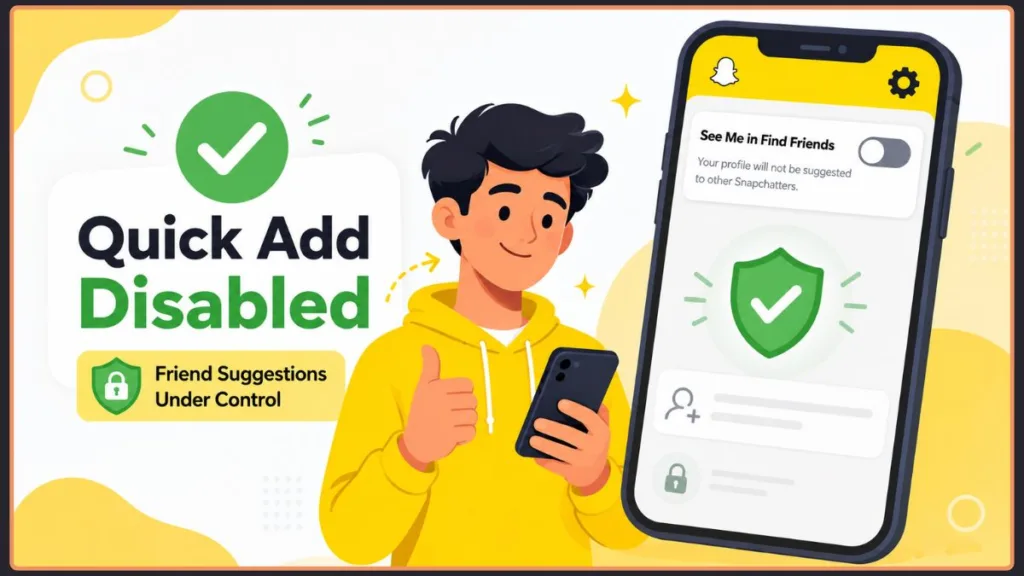
Tip: Older tutorials (and a lot of habit) still call this setting “See Me in Quick Add.” If you can’t find that exact wording in your app, look for Find Friends instead — it’s the same setting.
A couple of small UI notes depending on which version of the app you have: on some builds, this setting sits under a Privacy Control heading inside My Privacy and Data rather than as a standalone entry, and it can appear as a checkbox labeled Show Me in Find Friends instead of a toggle switch. Either way, unchecking the box or switching the toggle off does the same thing. The steps are identical on iPhone and Android — this isn’t a setting that’s exclusive to one operating system.
Now, this is where a lot of guides stop. But turning this one toggle off doesn’t necessarily mean you’re done, which is why the rest of this guide exists.
How to Stop Your Snapchat Profile From Appearing in Quick Add
To be clear about what See Me in Find Friends actually does: when it’s on, Snapchat can show your profile to people who share mutual friends, synced contacts, or other overlapping connections with you. Turning it off removes your account from that suggestion pool.
What it doesn’t do is make your account invisible in every possible way. People who already know your username, people who search for you directly, or people who find you through a shared Snapcode can still connect with you. Think of this setting as opting out of being recommended — not as a full privacy lockdown.
It also helps to know what’s actually visible when you’re suggested to someone. When your profile shows up in another person’s Find Friends list, they can typically see your username, display name, and Bitmoji avatar before they’ve added you — and because Snapchat surfaces suggestions across a person’s mutual network rather than just to one individual, being suggested to a single mutual friend can effectively put your profile in front of everyone that friend is connected to. That’s the “public directory” effect turning off the setting is meant to prevent: once you’re opted out, Snapchat drops one of its core signals for putting your profile in front of people you haven’t chosen to connect with.
Keep that distinction in mind, because it explains almost everything in the next two sections.
Why Am I Still Seeing Quick Add Suggestions on Snapchat?
You turned the setting off, but Snapchat is still showing you a list of people to add. Here’s why.
Your visibility and your suggestions are two separate things. Disabling See Me in Find Friends controls whether you get suggested to other people. It doesn’t stop Snapchat from suggesting other people to you.
Snapchat builds your suggestions from a mix of signals, including:
- Mutual friends you already have on the app
- Synced contacts from your phone’s address book
- Existing connections, like people who’ve added you before
- Other account activity Snapchat uses to guess who you might know
- Subscriptions and other shared interests or overlapping activity on the app
Since none of those signals are tied to the toggle you just switched off, your own suggestion list can stay just as full as before. If you want that list to shrink, you’ll need to deal with the contacts and syncing settings covered further down.
It’s also worth knowing that Find Friends isn’t confined to one screen anymore. Snapchat can surface these suggestions in the Add Friends screen, on the Chat screen, or when you use Search — so if you check only one spot and don’t see anything, that doesn’t necessarily mean the feature (or your suggestions) disappeared. And if your suggestion list looks unusually short or empty rather than too full, that’s usually the opposite problem: it typically means Snapchat can’t read your contacts anymore, which can happen after a permission reset, a phone migration, or simply denying contact access when the app asks.
Also worth noting: Snapchat says changes to See Me in Find Friends can take up to 72 hours to fully apply. If you flipped the switch a few minutes ago, give it some time before assuming it didn’t work.
Why Am I Still Getting Friend Requests on Snapchat?
This is the one that trips people up the most, and it’s a common thread in user discussions online: “I turned off Quick Add, so why do I still get requests from strangers?”
The short answer is that Find Friends visibility is only one way people discover your account — not the only way. Even with it switched off, people can still send you a request if they:
- Already have your username or Snapcode
- Find you through Search on Snapchat
- Have your phone number saved (if phone-number add is enabled)
- Know you through a mutual friend who shares your profile directly
So while disabling Quick Add cuts off one major discovery path, it isn’t a blanket block on every possible friend request. If unwanted requests are the real issue, you’ll want to pair this with the Contact Me setting we cover a bit later, which controls who’s allowed to reach you directly.
The phone-number path in particular catches people off guard. Even after disabling Find Friends, some users still see notifications like “so-and-so added you via phone number,” simply because Snapchat’s phone-number lookup runs independently of your Find Friends visibility. If that’s happening to you, check for a Who Can Find Me by Phone Number or similar contact-lookup setting in your privacy menu and restrict it, since turning off Find Friends alone won’t touch it.
How to Completely Remove Friend Suggestions on Snapchat
There isn’t one master switch that erases every single suggestion Snapchat could ever show you — but you can chip away at most of what’s feeding your suggestion list. You won’t be able to fully eliminate the underlying feature, since Snapchat’s recommendation system runs in the background for every account, but between hiding your own profile and clearing out the data it uses to suggest people to you, you can get suggestions down to a trickle. Here’s where to focus.
Remove or Dismiss Suggested Profiles
If Snapchat shows a suggested profile you’re not interested in, you can often dismiss it directly from the suggestion card in Add Friends, Chat, or Search, wherever it happens to appear. Dismissing individual suggestions won’t stop new ones from showing up over time, but it keeps your list from filling up with people you’ve already said no to.
Remove Previously Synced Contacts
If you’ve ever synced your contacts with Snapchat, that data can keep influencing your suggestions even now. We’ll walk through exactly how to clear this out in the next section, since it’s important enough to deserve its own space.
Stop Contact-Based Suggestions
Beyond removing contacts you’ve already synced, you can also revoke Snapchat’s ongoing access to your phone’s contact list through your device settings. Doing both — clearing what’s already synced and cutting off future access — is the closest you’ll get to “completely” removing contact-driven suggestions.
How to Remove Synced Contacts From Snapchat
Why Snapchat Contacts Can Affect Friend Suggestions
When you give Snapchat access to your phone’s contacts, it uses that list to match you with people you might know who are also on the app. Even after you turn off See Me in Find Friends, that synced data can still shape the suggestions you see, since it’s a separate system from your own visibility setting.
Remove Previously Shared Contacts
- Open Snapchat and go to your Settings.
- Scroll to My Privacy and Data.
- Tap Contact Syncing.
- Select Remove Synced Contacts (or Delete Contacts, depending on your app version).
- Confirm the removal.
For good measure, you can also turn off contact access at the device level:
- iPhone: Settings → Snapchat → toggle Contacts off.
- Android: Settings → Apps → Snapchat → Permissions → toggle Contacts off.
Once contact syncing is cleared and access is revoked, Snapchat has a lot less raw material to build suggestions from.
One thing worth understanding here: revoking contact access at the device level only stops Snapchat from reading your contacts going forward — it doesn’t automatically delete the contact data Snapchat already synced and stored in the past. That’s why removing previously synced contacts through the in-app Contact Syncing menu is the step that actually matters most; turning off phone-level permission without also clearing what’s already synced is a common reason people find contact-based suggestions don’t fully go away.
What Else Can You Change to Reduce Snapchat Friend Requests?
With your visibility and contacts handled, a few more settings round out your privacy setup.
Review Who Can Contact You
Head to Settings → Contact Me and check who’s allowed to send you snaps, chats, or calls directly. Setting this to Friends means only people you’ve already added can reach you — which cuts off a lot of the stranger-request problem at the source, regardless of your Find Friends setting.
By default, most regular accounts are already limited to Friends for direct contact, and Snapchat has since restricted the broader Everyone contact option to creator and business accounts specifically. That means if you’re on a standard personal account, you may find you’re better protected from unsolicited snaps and chats than you expected — but it’s still worth confirming this setting yourself rather than assuming, especially if you’ve ever changed it in the past.
Turn Off Friend Suggestion Notifications
Even with suggestions minimized, Snapchat might still ping you about them. Notification settings are managed separately from the recommendation system itself, so turning off suggestion-related alerts won’t reduce the suggestions — it just stops Snapchat from nudging you about them. You can manage this from your Settings → Notifications menu.
Review Other Privacy and Discoverability Settings
While you’re in your privacy settings, it’s worth a quick look at a few related controls:
- Ghost Mode, if you’d rather not share your location on Snap Map
- Activity Indicator, which shows others when you’re active on the app
- Story privacy, controlling who can view what you post
None of these directly affect friend suggestions, but they round out your overall privacy setup while you’re already in the settings menu.
Quick Add vs. Find Friends on Snapchat
If you’ve bounced between older tutorials and the current app and felt a little lost, here’s the terminology bridge:
| Older term | Current term |
|---|---|
| Quick Add | Find Friends |
| See Me in Quick Add | See Me in Find Friends |
| Quick Add suggestions | Find Friends suggestions |
The feature itself works the same way — Snapchat just updated the name and menu wording. Search results, forum posts, and older guides may still reference “Quick Add,” which is exactly why so many people search that phrase even though the app now displays something different.
If you’re switching between devices or reinstalling the app, don’t be surprised if you see a mix of both names depending on your app version — Snapchat has rolled the rename out gradually rather than all at once, so it’s normal for the interface to look slightly different from a friend’s phone even on the same general release.
Can You Completely Remove Friend Suggestions From Snapchat?
Here’s the honest answer: not with a single, guaranteed switch — but you can get close by combining the steps above.
What you can control:
- Whether your profile appears in Find Friends
- Whether Snapchat has access to your synced contacts
- Who’s allowed to contact you directly
- Whether you get notified about suggestions
What you likely can’t fully eliminate:
- Every suggestion Snapchat’s system might generate
- Every possible way someone could search for or discover your account
Combining all of the steps in this guide gets you as close to “completely removed” as the app currently allows, without promising a result Snapchat itself doesn’t guarantee.
Frequently Asked Questions
How do I disable Quick Add on Snapchat?
Go to Settings → App & Privacy → My Privacy and Data → See Me in Find Friends, and turn the toggle off.
How do I remove Quick Add suggestions on Snapchat?
Dismiss individual suggestions when they appear, and remove your synced contacts to cut down on new ones showing up.
How do I completely remove friend suggestions on Snapchat?
Combine several steps: turn off See Me in Find Friends, remove synced contacts, revoke contact access at the device level, and adjust your Contact Me setting.
How do I stop my Snapchat profile from appearing in Quick Add?
Turn off See Me in Find Friends in your privacy settings. This stops Snapchat from actively recommending your account to others.
Why am I still seeing Quick Add suggestions after disabling it?
Your own visibility setting and the suggestions Snapchat shows you are controlled separately. Suggestions you see are driven by contacts and mutual connections, not the visibility toggle.
Why am I still getting friend requests after turning off Quick Add?
People who already have your username, find you in search, or share a mutual friend can still send requests. Adjusting your Contact Me setting helps limit this further.
How do I remove synced contacts from Snapchat?
Go to Settings → My Privacy and Data → Contact Syncing → Remove Synced Contacts, and consider revoking contact access in your phone’s app permissions too.
Can I stop strangers from adding me on Snapchat?
Setting Contact Me to Friends significantly reduces this, though it can’t guarantee zero requests from every possible source.
Is Quick Add the same as Find Friends on Snapchat?
Yes — Snapchat renamed Quick Add to Find Friends. The settings and functionality are the same, just under a new name.
Does disabling Quick Add stop all friend requests?
No. It stops your profile from being actively suggested, but people can still find you through search, shared usernames, or mutual friends.
Where does Find Friends actually appear in the Snapchat app?
It isn’t limited to one screen. You may see Find Friends suggestions on the Add Friends page, the Chat screen, or in Search results, depending on your app version and how you navigate to it.
If I revoke Snapchat’s contact permission on my phone, does that also delete what I already synced?
Not automatically. Revoking permission stops Snapchat from reading your contacts going forward, but any contacts already synced stay stored until you remove them separately through Settings → My Privacy and Data → Contact Syncing → Remove Synced Contacts.
Final Thoughts
Getting your Snapchat friend suggestions under control usually takes more than flipping one switch. Start by turning off See Me in Find Friends, then work through your synced contacts, your Contact Me setting, and your notification preferences. Together, these give you a much more private and manageable Snapchat experience — even if the app still uses “Find Friends” instead of the Quick Add name you might be used to.
Visit Our Post Page: Blog Page
Discover more from Izoate
Subscribe to get the latest posts sent to your email.