
Trying to remove the red heart from your crops in Roblox Grow a Garden? Discover exactly how to unfavorite plants, use the Favorite Tool, and fix the restart bug.
If you’re playing Grow a Garden on Roblox, you already know that favoriting your prized crops is a great way to protect them from accidental harvesting or selling. But when the time comes to actually use, mutate, or sell those crops, figuring out how to remove that little red heart can feel incredibly frustrating.
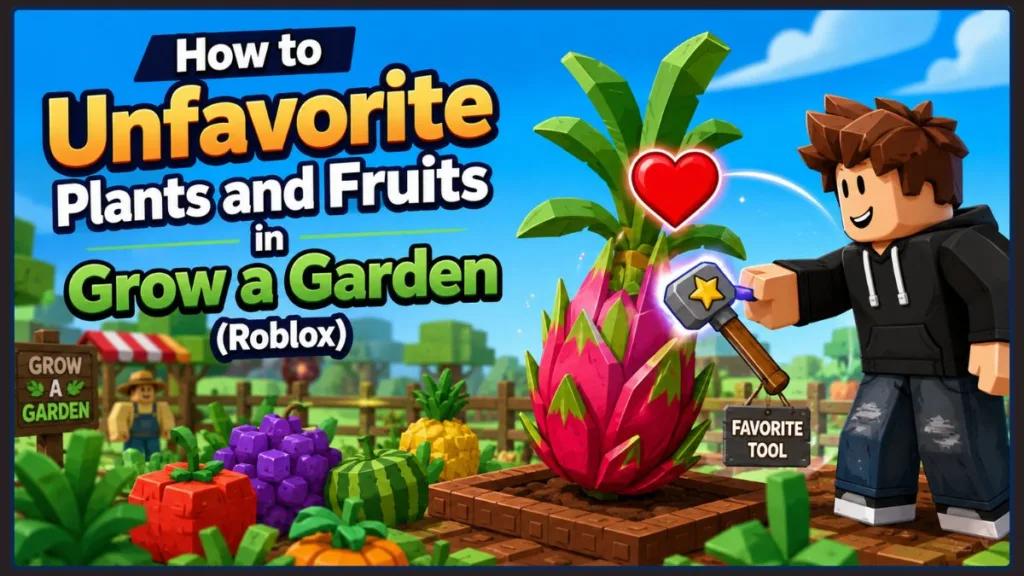
You may be looking for a simple toggle button, but the game mechanics are a bit more complicated—especially if you’re dealing with the infamous “restart bug” that keeps locking your plants. Whether you are playing on a PC, your phone, or a console, this guide will walk you through exactly how to unfavorite your items and tackle the common glitches along the way.
How to Unfavorite Fruits in Your Inventory
If you have favorited a fruit that is already sitting inside your inventory backpack, you are in luck. Removing the protection status here is completely free and doesn’t require any special tools or in-game currency.
To unfavorite an inventory item, you simply need to repeat the exact same action you used to favorite it in the first place. The controls vary depending on your device:
- PC and Mac: Simply right-click on the fruit in your inventory.
- Mobile (iOS or Android): Give the fruit a long-tap (tap and hold).
- Console (Xbox or PlayStation): Equip the fruit in your character’s hand and press the L2 button (PlayStation) or LT button (Xbox).
Once you remove the heart icon, you can freely trade the item with other players, sell it for Sheckles, or hand it over to NPCs during special events.
How to Unfavorite Planted Crops in Your Garden
Things get a little trickier if you favorited a plant or fruit while it was still growing in the soil. To unfavorite a planted crop, you must use a specific in-game item called the Favorite Tool.
If your tool has broken (it only lasts for 20 uses) or you simply don’t have one, you can purchase a replacement at the Gear Stand for 20,000,000 Sheckles. If you check the stand and don’t see the tool, don’t worry—the shop’s inventory resets every five minutes, so just check back a little later.
Here is how you can remove the protection from your planted crops:
- Equip the Favorite Tool from your inventory.
- Walk up to the specific plant that has a floating red heart icon next to it.
- Use the tool directly on the plant to remove the favorite status.
Important Note: If you are harvesting large trees like Coconut or Dragon Fruit trees, you cannot unfavorite the entire tree at once. You must use one tool charge on each individual fruit hanging from the branches.
Navigating the Grow a Garden Favorite Bug
If you’re experiencing an issue where your successfully unfavorited plants magically regain their red hearts after you log off, switch servers, or reload your garden, you are dealing with a known community glitch.
People dealing with the same problem often find this bug especially annoying when trying to use the Spinosaurus pet to swap plant mutations. Because the Spino ignores favorited crops, the restart bug can completely ruin your mutation strategy and force you to waste valuable Favorite Tool charges. Players on Reddit have also noted that certain items, like Cactus and Beehive fruits, seem particularly prone to getting permanently stuck in the favorite state.
How to Work Around the Glitch
While we wait for the developers to patch these issues, you can try the following steps to save your crops:
- Unfavorite immediately before action: Do not unfavorite your plants and leave them sitting in the garden. Only use the tool right before you intend to harvest the crop or trigger your Spinosaurus pet.
- Switch your device: If a plant is bugged on your PC, try logging into your Roblox account on your phone or tablet. Sometimes, switching platforms forces the game’s servers to register the unfavorite action correctly.
- Check your Discord: If your fruit is glitching inside a tree or refusing to unfavorite entirely, your best bet is to report it directly in the official Grow a Garden Discord server so the development team can look into your specific garden file.
Conclusion
Unfavoriting your plants in Grow a Garden shouldn’t be a headache. Just remember that inventory items can be unfavorited for free using your device’s basic controls, while planted crops always require the Favorite Tool and a hefty pile of Sheckles.
Have you found a clever workaround for the restart bug, or are you still struggling to get your Spinosaurus to grab those rare mutations? Drop a comment below and share your experiences with the community—your tips might just save someone else’s garden!
Visit Our Post Page: Blog Page
Discover more from Izoate
Subscribe to get the latest posts sent to your email.