
Can’t find the Edit button on your Marketplace listing? Here’s how to edit a listing while it’s in review, and what to do if you can’t.
You hit publish, and a few seconds later you spot it. The price has an extra zero, the wrong photo went up first, or you forgot to mention the scratch on the side. You open the listing to fix it, and the label says In Review. The Edit option may be nowhere to be seen.

It’s frustrating, especially if buyers are already messaging you. The good news is that you don’t need to panic or delete everything and start over. This guide shows you how to work out what your listing’s status really means, what you can try, and what to do when the edit option won’t appear.
Can You Edit a Facebook Marketplace Listing While It’s in Review?
Sometimes you can, and sometimes you can’t. Facebook decides which controls to show based on your listing’s status, listing type and account. If the Edit option is there, use it. If it isn’t, no trick will reliably force it open.
So the smartest first step is to figure out which situation you’re in before you change anything.
Facebook’s own help pages describe three basic ways to manage a listing: edit its details, delete it, or mark it as sold or pending. Keep those three in mind, because the right choice depends on your status. Fixing a typo is an edit. Getting rid of an item that’s gone is a delete or a “sold” mark. Neither one is a reason to start a brand-new listing.
Key Insight: Don’t delete or repost your listing just because Edit is missing. Check the status first. Most of the time, that one check tells you what to do next.
In Review, Pending, or Rejected? Know the Difference
These three labels look similar, but they mean different things.
| Status | What it usually means | Your next move |
|---|---|---|
| In Review | Facebook is still checking the listing. | Look for notifications and see whether Edit is available. |
| Pending | The item is marked as pending, usually because a sale is being arranged. | Check the sale status and update it if needed. |
| Rejected or Removed | Facebook has taken action on the listing. | Read the notice and look for a review option. |
| Active | Your listing is live. | Edit it normally. |
If you see Pending, you may not be in review at all. Someone with access to your listing, or an earlier tap on your side, may have marked it as pending. Facebook’s Help Center explains the sold and pending options.
Why the difference matters: A rejected listing will not clear up on its own, however long you wait. An in-review listing might. A pending listing needs you to update the sale status, not wait for Facebook. Treating one like another is how sellers lose hours.
Some apps and guides also label listings as Live or Under Review. These words vary between app versions, so match the meaning rather than the exact label on your screen.
Why Your Listing Is Stuck in Review
In Review doesn’t mean you broke a rule. It means Facebook hasn’t finished processing the listing yet. Facebook doesn’t explain every individual review, but these are the usual suspects:
- A policy check. Facebook may want to confirm the item fits its Commerce Policies.
- Unclear or inconsistent details. A vague title, a photo that doesn’t match the description, or a wrong condition can make a listing harder to assess.
- The wrong category. A phone case listed under phones, for instance.
- An account-level restriction. Sometimes the issue isn’t the listing at all, but your Marketplace access.
- A temporary glitch. App bugs can freeze a status or hide buttons.
You’ll find a lot of advice online about “trigger words” or photo patterns that cause reviews. Treat it with caution. Nobody outside Meta can confirm those claims, so focus on what you can verify: your listing details and your notifications.
How the Review Process Generally Works
Marketplace handles a huge number of listings, so the first check is usually automated. Many guides also say that a listing can be passed to a human reviewer when the automated check can’t decide, for example when the details are unclear or the item sits in a sensitive category. Facebook doesn’t publish the exact steps, so treat this as the general picture and not a guarantee.
While the check is happening, your listing may not be visible to buyers. That’s why a listing can look fine to you but get no messages at all.
Item Types That Often Run Into Policy Problems
If your item belongs to one of these groups, a review or rejection is more likely, and no edit will fix it if the item isn’t allowed at all. Facebook updates its rules from time to time, so read the current Commerce Policies for the full list.
- Counterfeit or replica goods, including fake designer items or anything that copies a brand.
- Stolen items, or items you don’t have the right to sell.
- Non-physical items, such as services, subscriptions, digital products and rentals. Marketplace is meant for physical items.
- Alcohol and tobacco, along with related kits and accessories. (Items that simply relate to drinks, like glasses or wine holders, are generally treated differently, but check the policy.)
- Adult products or services.
- Live animals and animal products.
- Medical and health-related items, and anything covered by a safety recall.
Another rule that catches careful sellers: your photos, title and description must describe the same item. If the photo shows one model or colour and the title says another, that mismatch can get a listing held or removed.
Step 1: Check Your Real Listing Status
- Open the Facebook app (or Facebook in your desktop browser).
- Go to Marketplace. On mobile, tap Menu first, and use See more if you don’t see it.
- Open Selling or Your listings.
- Tap the item and read the status shown.
- Open your Facebook notifications and look for any message about that item.
Notifications often say more than the label on the listing. They may tell you whether Facebook wants a correction, has rejected the item, or is offering a Request Review option.
Menu names move around between app versions, so don’t worry if your screen looks a little different.
Tip: If you’re on your phone and the reason is hard to read, open the same listing on a computer. Some sellers find that desktop shows the policy reason next to a rejected status more clearly than the app does.
Step 2: Check Whether It’s One Listing or Your Whole Account
Open a different active listing and see whether it shows normal editing options.
- Other listings edit fine: The problem is probably limited to the one under review.
- Several listings are affected: Check your account for a Marketplace warning or restriction. You can usually find this under Profile status or a similar account-status area.
This quick test saves you from fixing one listing at a time when the real problem is bigger.
Also confirm you’re on your main profile. Marketplace is generally tied to your main Facebook profile. An additional profile isn’t the same as a separate account, and switching to one can make listings or buttons seem to disappear. If Marketplace itself is missing, check your eligibility, switch back to your main profile, complete any age verification Facebook asks for, and try the mobile app.
Step 3: Try to Edit the Listing
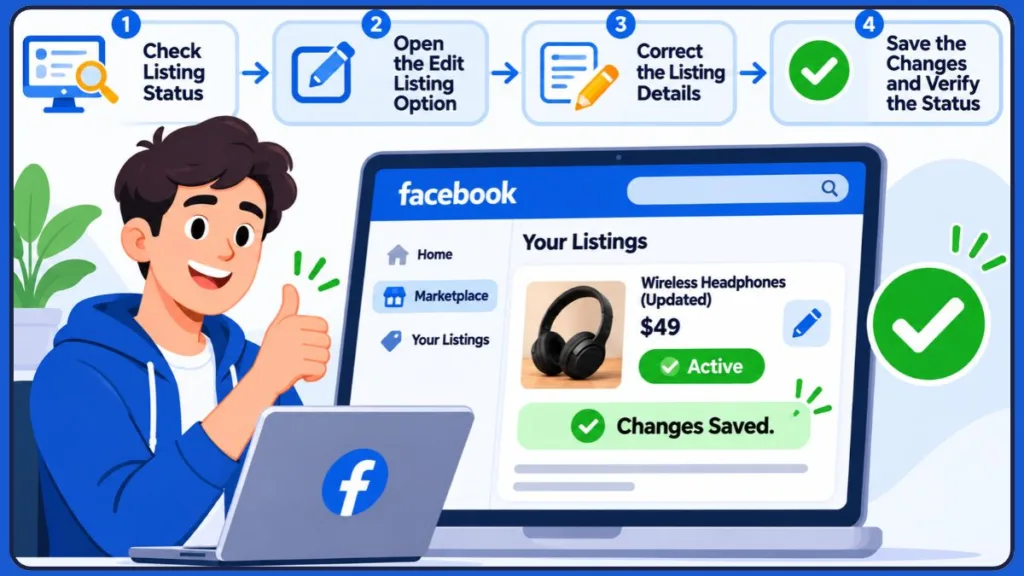
If the status is still In Review, try the normal editing path:
- Open Your listings.
- Make sure you’re signed in to the same account that created the listing. Switching profiles can make items seem to vanish.
- Tap the three dots or Options beside the item.
- Look for Edit Listing.
- If it opens, fix only what actually needs fixing, then tap Save or Update.
- Go back to Your listings and check the status again.
If it still says In Review after you save, that doesn’t mean the edit failed. The review may simply still be going.
If the Edit option isn’t there, Facebook may have locked the listing for now. Move on to the fixes below instead of trying again and again.
Good to know: The edit screen usually looks very similar to the form you filled in when you first created the listing, so you don’t have to learn a new layout.
Device-by-Device Paths
The route is similar everywhere, but the buttons sit in different places.
Android or iPhone
- Open Facebook and tap Menu.
- Open Marketplace.
- Tap your selling area, then Your listings.
- Open the item’s options and look for Edit Listing.
If your app shows a Profile icon inside Marketplace, the route is often Menu → Marketplace → Profile → Your listings → Options → Edit listing → Save.
Desktop
- Go to facebook.com and sign in.
- Click Marketplace, then Selling.
- Open Your listings and click Options beside the item.
On desktop, the path to remember is Marketplace → Selling → Your listings → Options → Edit listing → Update.
Try a second device. If the option shows up on desktop but not in the app, the app is the problem. If it’s missing everywhere, the status or your account is more likely the cause.
What You Might Be Able to Change
When the editor opens, the fields you see depend on your listing type. Check your own form instead of assuming.
- Price: Double-check the digits and the currency. Fixing ₹25,000 back to ₹2,500 is exactly the kind of correction you want to make quickly.
- Title: Keep it plain and specific, like “Used Samsung Galaxy S22, 128GB”.
- Description: Add condition details, defects and what’s included.
- Photos: Show the real item. Remove anything misleading or unrelated.
- Category and location: Fix mistakes only if those fields are available.
Resist the urge to rewrite everything. Change what’s wrong and leave the rest alone.
A small time-saver for multiple items: If you sell several of the same item in one listing, you don’t need to edit it to show how many are left. Facebook shows buyers the remaining count automatically once ten or fewer are left, and a single item shows “Only 1 for sale”.
Izoate 2026 Update: Facebook changes Marketplace menus and labels fairly often, so a button your friend sees may be named differently on your screen. If something doesn’t match this guide, look for the closest equivalent under Your listings rather than assuming it’s gone.
When You Can’t Edit a Listing at All
Some listings are locked for reasons that have nothing to do with review. If your Marketplace account has checkout and shipping features, Facebook may block edits in these situations:
- An order is pending or waiting for you to accept or decline it.
- A shipping label has already been generated.
- The listing has been sold.
- It is a multi-quantity listing that has already received an order. Those can only be edited if no order has ever come in.
Checkout and shipping aren’t available in every country, so if you don’t see order or label options on your listings, this section probably doesn’t apply to you. If it does, finish or resolve the order first, then check whether Edit comes back.
What to Do When the Edit Button Is Missing
Work through these from easiest to hardest.
1. Confirm the status again
A rejected listing needs a different fix than an in-review one. Read the label and any notice before trying anything else.
2. Close and reopen Facebook
A frozen screen can hide controls. Fully close the app, reopen it, and go back to Your listings. On desktop, refresh the page.
On Android, the app sometimes keeps showing an older status for a short while after you make a change. Closing the app completely and reopening it can make the real status appear.
3. Update the app
An outdated version can behave differently from the website. Check Google Play on Android or the App Store on iPhone. Updating can fix display problems, though it won’t unlock a listing Facebook is still reviewing.
4. Switch devices or use a browser
Try Facebook on a computer, or open it in your phone’s browser. If Edit appears there, you’ve found an app issue.
5. Check photo permissions
If the editor opens but photos won’t upload, go to your phone’s Settings, open the Facebook app’s permissions and make sure it can access your photos.
If you edited or cropped your photos in another app first, try uploading a fresh, unedited photo straight from your camera roll. Some sellers report that heavily edited or unusually compressed images cause delays, though Facebook hasn’t confirmed this.
6. Look at your account status
If several listings are stuck, or you can’t publish at all, open your profile and check Profile status for Marketplace warnings. Follow any instruction Facebook gives you there. For deeper account problems, see [Facebook Marketplace access restrictions explained] (link to Izoate’s Marketplace access guide).
Quick symptom guide
| What you see | What it likely points to | What to try |
|---|---|---|
| In Review, no Edit option | Listing locked while Facebook checks it | Check notifications, wait, recheck later |
| Rejected | Facebook has made a decision | Read the reason, then use Request Review if it applies |
| Edit works on desktop but not the app | App display issue | Update or reopen the app |
| Edit saves but nothing changes | Delayed status or app cache | Close and reopen Facebook, recheck |
| Marketplace missing entirely | Eligibility, profile or restriction issue | Check account status and main profile |
Does Editing Restart the Review?
Nobody outside Facebook can promise either way. An edit might change how your listing is handled, or it might not, and it can depend on the type of change.
What you can do is stay sensible:
- Make only the corrections you truly need.
- Save, then recheck the status.
- If a new notice appears, follow it.
Some third-party guides say an edit generally sends a listing through the automated check again, which can mean a short new waiting period after you save. Facebook doesn’t publicly confirm this, so treat it as a reason to make one clean, careful edit instead of many small ones. A listing with one obvious fix tends to look more consistent than one that has been rewritten several times.
What Doesn’t Help
Sellers often try these, but they’re unlikely to speed anything up:
- Changing your profile photo or bio.
- Lowering the price when the review is about content or category, not pricing.
- Stuffing extra keywords into the title or description.
- Deleting and reposting the same listing again and again.
Should You Delete and Repost?
Not as your first move. It feels like a shortcut, but it often just creates a second listing with the same problem.
Reposting can also confuse buyers, and posting the same item repeatedly may look like spam.
Before you delete anything:
- Confirm the listing is still in review.
- Read your notifications.
- Check for the Edit option.
- If the listing was rejected, read the reason first.
Only create a new listing when the original is genuinely gone or can’t be restored. And if Facebook rejected the item for a policy reason, reposting the same thing won’t fix it.
If you really do need to delete: Facebook generally lets you delete a single-quantity listing that is still available. The path is Marketplace → Selling → Your listings → Options → Delete, and you confirm by choosing Delete a second time. Deleting a listing doesn’t erase conversations you already have, so you may still have buyers messaging you. A short, polite note that the item is no longer available keeps your reputation intact.
If the item has simply sold, marking it as sold is cleaner than deleting.
Edit, Renew or Repost?
- Edit when something in the listing is wrong.
- Renew when a listing is still valid but you want it to stay active. Facebook may delete listings that have been inactive for a long time, and renewing resets that timeframe.
- Repost only when the original is truly gone.
How Long Does Review Take?
There’s no official promised time, so be wary of anyone who gives you an exact number. Instead, use these as personal checkpoints, not Meta deadlines:
- After about 24 hours: Recheck the status and notifications. Some guides suggest that a listing still stuck after a full day may need a manual correction, such as a clearer photo, a more accurate title or a better-fitting category, rather than more waiting.
- After about 48 hours: See whether other listings are affected, review your account status, and visit the Facebook Help Center. If nothing helps, use Report a Problem and include the listing title, when you posted it, the status you see and any error message.
How to reach the Help Center from the app: Open Menu → Help and Support → Help Center, then search for “Marketplace”. Facebook generally doesn’t offer phone support for individual Marketplace listings, so the Help Center, Report a Problem and the review option on a rejected listing are the realistic routes.
If Facebook Rejects or Removes the Listing
This is a different situation, so don’t treat it like a stuck review.
- Open your profile and find Profile status or the account-status area.
- Look under the Marketplace section for the affected listing, sometimes shown as Needs attention.
- Read the reason Facebook gives.
- If you think the decision was wrong, look for Request Review.
A more detailed route, step by step:
- Go to your profile and open the menu.
- Select Profile status.
- Choose Marketplace, usually listed under Extra features.
- Open Your listings and pick the listing under Needs attention.
- Select See details to read the reason.
- To appeal, choose See what happened (or See issue), select the listing, then tap Request review.
Know the limits of an appeal:
- Facebook generally allows one review request per rejected listing. Use it carefully.
- Reviews are usually only available for a limited time after the rejection, commonly described as 180 days.
- Some rules can’t be appealed at all. If your item is on Facebook’s banned list, a review won’t change the outcome and you’ll have used up your single request.
- If you don’t see Request Review, it may be because the time limit has passed, you’ve already asked, or that rule doesn’t allow reviews.
A possible second chance for first-time mistakes: For a first violation of some rules, Facebook may let you remove the warning from your record. Open the Facebook app on your phone, go to Profile status → Marketplace, and look for Fix it now followed by Request review. This isn’t offered for every rule.
Keep your appeal short, factual and honest. For example:
Hello, I believe my listing may have been reviewed incorrectly. The item is a genuine [item name], and the photos and description accurately show it. Could you please take another look? Thank you.
Only say that if it’s true. And send one appeal, not five. Repeated or contradictory requests don’t help.
If your item is a branded or designer product, having proof that it’s genuine, such as a receipt or authenticity details, can support your appeal. Only mention proof you really have.
Don’t assume you were treated unfairly because you can still see similar items for sale. Another listing staying up doesn’t prove yours follows the rules. If you genuinely believe another listing breaks the rules, you can report it, and if you think yours was rejected by mistake, you can request a review. For a full walkthrough, see [What to do if Facebook rejects your Marketplace listing] (link to Izoate’s rejected-listing guide).
A warning about repeated rejections: A pattern of rejected listings can signal to Facebook that something is wrong, and repeated violations can lead to Marketplace access being limited for a period, or in serious cases for good. Fix the cause before you post again.
Talking to Buyers While You Wait
If someone has already messaged you, don’t leave them hanging. A short, honest note works well:
Hi! Thanks for your interest. Facebook is reviewing the listing right now, so it may not be visible yet. I’ll let you know as soon as I hear back.
Don’t promise an approval time you can’t control. Check both Marketplace chats and Messenger, including message requests, because buyer messages sometimes land in unexpected places.
Why this matters (the buyer’s side)
Buyers on Marketplace are cautious. A seller who replies calmly and honestly comes across as trustworthy, even when the listing isn’t visible yet. That trust often decides whether a buyer waits for you or moves on to another seller.
Beware of Fake Support and Fake Buyers
Sellers who feel stuck are easy targets. Never:
- Share your Facebook password.
- Send a login or verification code to anyone claiming to be support.
- Pay someone to “remove the review”.
- Click links promising instant approval.
Real help comes through Facebook’s own notifications and Help Center, not through strangers in your messages.
Other warning signs to watch for:
- A “buyer” who asks you to move the chat off Messenger straight away.
- A request for a code sent to your phone or email “to confirm you’re real”.
- Overpayment offers followed by a request to send money back.
- Anyone pushing you to hurry because “the review will expire”.
If you meet someone to hand over an item, choose a public place and keep the conversation on Messenger so there’s a record.
Case Study: The Price Typo
Picture a seller listing a used chair for ₹2,500 and accidentally typing ₹25,000. The listing goes into review right away.
The seller’s first instinct is to delete it and post again. The better route is to open Your listings, check the status, look for Edit Listing, and correct the price if the editor is available. If the editor is locked, the seller waits, watches notifications, and avoids posting a duplicate. A calm approach keeps the listing history clean and avoids creating a second item that might run into the same review.
What the seller learns from this: One careful correction, a status recheck and a short wait usually beat three panicked reposts. The seller also messages the one buyer who had already asked, so nobody is left wondering.
If You Sell Regularly
If you run a small shop or resell items often, a locked listing costs you real time and sales.
- Review every listing before publishing.
- Keep a simple spreadsheet with item names, prices and photos so you can spot errors fast.
- Check your account status once a week.
- Consider using other channels as a backup, such as Instagram or OLX, so one stuck listing doesn’t stall your whole business.
Extra habits for frequent sellers:
- Only list physical items you actually own. Services, subscriptions and digital products don’t belong on Marketplace.
- Keep a short log of any rejection notices so you can spot a pattern.
- Spread out your posting instead of uploading many similar listings at once, since a burst of near-identical posts can look like duplicates.
- Remember that Marketplace has monthly listing limits in some situations, so check Facebook’s current limits if you sell in volume.
Helpful Tools and Habits
- Your phone’s notes app: Draft your description there first so you can proofread it.
- A photo checklist: Front, back, close-ups of any damage.
- Desktop Facebook: Handy for checking listings when the app acts up.
- Screenshots: Take a screenshot of any status or error message. It helps if you need to contact Facebook later.
Accessibility Tip
If you rely on a screen reader or larger text, desktop Facebook can sometimes make it easier to find listing controls than the mobile app. Try both and use whichever is easier for you.
Avoid Review Trouble Next Time
You can’t control Facebook’s review, but you can make your listings clearer.
- Use an accurate title that names the real item.
- Describe honestly, including defects.
- Pick the correct category.
- Upload your own photos of the actual item.
- Check the price and location before you publish.
- Don’t post duplicates.
- Read the Commerce Policies if you’re unsure whether something is allowed.
Quick pre-publish checklist:
- The item is allowed on Marketplace
- The title is accurate
- The description is honest
- The price is correct
- The category fits
- The photos show the real item
- The location is right
- There’s no duplicate listing
Key Insight: A clear, honest listing won’t guarantee instant approval, but it removes the most avoidable mistakes.
Frequently Asked Questions
Can I edit a Marketplace listing that’s in review?
Maybe. If Edit Listing appears, you can use it. If not, check your notifications and wait for another option to appear.
Why can’t I edit my listing?
It may be under review, rejected, marked pending, or affected by an account restriction. Start with Your listings and read any notice attached to the item. If your account uses checkout and shipping, a pending order, a generated shipping label or a sale can also lock editing.
Can I change the price while it’s in review?
Only if the editor is available and includes the price field. If it’s locked, wait instead of posting a duplicate.
Can I change photos?
If the editor opens with photo controls, yes. If not, wait for Facebook to update the listing status.
Will buyers see my listing during review?
Don’t assume so. Check the status in your selling area and let any interested buyer know it may be delayed.
What should I do if my listing is rejected?
Read the reason, then use Request Review if you think it was a mistake. Don’t repost restricted content.
How many times can I appeal a rejected listing?
Facebook generally allows one review request per rejected listing, and the option may expire after a set period. Some rules can’t be appealed at all, so make your single request count.
Can I delete a listing that’s in review?
You may be able to if Facebook shows the delete option, but it’s rarely the best first step. Check the status and notifications first, and don’t recreate an identical listing if the problem was a policy issue.
Why isn’t my listing showing at all?
It could be in review, rejected, or limited by your account or location settings. See [Why your Facebook Marketplace listing isn’t showing] (link to Izoate’s listing-visibility guide).
Final Tip
When your listing is stuck in review, check the status first. Don’t delete, don’t repost, and don’t trust shortcuts from strangers. If Edit is available, fix what’s wrong and save. If it’s missing, read your notifications, check your account, and give Facebook time to update the status.
Most importantly, remember that In Review, Pending and Rejected are three different situations, and each needs its own response.
Have you managed to edit a listing while it was in review, or is the Edit button still missing for you? Tell us what you’re seeing in the comments, and your experience might help another seller find their next step.
Visit Our Post Page: Blog Page
Discover more from Izoate
Subscribe to get the latest posts sent to your email.