
Can’t find the edit option? Learn how to edit avatar on Facebook on iPhone, Android & desktop — change hairstyle, skin tone, outfit & more in minutes.
Our online profiles are extensions of ourselves, and changing up your digital identity to match a real-life haircut, a new style, or even a shift in your mood is a wonderful way to express yourself. Research indicates that an overwhelming 92% of metaverse and virtual platform users customize their digital appearance upon initial entry, proving just how important it is to accurately reflect your personal style. Understanding how to make Facebook avatar look like you ensures you can confidently participate in the expanding digital landscape. However, if you are reading this, you are likely experiencing a familiar frustration. Facebook frequently updates its layout, meaning the settings you used yesterday might be buried in a completely different menu today. It can be particularly confusing when deciding how to update my Facebook avatar after a major app update, as button placements shift around without warning.
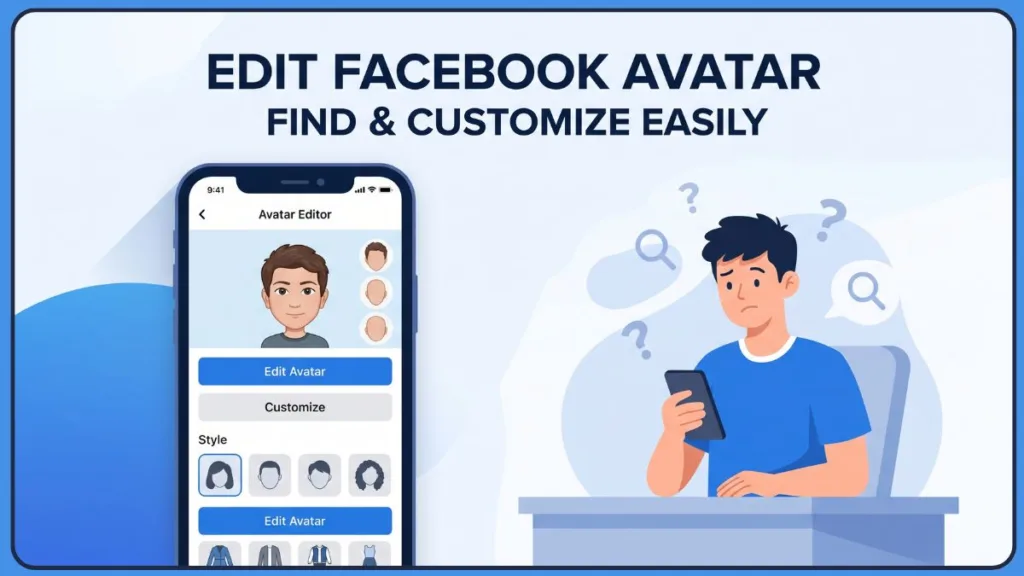
Trying to figure out how to edit avatar on Facebook can feel like an endless treasure hunt through confusing menus. Do not worry—you are in the exact right place. This guide is designed to take the headache out of Facebook avatar customization. I will walk you through exactly where those settings are hiding right now, so you can get back to showing off your true self. Most importantly, we will cover every device, so you are taken care of no matter how you prefer to browse.
What Is the Facebook Avatar Editor and Where Do You Find It
The Facebook avatar editor is a built-in feature that lets you create and modify a cartoon version of yourself for use across the platform. While the feature itself is incredibly fun, finding it is often the hardest part. Currently, the editing tools are tucked away inside the Menu section of your app, often requiring you to tap a “See More” button to finally reveal the Avatars hub. In recent updates following Meta Connect presentations, this section has received significant upgrades to include a wider range of physical traits, more human-like movements, and highly detailed skeletal features. Knowing how to change Facebook avatar allows you to take full advantage of these richer expressions and ongoing digital enhancements.
To give you a better idea of what you can do once you access the editor, recent Meta platform updates have introduced several new capabilities:
- Enhanced Facial Expressions: Avatars now feature more lifelike eye movements and subtle facial cues.
- Dynamic Lighting Integration: Your digital character now reacts realistically to the lighting in different digital environments.
- Expanded Accessibility Options: The editor recently added hearing aids, wheelchairs, and cochlear implants to ensure everyone is represented.
Consequently, many people feel stuck before they even reach the customization screen. We are going to bypass all that confusion together. Let’s break down exactly how to reach this menu on your specific device.
How to Edit Your Facebook Avatar on iPhone
If you use an Apple device, finding your settings requires looking at the bottom of your screen. Here is how to edit Facebook avatar on iPhone without getting lost in the settings.
Step 1: Open the Facebook Menu
First, open your app and look at the bottom right corner of your screen. Tap on the Menu icon, which looks like your profile picture with three horizontal lines stacked next to it.
Step 2: Find the Avatars Section
Once you are in the main menu, scroll down slightly. You might see a button labeled “See More.” Go ahead and tap that to expand your options, and then tap on the “Avatars” button.
Step 3: Tap Edit Avatar
At this point, you will see your current digital self on the screen. Tap the pencil icon (or the button that says “Edit Avatar“) to open up your customization options.
If you want a quick shortcut to revamp your look from scratch, you might notice an option to create Facebook avatar from selfie directly in this menu, which uses your phone’s camera to instantly generate a matching base model that you can tweak further.
If you decide to use the selfie feature instead of manual editing, here is how the process works:
- Open the avatars menu and tap the camera icon to activate your front-facing camera.
- Align your face within the on-screen oval and ensure you are in a well-lit room.
- Allow the app to scan your features, which typically takes less than ten seconds.
- Review the auto-generated model and make manual tweaks to perfect your look.
Step 4: Save Your Changes
After you have tweaked your look, make sure you do not lose your progress. Tap “Done” or “Save” at the top right corner. Once you’ve done that, you will successfully save Facebook avatar changes and your updated look will be ready to use.
How to Edit Your Facebook Avatar on Android
The layout for Android users is very similar, with one key difference in where your main navigation lives. Here is exactly how to edit Facebook avatar on Android.
Step 1: Open the Facebook Menu
Open your app and look up at the top right corner. Tap the Menu icon featuring the three horizontal lines.
Step 2: Open the Avatars Section
Next, scroll through the menu tiles. If you do not spot the right icon immediately, tap the “See More” button. From that expanded list, tap on “Avatars.”
Step 3: Tap Edit Avatar
Now that you are in the Avatar hub, tap the edit option (often a pencil icon) next to your character to load the editor.
Step 4: Save Your Changes
Make all the adjustments you want. Finally, tap “Save” to lock in your new appearance. As a result, your updated character is immediately available to use across the app.
How to Edit Your Facebook Avatar on Desktop
There is a common misconception that avatars are strictly for mobile phones. Meanwhile, you absolutely can make these adjustments from your computer.
If you are wondering how to edit Facebook avatar from desktop or laptop, follow these steps.
Step 1: Click Your Profile Icon (Top Right)
Open Facebook in your web browser. In the very top right corner of the page, click on your profile picture to open the dropdown menu.
Step 2: Head Over to the Avatars Menu
Depending on the current layout, you will either see “Avatars” directly in this list, or you will need to click on “Settings & Privacy” and then “Settings” to find the Meta Accounts Center, where the Avatars option is securely located.
Step 3: Make Your Customizations
Click the edit button next to your character. The desktop interface gives you a nice, large view of all the clothing and feature options, making it very comfortable to navigate. This broader view is particularly helpful if you want to thoroughly change Facebook avatar appearance, letting you see the finest details of your digital wardrobe without squinting at a smaller mobile screen.
Step 4: Save Your Changes
When everything looks perfect, click the save button at the bottom or top of the editor window.
How to Change Your Facebook Avatar’s Hairstyle, Skin Tone, and Outfit
This is where the fun really begins. Once inside the editor, you will notice a toolbar with different category icons. For instance, tapping the face icon lets you adjust your Facebook avatar skin tone to perfectly match your real complexion.
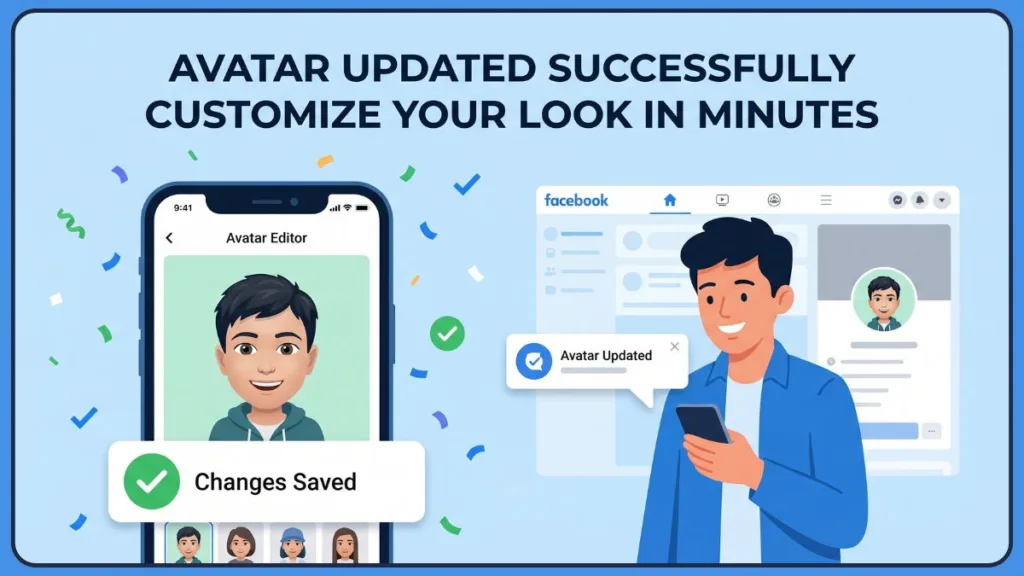
If you recently visited the salon, tapping the hair icon allows for a complete Facebook avatar hairstyle change, letting you adjust both the cut and the color. Furthermore, when you tap the hanger icon, you can browse through a massive wardrobe to update your Facebook avatar outfit for a new season or a holiday. Recently, the platform expanded its digital wardrobe by launching the Meta Avatars Store, offering premium, designer outfits from global luxury brands like Balenciaga, Prada, and Thom Browne alongside hundreds of free options.
If you want to take your look to the next level, the Meta Avatars Store allows you to purchase premium outfits to enhance your digital wardrobe. Some of the notable brands currently available include:
- High Fashion Labels: Prada, Balenciaga, and Valentino offer exclusive runway looks for digital styling.
- Athletic Wear: Puma and other sportswear brands provide casual, sporty gear for your digital self.
- Pop Culture Collaborations: Seasonal outfits tied to major movie releases or sporting events are frequently rotated in and out of the store to keep your options fresh.
In addition, you can even adjust your Facebook avatar body type so the character feels like an authentic, comfortable representation of you. The latest updates have introduced precise sliding scales to further tweak waistlines, hips, shoulders, and more, granting users access to an astonishing library of customization to find the exact proportions they desire.
How to Set Your Edited Avatar as Your Facebook Profile Picture
After putting time into customizing your look, you might want to show it off to all your friends. Using your Facebook avatar profile picture is a fantastic way to do this.
To set avatar as profile picture, navigate to your main profile page and tap your current photo. Select “Edit Profile Picture” or “Add/Change Picture,” and then choose the option to use your avatar. You can pick a fun pose and a colorful background to make it stand out.
Does Editing Your Facebook Avatar Also Update It on Instagram
Since Facebook and Instagram are both owned by Meta, they share a lot of background architecture. If you visit your Meta avatar settings within the Accounts Center, you can actually sync Facebook and Instagram avatar appearances.
Therefore, if you turn this syncing feature on, any changes you make to your avatar on Facebook will automatically update your Meta avatar across platforms. This saves you from having to do the work twice!
What to Do If the Facebook Avatar Edit Option Is Not Showing Up
On the other hand, technology does not always cooperate. If you are dealing with your Facebook avatar not working, stay calm—there are a few reliable ways to fix it. If the avatar edit option not showing up is your main issue, start by checking your app store to update Facebook app. An outdated app is the most common reason features disappear.
If the app is fully updated, try completely closing out of Facebook and reopening it, or clearing your app cache in your phone’s settings. These troubleshooting steps usually force the menu to refresh and bring the edit button back.
For Android users specifically, clearing the cache is often the most effective fix when features fail to load properly. Here is how you do it safely:
- Open your phone’s main settings app and tap on “Apps” or “App Management.”
- Scroll down your app list until you find Facebook, then tap on it.
- Select “Storage” or “Storage Usage” from the application info page.
- Tap “Clear Cache” (being careful not to tap “Clear Data,” which would log you out).
- Reopen the Facebook app and navigate back to the menu to see if the edit button has returned.
It is also crucial to ensure you are using the standard application, as Facebook Lite does not support the avatar tool due to its compressed storage design.
How to Use Your Updated Facebook Avatar in Comments, Stories, and Messenger
Now for the payoff! Your fresh new look is ready to be shared. If you want to know how to use avatar in Facebook comments, tap the smiley face icon next to the comment text box on any post. You will see a whole library of your personalized avatar sticker Facebook options ready to go. These custom stickers adapt dynamically depending on the emotion or action you want to convey, adding a deeply personal layer to simple text responses that generic emojis simply cannot match.
Similarly, using your Facebook avatar in Messenger is incredibly accessible. Integrating your Facebook avatar in Messenger allows you to drop personalized reactions instantly into your private chats, completely changing the dynamic of a conversation to make it feel much more intimate and engaging. Inside any chat, tap the smiley face icon near the text box, select your avatar icon, and send a customized sticker directly to your friends to make your conversations more vibrant.
Frequently Asked Questions
How do I modify my avatar on Facebook?
To modify your avatar, open the Facebook app, tap the Menu (three lines), scroll to See More, and select Avatars. From there, tap the Edit icon (the pencil) to change your appearance, clothing, or features.
How do I get my avatar off Facebook?
If you want to remove your character, navigate to the Avatars section in your menu. Open the editor and look for the trash can icon. Confirming this will delete your avatar permanently.
How do I edit my meta avatar?
You can manage your Meta avatar through the Accounts Center in the settings of Facebook or Instagram. This allows you to edit the avatar and choose whether to sync your look across all Meta platforms.
How do I revert to my old Facebook avatar?
Facebook does not have an “undo” button for previous versions. To revert to an old look, you must manually go back into the editor and re-select the hairstyle, facial features, or outfits you used before.
How do I go back to my old Facebook look?
If you mean the layout of the app, Facebook generally does not allow users to revert to older UI versions. However, if you want to switch your profile back to a standard photo instead of an avatar, simply tap your profile picture and select Add/Change Picture to upload a real photo.
Why did Facebook change our avatar? How to change a Facebook Avatar?
Facebook occasionally updates the avatar style to make characters look more realistic and expressive. To change your avatar back to your preferred style, follow the steps in our “How to Edit” section to tweak your features in the editor.
Does Facebook automatically create an avatar?
Facebook typically asks for your permission or encourages you to create one from a selfie. It does not usually generate an avatar without some user input or interaction with the feature.
How do I edit my Avatar?
You can edit your avatar at any time by going to Menu > See More > Avatars. Tap the Pencil icon to open the full suite of customization tools.
How to post a Facebook Avatar?
To post your avatar, start a new post and look for the Avatar option in the “Add to your post” menu. You can also use avatar stickers by tapping the smiley face in the comment section of any post.
Conclusion
To sum up, taking the time to edit your Facebook avatar is a brilliant way to personalize your Facebook profile and make your daily interactions more engaging. Even when the menus shift around, you now know exactly how to find the editor and apply those updates with confidence.
Did you give your avatar a new jacket, a fresh haircut, or a totally new vibe? Let me know in the comments below!
Visit Our Post Page: Blog Page
Discover more from Izoate
Subscribe to get the latest posts sent to your email.