
Can’t remember PIN Windows 11? If you forgot your PIN and password for Windows 11, use these proven, step-by-step methods to regain access without losing data.
If you are staring at your Windows 11 login screen right now with no way in, you are not alone. This happens to thousands of Windows 11 users — and in most cases, it is completely fixable without wiping your device.
Being unexpectedly locked out of Windows 11 can be incredibly stressful, especially if you have urgent work or personal files you need to access. Windows 11 makes this more complicated than it should be, but there is a way through. Before you panic about losing your files, read this.
Whether you simply can’t remember your PIN for Windows 11 or the system is refusing to accept the correct one, this guide will walk you through exactly how to regain access. Let’s get you back into your computer.
What to Try First When You Forgot Your PIN for Windows 11
The fastest way back into your computer is often hiding right in front of you. If you forgot your Windows 11 PIN, Microsoft has a built-in recovery flow that can save you a lot of time.
Step 1: Click “I Forgot My PIN” on the Login Screen
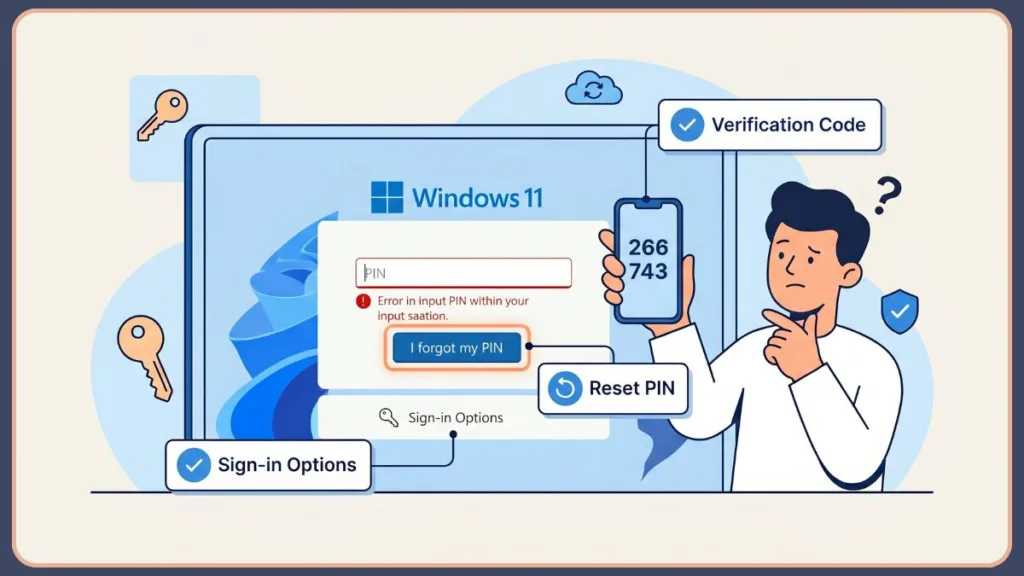
Before trying anything complex, look closely at the login screen. Just below the PIN entry box, you should see a clickable link that says “I forgot my PIN”.
If you do not see it immediately, click on sign-in options Windows 11 normally displays just below the PIN field. This will expand your available methods, such as a physical security key or another biometric login. Selecting the PIN icon here will often reveal the recovery link. Click it to begin the secure Microsoft reset process to reset your PIN from the login screen.
Step 2: Verify Your Identity Through Your Microsoft Account
Once you click the link, Windows will open a secure window to verify your identity using your Microsoft account.
You will be asked to enter your email address and your password. If you have two-step verification enabled, you will need to choose a method to receive your verification code—usually a recovery email, a text message (SMS), or an authenticator app. Enter the code to prove it is really you. Once your identity is confirmed, the system will prompt you to create a new Windows Hello PIN. Set it, confirm it, and you will be logged straight into your desktop.
If that method did not work for your situation, do not worry — there are still several options left.
How to Reset Your Forgotten Windows 11 PIN Using Your Microsoft Account
Sometimes, the issue isn’t just the PIN. If you find yourself in a scenario where you forgot your PIN Windows 11 Microsoft account credentials are the key to getting back in.
What to Do If You Forgot Both Your PIN and Your Microsoft Account Password
If you cannot remember your overarching Microsoft account password either, you need to perform a Microsoft account password reset from a different device.
- Grab your phone or another computer and go to account.live.com/password/reset.
- Enter the email address or phone number for your Microsoft account linked device.
- Choose how you want to receive your security code (email, phone, or authenticator app).
- Enter the code and create a brand-new password.
- Return to your locked PC. Connect to the internet from the bottom right of the lock screen (this is crucial so your PC syncs the new password), select the Password icon under Sign-in options, and log in with your new password.
Forgot Your PIN and Password for Windows 11 Local Account? Do This Instead
This next method is for users who are in a trickier spot — no Microsoft account, no security questions, and no recovery disk. If you set up your PC with a traditional local account, your computer isn’t connected to the cloud, which changes how we approach this.
Resetting Your PIN Using Security Questions on a Local Account
If you are using a local account, local account password recovery is handled directly on the device.
- On the lock screen, intentionally enter an incorrect password or PIN.
- This action will force a Reset password button to appear. Click it.
- The system will display the security questions you chose when you first set up the administrator account Windows 11 profile.
- Answer them correctly, and you will be allowed to create a new password.
- Once you are logged in, you can easily go into Settings and reset your PIN.
The “I Forgot My PIN” Option Is Not Showing: Here Is Why and How to Fix It
A very common and frustrating glitch is when the I forgot my PIN option completely vanishes from the login screen. This usually happens due to a recent Windows update, a temporary system glitch, or specific administrative policies. Sometimes, simply restarting your computer is enough to make the link reappear.
How to Use a Password Reset Disk If You Created One Earlier
If the option refuses to show up and you are on a local account, you can use a password reset disk Windows 11 allows you to create as a backup. Insert the USB drive you previously created into the locked PC, enter an incorrect password to trigger the “Reset password” link, and follow the password reset wizard using your removable media.
Can’t Remember Your PIN on Windows 11 After an Update? This Is the Reason
If you are positive you are entering the right digits but Windows is rejecting it, or if your biometric login and Windows Hello facial recognition suddenly stop working, a Windows update is likely the culprit. Updates occasionally scramble the security credentials stored on your device, resulting in a Windows 11 PIN not working after update error.
Deleting the NGC Folder to Fix a Corrupted PIN on Windows 11
Windows 11 stores your PIN data in a folder called NGC — and when that folder gets corrupted, your PIN simply stops working, even if you remember it perfectly. To fix this, you have to clear that folder out.
- From the login screen, hold the Shift key and click the Power icon > Restart.
- This boots you into the recovery screen. Go to Troubleshoot > Advanced options > Startup Settings > Restart.
- Press 4 or F4 to boot into a Safe Mode Windows 11 login.
- Log in with your password.
- Navigate to
C:\Windows\ServiceProfiles\LocalService\AppData\Local\Microsoft. - Delete the NGC folder to fix PIN corruption (you may need to grant yourself permission by right-clicking the folder and going to Properties > Security).
- Restart your PC normally, and Windows will ask you to set up a new PIN from scratch.
Fix Error 0xc000006d and Work/School Account PIN Conflicts
If your PC recently installed the major Windows 11 24H2 upgrade, you might suddenly encounter the frustrating “Your PIN isn’t available (status: 0xc000006d)” error. Tech experts and current support forums note that this specific update strictly enforces user credential rules, immediately breaking existing PINs if there is an identity mismatch. If you are dealing with a Windows 11 PIN not working and forgot password situation because of this, there is a faster, expert-level alternative to deleting the NGC folder manually.
If you managed to bypass the lock screen using a secondary login method (like your password), you can clear the corrupted Windows Hello container using a simple command line tool.
- Right-click the Start menu and open Terminal (Admin) or Windows PowerShell (Admin).
- Type
certutil -deletehellocontainerand press Enter. - Sign out and sign back in; Windows will immediately prompt you to set up a fresh PIN.
Additionally, recent user reports consistently highlight that linked educational or enterprise accounts can mysteriously block you from fixing a broken PIN. If you are stuck in a loop where the system outright refuses to save your new PIN, go to Settings > Accounts > Access work or school, temporarily disconnect any listed accounts, and try creating your PIN again.
How to Get Into Windows 11 Without a PIN or Password (No Data Loss)
Most users get back in at this stage, but if you are still stuck, keep reading. This step sounds technical but takes less than five minutes if you follow it carefully. This is the ultimate Windows 11 sign in without PIN bypass for local accounts.
If you are actively searching for how to bypass Windows 11 lock screen without PIN or password using built-in offline tools, the Utility Manager trick below is exactly what you need. It temporarily replaces a login screen accessibility feature with a command line, giving you deep system access to reset your credentials without deleting any of your data.
Using Command Prompt From the Recovery Environment to Regain Access
- You will need a bootable USB Windows 11 installation drive. Insert it into your PC and boot from the USB.
- When the Windows setup screen appears, click Next, then click Repair your computer at the bottom.
- This opens the Windows 11 recovery environment. Go to Troubleshoot > Advanced options > Command Prompt.
- Type
c:and press Enter. - Type
cd windows\system32and press Enter. - Type
ren utilman.exe utilman.exe.bakand press Enter. - Type
copy cmd.exe utilman.exeand press Enter. - Close the window, remove the USB, and restart your computer.
- At the command prompt login screen Windows 11 displays, click the Accessibility icon in the bottom right corner. A black Command Prompt window will open.
- Type
net user [YourAccountName] [YourNewPassword](replacing the brackets with your details) and hit Enter. You can now log in!
Last Resort Options When Nothing Else Works on Windows 11
If every single method above has failed, your account is completely locked down, and you cannot verify your identity with Microsoft, you have one final option to reset forgotten PIN Windows 11 issues.
How to Reset Windows 11 Without Losing Your Files
You can perform a system reset. This clears out all customized settings, including your PIN and the security keys stored in your TPM chip Windows 11 relies on, but it will save your personal documents and photos.
- Hold Shift and click Restart on the login screen.
- Go to Troubleshoot > Reset this PC.
- Crucial Step: Choose Keep my files.
- Follow the prompts. Windows will reinstall itself, preserve your data, and drop you at a fresh setup screen where you can create a new account and PIN.
Clearing the TPM to Unfreeze Your Security Credentials
In very stubborn cases where you need to reset Windows 11 password and PIN but the system still repeatedly rejects any attempt to add a new PIN, your PC’s security chip might be jammed. The Trusted Platform Module (TPM) stores your cryptographic keys locally, and if those keys get severely corrupted, you will remain locked out of the Windows Hello ecosystem entirely.
Clearing the TPM forces your motherboard to drop the broken security data. However, this is a serious step. If your hard drive is encrypted, you must have your BitLocker recovery key safely written down or backed up to your Microsoft account online before attempting this, otherwise you will permanently lose access to your files.
- Once logged in using an alternative method (or from Safe Mode), press Windows + R to open the Run dialog.
- Type
tpm.mscand hit Enter to open the TPM Management window. - In the right-hand Action pane, click Clear TPM.
- Restart your computer when prompted, and set up your new PIN securely from scratch.
How to Make Sure You Never Get Locked Out of Windows 11 Again
Now that you are back in, take ten minutes to make sure this never happens again. The biggest mistake Windows 11 users make is relying on PIN alone with no backup sign-in method.
To secure your access, take these quick steps right now:
- Set up multiple sign-in methods Windows 11 offers: Go to Settings > Accounts > Sign-in options. Don’t just rely on a PIN; set up fingerprint or facial Windows Hello sign-in options if your PC supports them.
- Update your Microsoft Account: Log into your Microsoft account online and add recovery phone Microsoft account details. Having a secondary email or phone number guarantees you can always receive a verification code.
- Know how to change PIN Windows 11 settings: Periodically update your PIN in the settings if you feel you might forget it.
- For local accounts: Take the time to set up security questions Windows 11 requires, or create a physical USB password reset disk and keep it in a safe drawer.
As a final protective tip, always ensure that your two-factor authentication (2FA) details are up to date and accessible. Keeping your alternative recovery emails and backup phone numbers current is the absolute best defense against a Windows 11 forgot password and PIN disaster. You’ve got this!
Visit Our Post Page: Blog Page
Discover more from Izoate
Subscribe to get the latest posts sent to your email.