
Want to update your Facebook profile highlights? Learn how to edit Featured Photos on Facebook, change or remove old images, manage Featured Collections, and adjust privacy settings on mobile and desktop.
You visit your Facebook profile and notice your featured photos are completely outdated. Maybe you have recently traveled, started an exciting new project, or simply want your profile to better reflect who you are today. If you’re searching for how to edit Facebook featured photos, you are probably trying to change, remove, replace, or manage the images displayed right at the top of your profile.
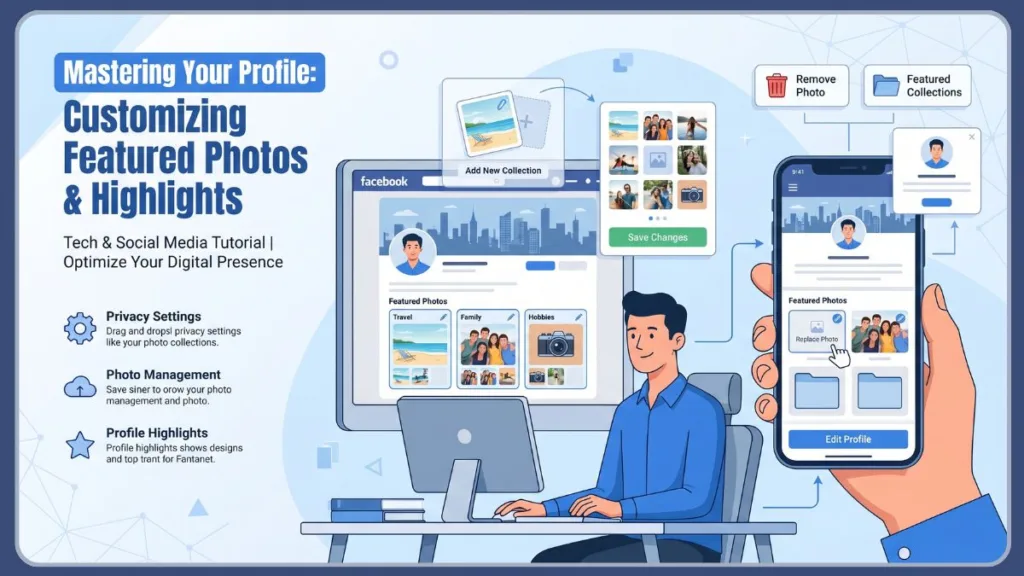
Editing these profile highlights is a great way to put your best foot forward, but because Facebook regularly updates its profile settings and layout, finding the right buttons can sometimes feel like a maze. You might also be wondering whether you can edit the image itself, like cropping or adding filters — and that is a completely different thing that this guide will also cover.
In this comprehensive guide, you will learn exactly what these photos are, how to manage your Facebook featured photos settings on any device, what to do if your featured photos are set to public, and how to turn off the featured section entirely if you want a cleaner profile.
What Are Featured Photos on Facebook?
Before jumping into the settings, it helps to understand exactly what you are working with. Featured photos on Facebook are carefully selected profile highlights that sit prominently at the top of your timeline, right under your bio.
You can think of them as your personal billboard. While your regular timeline shows everything you share chronologically, your featured section on Facebook only shows exactly what you want people to see first.
It is important to understand how featured photos differ from other images on your profile:
- Profile Pictures: The main circular image that represents you across the entire platform, including in comments and Messenger.
- Cover Photos: The large horizontal banner at the very top of your profile.
- Photo Albums: Your complete library of uploaded pictures, organized into folders.
- Featured Posts Facebook Users Share: Regular timeline posts that you have “pinned” to the top of your feed, which are entirely separate from your featured photo collections.
Why Does Facebook Have a Featured Section?
Facebook created this feature to help visitors learn more about you quickly. Instead of forcing new friends, family members, or potential professional connections to scroll through years of status updates and random memes, the featured section provides a curated snapshot of your life, hobbies, and personality.
Who Can See Your Featured Photos?
If you are wondering who can view featured photos, the answer is closely tied to Facebook’s default privacy rules. Featured is set to public by default. This means anyone who lands on your profile can see these images — even complete strangers who are not connected to you yet. While you cannot explicitly track individual Facebook featured photos viewers, you should always assume that any image placed in this section is visible to the general public.
Important Tip: Always assume your featured photos are visible to everyone — including people who are not your Facebook friends. Only feature images you are comfortable sharing publicly.
Featured Photos vs Featured Collections
Over the years, this tool has evolved. Originally, Facebook allowed you to select up to nine individual photos to display in a classic grid format. Today, Facebook encourages the use of Featured Collections.
These collections function very similarly to Instagram Story Highlights. You can group multiple photos together under a single theme (like “Summer Vacation” or “My Pets”), give the collection a cover photo, and let visitors tap through them. You can even save your expiring Facebook Stories directly into these collections so they live permanently on your profile.
Why People Use Featured Photos
There are dozens of reasons you might want to curate this space:
- Personal branding: Creating a cohesive look that shows off your personality.
- Highlighting achievements: Showcasing a recent graduation, marathon finish, or award.
- Travel memories: Grouping your best vacation shots so they do not get lost in your timeline.
- Business profiles: Small business owners often use this space to highlight their products, storefront, or services.
- Creative portfolios: Artists, photographers, and writers can use collections as a mini-portfolio of their work.
Where Featured Photos Appear on Your Facebook Profile
The layout changes slightly depending on how you access the platform:
- Mobile layout: On the Facebook app (both iOS and Android), the featured section is front and center. It sits directly beneath your profile picture, name, and short text bio.
- Desktop layout: When browsing on a computer, the featured section typically sits on the left-hand column under the “Intro” section, right above your friends list.
What Are Facebook Featured Photos Settings?
When you dive into your profile customization, you will find a dedicated menu for managing these images. Understanding what you can and cannot do within these settings will save you a lot of frustration.
What You Can Manage in Featured Photos Settings
- Adding photos: You can upload brand new images from your device or select from your existing Facebook albums.
- Replacing photos: You can swap out old images for new ones without deleting an entire collection.
- Removing photos: You can delete single images or wipe out an entire collection with a few taps.
- Editing collections: You can rename your collections and choose which photo acts as the “cover” image.
What You Cannot Change
- Facebook editing limitations: You cannot apply photo filters, adjust brightness, or heavily crop an image after it has been added to your featured section.
- Audience limitations: You cannot set a featured collection to “Friends Only” or “Custom.” They are meant to be public introductions.
Important Tip: If you want to edit the look of an image — like adjusting brightness or cropping — you must do this before uploading it to your featured section. Facebook does not provide built-in image editing tools inside the featured editor.
Featured Photos Settings on Mobile vs Desktop
The core functionality remains the same across devices, but the interface differs. The mobile app relies on touch gestures, allowing you to easily drag and drop photos to reorder them within a collection. The desktop version uses a more traditional point-and-click menu system, which some find easier when managing large batches of photos or organizing complex collections.
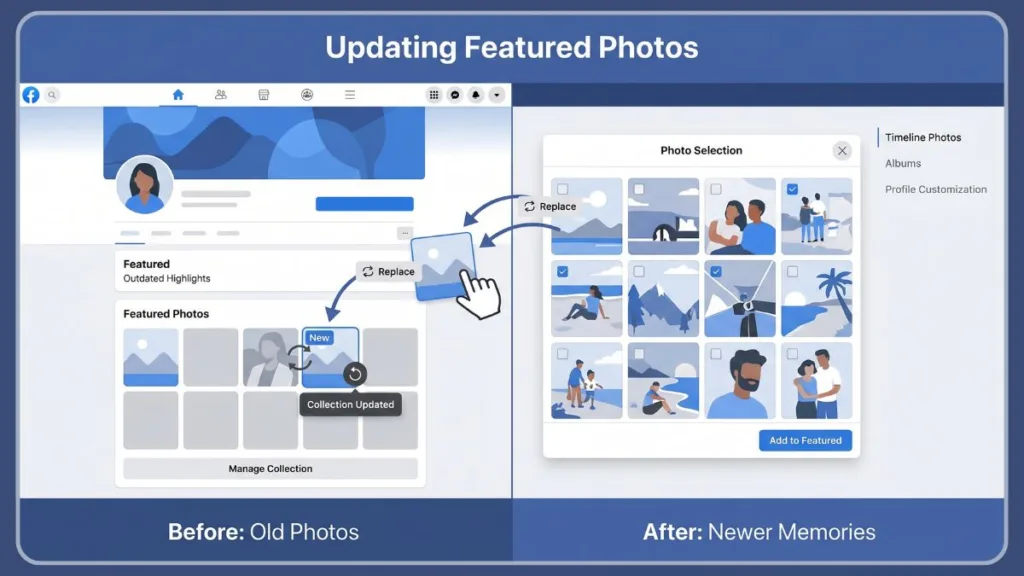
How to Edit Facebook Featured Photos on the Mobile App
Since most people manage their social media on the go, editing your profile via the mobile app is the most common method. If you want to know how to edit Facebook featured photos from your smartphone, follow these steps:
Open Your Facebook Profile
- Open the Facebook app on your mobile device.
- Tap your profile picture icon (usually located in the top left corner near the “What’s on your mind?” box, or in the bottom right menu on iOS).
Find the Featured Section
- Scroll down just past your profile picture and text bio.
- Look for the horizontal scrolling section titled Featured.
Tap Edit Featured
Tap on the collection you want to change, or tap Edit Public Details and scroll down to the Featured section to find the Edit button.
Select Existing or New Photos
- To add more images to an existing collection, tap Add More.
- You can now browse your device’s camera roll, your existing Facebook uploaded photos, or your past Facebook Stories.
Save Your Changes
Once you have selected your new images, tap Next or Save (depending on your device’s interface) to lock in your updates.
Important Tip: Always tap Save before closing the editor. If you close the app or navigate away without saving, your changes will be lost.
How to Replace an Existing Featured Photo
If you want to swap an image, you do not have to start from scratch. Open your featured collection, tap the Edit icon (often a small pencil or three dots), deselect the old photo you no longer want, and select the new updated photo. Tap Save to confirm the swap.
How to Reorder Featured Photos
The order of your photos matters, as the first image usually acts as the cover. While in the collection editing screen, you can usually press, hold, and drag your selected photos to change the order they appear in the highlight reel. Place your absolute favorite photo first for maximum impact.
How to Create a New Featured Collection
If you want to start a brand new theme:
- Go to your Featured section and tap + New (or the blank square with a plus icon).
- Select the photos or past Stories you want to group together.
- Tap Next.
- Give your collection a Title (e.g., “Roadtrip 2026”).
- Tap Save to publish it to your profile.
How to Edit Featured Photos on Facebook Using Desktop
If you are working from a computer, the steps are slightly different but just as straightforward.
Open Facebook and Visit Your Profile
- Log into Facebook from your preferred web browser.
- Click on your profile name or picture in the top left corner or top right navigation bar.
Locate the Featured Photos Section
- Look at the left side of your timeline under the Intro section.
- Scroll down until you see your Featured collections.
Click Edit Featured
Hover your mouse over the featured section and click the Edit Featured button (or the small gray pencil icon).
Add, Replace, or Remove Photos
- Click on the specific collection you want to modify.
- Click Add New to upload from your computer or select from your Facebook albums. To remove an image, click the small X in the top right corner of that specific photo.
Save Your Updates
Once your collection looks exactly how you want it, click the blue Save button at the bottom of the window.
Desktop Editing Differences Compared to Mobile
On a desktop, you have a much wider view of your photo library, which makes it easier to dig through old albums to find the perfect shot. However, you miss out on the tactile drag-and-drop reordering that the mobile app provides.
Managing Featured Collections on Desktop
When creating a new collection on your desktop, you will be prompted to select photos, add a title, and choose a cover image all from one streamlined pop-up window.
Important Tip: Always upload high-resolution images when using the desktop version. Desktop monitors will stretch low-quality photos, making them appear pixelated on larger screens.
How to Change Photos in Featured Photos on Facebook
Sometimes you don’t want to overhaul your entire profile; you just want to replace one outdated picture.
Can You Replace Photos Without Deleting the Collection?
Yes! You do not need to delete your “Family” collection just because you have a better group photo. Simply open the collection, enter edit mode, deselect the old photo, and tap the new one. The rest of the collection remains completely intact.
Will Changing Featured Photos Affect the Original Post?
No. Your featured photos are essentially copies or “mirrors” of the original images. If you remove a featured photo or swap it out, the original post, along with all its likes and comments, stays perfectly safe on your main timeline or in its original photo album.
What Happens After You Replace a Featured Photo?
As soon as you hit save, your profile updates instantly. Anyone visiting your profile from that moment forward will see the new image. Facebook does not send out a notification to your friends that you have updated your featured photos, so you can tweak them quietly as often as you like.
Important Tip: Replacing a featured photo does not delete the original image from your Facebook account. Your original upload stays safe in its album or on your timeline.
How to Add New Featured Photos From Existing Facebook Posts
You do not always need to upload fresh pictures from your phone’s camera roll. Facebook makes it incredibly easy to use already posted photos on Facebook.
Choosing Photos From Existing Albums
When you tap to add a new featured photo, the menu will present you with different tabs. Switch from your device’s “Camera Roll” to the “Your Photos” or “Albums” tab. Here, you can pull any picture you have previously uploaded to the platform.
Using Timeline Photos as Featured Photos
If you recently posted a great picture to your timeline and want to make it a permanent fixture, you can easily select it from your recent uploads tab. This is a great way to give a high-engagement post a second life on your profile.
Using Profile and Cover Photos in Featured Collections
You can even reuse an editable Facebook profile picture or cover photo. If you change your profile picture but still love the old one, you can add that old profile picture to a featured collection so visitors can still see it prominently.
How to Remove Featured Photos on Facebook
If you are trying to clean up your digital footprint, you will likely want to know how to remove these images.
Remove a Single Featured Photo
- Navigate to your Featured section and enter Edit mode.
- Find the collection containing the photo you want to remove.
- Tap the small X or deselect the checkmark on the photo you wish to hide.
- Tap Save.
Remove an Entire Featured Collection
If a whole collection no longer represents you, you can delete it entirely. In the editing menu, scroll to the bottom of the specific collection and select Delete Collection. Confirm your choice, and the entire group of photos will vanish from your profile.
Remove Featured Post Facebook Highlights
Be careful not to confuse featured photos with featured posts. If you have a text status or shared link pinned to the top of your timeline, you must click the three dots (⋯) in the top right corner of that specific post and select Unpin from Profile to remove it.
Important Tip: Removing a featured post and removing a featured photo are two completely different actions. Featured posts are managed from the post itself, while featured photos are managed through the Intro section of your profile.
What Happens When You Remove a Featured Photo?
The photo disappears from the featured section at the top of your profile immediately. Visitors will no longer see it when they first click on your name.
Can Removed Featured Photos Be Added Back Later?
Absolutely. Because removing a featured photo does not delete the file, you can always go back into your settings and re-add the exact same photo to your featured section at a later date.
Does Removing a Featured Photo Delete the Original Image?
No. Removing an image from your featured highlights only removes it from that specific display area. If the photo was originally uploaded to an album called “Summer 2025,” it will still exist safely in that album.
How to Turn Off Featured Photos on Facebook
If you want a cleaner, more minimalist profile, you might be searching for a way to turn off the featured photos section entirely.
Can You Completely Disable the Featured Section?
Facebook does not have a simple “Turn Off Featured Photos” toggle switch. However, you can achieve the exact same result manually. To completely disable the section, you must delete every single featured collection on your profile. Once there are no photos selected, the entire Featured section simply disappears from your public profile view.
Alternative Ways to Reduce Profile Visibility
If you don’t want to delete the collections but want to limit what strangers see, you can focus on locking down other parts of your profile. Use the “Lock Profile” feature (if available in your region) or restrict your past posts to “Friends Only” to ensure your overall public footprint is small.
When Removing Featured Photos Makes Sense
You might want to remove this section if you are applying for jobs and want to maintain a strictly professional online presence, or if you simply prefer that people focus on your recent timeline posts rather than curated highlights from the past.
How to Change Featured Photos on Facebook to Private
Privacy is something a lot of people worry about when it comes to featured photos, and for good reason. Here is exactly what Facebook allows — and what it does not.
How Do I Change the Audience in Featured Photos on Facebook?
Unfortunately, featured is set to public by design. Currently, Facebook does not allow you to change the audience of your featured photos to a custom list. Because these photos are designed to be an introduction to your profile, they are visible to anyone who clicks on your name.
How Do I Edit the Privacy of Featured Highlights on Facebook?
If you go into your standard privacy settings, there is no option to restrict your featured highlights. The privacy settings you apply to your regular photo albums do not apply to the featured section.
Can I Change Featured Photos on Facebook to Private?
No, you cannot set featured photos to “Only Me” or “Friends Only.” If an image is in your featured section, it is public.
Important Tip: If you have a photo that you only want close friends to see, do not put it in your featured section. Place it in a standard photo album and set the privacy to “Friends Only” or “Custom” instead.
Understanding Featured Photo Visibility
Even if your profile is completely locked down and your timeline is hidden from non-friends, strangers can still view your profile picture, your cover photo, and your featured photos.
Why Featured Photos Are Often Public
Facebook operates as a social networking site designed to connect people. The platform keeps these introductory elements public so that when people search for your name, they can use these photos to verify that they have found the correct person before sending a friend request.
Privacy Alternatives for Sensitive Photos
If you have a photo that you only want close friends to see, do not put it in your featured section. Instead, upload it to a standard photo album on your timeline and change the privacy settings of that specific album to “Friends Only” or “Custom.”
How Featured Photos Differ From Regular Photo Privacy Settings
With a regular timeline photo, you can adjust the privacy at any time using the audience selector tool. With featured photos, you trade that privacy control in exchange for prominent placement on your profile.
Can You Edit Facebook Photos After Posting?
Here is something that trips a lot of people up. When you search for how to edit a featured photo, you might actually be trying to do something different entirely — fix a caption, crop the image, or apply a filter. That is a completely separate process from managing which photos appear in your featured section.
Can You Edit Facebook Photos After Posting?
Yes and no. Once a standard photo is posted to your timeline, you can edit the text caption, tag people, or change the location. However, you cannot edit the actual image file (like adding a black-and-white filter) without deleting and re-uploading the photo.
Can You Edit a Featured Photo Itself?
If you are looking at an image inside a featured collection and realize it needs to be cropped or brightened, you cannot do this directly within the Facebook featured editor. The platform only lets you arrange, add, or remove the photos.
Best Ways to Update an Existing Featured Photo
If you need an image to look better before featuring it, you should use a third-party tool. You can use your smartphone’s built-in photo editor, or a free design tool like Canva, to adjust the brightness, crop the image to a better size, or apply filters.
Important Tip: Edit your photos before uploading them to Facebook. Tools like Canva, Snapseed, or your phone’s built-in editor are all free and easy to use. Once a photo is live in your featured section, you cannot alter the image itself.
What Facebook Lets You Edit After Uploading
- The title of your featured collection.
- The order of the photos.
- The chosen cover image for the collection.
When You Need to Reupload an Edited Image
If you have used Canva or your phone’s editor to fix a picture, save that new version to your device. Then, go into your Facebook featured settings, remove the old, unedited photo, and upload your newly edited version in its place.
Using External Photo Editors Before Uploading
Taking a few minutes to run your photos through an external editor before uploading them to Facebook ensures they look sharp and professional. This is especially helpful for business profiles that need to maintain consistent branding and high-quality visuals.
Why Can’t I Edit My Featured Photos on Facebook?
Sometimes technology simply does not cooperate. If you are stuck, here is how to troubleshoot the most common issues.
Featured Section Missing
If you cannot find the featured section at all, you may have previously deleted all your featured photos. To bring the section back, go to Edit Profile, scroll down, and tap Add Featured Photos to restart the process.
Changes Not Saving
If you arrange your photos but the changes won’t stick, you likely have a poor internet connection. Make sure you are on a stable Wi-Fi network. Large photo files can time out during the upload process if your cellular data connection is weak.
Important Tip: If your changes are not saving, try switching from mobile data to Wi-Fi — or switch to editing from a desktop browser instead, which tends to be more stable for large photo uploads.
Facebook App Needs Updating
Social media platforms update their code constantly. If your buttons are unresponsive or missing, head to the Apple App Store or Google Play Store and ensure you are running the most recent version of the Facebook app.
Featured Photos Not Showing
If your friends complain that they cannot see your featured photos, it could be a temporary server glitch. If this happens to you, try uploading one new photo to the featured section — people dealing with the same glitch have found that this forces the system to refresh and display the collection correctly again.
Feature Not Available on Your Device
While rare, Facebook sometimes rolls out new interface updates to different regions at different times. If your screen looks drastically different from a friend’s screen, you may just need to wait for your account to receive the latest interface update.
Facebook Interface Changes
Meta is notorious for moving menus around. If the “Edit” button is no longer under your bio, check the About tab or the See More About Yourself section.
Browser and App Cache Issues
If you are on a desktop and things aren’t working, clear your browser’s cache and cookies. If you are on an Android device, go to your phone settings, find the Facebook app, and clear the app cache to resolve persistent glitches.
Important Tip: Clearing your browser cache on desktop or your app cache on Android resolves the majority of display and loading issues with Facebook’s featured section.
Account-Specific Feature Rollouts
Sometimes Facebook tests new features (like expanding collections from 9 photos to 30) on a small subset of users first. If you don’t have access to a specific collection feature yet, your account might not be part of the current rollout.
Temporary Facebook Server Problems
If all else fails, Facebook’s servers might just be having a bad day. Log out, wait a few hours, and try again later.
Tips for Creating Better Featured Photo Collections
Since this section is your digital first impression, it pays to put a little thought into how it looks.
Showcase Your Personality
Don’t just use standard selfies. Include photos of you engaging in your favorite hobbies, holding your pets, or spending time with family. Let visitors see what makes you, you.
Highlight Travel, Work, or Achievements
Use featured collections to categorize your life. Create a collection strictly for your professional achievements or graduation photos, and another for your favorite travel destinations.
Keep Your Featured Photos Updated
Make it a habit to review your featured section every few months. If your hair is a completely different color now, or you have moved to a new city, update your photos so they accurately represent your current life.
Important Tip: Set a calendar reminder every three months to review and refresh your featured section. Outdated photos can leave a poor first impression on new visitors to your profile.
Use High-Quality Images
Avoid blurry, heavily compressed, or darkly lit photos. Visitors will be viewing these on high-resolution smartphone screens, so choose clear, vibrant images that command attention.
Create Theme-Based Featured Collections
If you are using the modern collections feature, lean into themes. Instead of a random assortment of pictures, create a “Foodie Adventures” collection or a “Concerts 2025” highlight reel.
Balance Personal and Professional Photos
If you use your personal Facebook account to network for your business or career, strike a balance. Include a professional headshot alongside a photo of you hiking or baking to show that you are a well-rounded person.
Avoid Common Featured Photo Mistakes
Try to avoid featuring group photos where you are hard to identify. Visitors shouldn’t have to search the crowd just to figure out which person is you.
Important Tip: Choose photos where you are clearly visible and easy to identify. Your featured section is often the first impression someone has of you — make it count.
Choose Photos That Tell a Story
The best featured sections don’t just show faces; they show context. A picture of you holding a trophy or standing at the summit of a mountain tells a story immediately, sparking conversation with anyone who visits your page.
Frequently Asked Questions
What are featured photos on Facebook? Featured photos are a curated selection of images that appear prominently at the top of your Facebook profile, designed to help visitors quickly learn more about you.
What are Facebook featured photos settings? These are the menu options found under “Edit Profile” that allow you to add, arrange, replace, group, and delete the images displayed in your featured section.
Can you change featured photos on Facebook? Yes, you can swap, add, or remove photos from your featured section as often as you like without affecting the original photo uploads on your timeline.
How do I change photos in featured photos? Go to your profile, tap “Edit Profile,” scroll to the Featured section, tap “Edit,” and select or deselect images to change your lineup.
How do I change featured photos on Facebook to private? You cannot. Featured photos are public by default and cannot be set to private, “Only Me,” or “Friends Only.”
How do I edit the privacy of featured highlights on Facebook? Because the featured section is designed as a public introduction to your profile, Facebook does not provide privacy audience selectors for these specific images.
How do I change the audience in featured photos on Facebook? You cannot restrict the audience. If you want an image to be seen only by friends, remove it from the featured section and place it in a standard, privacy-restricted photo album instead.
Can non-friends see my featured photos? Yes, anyone who visits your profile can view your featured photos, regardless of whether you are friends on the platform.
How do I turn off featured photos on Facebook? While there is no “off” switch, you can effectively turn the feature off by deleting all of your featured collections. Once empty, the section disappears from your profile.
Can I edit Facebook photos after posting? You can edit the caption, tags, and location of a posted photo, but you cannot alter the image file itself (like adding a filter or cropping it) without re-uploading a new version.
Why can’t I see my featured photos? You may need to update your Facebook app, clear your browser cache, or check to ensure you haven’t accidentally deleted your collections.
Who are Facebook featured photos viewers? Anyone on or off Facebook who views your public profile can see these photos. Facebook does not provide a list of specific names of people who have viewed your featured images.
Can I create multiple Featured Collections? Yes, Facebook allows you to create multiple thematic collections, similar to Instagram Highlights, grouping different aspects of your life together.
How many Featured Photos can I add on Facebook? While the classic layout allowed for 5 to 9 photos, modern Featured Collections allow you to add up to 30 photos or Stories per individual collection.
Can I use old Facebook posts as Featured Photos? Absolutely. You can select any previously uploaded photo, including old timeline posts, profile pictures, and cover photos, to be featured.
Does Facebook notify people when I change Featured Photos? No, Facebook does not send notifications to your friends’ newsfeeds when you update or rearrange your featured section.
Can I recover deleted Featured Photos? If you delete a photo from your featured section, you cannot “undo” the action, but you can simply go back into your settings and re-select the original image from your photo albums to add it back.
Final Thoughts
Editing featured photos on Facebook is primarily about managing the collections displayed at the top of your profile. It is incredibly easy to add, replace, remove, and organize these images once you know where to find the settings in the “Edit Profile” menu.
Remember that these images serve as your public introduction to the world. Because you cannot set them to private, always choose photos you are comfortable sharing with anyone who might click on your name. Keeping your featured section updated ensures your profile remains fresh, visually engaging, and accurately reflects who you are today.
Have you updated your Facebook Featured Photos recently? Take a few minutes today to clear out those old, outdated images and refresh your Featured section with photos that best represent your current interests, achievements, and favorite memories!
Visit Our Post Page: Blog Page
Discover more from Izoate
Subscribe to get the latest posts sent to your email.