
Forgot your Amazon password and want to avoid a reset? Learn how to find your Amazon password without changing it using simple methods. From saved browser passwords to password managers and Amazon OTP login.
YoYou’re sitting on the couch with your laptop, ready to finalize an order or fire up a movie on your new smart TV, and suddenly Amazon doesn’t recognize your login. Sound familiar? If you’ve been searching for how to find your Amazon password without changing it, you’re in the right place.
If you are reading this, you probably already know that hitting “reset password” is a massive headache. Doing so instantly boots you out of every connected device in your home, from your Alexa speakers and Kindles to your Fire TV and mobile app. When you just want to find your Amazon account password, the last thing you want is a forced reset. If you’ve already tried a few things and ended up here out of frustration, that completely makes sense. While Amazon will not let you view your password directly on their website, you aren’t out of luck. There are completely legitimate, safe ways to retrieve your credentials from where they are already saved on your devices. Let’s walk through exactly how to dig up that forgotten password so you can get back in without the reset headache.
Why You Can’t Directly View Your Amazon Account Password
If you are frustrated that Amazon doesn’t just have a “show password” button in your account settings, it helps to understand why. Amazon uses a security measure called password hashing.
In simple terms, hashing means that when you create a password, Amazon scrambles it into a complex, irreversible string of characters. This one-way encryption is a core element of Amazon account security. They don’t store your password in plain text. When you try to log in, the system just checks if your typed password matches that scrambled code.
Because of this, the system itself doesn’t actually know your password. Even Amazon’s own customer support team cannot see it. If you request assistance to retrieve your Amazon login details, the support team simply cannot display it to you. While this might seem annoying right now, it is designed to keep your payment data safe from hackers.
The good news? Even though Amazon won’t show it to you, your personal phone or computer probably will.
How to Find My Amazon Password in Browser Saved Passwords
Most of us click “Save Password” on our web browsers without a second thought. If you have ever logged into Amazon on your current computer, your browser likely has it safely tucked away. Before trying anything else, check your browser’s saved passwords section. This is often the easiest way to view your amazon saved password.
If you are wondering how to see my amazon password quickly, checking Google Chrome or Mozilla Firefox is your best starting point.
Quick Tip: Just remember that finding your autofill Amazon password usually requires you to enter your device’s PIN or biometric scan first.
How to Find Your Amazon Password in Google Chrome
On a Desktop or Laptop:
- Open Google Chrome and click the three vertical dots in the top-right corner.
- Select Settings from the drop-down menu.
- Click on Passwords and autofill on the left menu, then choose Google Password Manager.
- Type “Amazon” into the search bar to locate your Chrome saved passwords.
- Click the eye icon next to your password. You will need to enter your computer’s main login password to verify your identity before the text is revealed.
On the Chrome Mobile App (Android or iOS): If you need to know how to find saved passwords on Android, your mobile browser is the easiest route.
- Open the Chrome app on your smartphone.
- Tap the three dots (top-right on Android, bottom-right on iPhone).
- Scroll down and tap on Password Manager.
- Use the search bar to find Amazon.
- Tap on the Amazon entry and authenticate using your phone’s PIN, Face ID, or fingerprint to view saved passwords Chrome has stored.
- Tap the eye icon to reveal the password, or tap the copy icon to instantly copy it to your clipboard.
How to View Your Saved Amazon Password in Mozilla Firefox
On a Desktop or Laptop:
- Open Firefox and click the three horizontal lines in the upper-right corner.
- Click on Passwords (or Logins and Passwords depending on your version).
- Type “Amazon” in the search bar at the top of the window to filter your Firefox saved passwords.
- Select your Amazon entry and click the eye icon to unhide your password.
On the Firefox Mobile App:
- Open the Firefox app on your phone.
- Tap the three-line menu (bottom-right on iOS, bottom-right or top-right on Android).
- Tap on Passwords.
- Verify your identity with your device’s biometric security (Face ID/Fingerprint).
- Search for the Amazon entry, tap it, and view your credentials.
How to Check Amazon Password in Safari (Mac and iPhone)
On Your Mac:
- On your Mac, open Safari, click Safari in the top menu bar, and select Settings (or Preferences).
- Click the Passwords tab.
- Use Touch ID or enter your Mac user password to unlock your Safari saved passwords.
- Search for “Amazon” to view your saved credentials.
On Your iPhone or iPad: If you’ve been wondering how to find saved passwords on iPhone, the process takes just seconds.
- Open your device’s Settings app.
- Scroll down and tap on Passwords.
- Allow Face ID or Touch ID to scan and unlock the vault.
- Type Amazon into the top search bar.
- Tap on the correct Amazon entry.
- Tap directly on the hidden password dots to reveal the text in plain sight.
How to Find Your Amazon Password in Microsoft Edge
On a Desktop or Laptop:
- Open Edge and click the three horizontal dots in the top-right corner.
- Select Settings from the drop-down menu.
- Click on Passwords and autofill on the left menu, then select Microsoft Password Manager.
- Scroll down or search for “Amazon”, then click the eye icon (you will be prompted to enter your computer’s PIN or password).
On the Edge Mobile App:
- Open the Microsoft Edge app.
- Tap the three lines at the bottom right.
- Select Settings, then tap on your Account profile.
- Tap Passwords.
- Locate Amazon in the list, tap it, and use your device lock to reveal the password.
How to Find Your Amazon Password in Opera
On a Desktop or Laptop:
- Open Opera and click the Opera logo (or O Menu) in the top-left corner.
- Select Settings from the dropdown menu (or press Alt+P on your keyboard).
- Click on Autofill and passwords on the left menu.
- Click on Password Manager.
- Type “Amazon” into the search bar.
- Click the eye icon next to your Amazon entry. You will need to enter your computer’s login password to reveal the hidden text.
On the Opera Mobile App:
- Open the Opera app and tap the profile icon or O menu at the bottom right.
- Tap the gear icon to open Settings.
- Scroll down and tap on Passwords.
- Verify your identity using your device’s biometric lock (Face ID or fingerprint).
- Search for Amazon in the list, tap it, and tap the eye icon to view your password.
Troubleshooting Tip: If your browser says ‘no saved passwords for Amazon,’ don’t worry — your password may be stored in a password manager instead. Here’s where to look next.
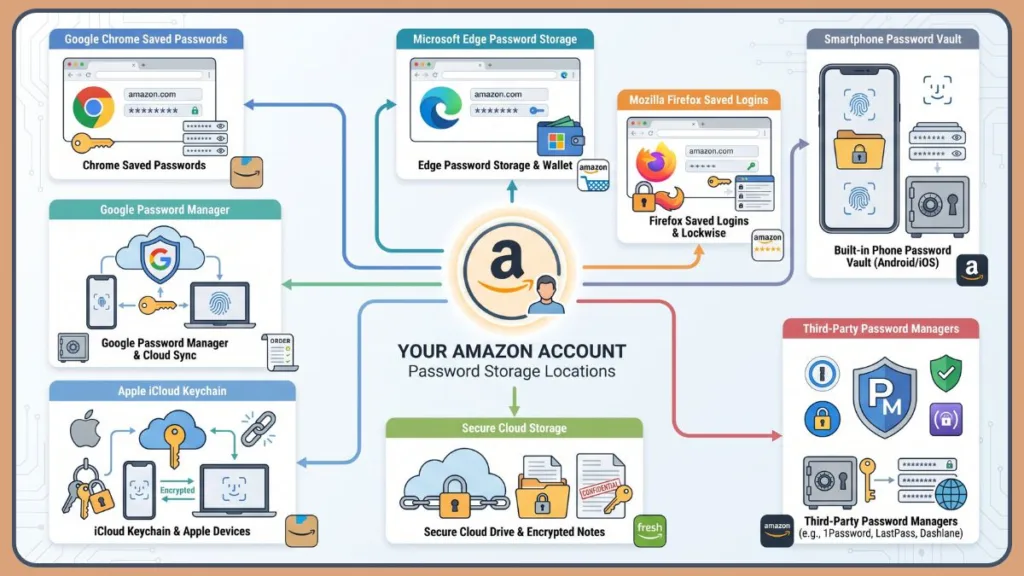
How to Find Your Amazon Password Using a Password Manager
If none of your browsers have it stored, a dedicated password manager might already have it saved for you — and it’s even more reliable. If you have ever used a dedicated digital vault to keep your online life organized, checking your password manager for Amazon is the smartest move. These tools are built exactly for this scenario. If you want to safely retrieve your credentials without a reset, relying on the best password managers for Amazon will save you immense time.
How to Retrieve Your Amazon Password from Google Password Manager
If you use an Android phone or sync your Google account across devices, checking Google Password Manager for Amazon is your best option.
- Open your browser and go to passwords.google.com.
- Search for “Amazon” in the search bar.
- Click on the Amazon entry. Google will ask you to verify your identity by entering your Google account password.
- Once verified, click the eye icon to reveal your password.
Finding Your Amazon Password in Apple iCloud Keychain
Apple users have a built-in password manager that syncs seamlessly across iPads, iPhones, and MacBooks. To find your iCloud Keychain Amazon password:
- On iPhone/iPad: Go to Settings > Passwords. Use Face ID or Touch ID to unlock, then search for “Amazon”. Tap the entry to see the password.
- On Mac: Open System Settings (or System Preferences) > Passwords. Verify with Touch ID or your Mac password, search for your Amazon entry, and hover over the password dots to view it.
How to Check Amazon Login Details in LastPass, 1Password, or Dashlane
If you rely on a third-party manager, the process is universally simple:
How to Check Amazon Login Details in LastPass
- Open the LastPass browser extension or mobile app.
- Enter your Master Password or use biometric login to access your Vault.
- Type “Amazon” into the search bar at the top of the interface.
- Hover over the Amazon entry and click the wrench (Edit) icon, or tap the entry directly if you are on a mobile device.
- Click or tap the eye icon next to the Password field to reveal your saved password.
How to Check Amazon Login Details in 1Password
- Open the 1Password app or click the 1Password browser extension icon.
- Unlock your account using your Master Password, Touch ID, or Face ID.
- Use the search bar to locate your Amazon login item.
- Select the Amazon entry to open its login details.
- Click the Reveal button or the eye icon next to the concealed password dots to show the hidden text.
How to Check Amazon Login Details in Dashlane
- Open the Dashlane web app, browser extension, or mobile app.
- Log in with your Master Password or verify your identity with biometrics.
- Navigate to the Logins (or Passwords) section of your vault.
- Search for “Amazon” and click or tap on the profile.
- Select the Show icon (the eye symbol) next to your password to make it visible.
How to Recover Amazon Password Without Resetting (OTP Method)
Before you give up and hit reset, there’s one more option that most people completely overlook — and it takes less than a minute. If you want to know how to log into Amazon without a password entirely, you can use a One-Time Password.
Amazon lets you bypass the password screen by sending a secure code to your phone. If you are already logged in on the Amazon app login screen on your phone, you might not even need this, but for new devices, here is how to use an Amazon OTP:
- Go to the Amazon sign-in page on your new device (like your smart TV or laptop).
- Instead of typing your email, enter your mobile phone number (make sure to include your country code, such as +91 for India or +1 for the US).
- Look for and click the option that says “Sign in with OTP” (or “Get an OTP on your phone”).
- Optional Step: Amazon may ask you to complete a quick CAPTCHA puzzle (typing letters from an image) to prove you are human. Complete this if prompted.
- Check your phone’s text messages for a temporary 6-digit code from Amazon.
- Enter that exact code into the empty box on your screen and click Submit Code.
You are in! No password needed, and you haven’t triggered a household-wide password reset.
Important Note: Your phone number must already be linked to your Amazon account for this to work. If you find yourself on a “Sign Up” page instead of “Sign In,” double-check that you are on the correct Amazon login portal and haven’t accidentally clicked to create a new account.
What to Do If You Can’t Access Your Amazon Account Email or Phone Number
Things get a bit trickier here. If you are locked out of an old email address (like an ancient Yahoo or AOL account) and don’t have your current phone number linked, you will need to initiate official Amazon account recovery. If you absolutely must find your Amazon account password to regain access to your Amazon account, manual verification is required.
- Option 1: Try linked accounts. If you previously linked your Apple or Google account to Amazon, try clicking “Continue with Google” or “Continue with Apple” on the login screen. This bypasses the traditional password entry completely.
- Option 2: Contact Amazon Customer Support. You will need to reach out directly to Amazon for identity verification. They cannot tell you your password, but they can help you recover the account. Be prepared to answer security questions, such as providing your recent order history, the last four digits of your saved credit card, or your default delivery address.
How to Navigate to Amazon Login & Security Recovery:
- Go to the Amazon Customer Service page on a web browser.
- Select Something Else or Login and Security.
- Choose the option indicating you cannot log into your account.
- Follow the prompts to request a call from an Amazon representative or open a live chat.
- Explain your situation clearly: you have lost access to your primary email/phone and need to verify your identity to regain access.
Keep in mind: Your Amazon login controls your access to Prime Video, Amazon Music, and your Kindle library. Resolving this with customer support is highly worth the temporary hassle.
How to Avoid Forgetting Your Amazon Password in the Future
Once you successfully log in, take five minutes to secure your credentials so you never have to deal with this again. This is also the secret to figuring out how to stay logged into Amazon without constant interruptions.
- Use a Password Manager: Stop trying to memorize complex strings of text. Set up a vault to do the heavy lifting for you.
- Stop Reusing Passwords: Never use your Amazon password for your Facebook, Meta, Google, or banking accounts. If one of those other platforms experiences a data breach, hackers will immediately try those same credentials on Amazon.
- Build a Strong Password: If you do reset, make your new password at least 12 characters long, mixing uppercase letters, numbers, and symbols.
- Enable Amazon Two-Factor Authentication: Setting up two-step verification for Amazon adds an essential layer of security. Even if someone guesses your password, they can’t get in without a code sent to your phone. It also gives you that handy OTP fallback option we discussed earlier.
How to Enable Two-Step Verification on Amazon:
- Log into your Amazon account and go to Your Account.
- Click on Login & security.
- Locate 2-step verification and click Turn on.
- Choose whether you want to receive codes via a Phone number (text message/call) or an Authenticator App (like Google Authenticator or Authy).
- Enter the phone number or scan the QR code with your app.
- Verify the setup by entering the code provided.
Frequently Asked Questions
Can Amazon Support Tell Me My Current Password?
No. Amazon cannot see your plain-text password due to strict encryption and hashing protocols. They can only assist you in recovering your account so you can securely reset it.
Is It Safe to Save My Amazon Password in My Browser?
Saving passwords in Chrome or Firefox is highly convenient, but it is generally less secure than using a dedicated password manager. It is generally okay for personal, non-shared computers, but avoid browser saving if you use a public or family computer.
What If My Saved Amazon Password in Chrome Isn’t Working?
If the password you uncover in Chrome fails, it is likely outdated. You may have changed your Amazon password on your phone or another device since Chrome last saved it. In this case, a password reset may be your only option.
Can I Log Into Amazon Without a Password or Email?
Yes. If you have your mobile number linked to your Amazon account, you can enter your phone number on the login screen and request a One-Time Password (OTP) via text message to sign in.
How Do I Recover My Amazon Account If I No Longer Have Access to My Email or Phone?
You will need to contact Amazon Customer Support directly. They will ask you a series of account verification questions (like recent purchases or saved addresses) to confirm your identity before helping you regain access.
What Should I Do If I Think Someone Else Changed My Amazon Password?
If you suspect your account has been compromised, contact Amazon Support immediately. You should also check your linked bank accounts for unauthorized charges and enable Two-Step Verification (2FA) as soon as you regain access to lock out the intruder.
Conclusion
Losing track of your login details is incredibly frustrating, especially when a simple reset causes a domino effect of logging out all your smart home devices.
Before you hit that reset button, take a few minutes to dig into your digital memory banks. Check Google Chrome, Safari, or your dedicated password manager. If you simply need to stream a movie or buy a quick item, remember that the OTP text message method is the absolute quickest way to get logged in without touching your actual password. A successful Amazon password recovery without reset just takes a little digging in your device settings.
Final Tip: Once you’re back in, take two minutes to save your credentials in a password manager. It’s the one step that makes sure you never end up in this situation again.
Were you able to uncover your saved password using your device settings, or did you end up using the text message workaround? Let us know in the comments below, and share this post with anyone who constantly forgets their logins!
Visit Our Post Page: Blog Page
Discover more from Izoate
Subscribe to get the latest posts sent to your email.