
Need to know how to enable cookies in Safari on your iPhone, iPad, or Mac? Learn the simple way to allow and manage website cookies in Safari easily.
Ever been stuck in an infinite login loop where a website insists you “enable cookies” even though you’re certain you haven’t touched your settings? It’s a classic 2026 frustration. You might see errors like “Your browser’s cookie functionality is turned off” or find that items you just added to a shopping cart vanish the moment you click “Checkout.” As Apple continues to double down on privacy, Safari has become increasingly aggressive at blocking data by default. While great for stopping trackers, it often breaks essential site functions like shopping carts, banking portals, and school management systems like Canvas or Blackboard.
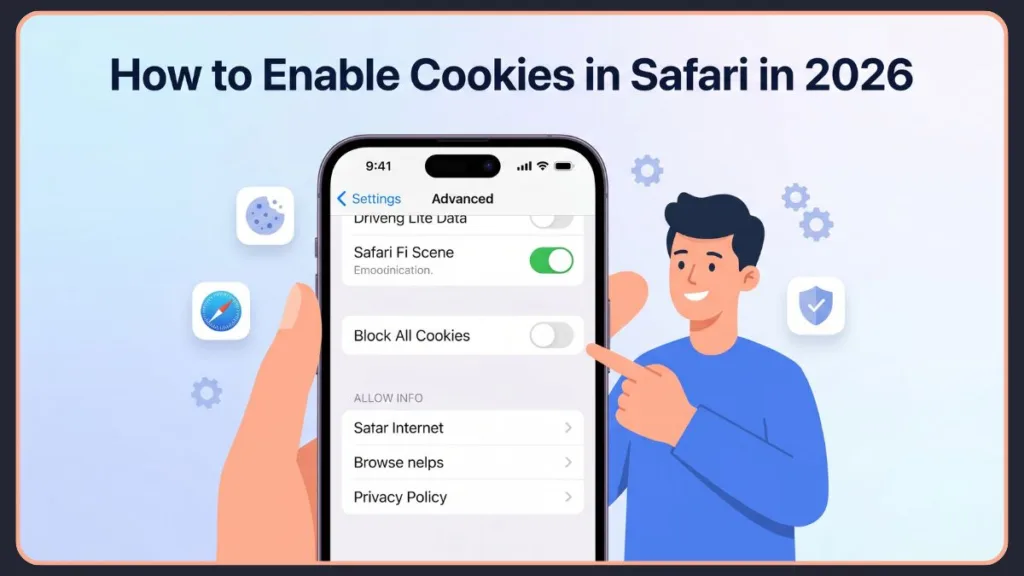
The good news? Fixing this takes less than a minute. Whether you’re on the latest iOS 18 or macOS Sequoia, this guide will walk you through exactly how to get your browser back in sync without sacrificing your digital soul. We’ll cover the specific paths for the newest updates and the legacy settings for older devices. Furthermore, we’ll explore how newer features—like Safari Profiles and Advanced Tracking Protection—interact with your cookie preferences to give you complete control over your web experience.
What Are Browser Cookies and Why Does Safari Block Them by Default in 2026?
Think of cookies as digital “sticky notes.” When you log into a site or add an item to a cart, the website places a small text file on your device so it can remember who you are as you move from page to page. Without them, the internet has no “memory”—every time you clicked a new link, the site would treat you like a total stranger and ask you to log in again.
In 2026, Safari uses an evolved version of Intelligent Tracking Prevention (ITP). Apple’s philosophy is simple: your data shouldn’t follow you across the web. ITP uses an on-device Machine Learning Classifier to collect statistics on resource loads and user interactions, distinguishing between “helpful” cookies (first-party) and “intrusive” cookies (third-party).
- First-Party Cookies: Set by the website you are actually visiting (e.g., Amazon remembering your cart).
- Third-Party Cookies: Set by a different domain, usually for tracking your behavior across multiple sites to build an advertising profile.
Safari restricts these third-party trackers more aggressively than any other major browser, which is why some older websites—built on legacy tech—struggle to load properly in Apple’s ecosystem. Behind the scenes, ITP automatically partitions third-party cookie storage based on the top-level domain (TLD+1), meaning even if a site is allowed to use cookies, it cannot share that specific tracking data with other websites you visit. Additionally, Safari now aggressively targets non-cookie tracking; for example, it deletes all local browser storage (LocalStorage data) after just 7 days if the referring domain is classified as a tracker.
Important Tip: If a website keeps asking you to “Accept Cookies” every single time you visit, it usually means your Safari settings are deleting that “acceptance cookie” too quickly. Ensure Block All Cookies is off to stop this annoyance.
How to Enable Cookies in Safari on iPhone and iPad (iOS 18 Settings Path Explained)
Apple recently reorganized the Settings app in iOS 18, moving Safari settings into a new consolidated “Apps” sub-menu to reduce clutter in the main list. Here is the updated path to get those cookies working:
- Open the Settings app on your iPhone or iPad.
- Scroll down to the new Apps section (this replaces the long list of individual app icons in previous versions).
- Find and select Safari.
- Scroll to the very bottom of the Safari menu and tap Advanced.
- Look for the Privacy subsection and ensure the toggle for Block All Cookies is turned OFF.
While you are in this new iOS 18 menu, you can also customize your browsing experience by adjusting the Tab Bar layout (Top, Bottom, or the new Compact design) and setting up your Start Page.
Important Tip: In Safari’s world, OFF means ON. By turning the “Block All” switch off (so it is grey, not green), you are allowing websites to place necessary cookies on your device. This is the recommended setting for 99% of users to ensure websites function correctly.
Where to Find Safari Cookie Settings on iOS 17 and Earlier Devices
If you are using an older device or haven’t updated to iOS 18 yet, the navigation is slightly different as the “Apps” menu doesn’t exist:
- Go to Settings > Safari.
- Scroll down to the bottom and tap Advanced.
- Toggle Block All Cookies to the OFF position.
- Note for older iOS: You may also see a “Privacy & Security” section directly in the Safari menu where “Prevent Cross-Site Tracking” is located.
It is also worth noting that iOS 17 introduced the “Require Face ID to unlock Private Browsing” feature. If you frequently use Private Browsing on these older devices to bypass cookie tracking, you’ll find this setting in the main Safari menu, ensuring your cookie-free sessions remain locked behind biometric security.
How to Enable Cookies in Safari on Mac (macOS Sequoia and Earlier Versions)
On a Mac, the process is handled within the browser itself rather than the System Settings app, providing a more centralized control for your desktop browsing experience.
- Open Safari on your MacBook or iMac.
- In the top menu bar, click Safari and then Settings (or Preferences if you are running a version older than macOS Ventura).
- Click on the Privacy tab (indicated by the blue hand icon).
- Find the “Cookies and website data” section and uncheck the box that says Block all cookies.
- You can also click Manage Website Data here to see exactly which sites have already stored information on your Mac. This robust menu allows you to view detailed lists of which websites are caching data and lets you selectively remove tracking data for individual domains without wiping your entire browser history.
In macOS Sequoia, this same Privacy menu also houses the “Hide IP address from trackers” setting, which works hand-in-hand with cookie blocking to ensure complete anonymity by hiding your unique network identifier.
Understanding the “Prevent Cross-Site Tracking” Setting in Safari on Mac for Better Privacy
While in the Privacy tab, you’ll see another checkbox: Prevent Cross-Site Tracking. It is vital to understand the difference between these two:
- Block All Cookies: Disables everything. This will break almost every site that requires a login or a persistent session.
- Prevent Cross-Site Tracking: This is Apple’s ITP in action. It stops advertisers (like Facebook or Google) from following you as you browse other unrelated sites, but it usually allows the website you are currently visiting to function normally. By periodically deleting tracking data from third-party content providers, Safari keeps your localized browsing functional.
Important Tip: Keep “Prevent Cross-Site Tracking” checked for high-level privacy, but keep “Block All Cookies” unchecked to ensure you can actually use the internet.
Pro-Tip: If you are an iCloud+ subscriber, you can further enhance this by setting your IP address to be hidden from both trackers and websites via the iCloud Private Relay feature, which encrypts your DNS requests alongside your cookie data.
How to Allow Cookies for a Specific Website in Safari Without Breaking Privacy Settings
Safari is notoriously “all or nothing”—unlike Chrome, it doesn’t currently offer a simple “whitelist” for cookies in the settings menu. However, if a specific site (like a work dashboard or a niche government portal) still isn’t working, use this 2026 workaround:
- Temporarily disable “Prevent Cross-Site Tracking” in your Privacy settings.
- Log in to the website and perform your tasks.
- Once the “session” is established, you can often re-enable the setting.
- Alternative: Right-click the URL bar (or tap the ‘Aa’ icon on iPhone) and select Settings for This Website. While it doesn’t always show a cookie toggle, ensuring “Use Content Blockers” is turned off for that site can often resolve the same functional issues.
For Mac users, there is a dedicated override feature for stubbornly broken pages. If you suspect privacy settings are breaking the site, you can go to the top menu bar, click View, and select Reload Reducing Privacy Protections. This temporarily drops the firewall for that specific domain.
Additionally, you can perform a targeted clear. Go to Advanced > Website Data (on iOS) or Privacy > Manage Website Data (on Mac), search for the specific site, and delete only that data. This clears a “stuck” cookie without logging you out of every other site you use.
The Safari Profiles Workaround: A brilliant 2026 strategy is to use the Safari Profiles feature (found in Settings > Apps > Safari > Profiles on iOS, or Safari > Settings > Profiles on Mac). Because each profile acts as an isolated sandbox with separate cookie storage, you can create a “Work” profile with looser cookie restrictions for legacy portals, while keeping your “Personal” profile locked down.
Why Are Cookies Still Blocked in Safari After Enabling Them? (Troubleshooting Guide That Actually Works)
Sometimes you flip the switch and… nothing happens. In 2026, there are several “stealth” reasons why Safari might still be acting like cookies are disabled.
Private Browsing Mode Blocks Cookies in Safari (Most Common Cause)
If your Safari address bar is dark or says “Private,” cookies are handled very differently. While you can log in, Safari does not save these cookies once the tab or the window is closed. Browsing initiated in one private tab is completely isolated from browsing in another, so persistent sessions cannot be shared. Some websites detect this “non-persistent” state and throw a cookie error immediately. Switch to a standard tab to see if the issue persists. Furthermore, in macOS Sequoia, the “Use advanced tracking and fingerprinting protection” setting is turned ON by default for all Private Browsing, creating an even stricter firewall against data collection that often masquerades as a cookie error.
How to Clear Cookies for One Website in Safari Without Losing Everything
A “login loop” is often caused by a corrupt cookie, not a blocked one.
- On iPhone: Settings > Apps > Safari > Advanced > Website Data. Swipe left on the specific site and tap Delete.
- On Mac: Safari Settings > Privacy > Manage Website Data. Search for the site and click Remove.This forces the site to issue a brand-new, clean cookie to your browser. Remember that doing this also deletes the site’s HTML5 local storage—which is frequently what’s actually corrupted when a site refuses to load.
Restart Safari After Changing Cross-Site Tracking Settings to Apply Changes
Modern macOS and iOS are great at multitasking, but Safari often “caches” (saves) your privacy state. After you toggle “Block All Cookies” off, double-tap your home bar/button and swipe Safari away to close it completely, then re-open it to force the new permissions to load. On a Mac, closing the window isn’t enough; you must fully quit the application (Cmd + Q) and restart it.
Check if iCloud Sync Is Overriding Your Safari Cookie Settings Across Devices
In 2026, “Safari Settings” can sync across your Mac, iPhone, and iPad via iCloud. If you have a work Mac with strict “Block All Cookies” settings, it may occasionally push that setting to your iPhone. Check Settings > [Your Name] > iCloud > Show All to see if Safari sync is active and potentially causing cross-device conflicts.
Block All Cookies vs. Prevent Cross-Site Tracking: What’s the Difference in Safari Settings?
| Setting | Effect on Browsing | Impact on Privacy | Recommended Action |
| Block All Cookies | Breaks logins, shopping carts, and site preferences. | Maximum (too high) | Keep OFF |
| Prevent Cross-Site Tracking | Limits advertisers’ ability to track you across different sites. | High (balanced) | Keep ON |
| Advanced Tracking & Fingerprinting Protection | Strips tracking parameters from URLs and stops device identification. | Very High (Private Mode Default) | Leave Default |
By keeping “Block All Cookies” off, you allow functional data. By keeping “Prevent Cross-Site Tracking” on, you stop behavioral data collection. When you add Link Tracking Protection to the mix, Safari automatically removes unique tracking identifiers added to the ends of URLs, ensuring data brokers cannot circumvent your cookie preferences via click-through attribution.
Do Safari Cookie Settings Affect Privacy? What You Should Know Before Enabling Cookies
Absolutely. Enabling cookies does mean that websites can “remember” you. However, there is a major trade-off to consider:
- With Cookies: You stay logged in, your “Dark Mode” preferences are saved, and your shopping carts remain full.
- Without Cookies: You are a ghost. You cannot use any site that requires an account, and many sites will show you the same “Accept our Terms” pop-up every single time you refresh the page.
In the modern web landscape of 2026, first-party cookies are a necessity for the internet to function. Apple’s stricter defaults in iOS 18 and macOS Sequoia are designed to protect you from the bad cookies without making the web unusable. Use the Privacy Report (tap the shield icon next to the URL) to see exactly how many trackers Safari has blocked while still allowing your functional cookies to work.
Important Tip: Always review your Privacy Report weekly. It’s the best way to see which sites are trying the hardest to track you, allowing you to make informed decisions about which sites to visit.
Apple has specifically built Safari with privacy by design. Because Intelligent Tracking Prevention relies heavily on on-device machine learning, your tracking data and classification statistics are processed locally. Your browsing history is never sent to Apple, and the analytics data they do collect uses differential privacy—a technique that completely obscures your individual identity while allowing engineers to identify broad browsing trends.
How to Enable Cookies in Safari: Quick Recap for All Devices (iPhone, iPad, Mac)
- iPhone/iPad (iOS 18+): Settings > Apps > Safari > Advanced > Turn OFF “Block All Cookies.”
- iPhone/iPad (Legacy): Settings > Safari > Advanced > Turn OFF “Block All Cookies.”
- Mac (All Versions): Safari > Settings > Privacy > Uncheck “Block all cookies.”
- Quick Troubleshooting: If it still fails, check if you’re in Private Browsing (which enforces advanced tracking protection), disable iCloud Private Relay temporarily, or ensure Screen Time restrictions aren’t locking your privacy settings.
Fix Cookie Issues Across All Your Apple Devices the Smart Way in 2026
Safari’s privacy-first approach is one of the best reasons to stay in the Apple ecosystem, but it shouldn’t come at the cost of a broken web experience. By understanding the difference between “tracking” and “functional cookies,” you can keep your data secure while ensuring your favorite sites work exactly as they should.
Control is in your hands—Safari provides the armor with sophisticated features like localized machine learning and fingerprinting defense, but you decide when to lift the visor to let a trusted website in.
Did this guide help you fix your login issues? Let us know in the comments if you’ve run into any weird iOS 18 bugs we should cover next, or if a specific website is still giving you trouble!
Visit Our Post Page: Blog Page
Discover more from Izoate
Subscribe to get the latest posts sent to your email.