
Want to protect sensitive emails and attachments in 2026? Learn how to encrypt an email in Outlook using simple step-by-step methods. From Microsoft 365 encryption and Do Not Forward protection to secure attachments and encrypted Outlook emails for Gmail users, keep your private communication safe and secure today.
Sending sensitive information through regular email often feels like sending a postcard; the contents are visible to anyone handling it along the way. When your messages contain financial details, business documents, passwords, legal files, or private conversations, the stakes are high. Even a minor oversight, such as mistyping a recipient’s address or relying on an unsecured connection, can expose confidential data to unauthorized eyes.
This vulnerability is exactly why professionals and home users alike look for ways to send a secure email in Outlook rather than trusting standard delivery. Fortunately, Microsoft Outlook simplifies this by providing built-in email encryption and security tools. These features allow you to protect messages, attachments, and personal information without the headache of installing complex third-party software.
Whether you are navigating Outlook.com, working within Microsoft 365, or using the desktop Outlook app, you can easily encrypt Outlook emails, restrict forwarding, and securely share confidential files with internal colleagues and external partners. Furthermore, Microsoft 365 Message Encryption ensures these secure features extend to recipients using Gmail, Yahoo, and other third-party services.
In this guide, we will walk you through how to send encrypted email in Outlook step by step. You will discover how Outlook email encryption functions, what happens to your secure attachments once they are sent, and how your recipients can safely access protected messages. We will also clarify the technical differences between standard TLS protection and Microsoft’s advanced encryption features, helping you choose the perfect level of security for your specific needs.
What Does “Secure Email” Mean in Outlook?
Think of a secure email in Outlook as a digital vault for your communication. It protects your message both as it travels across the internet and after it sits in the recipient’s inbox. By moving away from readable plain-text emails, Outlook utilizes encryption and granular access controls to ensure sensitive information remains strictly private.
When you trigger a secure Outlook email, the system transforms your message into encrypted data that remains unreadable to everyone except authorized recipients. This robust layer of defense is your best protection against hackers, phishing attempts, spoofing attacks, and the accidental exposure of data.
Outlook’s secure email framework is built upon two essential pillars: encryption and access control.
Encryption Protects the Email Content
Encryption acts as a high-level scrambler, turning your message and attachments into unreadable code during delivery. Only the intended recipient—after successfully passing an authentication check—can decrypt and read the content.
Microsoft Outlook draws from a versatile toolkit of encryption technologies, including Microsoft Purview Message Encryption, TLS encryption, and S/MIME certificates. These professional-grade tools secure Outlook email messages for everything from casual personal notes to high-stakes business communication.
Imagine you are sending banking details, medical records, or confidential work contracts. By utilizing Outlook email encryption, you ensure that even if a message is intercepted, the information remains locked and useless to unauthorized users.
Access Control Helps Restrict Sharing
Security shouldn’t end once the email is opened. Outlook grants you significant influence over what a recipient can do with your message after they read it. Depending on the permission levels you establish, you can effectively prevent recipients from forwarding, copying, or even printing your secure email messages.
Specific features like Do Not Forward provide a necessary safeguard for confidential emails and sensitive attachments. This level of control is indispensable for organizations sharing internal strategy documents or legal files that must stay within a specific circle.
Encryption and Authentication Are Different
It is a common misconception that an encrypted email automatically proves the sender’s identity. In reality, encryption and authentication serve two distinct security roles.
- Encryption focuses on the “what”—protecting the actual content of the email.
- Authentication (using protocols like SPF, DKIM, and DMARC) focuses on the “who”—verifying that the sender is legitimate and preventing address spoofing.
When used together, these layers provide a comprehensive defense, ensuring both the privacy of your content and the trustworthiness of your digital identity, which significantly lowers the risk of phishing.
Does Outlook Offer Secure Email Features?
The answer is a resounding yes. Outlook provides a suite of built-in secure email features designed to protect messages and attachments without forcing you to buy extra software. Regardless of whether you prefer the web interface at Outlook.com or the robust Outlook desktop app, Microsoft layers your communication with professional security.
While many users are familiar with basic spam filtering, Outlook’s capabilities go much deeper. Microsoft has integrated sophisticated encryption tools, digital signatures, and permission controls to ensure you can send secure emails with total confidence.
Microsoft Purview Message Encryption
One of the cornerstones of the platform’s security is Microsoft Purview Message Encryption (formerly known as Office 365 Message Encryption).
This feature empowers you to send encrypted email in Outlook while strictly limiting who can view the content. The protection doesn’t vanish once the email arrives; it stays with the message even as it sits in the recipient’s inbox. While standard security often only covers the “transit” phase, Microsoft 365 Message Encryption secures the actual data and attachments long after delivery. This is particularly vital when sharing sensitive payroll reports, legal contracts, or personal financial records.
Universal compatibility is another major highlight. You can send secure Outlook emails to users on Gmail, Yahoo Mail, or AOL without issue. Recipients simply verify their identity using a Microsoft account, their existing Google/Yahoo login, or a convenient one-time passcode.
S/MIME Encryption for Advanced Security
For those operating in high-security environments, Outlook supports S/MIME certificates.
S/MIME (Secure/Multipurpose Internet Mail Extensions) relies on certificate-based encryption and digital signatures. You will typically find this method used in government agencies, healthcare systems, and corporate environments where data integrity is paramount.
With S/MIME, only a recipient holding the specific digital certificate can open the encrypted Outlook email. This method also verifies that the message wasn’t tampered with during its journey. While S/MIME offers elite authentication, it does require more technical setup than standard Microsoft 365 encryption, making it a staple of the business world rather than personal accounts.
Digital Signatures Help Verify Identity
Outlook’s security suite also includes digital signatures, which serve as a digital “seal of authenticity” for the sender. Because encryption alone doesn’t prove who clicked “send,” cybercriminals still attempt to impersonate trusted contacts.
A signed email guarantees the message genuinely originated from you and remained unaltered during transmission. This adds a critical layer of trust when you are sharing confidential details through Outlook.
TLS Encryption Protects Emails in Transit
By default, Outlook employs Transport Layer Security (TLS) to encrypt the “tunnel” between mail servers.
This prevents your emails from being intercepted while they move across the internet, which is especially important if you are sending mail over public or unsecured Wi-Fi. However, keep in mind that TLS primarily secures the connection itself; it may not keep the content encrypted once it reaches the recipient’s provider. This is why Microsoft encourages using specific features like Encrypt or Do Not Forward for your most sensitive information.
Outlook Also Supports Extra Security Tools
Beyond the primary encryption tools, Microsoft integrates several supporting layers to harden your account:
- Multi-factor authentication (MFA)
- Advanced anti-phishing protection
- Dynamic sensitivity labels
- Standard authentication (SPF, DKIM, and DMARC)
- Specialized third-party security add-ins
Requirements Before You Can Send Secure Emails in Outlook
Before diving into the settings, it is important to ensure your environment is ready. Many users find the Encrypt button missing simply because their specific subscription or app version doesn’t support these advanced tools.
You Need a Supported Microsoft 365 Subscription
Advanced Outlook secure email features are generally reserved for premium accounts. To send encrypted email in Outlook, your account usually needs to be part of:
- Microsoft 365 Personal
- Microsoft 365 Family
- Microsoft 365 Business Premium
- Various Enterprise Microsoft 365 plans
If you are currently using a free Outlook.com account without a paid subscription, you may find that many advanced encryption options are unavailable.
Make Sure Outlook Is Updated
Outdated software is a common roadblock for security features. To ensure your encryption controls appear and function correctly:
- Regularly check for and install Outlook updates.
- Stay current with the latest Microsoft 365 patches.
- Embrace the “New Outlook” or modern experience when prompted.
The Encrypt Button May Be Missing
If the Encrypt option is greyed out or invisible, it is usually due to one of a few factors: your subscription doesn’t include it, your app is outdated, or your organization’s IT administrator has restricted the feature. In corporate settings, administrators often have the final say on who can access secure email tools.
Some Features Require Admin Configuration
More advanced capabilities, like automatic encryption rules or using [ENCRYPT] as a subject-line trigger, often require backend setup in Microsoft Exchange. Some organizations set up “mail flow rules” that scan for these keywords to ensure sensitive data is never sent in the clear.
S/MIME Encryption Requires Certificates
If your workflow demands S/MIME instead of the standard Microsoft 365 encryption, you must have a valid S/MIME certificate installed on your device. Because this involves extra configuration, most personal users find Microsoft Purview Message Encryption to be the more practical daily choice.
How to Send a Secure Email in Outlook Desktop App
If you have a compatible subscription, sending a secure email in Outlook desktop is a seamless process. These built-in controls allow you to lock down the message and any files before they ever leave your computer—perfect for sharing sensitive contracts or personal tax documents.
Encrypt a Single Email Message in Outlook
To secure an individual message:
- Open Outlook and select New Email.
- In the composition window, click the Options tab on the top ribbon.
- Locate and click the Encrypt button.
- A menu will appear with various encryption and permission settings.
- Select the security level that fits your message.
- Compose your email and click Send.
Outlook then takes over, automatically encrypting the text and any attachments based on your choice. If your recipient is also on Microsoft 365, they will likely open it just like any other mail. Those on other services may be prompted to verify their identity through a secure portal.
Understanding the Encrypt Options in Outlook
When you click that Encrypt button, you are typically presented with two main choices: Encrypt-Only and Do Not Forward.
Encrypt-Only
Choosing “Encrypt-Only” locks the content during transit and storage. The recipient is still free to:
- Reply to the message.
- Forward it to others.
- Copy the text for their own records.
This is the “standard” security choice when you want to protect data from hackers but don’t mind the recipient sharing the information further.
Do Not Forward
For higher-stakes communication, the “Do Not Forward” option provides much tighter control. While the recipient can read the email, Outlook actively blocks them from:
- Forwarding the message to new people.
- Copying or printing the text.
- Downloading protected Office attachments for unrestricted use.
Sending Secure Emails with S/MIME Encryption
In corporate or government settings where S/MIME is the standard, you may see specific “Sign” or “Encrypt with S/MIME” options. This relies on certificate-based verification to ensure the message is both private and authentically from you. For most users, however, the standard “Encrypt” button remains the fastest path to security.
How to Send a Secure Email in Outlook Web App (Outlook.com)
You don’t need the desktop app to stay secure. If you’re working from a browser at Outlook.com or through a Microsoft 365 web portal, you have access to nearly the same encryption tools. This is a lifesaver for remote workers or anyone using a shared device.
Send an Encrypted Email in Outlook Web
Securing your web mail is straightforward:
- Sign in to your Outlook.com or Microsoft 365 account.
- Click New Mail to start a draft.
- In the toolbar at the top of the message, select Encrypt.
- Choose the permission setting (like “Encrypt” or “Do Not Forward“).
- Write your email and send it as usual.
How Encrypted Emails Work for Recipients
Recipients using Outlook or Microsoft 365 will see a lock icon and can usually read the message immediately. If you’re sending to a Gmail or Yahoo user, they will receive a notification with a link to the Microsoft 365 Message Encryption portal, where they can quickly verify their identity and read the message.
Attachments Stay Protected Too
When you encrypt via the web app, your attachments are automatically included in that protection. It is important to note that while the “Encrypt” option allows some files to be saved locally without a lock, the “Do Not Forward” setting keeps Microsoft Office documents protected even after they are downloaded, preventing them from being viewed by unauthorized third parties.
How to Encrypt All Outgoing Emails in Outlook
For those who handle confidential data daily—such as HR professionals sending payroll reports or legal teams managing contracts—manually clicking “Encrypt” every time is tedious. Outlook allows you to automate this, ensuring every message you send is wrapped in a layer of protection by default.
Why Encrypting All Emails Can Be Useful
Automating your encryption helps you:
- Eliminate the risk of forgetting to secure a sensitive message.
- Maintain a consistent privacy standard for all company communication.
- Protect even “casual” messages that might accidentally contain personal data.
How to Encrypt All Emails in Outlook Desktop
To turn on “Always Encrypt” mode:
- In Outlook, click the File tab.
- Select Options and then Trust Center.
- Click Trust Center Settings and navigate to Email Security.
- Under the “Encrypted email” header, check the box: Encrypt contents and attachments for outgoing messages.
- Click OK to apply.
Automatic Encryption May Depend on Your Organization
In many professional environments, IT admins handle this at the server level. They might set up rules that automatically encrypt any email containing “Social Security Number,” “Confidential,” or specific financial keywords. This allows employees to work naturally while the system provides a “safety net” in the background.
Things to Keep in Mind Before Encrypting Everything
While safer, encrypting every single email can be a bit much for routine “lunch plans” or quick “thank you” notes. It might add an extra verification step for your recipients, so many users prefer a balanced approach—using manual encryption or subject-line triggers for truly sensitive matters.
How to Send Secure Email Attachments in Outlook
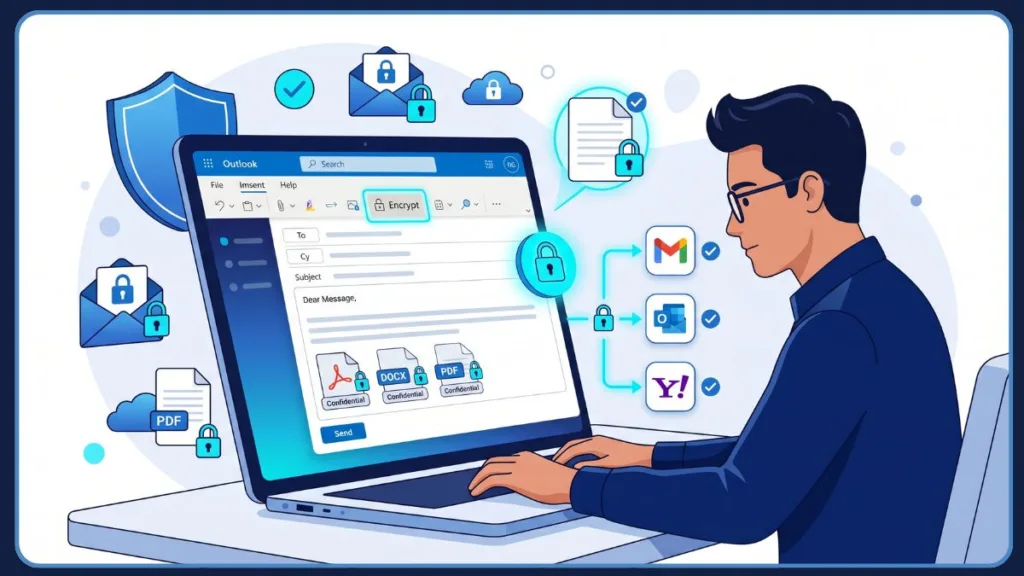
The most sensitive data often hides inside attachments—spreadsheets of client data, PDFs of medical records, or ZIP files containing proprietary code. Outlook’s encryption features are designed to cover these files automatically whenever a message is secured.
How Outlook Attachment Encryption Works
When you enable encryption, your attachments are shielded during delivery and while they reside in supported Microsoft environments. The actual behavior of the file depends on the settings you chose. For instance, a standard encrypted attachment might lose its protection once downloaded, while a “Do Not Forward” attachment stays locked down much tighter.
Microsoft Office Files Receive Stronger Protection
Because of the deep integration between Outlook and the Office suite, files like Word docs, Excel sheets, and PowerPoint decks enjoy superior security. These files can remain encrypted even after a recipient saves them to their hard drive. If that recipient tries to forward the downloaded file to someone else, the new person won’t be able to open it without authorization.
PDFs and Image Files Behave Differently
It is important to be aware that some file types, such as PDFs or JPEGs, may lose their encryption once they are downloaded from the secure portal. While they are safe during the “viewing” phase, the local copy might be vulnerable. For these files, many experts recommend adding a secondary password to the PDF or ZIP file itself before attaching it to the email.
Use Sensitivity Labels for Extra Protection
If your organization uses Sensitivity Labels, you can classify data as “Confidential” or “Restricted Access” with a single click. These labels do more than just encrypt; they can actively block screen captures, prevent printing, and ensure that only specific departments can view the file, regardless of where it is sent.
How Recipients Open Encrypted Outlook Emails
A common fear is that sending an encrypted email will make life difficult for the person on the other end. Microsoft has worked hard to make the recipient experience as smooth as possible, regardless of which email provider they use.
What Happens When the Recipient Uses Outlook or Microsoft 365
For those within the Microsoft ecosystem, the experience is nearly invisible. They will see a lock icon or a banner stating “This message is encrypted,” but they can usually read the text and open attachments immediately after their account is authenticated.
How Gmail and Yahoo Users Open Secure Outlook Emails
If you send a secure email to a friend on Gmail, they will see a notification with a button to “Read the message.” Clicking this takes them to a secure web portal. They don’t need to create a new account; they can simply sign in with their existing Google or Yahoo credentials to unlock the message.
How Temporary One-Time Passcodes Work
For users on smaller providers or custom business domains, Microsoft offers a one-time passcode. The recipient clicks the link in their notification, requests a code, and Microsoft instantly sends a temporary digits-only password to their inbox. They enter that code into the portal, and the secure message is revealed.
Why Some Recipients Cannot Open Encrypted Emails
If someone is struggling to open your mail, it is usually due to an expired session, a browser extension blocking the portal, or aggressive corporate firewalls. Suggesting they try a different browser or request a new one-time passcode usually clears up the issue quickly.
How to Use Subject Line Encryption in Outlook
Manually navigating menus can be a drag when you’re in a “flow” state. To help, many organizations set up “Subject Line Encryption.” This allows you to trigger a secure email simply by adding a specific keyword to the subject of your message.
How Subject Line Encryption Works in Outlook
This relies on “mail flow rules” in the background. Your IT department tells the server: “If an outgoing email contains the word [ENCRYPT], lock it down before it leaves.” It’s an elegant way to ensure security without clicking through multiple tabs.
How to Send a Secure Outlook Email Using Subject Line Encryption
- Start a New Email.
- In the subject line, include the required tag, like [ENCRYPT].
- Example: [ENCRYPT] Q3 Payroll Adjustments.
- Write your message and hit Send.
Why Businesses Use Subject Line Encryption
It’s a massive time-saver and a great way to prevent human error. If an employee is sending a sensitive file from their phone—where the “Options” tab might be harder to find—they can just type the keyword to ensure the data is safe.
TLS vs Microsoft 365 Encryption: What’s the Difference?
It is easy to get these confused, but knowing the difference is key to choosing the right level of protection.
What Is TLS Encryption in Outlook?
TLS is like an armored truck that carries your mail from one post office to another. It protects the mail while it’s on the road, ensuring no one can grab it in transit.
TLS Mainly Protects the Journey
The limitation of TLS is that once the truck arrives and the mail is delivered, the protection is gone. If the recipient’s “post office” (their email provider) isn’t secure, or if the recipient forwards the email to someone else, the message is no longer protected.
What Is Microsoft 365 Message Encryption?
Microsoft 365 Message Encryption is like putting your letter inside a locked safe before you put it in the armored truck. Even after it’s delivered and taken out of the truck, the safe remains locked. Only the person with the right key can see what’s inside. This provides much stronger, long-term privacy for data like tax records or contracts.
Common Outlook Encryption Problems and Fixes
If you run into a snag, don’t worry—most encryption issues have simple solutions.
1. The Encrypt Button Is Missing
Check your subscription first. If you’re on a free plan, you likely won’t see it. If you are on a paid plan, make sure your Outlook app is fully updated to the latest version.
2. Outlook Encrypt Option Is Greyed Out
This is often a “handshake” issue between your app and the server. Try signing out of your Microsoft account and signing back in to refresh your license permissions.
3. Recipients Cannot Open Encrypted Emails
This is usually a browser issue. Ask the recipient to try opening the secure link in an “Incognito” or “InPrivate” window to ensure a browser extension isn’t interfering with the verification portal.
4. Secure Emails Go to Spam
Encryption makes the content safe, but it doesn’t verify your reputation. If your secure mails are hitting the junk folder, your organization may need to update its SPF, DKIM, and DMARC settings to prove to other servers that you are a legitimate sender.
Best Practices for Sending Secure Emails in Outlook
Technology is only half the battle; how you use it matters just as much.
- Double-Check the “To” Field: Encryption won’t help if you send a confidential client report to the wrong “John Smith.”
- Don’t “Double Up” Passwords: If you password-protect a ZIP file, don’t put that password in the same email. Text it to the recipient or call them instead.
- Use MFA: If your own account isn’t secure, an attacker can just read your sent encrypted messages. Enable Multi-Factor Authentication immediately.
- Update Regularly: Security is a cat-and-mouse game. Keeping your software updated ensures you have the latest “traps” for hackers.
Frequently Asked Questions
How do I encrypt an email in outlook?
To encrypt an email, open a New Email, go to the Options tab, click Encrypt, and select your desired security setting (such as Encrypt-Only) before clicking Send.
How to encrypt emails in Outlook 365?
In Outlook 365, you use the Microsoft Purview features located under the Options tab. Select the Encrypt button and choose the level of protection required for your Microsoft 365 subscription.
Can a recipient open an encrypted email?
Yes, a recipient can open an encrypted email easily. If they use Outlook, it opens automatically. If they use a third-party service like Gmail, they can sign in with their provider’s credentials or use a one-time passcode to view the content.
How can I send a secure email through Outlook?
You can send a secure email by navigating to the Options menu in a new message and applying encryption or Do Not Forward permissions. This ensures the message is protected both in transit and in the inbox.
How do I send a confidential email in Outlook?
To send a confidential email, use the Do Not Forward option or apply a Sensitivity Label (like “Confidential”). This restricts the recipient’s ability to share, print, or copy your sensitive information.
How do I make my Outlook email secure?
Beyond using encryption for individual messages, you should enable Multi-Factor Authentication (MFA), keep your Microsoft 365 apps updated, and follow strict DMARC/DKIM protocols for your domain.
How to properly send a secure email?
Properly sending a secure email involves verifying the recipient’s address, selecting the appropriate encryption level, and ensuring any attachments are also covered by the message’s security settings.
How can I create a secure email?
To create a secure email, start a new draft, compose your message, and then use the Encrypt tool under the Options ribbon to lock the content before it is transmitted.
How do I restrict access to an email in Outlook?
You can restrict access by choosing the Do Not Forward or Encrypt-Only permissions under the Encrypt menu. This prevents unauthorized users from viewing or sharing your confidential content.
How do I send a secure email in Outlook on Mac?
The process is nearly identical: Open a New Message, go to the Options tab, select Encrypt, choose your permission setting, and send.
Can I send secure emails from my phone?
Yes, the Outlook mobile app supports encryption. While composing a message, tap the three dots (…) to find the Security or Permissions settings.
Conclusion
In an era where phishing and data breaches are a daily occurrence, sending sensitive information through “plain” email is a risk you don’t have to take. Whether you are sharing business strategy, healthcare data, or personal financial records, Outlook’s built-in tools make professional-grade protection accessible to everyone.
By leveraging Microsoft 365 Message Encryption and features like “Do Not Forward,” you can ensure your data stays in the right hands. Security doesn’t have to be complicated—once you know where the buttons are and which settings to choose, protecting your digital life becomes second nature. Take a moment to verify your settings today and start communicating with the peace of mind that your private information is truly private.
Official Microsoft Help & Documentation
These are the primary starting points for both personal and business users. They are frequently updated to reflect the latest changes in the Microsoft Purview ecosystem.
- Send S/MIME or Microsoft Purview Encrypted Emails: The definitive guide for the “New Outlook,” Classic Outlook, and Outlook on the web. It includes step-by-step instructions for choosing between Encrypt-Only and Do Not Forward.
- Open Encrypted and Protected Messages: A vital resource to share with your recipients. It explains how Gmail, Yahoo, and third-party users can access your secure content via the One-Time Passcode (OTP) portal.
- Email Encryption in Microsoft 365 Overview: An advanced deep-dive that compares TLS, S/MIME, and IRM. This is excellent for understanding the “why” behind different security layers.
- Setting Up Microsoft Purview Message Encryption: This guide is for IT administrators. It covers how to verify Azure Rights Management and how to use Exchange Online PowerShell to confirm your tenant is ready for encryption.
- Encrypting Outlook Email on macOS: A platform-specific guide for Mac users, detailing how to customize the toolbar to add the Encryption icon for quick access.
Visit Our Post Page: Blog Page
Discover more from Izoate
Subscribe to get the latest posts sent to your email.